OM-1241-005_w.pdf - 第91页
2-27 AIX-ML T-ID [3] Operation Buttons [T each Start] Button When pressed, this button performs a teaching operation on the pickup position. When the [ST AR T] button on the operation panel is pressed in 10 seconds after…
2-26
AIX-MLT-ID
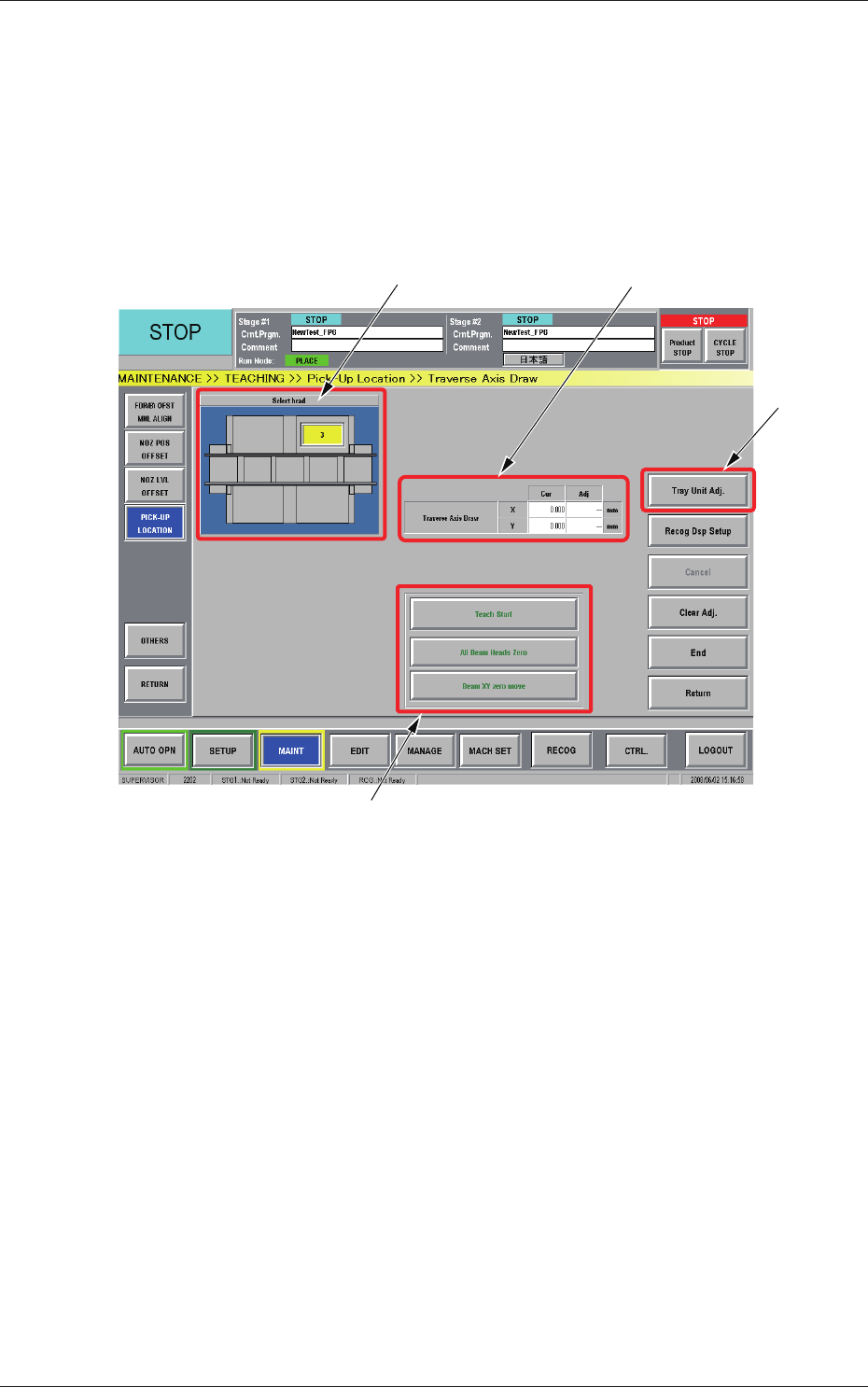
3.4.1 "Traverse Axis Draw" Window
This window can be used to perform a teaching operation to control the
traverse drawing offset of each device by teaching the location of the mark
that should be put on the chuck claw of the traverse.
When the [Traverse Axis Draw] button is pressed in the "Pick-Up Location"
window, the "Traverse Axis Draw" window appears.
[2]
[1]
[4]
[2]
Fig. B18 "Traverse Axis Draw" Window
[1] Head Selection Buttons
Each head in the graphic image of the machine is provided with a
button function.
The installed multi-layer tray feeders are displayed, making it possible
for the operator to select one of the feeders.
[2]
Traverse Drawing Position Correction
Displayed are the current values that indicate the traverse drawing
position. After a teaching operation is performed, the results appear in
the text boxes entitled "Adj".
Cur :
Values before Teaching Operation
Adj :
Results of Teaching Operation
0806-001
3.4 Teaching Operation
2-27
AIX-MLT-ID
[3] Operation Buttons
[Teach Start] Button
When pressed, this button performs a teaching operation on the pickup
position.
When the [START] button on the operation panel is pressed in 10
seconds after this button, the "Manual Alignment Operation Guide"
window appears.
[All Beam Heads Zero] Button
When pressed, this button zeroes the stage on which a teaching
operation is performed.
[Beam XY zero move] Button
When pressed, this button returns the beams to their X and Y origins.
[4]
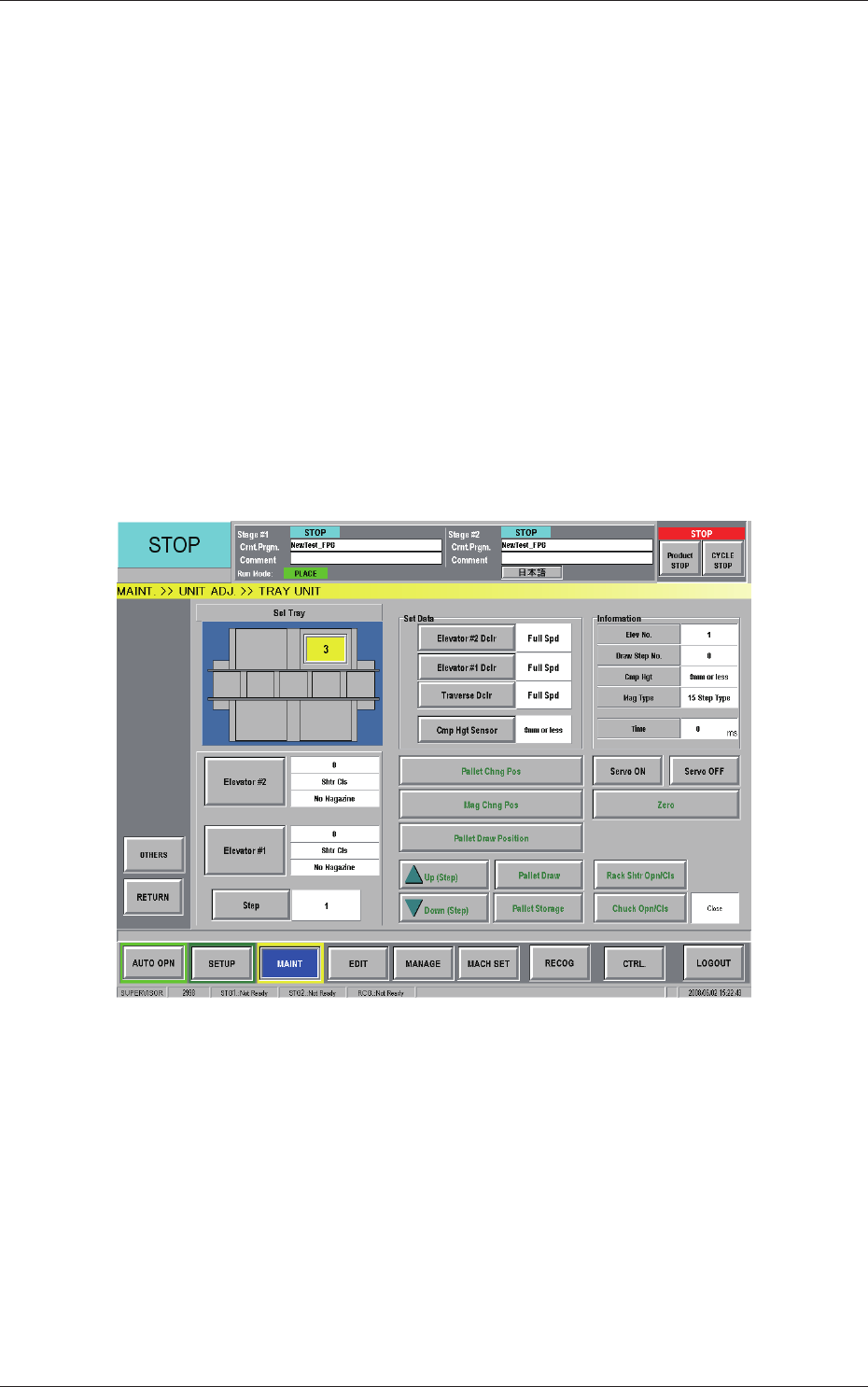
[Tray Unit Adj.] Button
When pressed, this button opens the "TRAY UNIT" window.
Fig. B19 "TRAY UNIT" Window
·
Procedure for T
eaching Operation
(1) Select the feeder base for which the teaching operation should be
performed.
(2) Press the [Fdr No.] button and enter the required feed
er No.
(3) Press the [All Beam Heads Zero] button to zero the stage on the
teaching side.
0806-001
3.4 Teaching Operation
2-28
AIX-MLT-ID
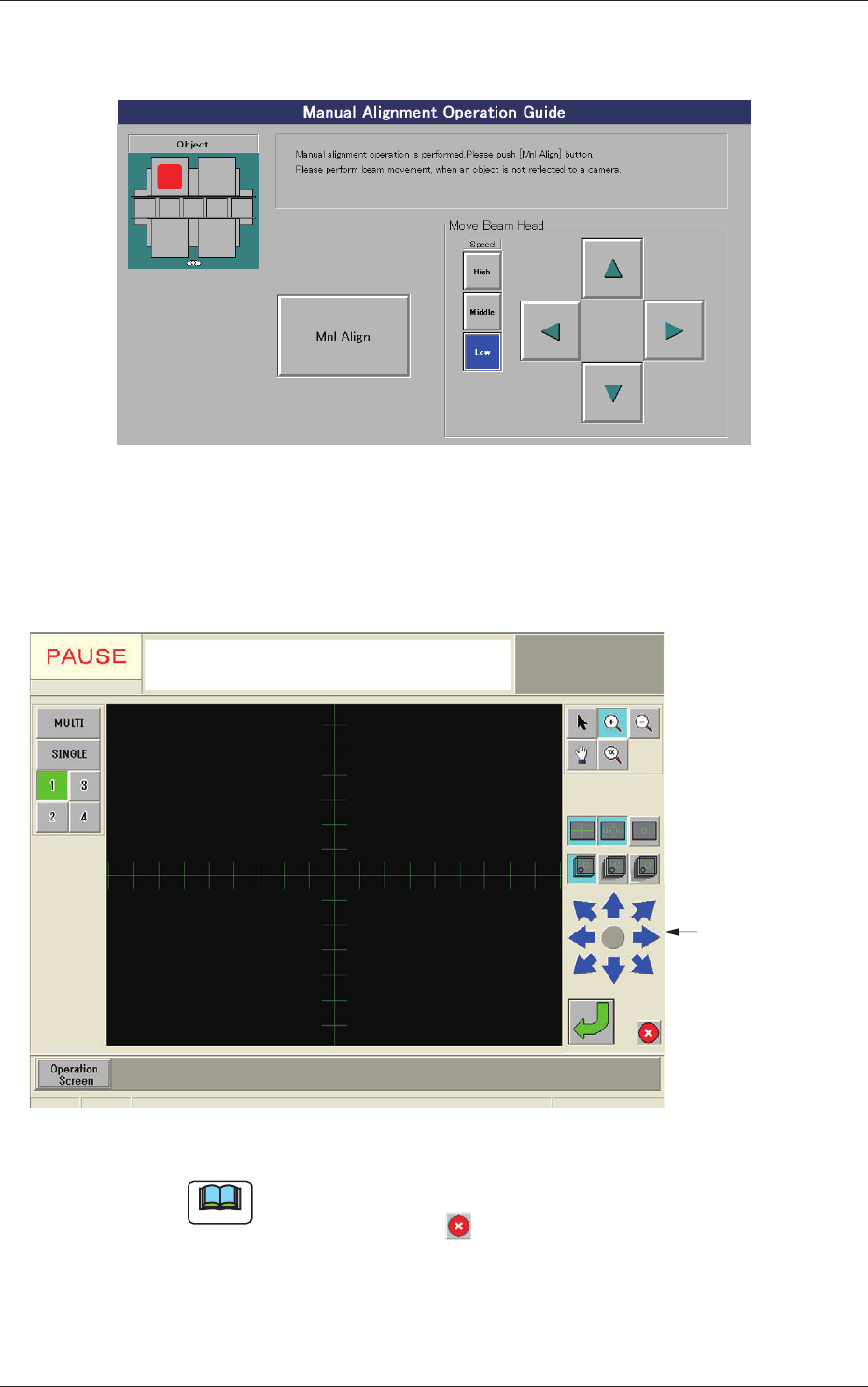
(4) When the [Teach Start] button is pressed, the "Manual Alignment
Operation Guide" window appears.
Fig. B20 "Manual Alignment Operation Guide" Window
(5) When the [Mnl Align] button is pressed, a recognition window
appears, making it possible to perform the manual alignment
operation.
Image Movement
Buttons
Fig. B21 Recognition Window
Note
When an image of the object for the manual alignment cannot be captured
by the camera, press the button in the recognition window. The "Manual
Alignment Operation Guide" window resumes. Perform a beam movement
operation for the adjustment.
0806-001
3.4 Teaching Operation