00195988-01_IM_SWS-Software-2.0_DE_EN.pdf - 第42页
Installationsanleitung SIPLACE SWS Software 2.0 Ausgabe 10/2013 42 3 Abb. 72 Menü des Setup T ools Drücken Sie Esc. 3 Abb. 73 Meldung: V erlassen des SetupT ools Bestätigen Sie YES mit Enter .
Installationsanleitung SIPLACE SWS Software 2.0
Ausgabe 10/2013
41
Bestätigen Sie OK mit Enter.
Warten Sie, bis das ISO image erstellt wurde.
3
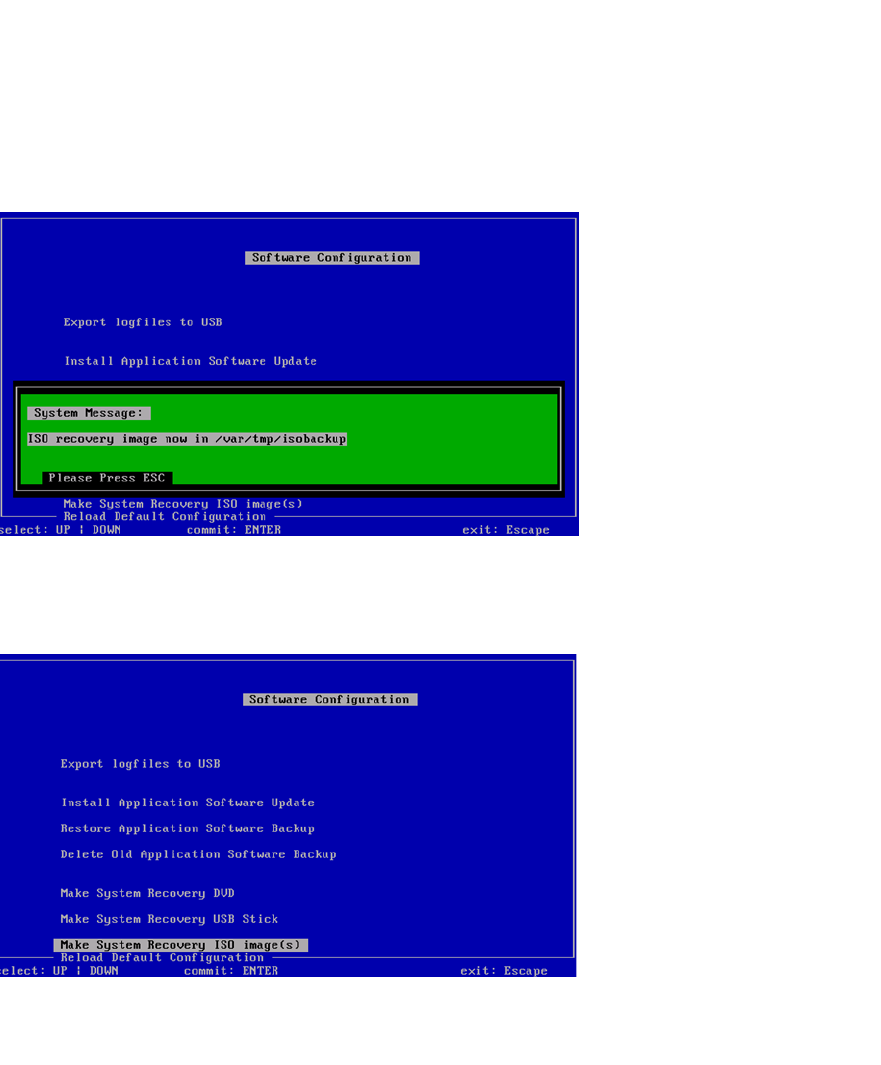
Abb. 70 Verzeichnis des erstellten ISO images
Drücken Sie Esc.
3
Abb. 71 Menü der Software Configuration
Drücken Sie Esc.
Installationsanleitung SIPLACE SWS Software 2.0
Ausgabe 10/2013
42
3
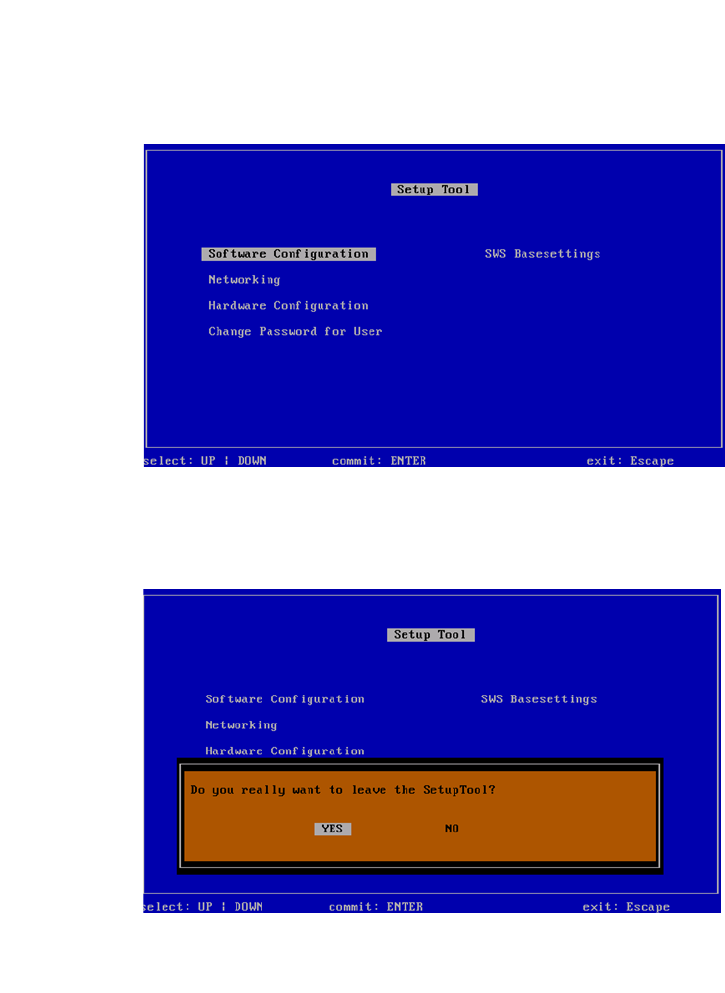
Abb. 72 Menü des Setup Tools
Drücken Sie Esc.
3
Abb. 73 Meldung: Verlassen des SetupTools
Bestätigen Sie YES mit Enter.
Installationsanleitung SIPLACE SWS Software 2.0
Ausgabe 10/2013
43
3
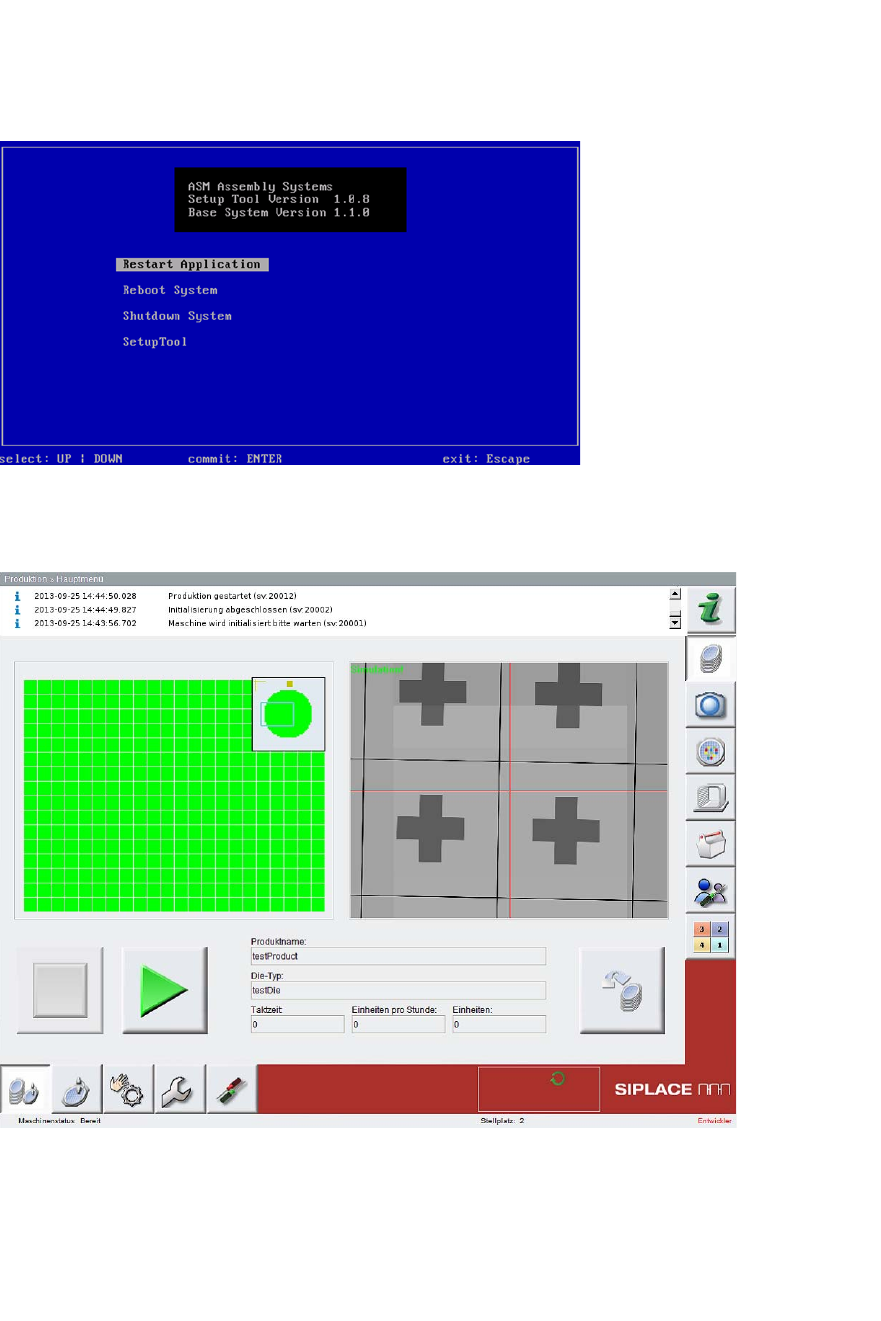
Abb. 74 Startfenster
Bestätigen Sie Restart Application mit Enter.
3
Abb. 75 Startseite der SWS-Software
– Die SWS-Software wird gestartet.
Öffnen Sie das Terminal mit CTRL + ALT + X.
Geben Sie Folgendes ein: launch
Geben Sie Ihr Passwort ein.