00195988-01_IM_SWS-Software-2.0_DE_EN.pdf - 第93页
Installation Manual SIPLACE SWS Software 2.0 Edition 10/2013 93 3 Fig. 74 St art window Confirm Rest art Application with Enter. 3 Fig. 75 St art window for SWS software – The SWS software will start. Open the termin…
Installation Manual SIPLACE SWS Software 2.0
Edition 10/2013
92
3
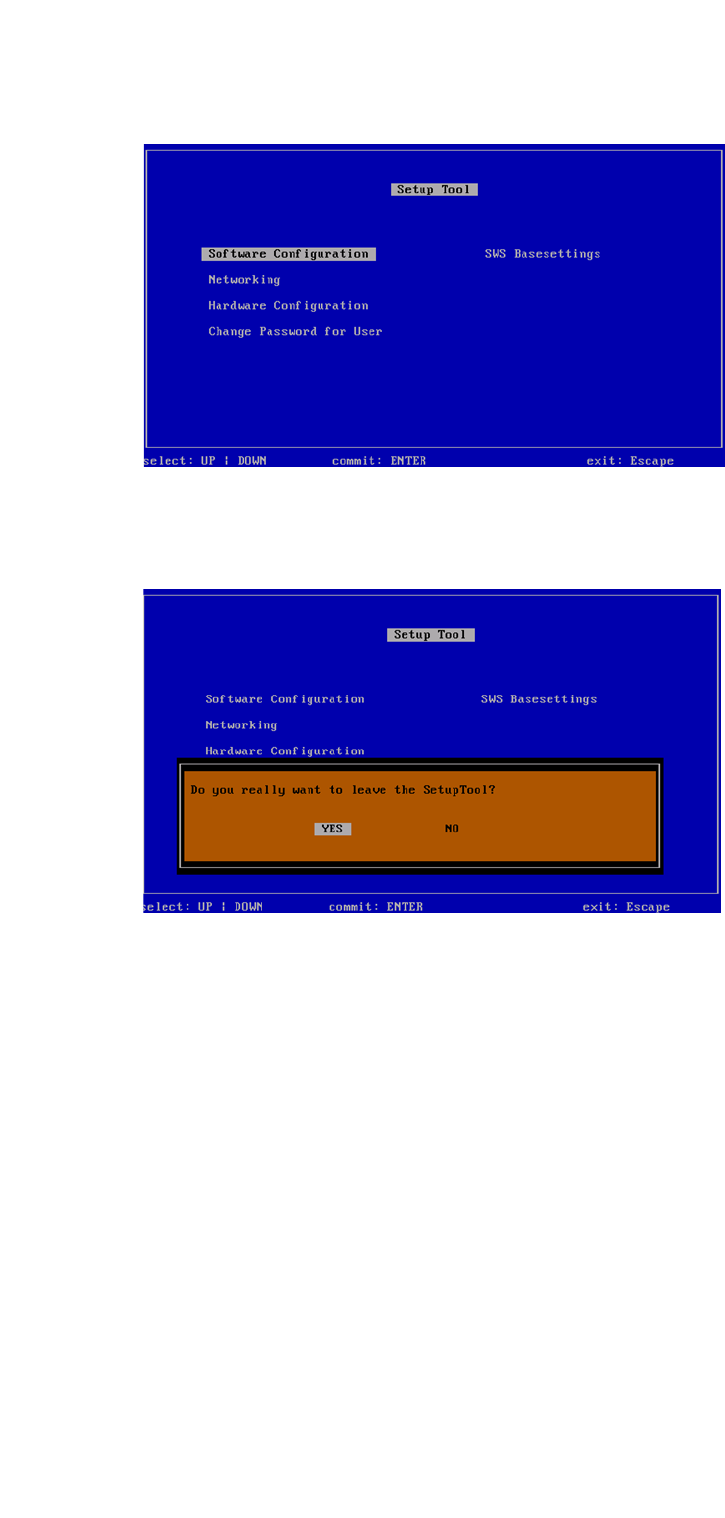
Fig. 72 Setup tool menu
Press Esc.
3
Fig. 73 Notification: Exiting the setup tool
Confirm YES with Enter.
Installation Manual SIPLACE SWS Software 2.0
Edition 10/2013
93
3
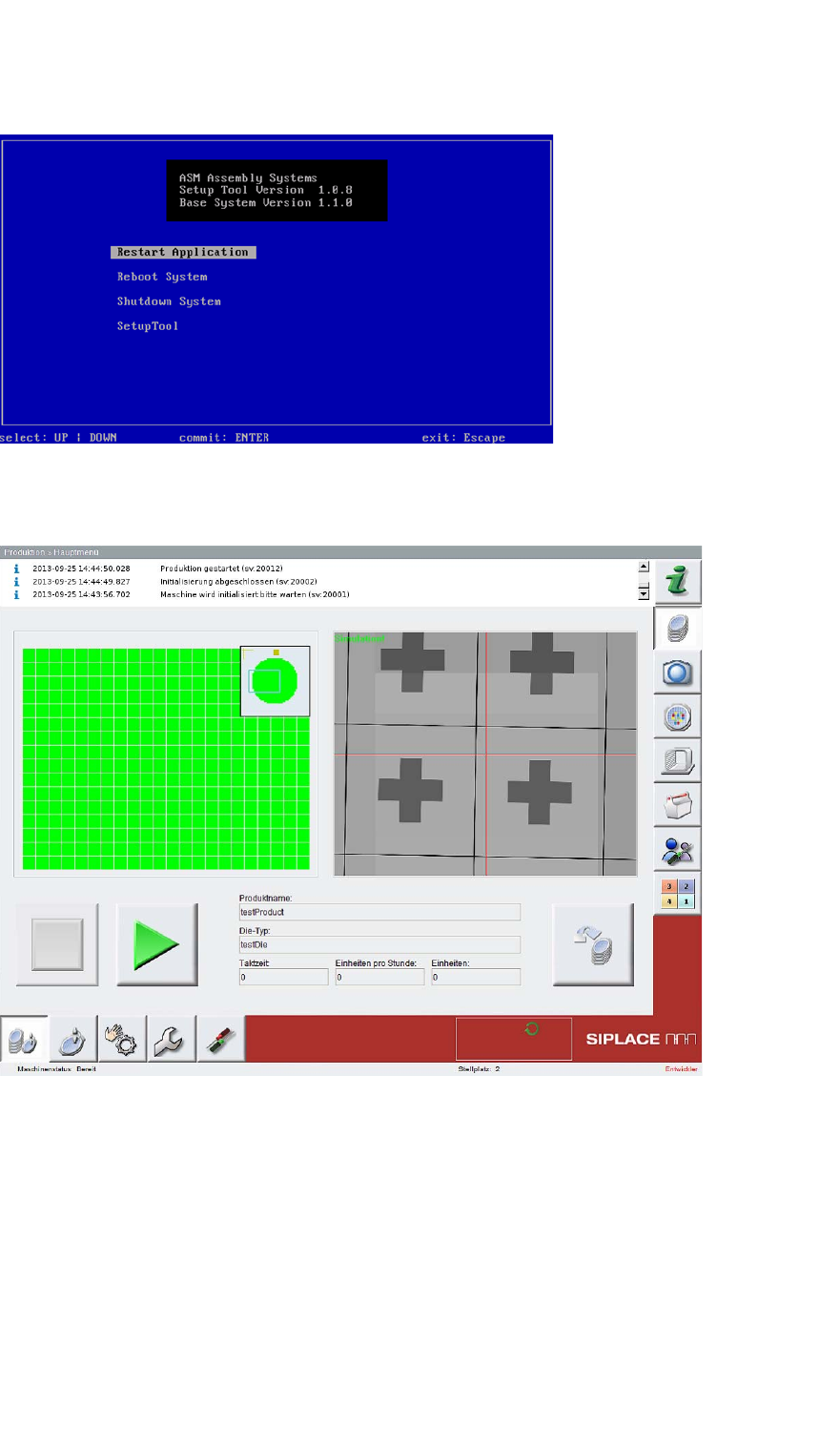
Fig. 74 Start window
Confirm Restart Application with Enter.
3
Fig. 75 Start window for SWS software
– The SWS software will start.
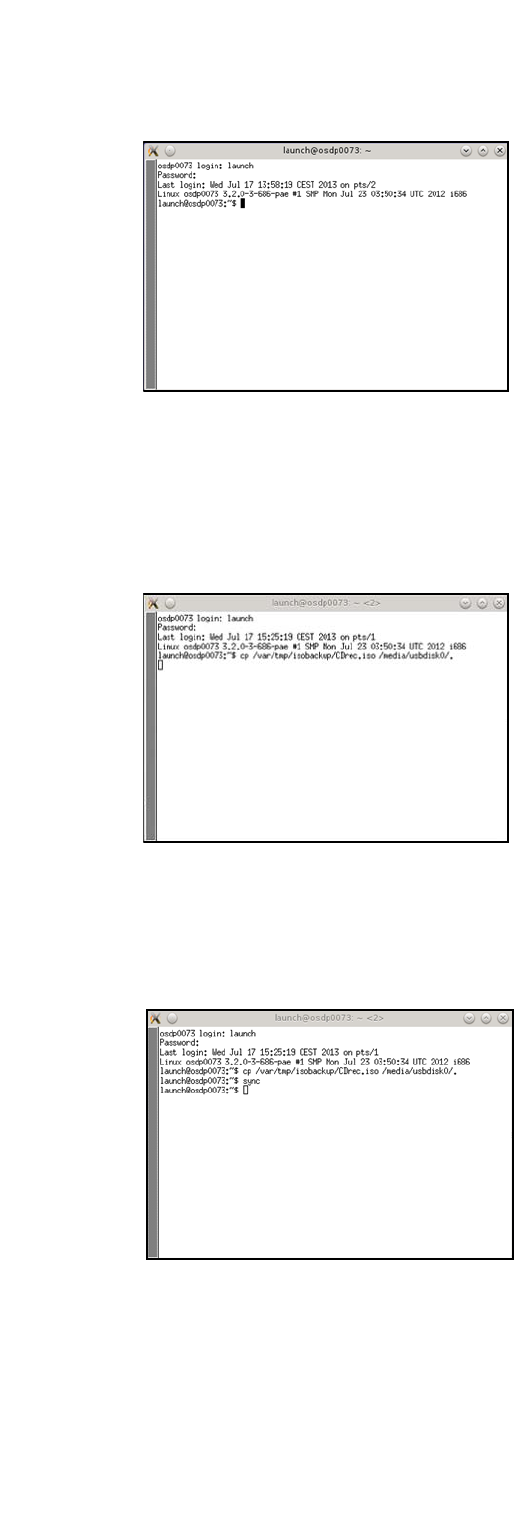
Open the terminal with CTRL + ALT + X.
Enter the following: Launch
Enter your password.
Installation Manual SIPLACE SWS Software 2.0
Edition 10/2013
94
3
Fig. 76 Entry of launch and password
Connect the storage medium (USB stick or USB hard drive) to the computer.
Enter the following move command:
mv /var/tmp/isobackup/CDrec.iso/media/usbdisk0/ 3
3
Fig. 77 Entry of mv /var/tmp/isobackup/CDrec.iso/media/usbdisk0/
Wait until the ISO image has been copied to the storage medium.
To prepare the storage medium for removal, enter the following: sync
3
Fig. 78 Entry of sync