00195988-01_IM_SWS-Software-2.0_DE_EN.pdf - 第73页
Installation Manual SIPLACE SWS Software 2.0 Edition 10/2013 73 3 Fig. 30 Setup tool menu Confirm the Sof tware Configur ation with Enter . 3 Fig. 31 Software configuration menu Confirm the Inst all Application Sof t…
Installation Manual SIPLACE SWS Software 2.0
Edition 10/2013
72
3
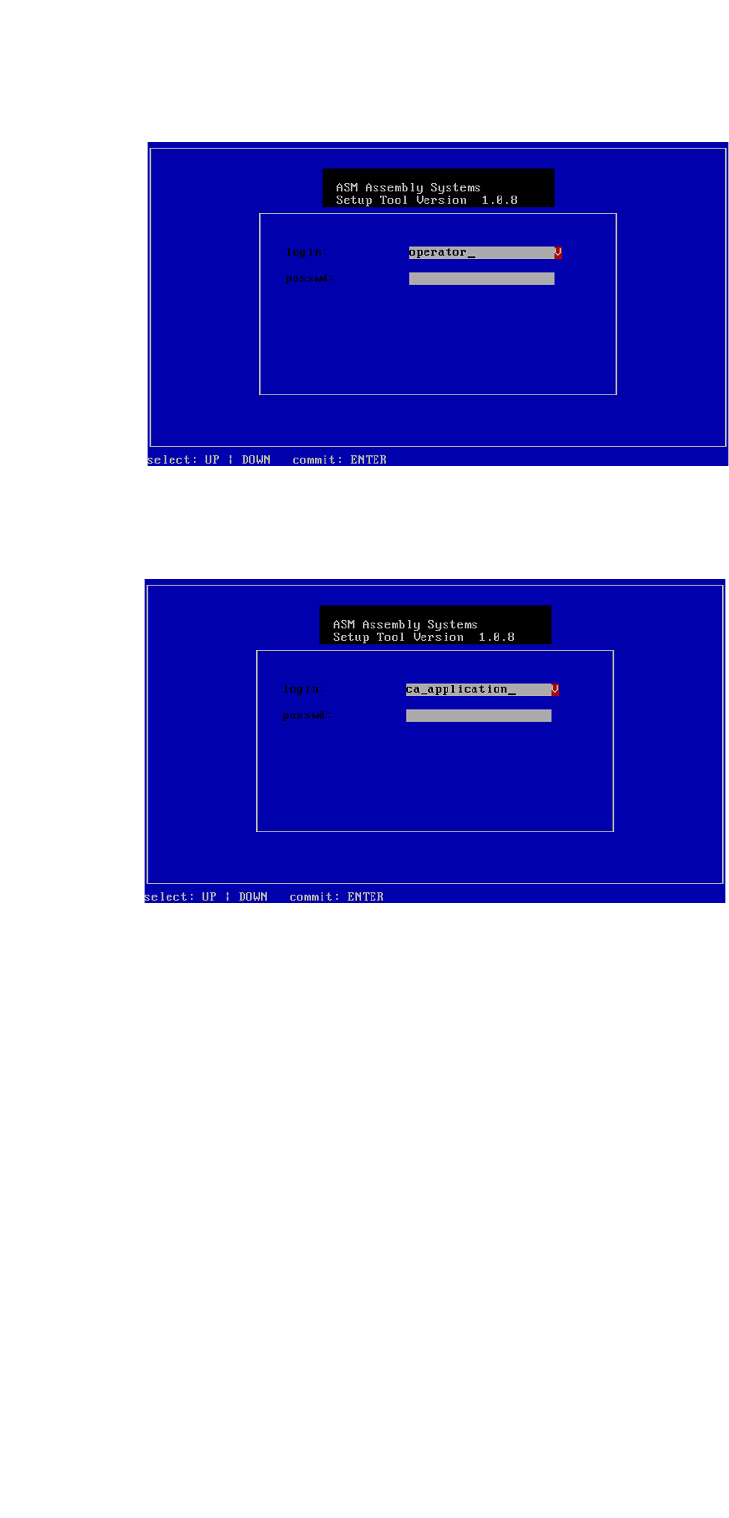
Fig. 28 Entry of capwd
Press and hold the CTRL + SHIFT keys and enter the following: capwd
3
Fig. 29 Entry of password
Enter your password.
Confirm with Enter.
Installation Manual SIPLACE SWS Software 2.0
Edition 10/2013
73
3
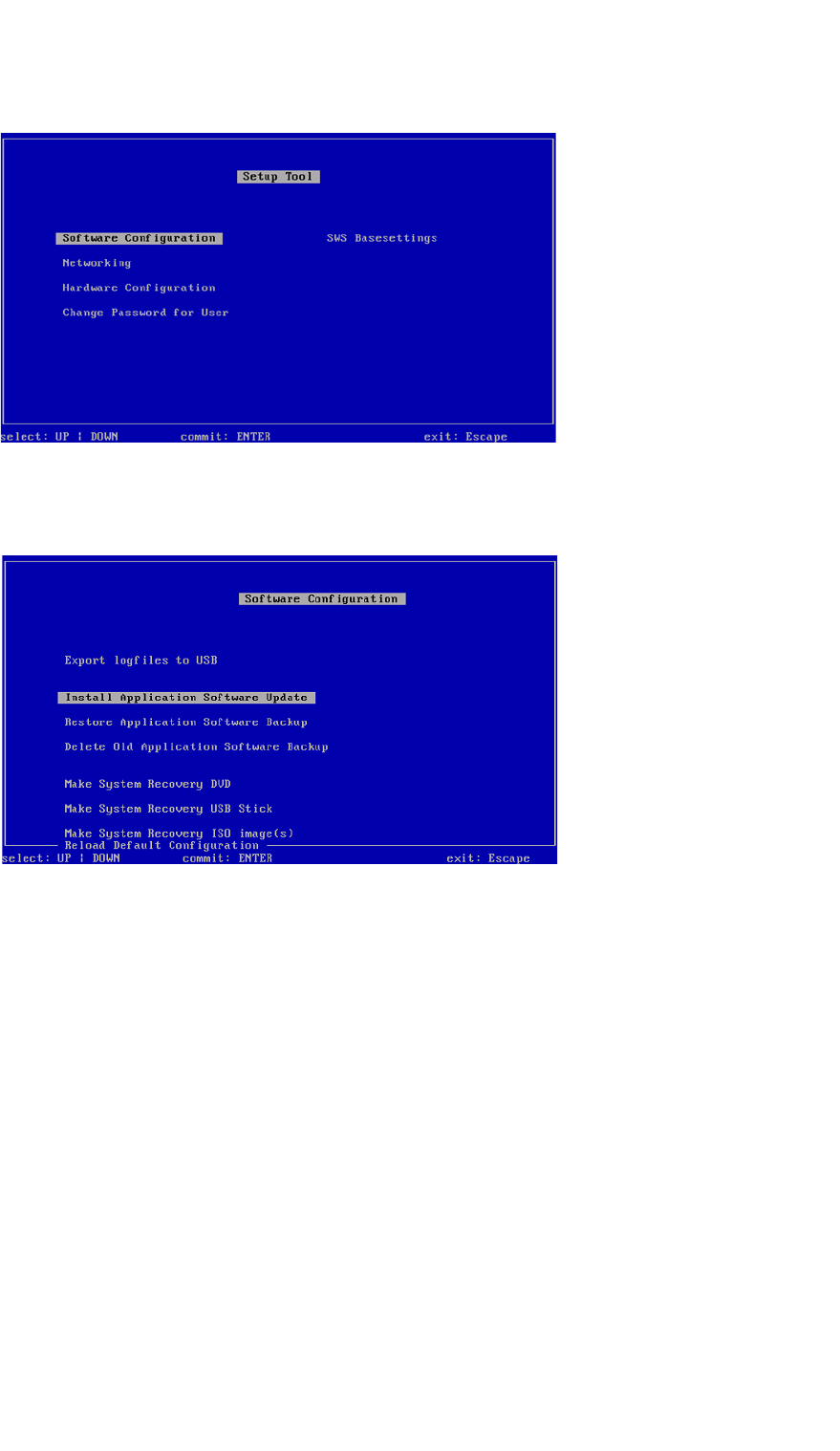
Fig. 30 Setup tool menu
Confirm the Software Configuration with Enter.
3
Fig. 31 Software configuration menu
Confirm the Install Application Software Update with Enter.
Installation Manual SIPLACE SWS Software 2.0
Edition 10/2013
74
3
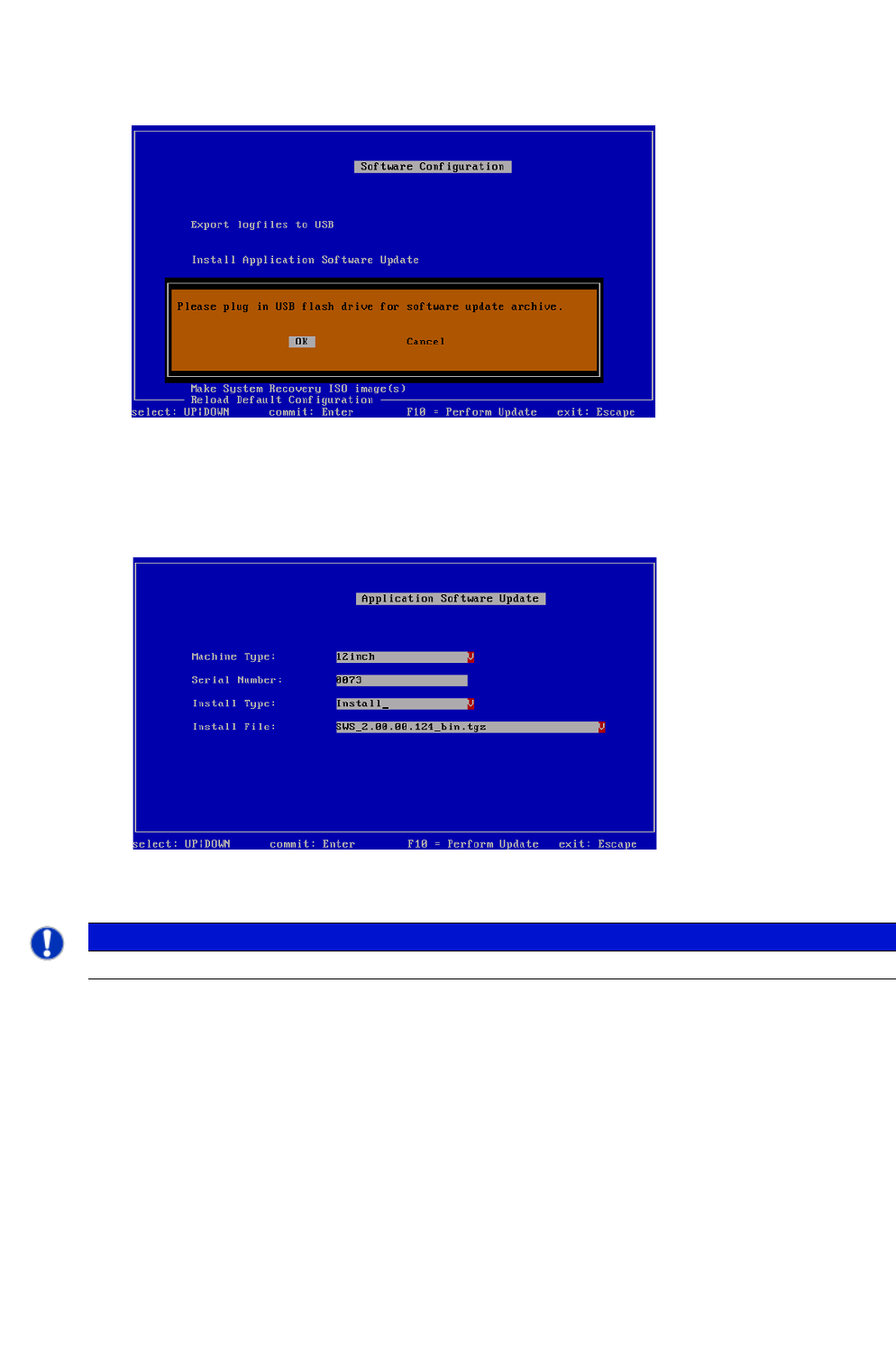
Fig. 32 Notification: Connecting the USB stick
Confirm OK with Enter.
Connect a USB stick to the USB slot on the keyboard of your computer.
3
Fig. 33 Updating the software application
3
Use the arrow keys to navigate to Install Type and confirm with Enter.
PLEASE NOTE
Do not change the entry "12 inch" at Machine Type!