00195988-01_IM_SWS-Software-2.0_DE_EN.pdf - 第69页
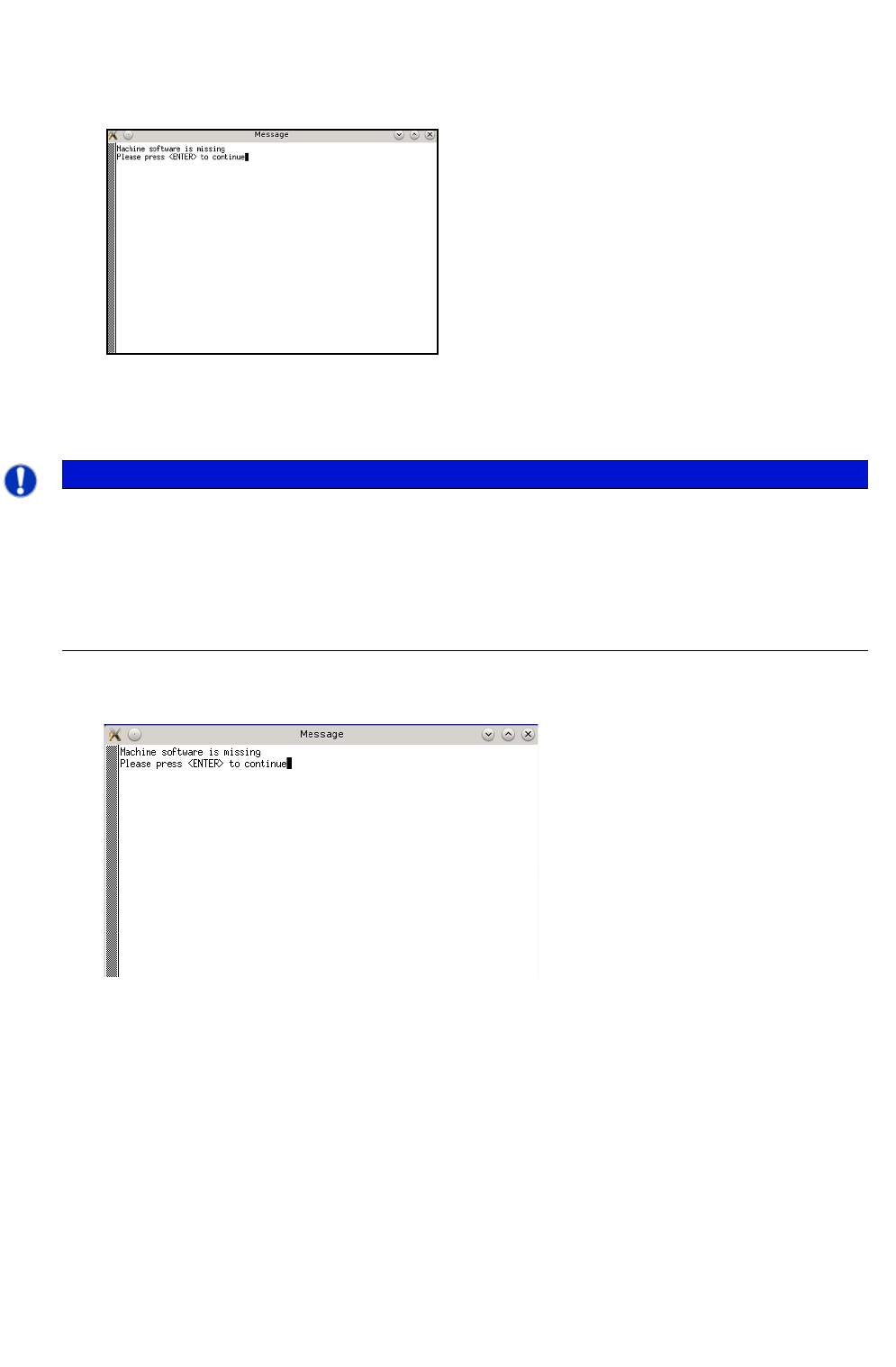
Installation Manual SIPLACE SWS Software 2.0 Edition 10/2013 69 2 Fig. 22 Notification after rebooting T o continue, confirm with Enter . 2 Importing the backup 2 2 Fig. 23 Notification after rebooting T o import the…
Installation Manual SIPLACE SWS Software 2.0
Edition 10/2013
68
2
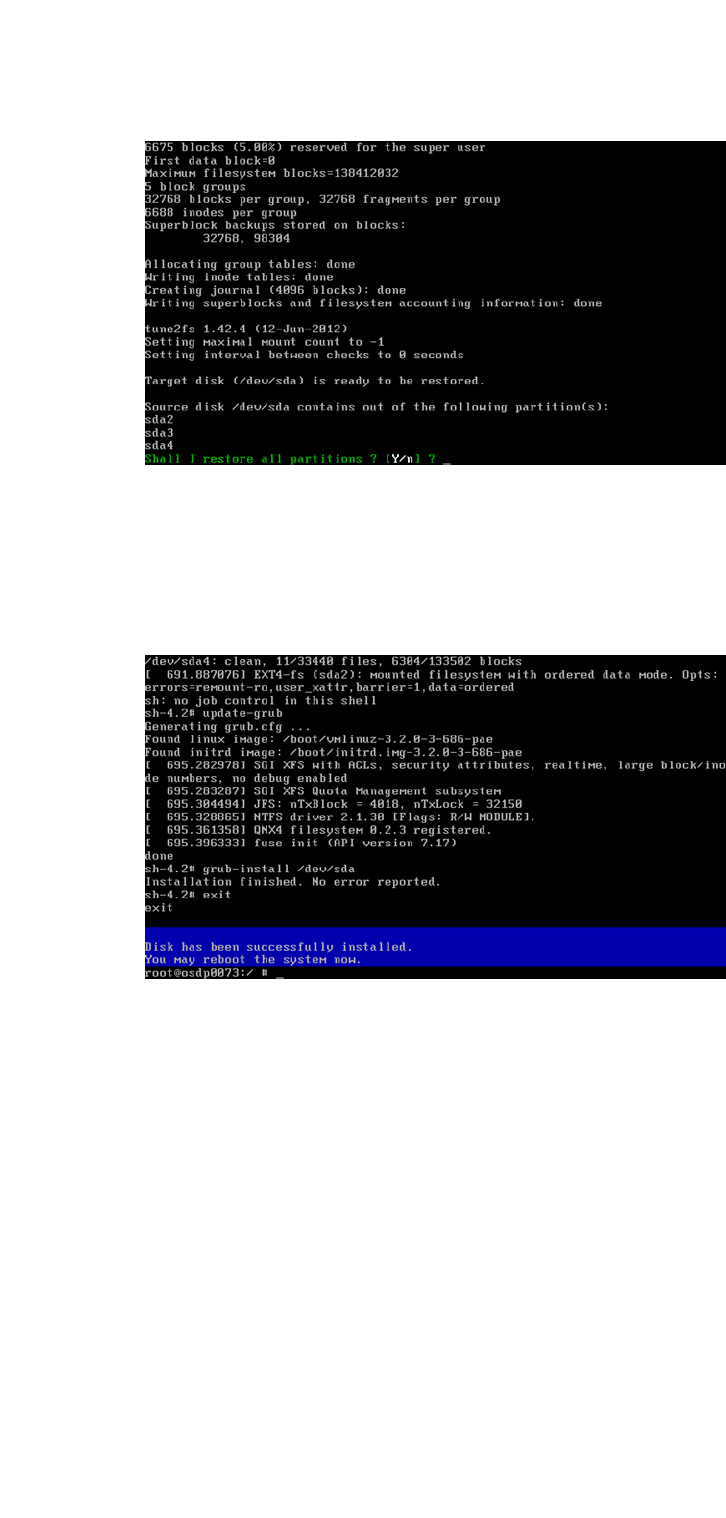
Fig. 20 Restoring the entire disk
Select the following: Y
Confirm with Enter.
Wait until the disk has been formatted and installed.
2
Fig. 21 Disk successfully installed
Enter the command reboot in the command field.
– The PC will reboot.
Installation Manual SIPLACE SWS Software 2.0
Edition 10/2013
69
2
Fig. 22 Notification after rebooting
To continue, confirm with Enter.
2
Importing the backup 2
2
Fig. 23 Notification after rebooting
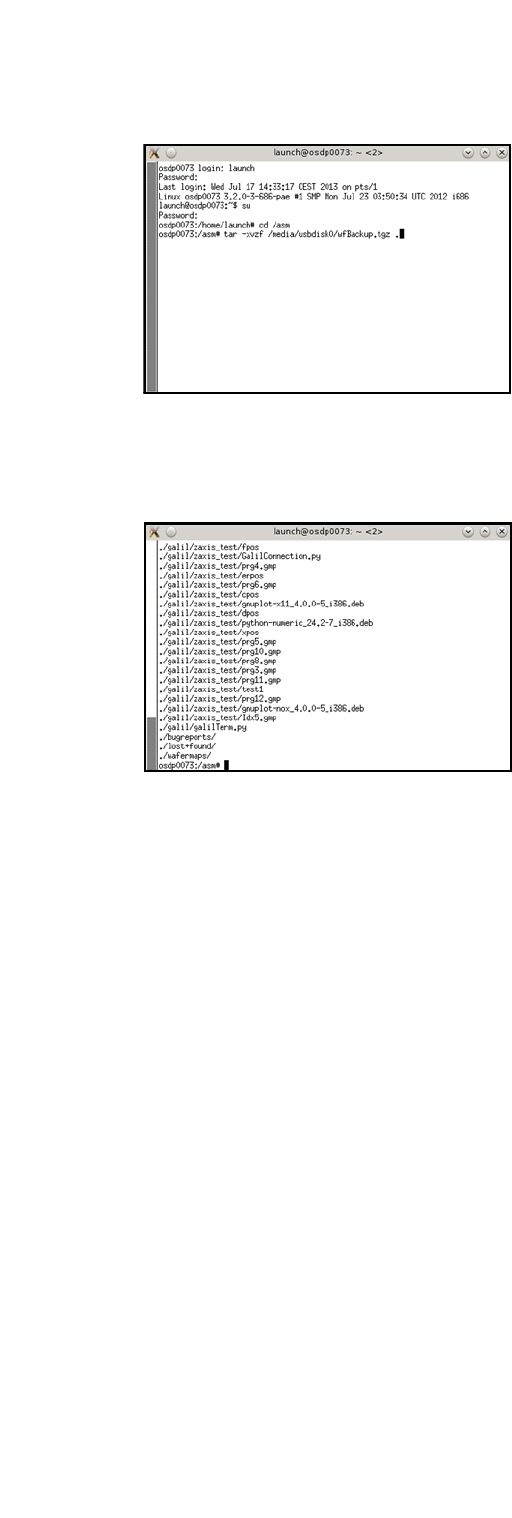
To import the backup, proceed up to the step "Changing folder" , as described in Section 2.1
Backup of Installed Version.
Then enter the following:
tar -xvzf /media/usbdisk0/wfBackup.tgz 2
PLEASE NOTE
You have two options after rebooting:
– Install the software (see Installation of the SWS Softwareon page 71).
or
– Import the backup version of the installed SWS software (see
Backup of Installed Versionon
page 59
).
Installation Manual SIPLACE SWS Software 2.0
Edition 10/2013
70
2
Fig. 24 Entry of tar -xvzf /media/usbdisk0/wfBackup.tgz
– After the process has been executed, the following will appear on your screen:
2
Fig. 25 Screen after process execution
Start the system with CTRL + ALT + q.
– The SWS software will start.