00195988-01_IM_SWS-Software-2.0_DE_EN.pdf - 第58页
Installation Manual SIPLACE SWS Software 2.0 Edition 10/2013 58

Installation Manual SIPLACE SWS Software 2.0
Edition 10/2013
57
1.5.2 SIPLACE on the World Wide Web (WWW)
You can also log onto our SIPLACE website at http://www.siplace.com. 1
The menu navigation and information are available in two languages. You can choose between
the German and English versions. 1
The various headings contain information on 1
Our products 1
Services 1
Contact persons etc. 1
Registered customers can also access the SIPLACE User Group. There you can call up special
information on our placement machines, such as 1
Technical documentation 1
Technical informations 1
Spare parts lists etc. 1
Registering for access to the User Group is sheer child’s play: 1
Click on 'Register’.
Fill in the registration form and send it off to us.
Soon afterwards, you will receive a access authorization with USER-ID and password. 1
1.6 Overview of the Editions
1
1
Guide Software version Edition
First edition Installation Manual
V 2.0 10/2013

Installation Manual SIPLACE SWS Software 2.0
Edition 10/2013
58
Installation Manual SIPLACE SWS Software 2.0
Edition 10/2013
59
2 Installing the Operating System
2.1 Backup of Installed Version
2
If you need to perform a backup of the operating system at the customer site, you will first need
to back up the installed SWS software. 2
Proceed as follows:
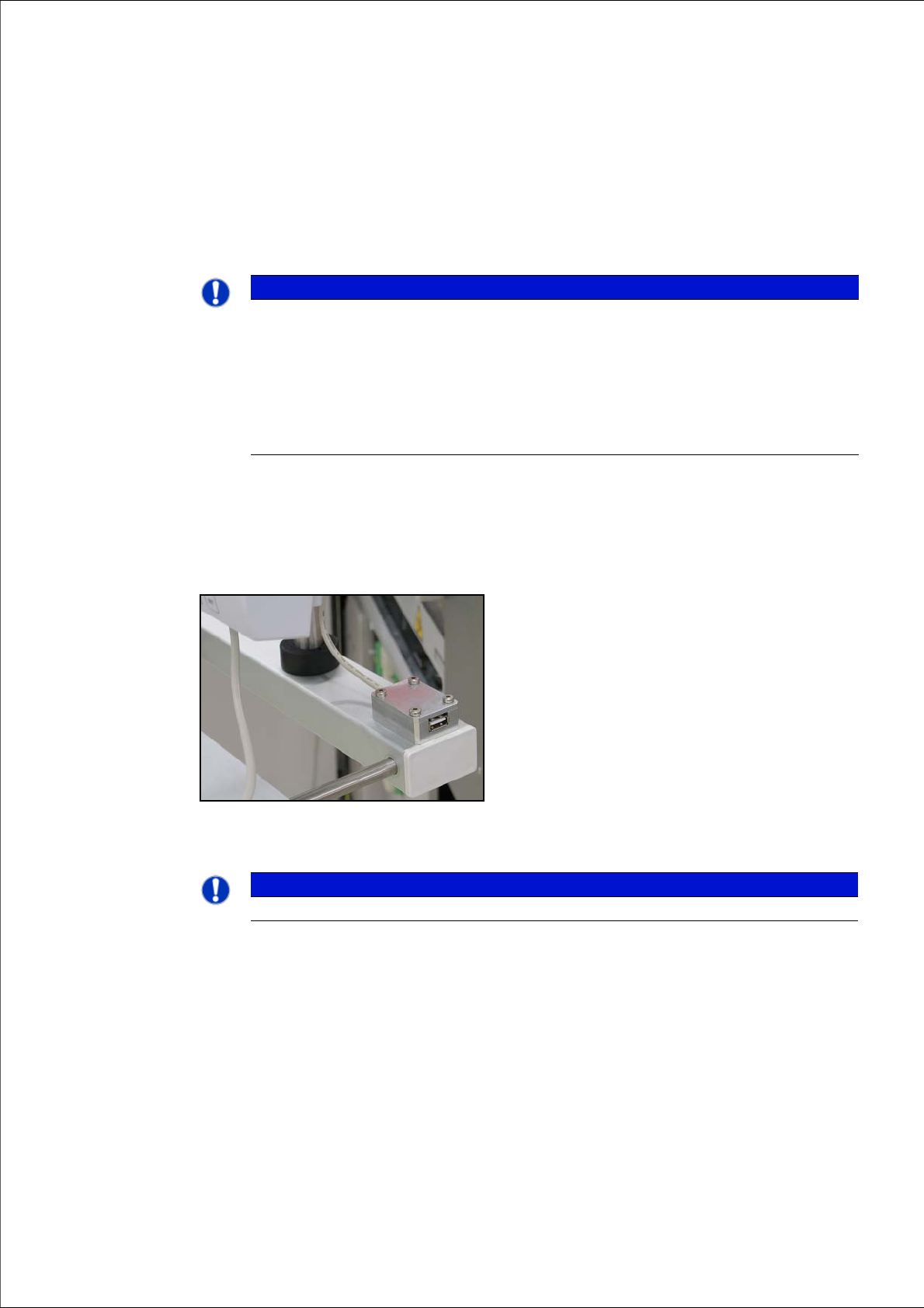
Connect a USB stick to the port provided on your computer.
2
Fig. 1 USB port on SWS monitor
2
2
Open the terminal with CTRL + ALT + X.
PLEASE NOTE
Backup of installed version
If you replace the computer, first perform a backup of the operating system and the SWS
control (see Backup of Operating System and SWS Softwareon page 88). This backup
can then be used to install the operating system (see Installing the Operating Systemon
page 62) and the control software.
If you need to perform a backup of the operating system at the customer site, you will first
need to back up the installed SWS software.
PLEASE NOTE
To achieve the required effect, confirm each entry with Enter.