00195988-01_IM_SWS-Software-2.0_DE_EN.pdf - 第94页
Installation Manual SIPLACE SWS Software 2.0 Edition 10/2013 94 3 Fig. 76 Entry of launch and password Connect the storage me dium (USB stick or USB hard drive) to the computer . Enter the following move command: mv …
Installation Manual SIPLACE SWS Software 2.0
Edition 10/2013
93
3
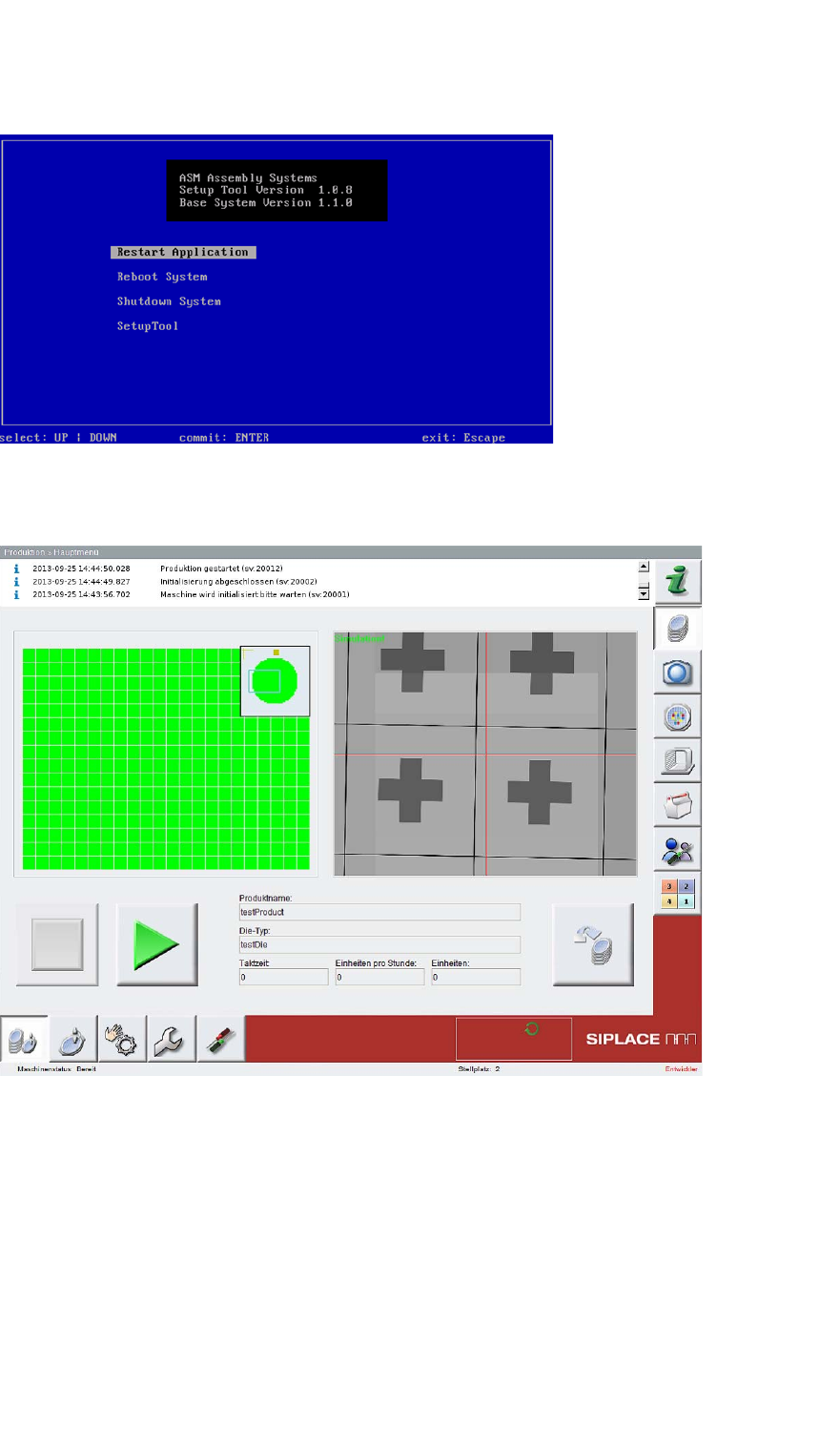
Fig. 74 Start window
Confirm Restart Application with Enter.
3
Fig. 75 Start window for SWS software
– The SWS software will start.
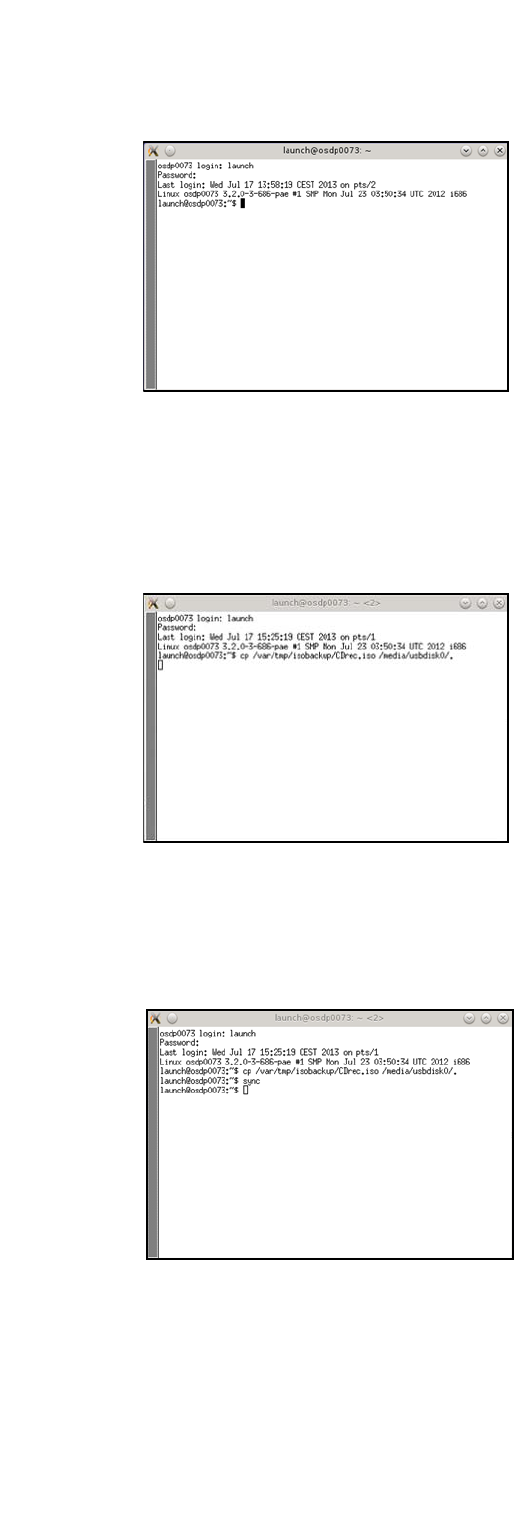
Open the terminal with CTRL + ALT + X.
Enter the following: Launch
Enter your password.
Installation Manual SIPLACE SWS Software 2.0
Edition 10/2013
94
3
Fig. 76 Entry of launch and password
Connect the storage medium (USB stick or USB hard drive) to the computer.
Enter the following move command:
mv /var/tmp/isobackup/CDrec.iso/media/usbdisk0/ 3
3
Fig. 77 Entry of mv /var/tmp/isobackup/CDrec.iso/media/usbdisk0/
Wait until the ISO image has been copied to the storage medium.
To prepare the storage medium for removal, enter the following: sync
3
Fig. 78 Entry of sync
Installation Manual SIPLACE SWS Software 2.0
Edition 10/2013
95
3.4 Restoring Older Software Versions
3
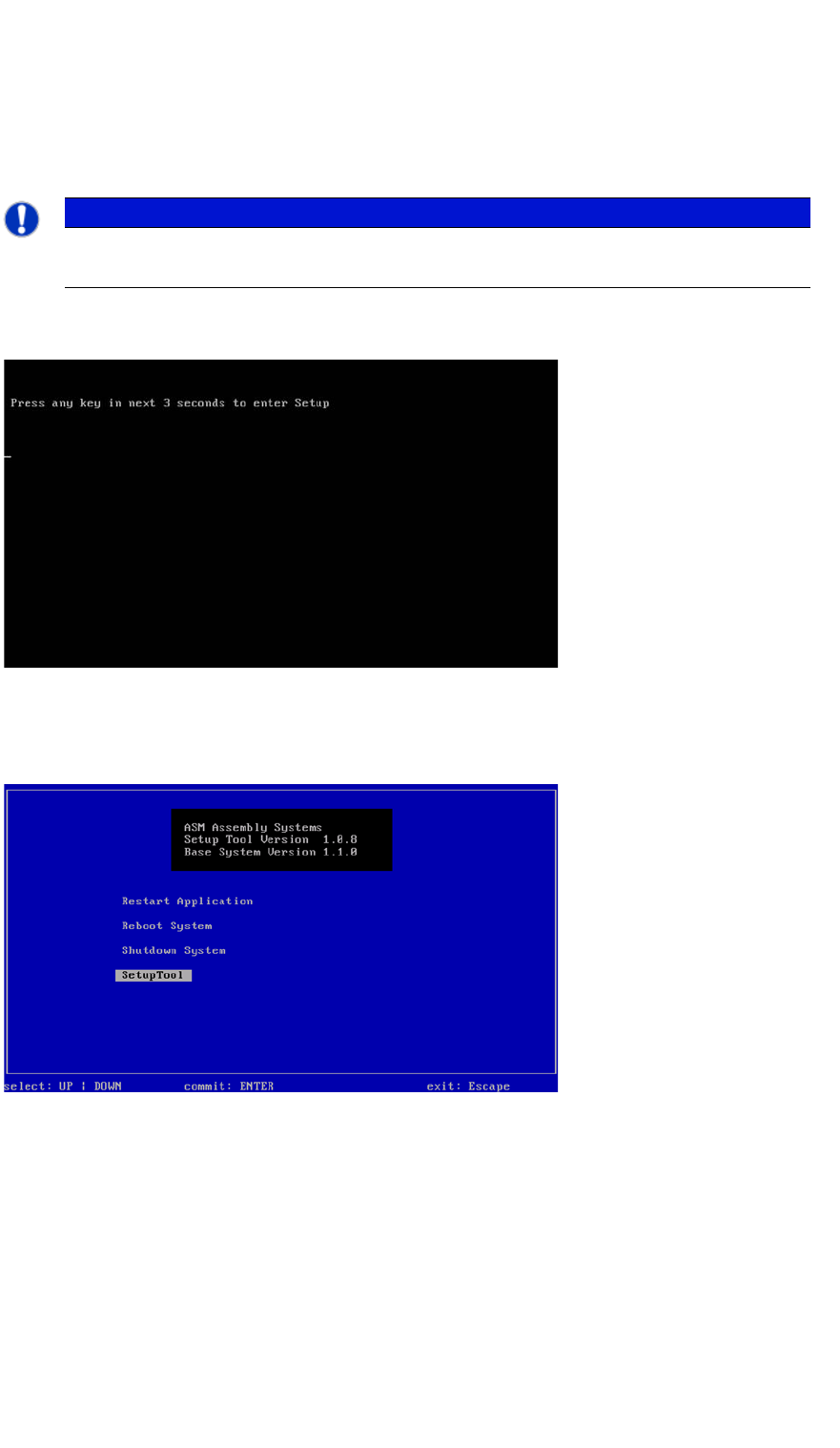
Press any button to access the start window.
3
Fig. 79 Pressing any button to access the start window.
Use the arrow keys to navigate to the Setup Tool.
3
Fig. 80 Start window
Confirm the SetupTool with Enter.
PLEASE NOTE
You can choose between various options for restoring older software versions.
Use the arrow keys on your keyboard to select the required option.