ACT - Accuracy Check Tool mit SSW 6xx User Manual 2017.pdf - 第90页
ACT with SSW 6xx / User Manual 07/2017 Edition 26 ► Activate the Overwrite Vision data opti on. ► Click Next . The following screen i s displayed: Figure 3-24: Import of XML files for tables in SIPLACE Pro ► Click Finish…
ACT with SSW 6xx / User Manual 07/2017 Edition
25
NOTICE
Import of data
► Please do not change the destination folder.
► Do not select the Flatten directories check box.
► Click Next.
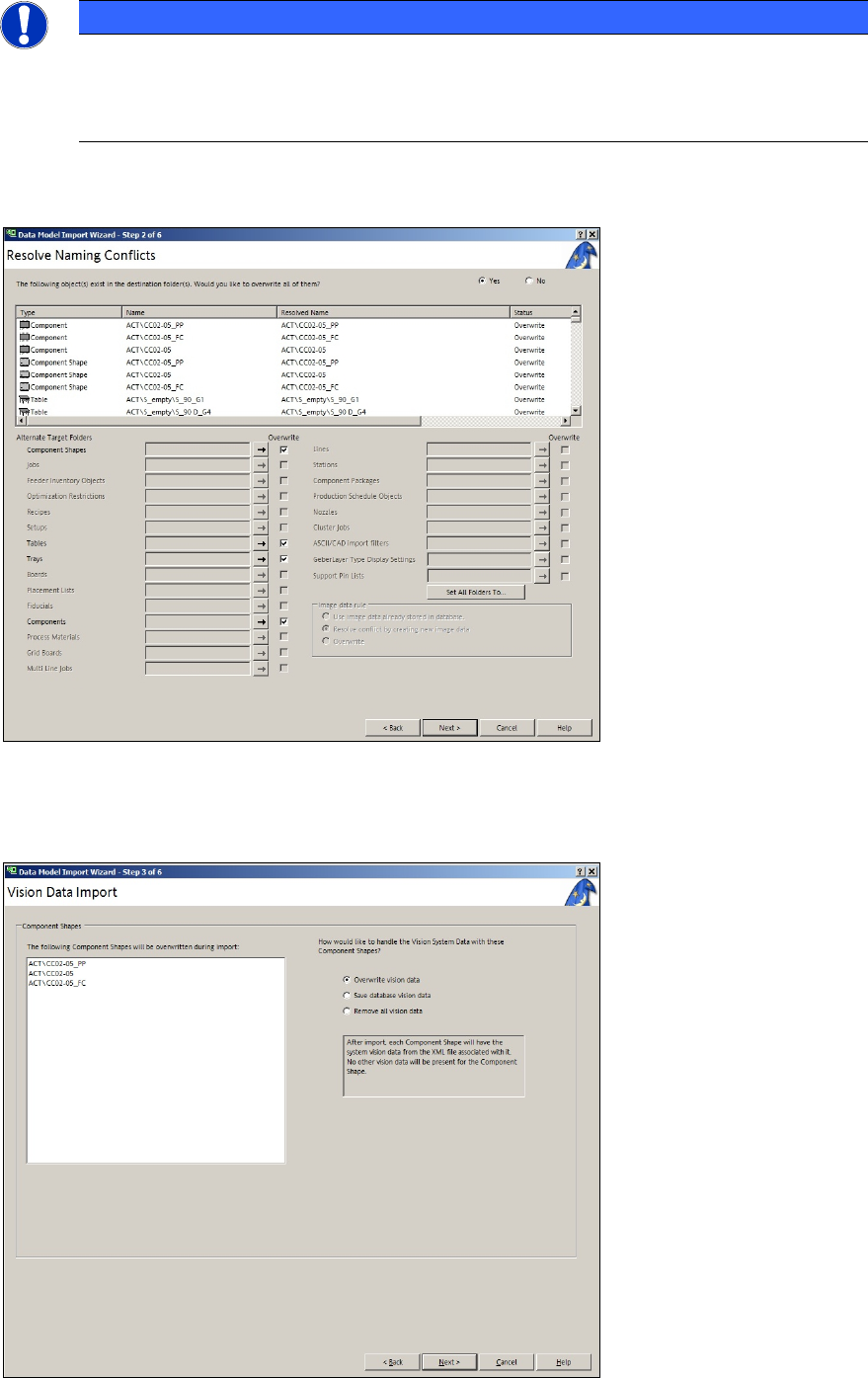
Figure 3-22: Import of XML files for tables on SIPLACE Pro computer
► Click Next again.
If data is to be overwritten, the following screen is displayed:
Figure 3-23: Vision data import
ACT with SSW 6xx / User Manual 07/2017 Edition
26
► Activate the Overwrite Vision data option.
► Click Next.
The following screen is displayed:
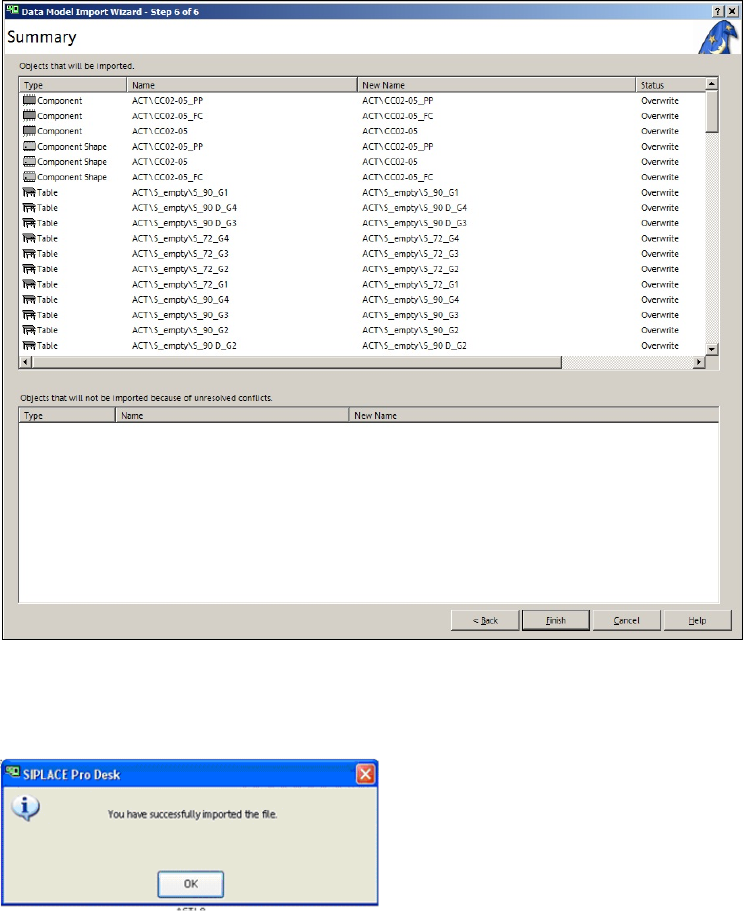
Figure 3-24: Import of XML files for tables in SIPLACE Pro
► Click Finish.
The following screen is displayed:
Figure 3-25: Finished import of XML files for tables in SIPLACE Pro
► Click OK.
ACT with SSW 6xx / User Manual 07/2017 Edition
27
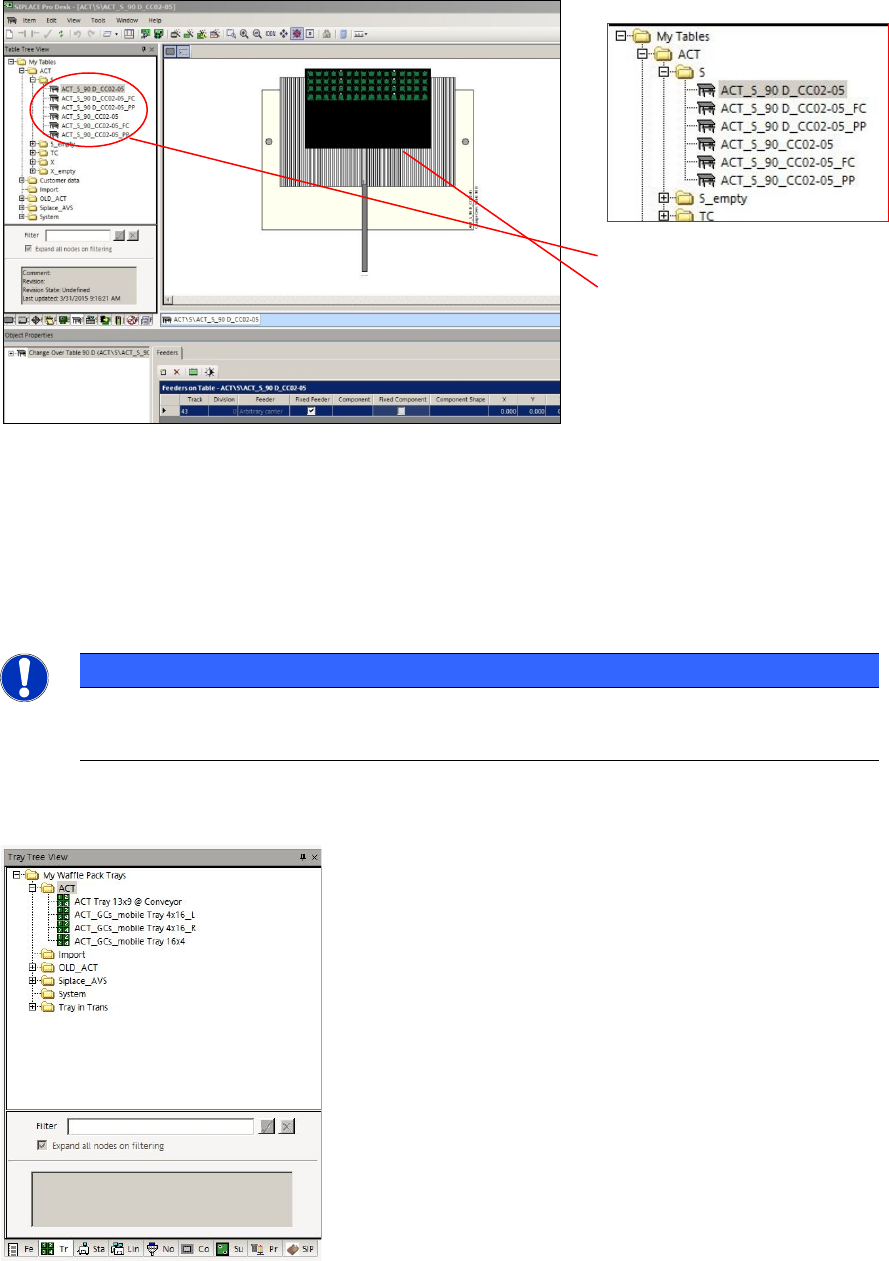
Figure 3-26 displays the tables in the ACT folder:
You can also see a waffle pack tray with 16x4 component rows (example CC02-05 glass
components).
1)
2)
Figure 3-26: Tables in ACT folder, view of waffle pack tray with example of 16x4 rows CC02-05 glass components
Key:
(1) ACT tables
(2) ACT waffle pack tray with 16x4 components
NOTICE
Glass components on waffle pack trays
Tray suggestions for an ACT with MTCs and WPCs can be found in the Trays tab.
The next figure displays the structure view of the waffle pack trays (right-hand side of diagram):
Figure 3-27: Waffle pack tray structure in SIPLACE Pro