200823.TR3000-IRV English Manual.pdf - 第22页
IR AUT O BGA R ework S tation TR3000-IRV Kukjetrading Co., Ltd. 22 5.3 About FILE W h en a FILE bu tton, which is on the upper right of the screen, is cliked, th e followin g screen would appear . C L OSE : C l o se a …
IR AUTO BGA Rework Station TR3000-IRV
Kukjetrading Co., Ltd.
21
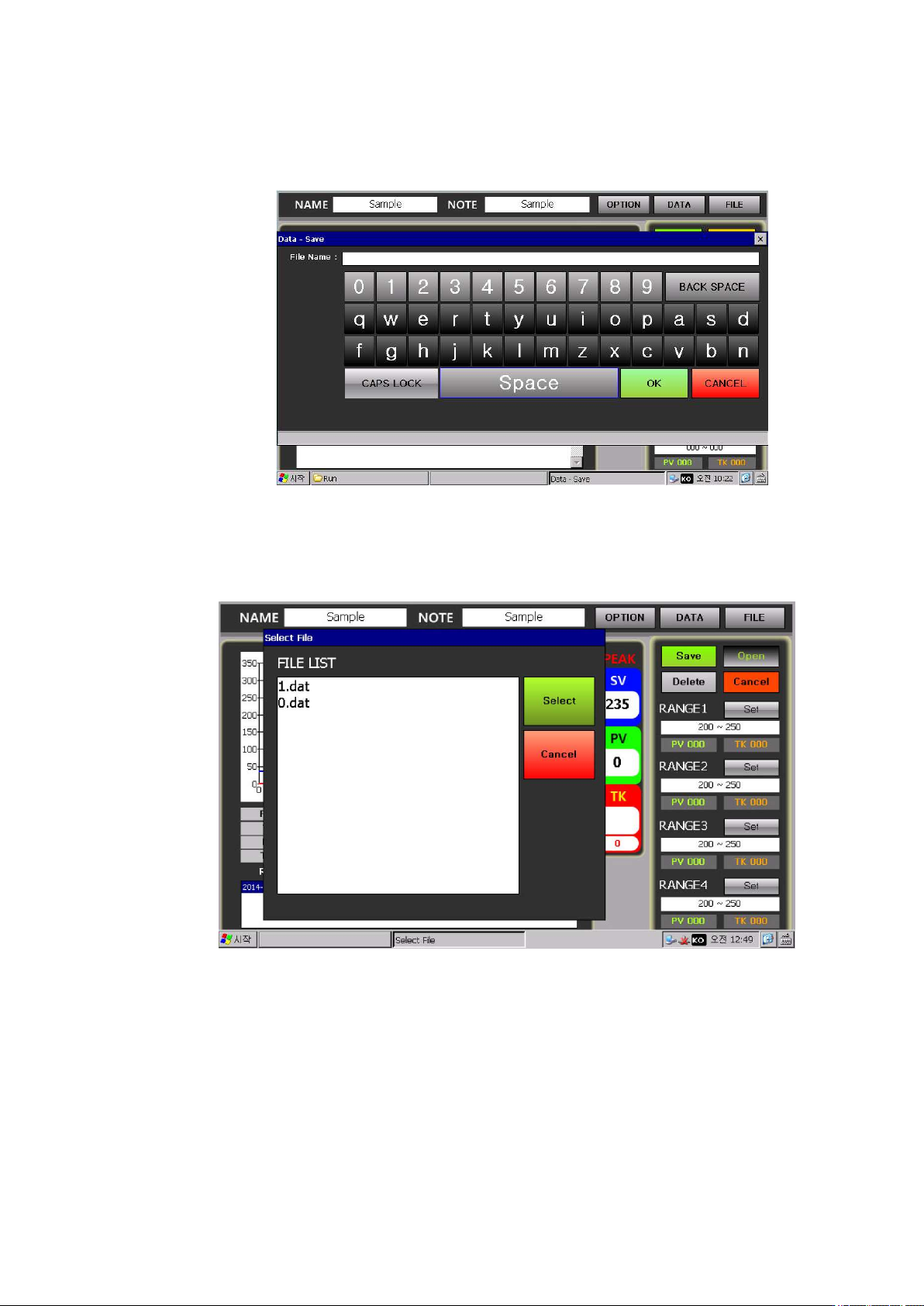
⑫ As for this data, click Save and then use the key shown as follows to register and save a file name.
However, such data file is saved onto a SD card in general and if there is no SD card, it gets saved onto
a NandFlash Memory.
⑬ Since the memory capacity of a Nand Flash is limited, try not to save a lot of data files.
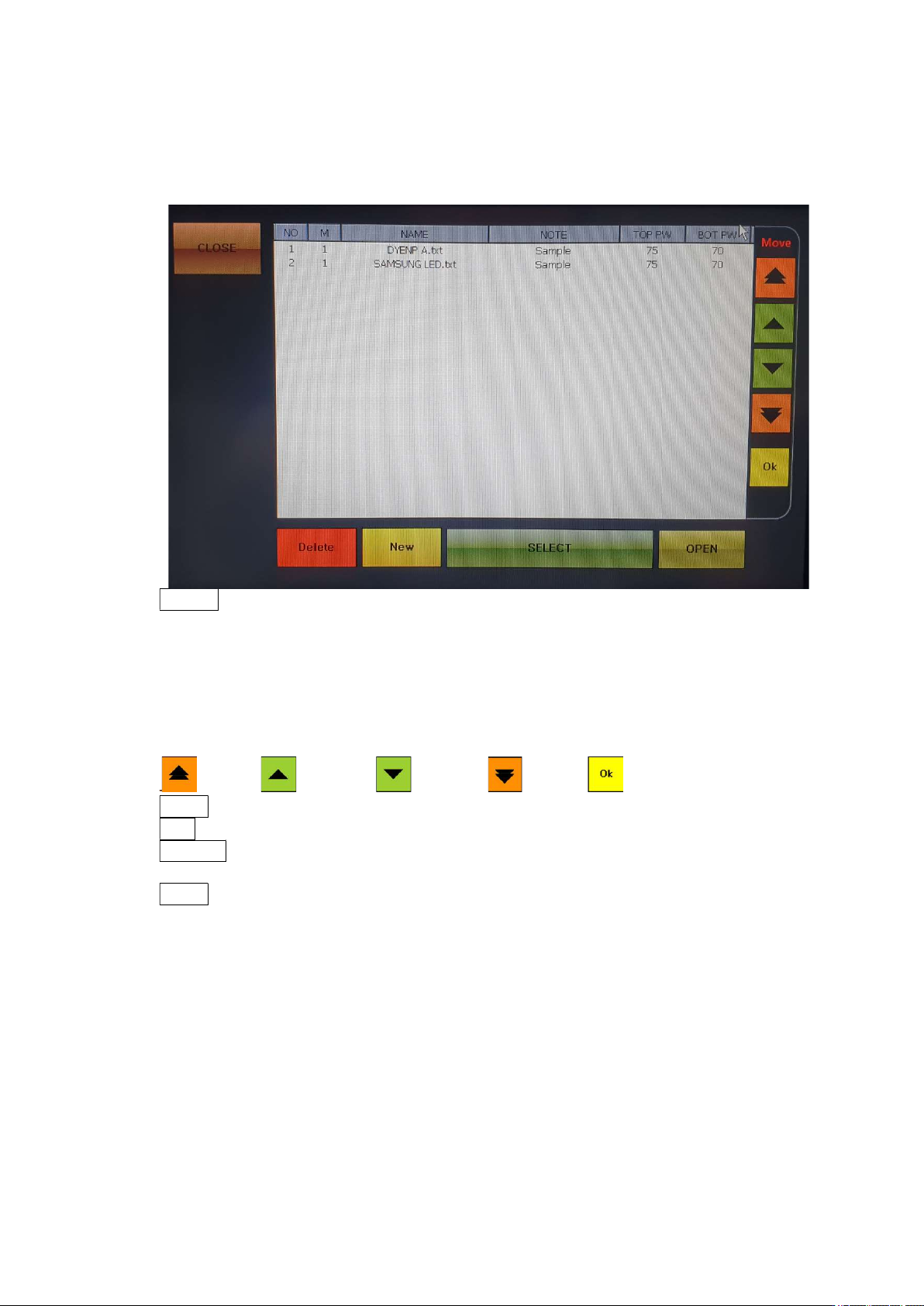
⑭ To call the saved Data file, click OPEN. Then, a list of data files which have been saved is displayed as
File List shown as follows. Select one file from the file list and then press Select. Then, the selected data
would be opened and its graph and analysis data would be displayed.
IR AUTO BGA Rework Station TR3000-IRV
Kukjetrading Co., Ltd.
22
5.3 About FILE
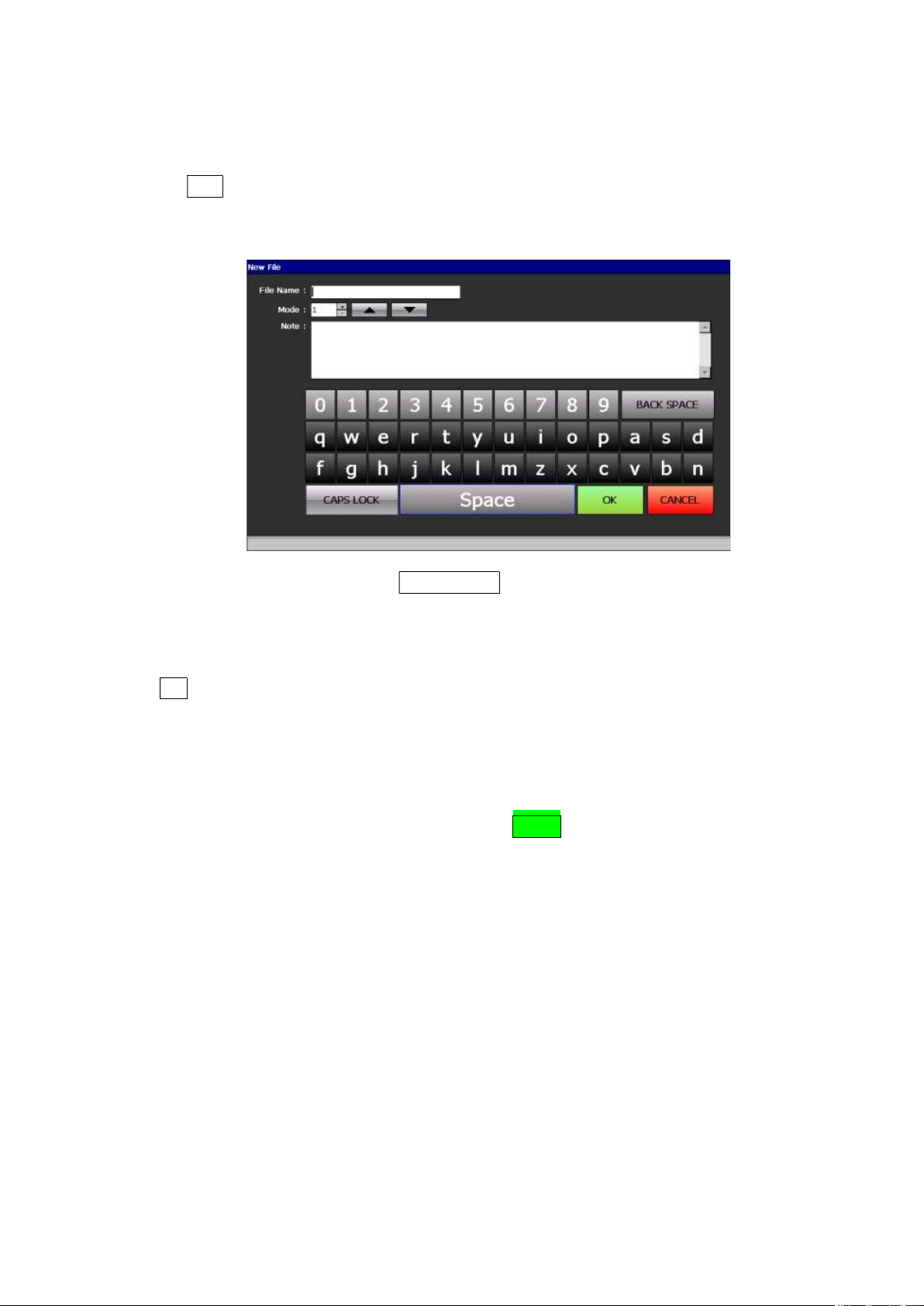
When a FILE button, which is on the upper right of the screen, is cliked, the following screen would
appear.
CLOSE: Close a window.
NO: File number. Up to 100 files from 0 to 99 can be used.
M: Operation mode. There are 4 operation modes- 1, 2, 3 and 4
NAME: File name.
NOTE: Note.
TOP PW: Displays the output of the upper heater.
BOT PW: Displays the output of the bottom heater.
MOVE: File number move funtion, If you want to save after change, you have to push OK button.
to Top to above to down to End Save
Delete: It is for deleting a file. Select a file to be deleted and then press DELETE to delete.
New: It is for creating a new profile. A new no. is created on the last line.
SELECT: It is for selecting a profile. Select a file number to be switched over and then press
SELECT to switch over to the selected file. .
OPEN: It is for editing a profile. Select a file number and then press OPEN to modify or edit the
temperature profile or save it under a different file name.
IR AUTO BGA Rework Station TR3000-IRV
Kukjetrading Co., Ltd.
23
5.3.1 Registration of New Temperature Profile
①
Click a File button on the upper right side.
② Click a New key in yellow, on the lower left side.
Then, a new file window would appear as
follows.
File Name: Enter a file name. Touch a rectangular box to have a keyboard on the bottom. Enter a
name on the keyboard. With the CAPS LOCK, the keyboard can be switched from capital letters
to lower case letters.
Mode: It is for selecting an operation mode. By clicking up/down arrows, select the desired mode.
There are 4 operation modes and the standard mode is 1.
Note: Enter a note.
OK: Save
CANCEL: Cancel
③ Enter cautions or special conditions onto [File Name], [Mode] and [Note], and then press “OK”, on the lower
right. Then, a new file would be created.
④ Select the file name which has been entered and then press OPEN. Then, the following screen would appear.