Board-Inverter-Operation-Manual-REV-F-2.pdf - 第20页
BI2000 Boa rd Invert er Manual Revision F / January 2022 Page 20 of 37 Conve yor Widt h Adju st 282B This sc reen o nly appl ies to sy stems with aut omatic width adju st. • 123B To manual ly a djust t he convey or wi dt…
BI2000 Board Inverter Manual
Revision F / January 2022
Page 19 of 37
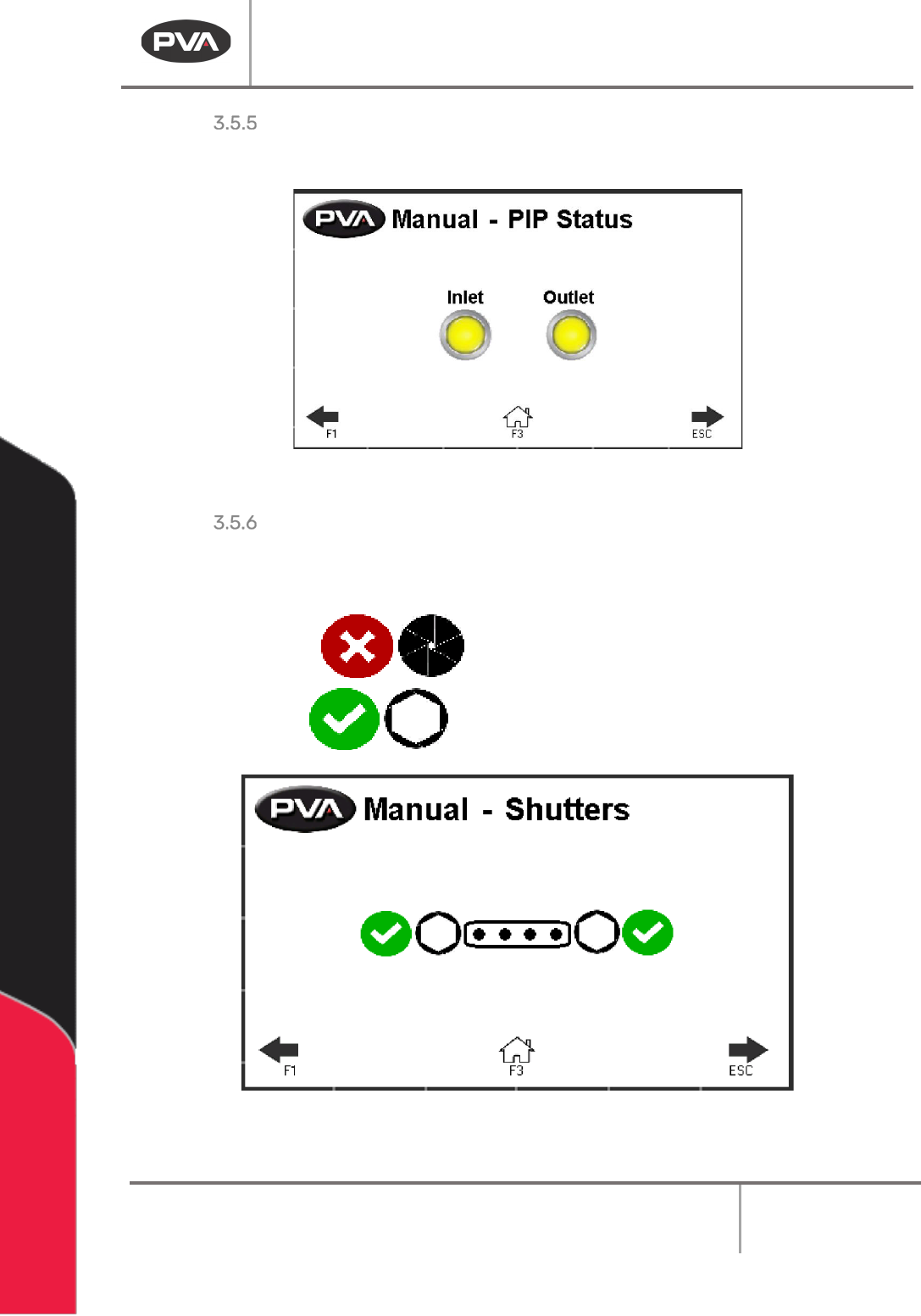
PIP Status
278BView the status of the part in place (PIP) input from the machine.
53BFigure 14: Manual Mode, PIP Status
Shutters
280BThis screen only applies to systems with shutters. To manually open or close the shutters
select the Green Checkmark or Red X.
54BFigure 15: Shutters
BI2000 Board Inverter Manual
Revision F / January 2022
Page 20 of 37
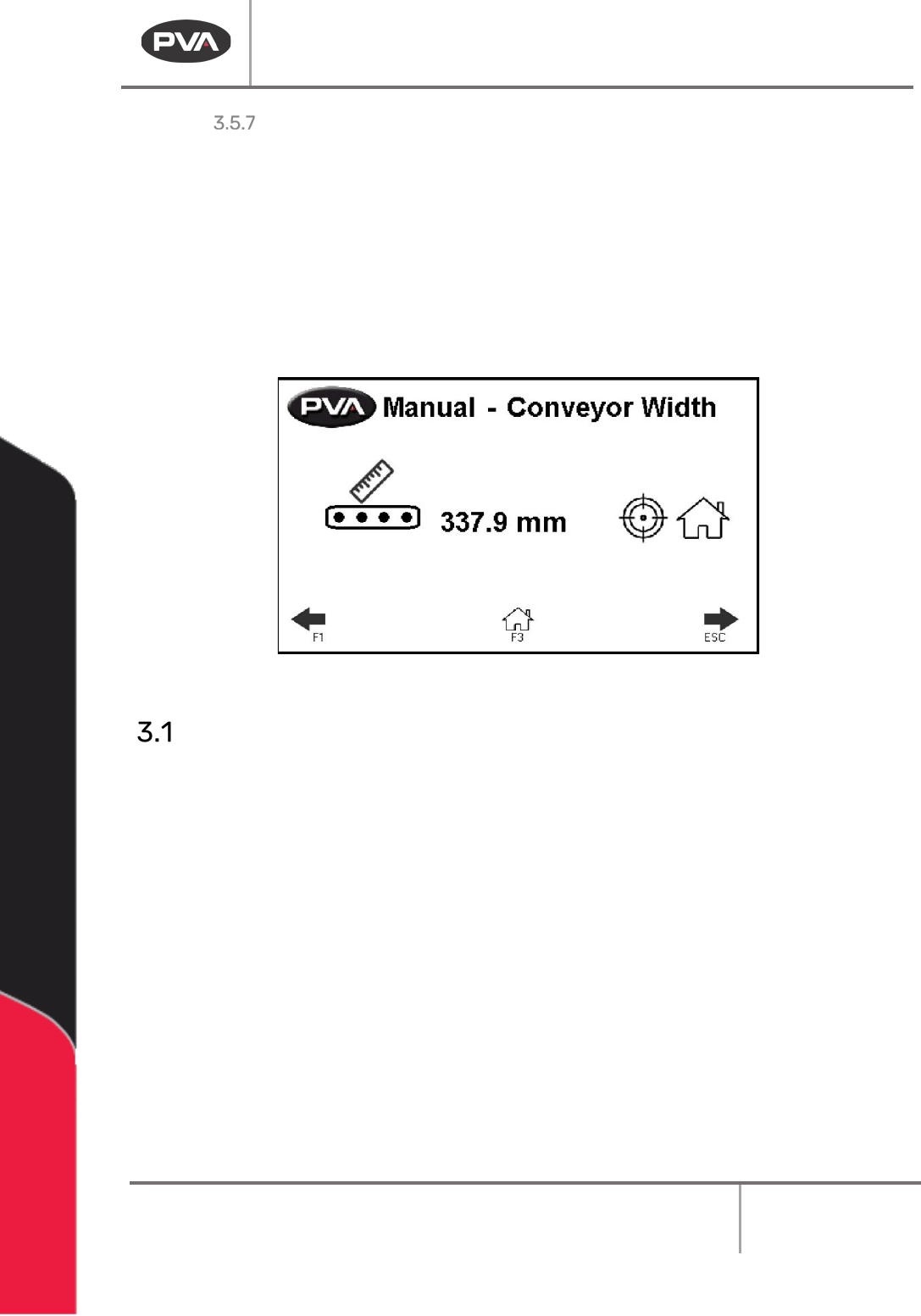
Conveyor Width Adjust
282BThis screen only applies to systems with automatic width adjust.
•
123BTo manually adjust the conveyor width, go to the Conveyor Width screen.
•
124BSelect the width value and use the keypad shown to enter a new width.
•
125BSelect the Target symbol to move the conveyor to the set width.
•
126BSelect the Home icon to home the conveyor.
55BFigure 16: Conveyor Width
Setup Mode
284BIn setup mode, the operator can set the options for the PVA board inverter. The profile
name is shown at the top of the screen. You will make changes to the profile shown.
1.
127BSelect the Setup icon or the “ESC” button from Cycle Stop.
2.
128BUse the Use the + - Page icons or the F2 and F4 keys to scroll through the profiles.
The profile name is shown at the top of the screen. You can have a maximum of 30
profiles.
3.
129BUse the “Left”, and “Right” arrow buttons to scroll through the screens or the “F1”
and “ESC” hardware keys.
4.
130BPush the “Home” button or the F3 key to return to Cycle Stop. When you leave
Setup mode, all changes will be saved.
285BThe profile that will run in Auto Cycle is the one shown on the screen.
BI2000 Board Inverter Manual
Revision F / January 2022
Page 21 of 37
Flip Process
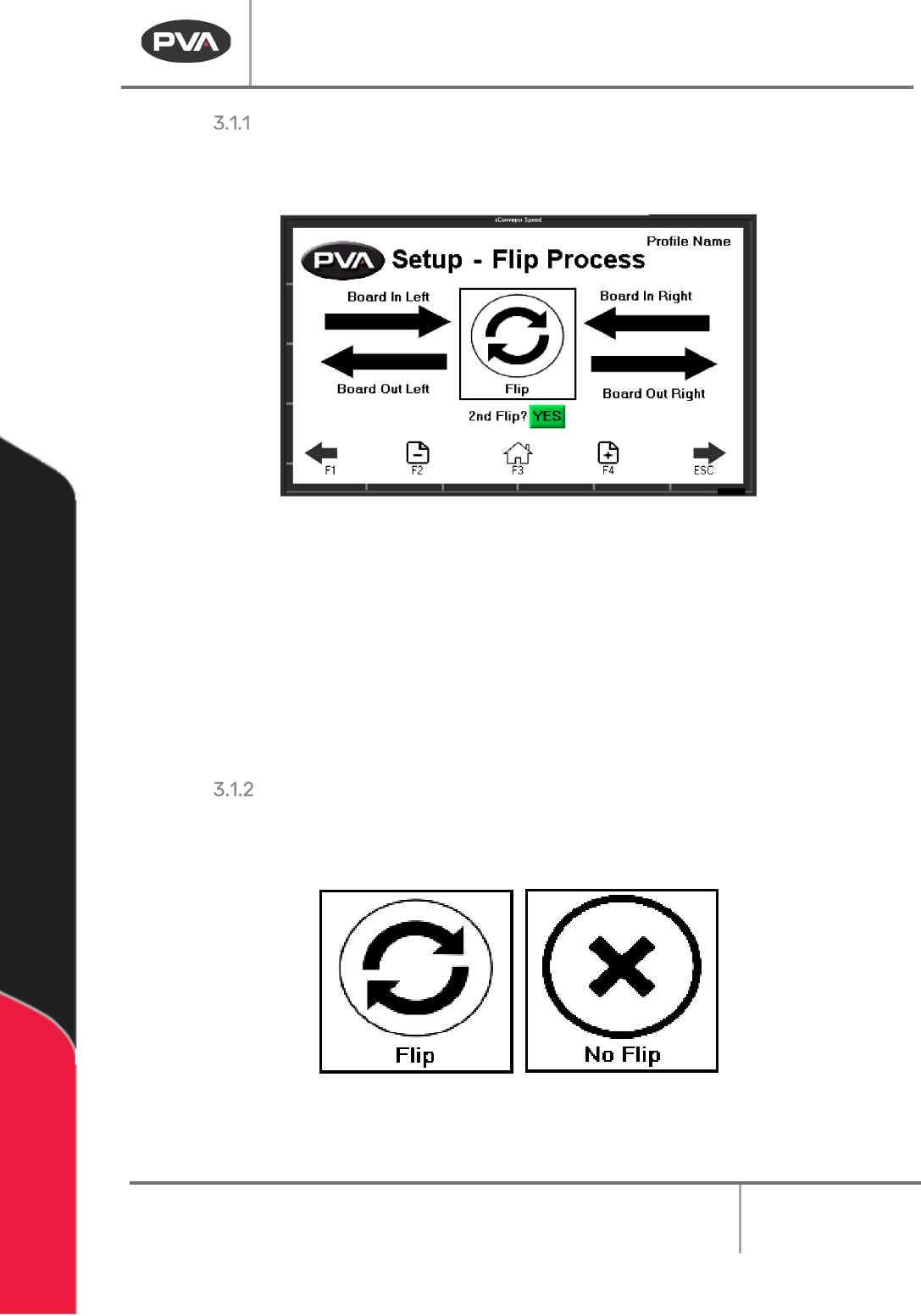
286BThe screen below shows all available flip options, the arrows will change based on the
board in and out directions selected.
56BFigure 17: Flip Roll Cage
1. 131BSelect the “Board In” arrow (top) to switch between “Board In Left” and “Board In
Right”. Only the selected “Board In” arrow will be shown, so when the “Board In
Left” arrow is shown, the “Board In Right” arrow will be hidden.
2.
132BSelect the “Board Out” arrow (bottom) to switch between “Board Out Left” and
“Board Out Right”. Only the selected “Board Out” arrow will be shown, so when the
“Board Out Left” arrow is shown, the “Board Out Right” arrow will be hidden.
Board Flip
288BSelect the square flip icon in the center of the screen to set the board flip option to “Flip” or
“No Flip”. This setting will be used in Auto Cycle for the profile shown.
57BFigure 18: Board Flip Icons