SIPLACE S-23 HM.pdf - 第124页
3 Introduction and Ba sic Concepts User M anual SIPLACE S -23 HM 3.3 User Interface - Views and Menus Software Version SR.406.xx 02/00 US E dition 124 Software .. . 3 This menu item is used to activate the tes t comman d…
User Manual SIPLACE S-23 HM 3 Introduction and Basic Concepts
Software Version SR.406.xx 02/00 US Edition 3.3 User Interface - Views and Menus
123
NOTE
By default, clusters and set-ups should be prespecified by the line computer.
If the line computer is powered down via "Shut down" and then rebooted, all the connected
stations must also be rebooted. 3
SIPLACE Pro
When a cluster is specified at the station, all the data required for this are loaded from the com-
puter specified in the configuration of the SIPLACE Pro connection. The data must be located on
the hard disk of this computer. 3
3
Å Activate the radio button for the required control mode.
Å Click OK to make your settings active.
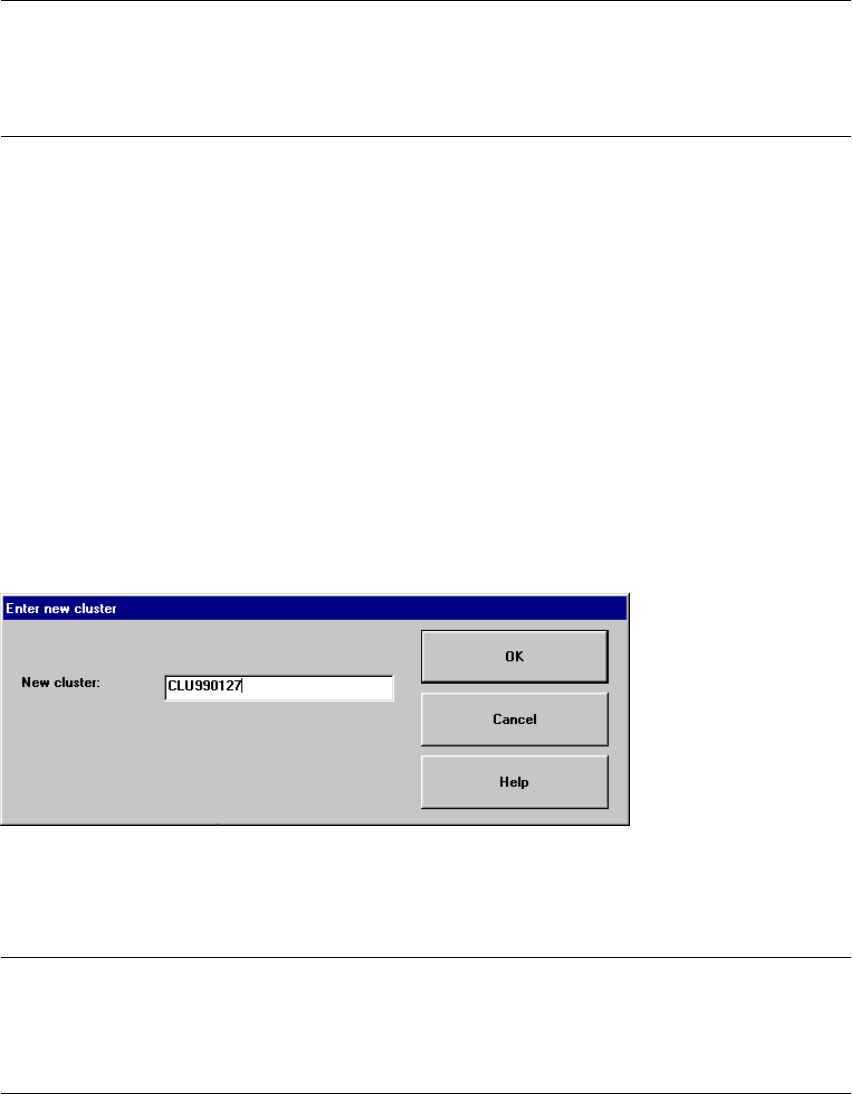
New cluster... 3
In the "Stand alone" control mode, you can load the data for a selected cluster from the station
computer’s hard disk.
Å Click the menu item New cluster...
Å Now enter the name of the required cluster in the displayed text box and click OK to confirm.
The cluster data is now loaded.
NOTE
The data, including the fiducial and package form data, of the last cluster successfully prespecified
by the line computer, is now saved on the station computer’s hard disk under the cluster name
"AKTUELL" and can be loaded by entering this name. 3
3 Introduction and Basic Concepts User Manual SIPLACE S-23 HM
3.3 User Interface - Views and Menus Software Version SR.406.xx 02/00 US Edition
124
Software ... 3
This menu item is used to activate the test commands (test functions) for checking a variety of
machine components. 3
NOTE
This menu item can only be called from the "Service" access level. 3
DANGER
Settings for test commands and test command execution should be performed by service
engineers only. 3
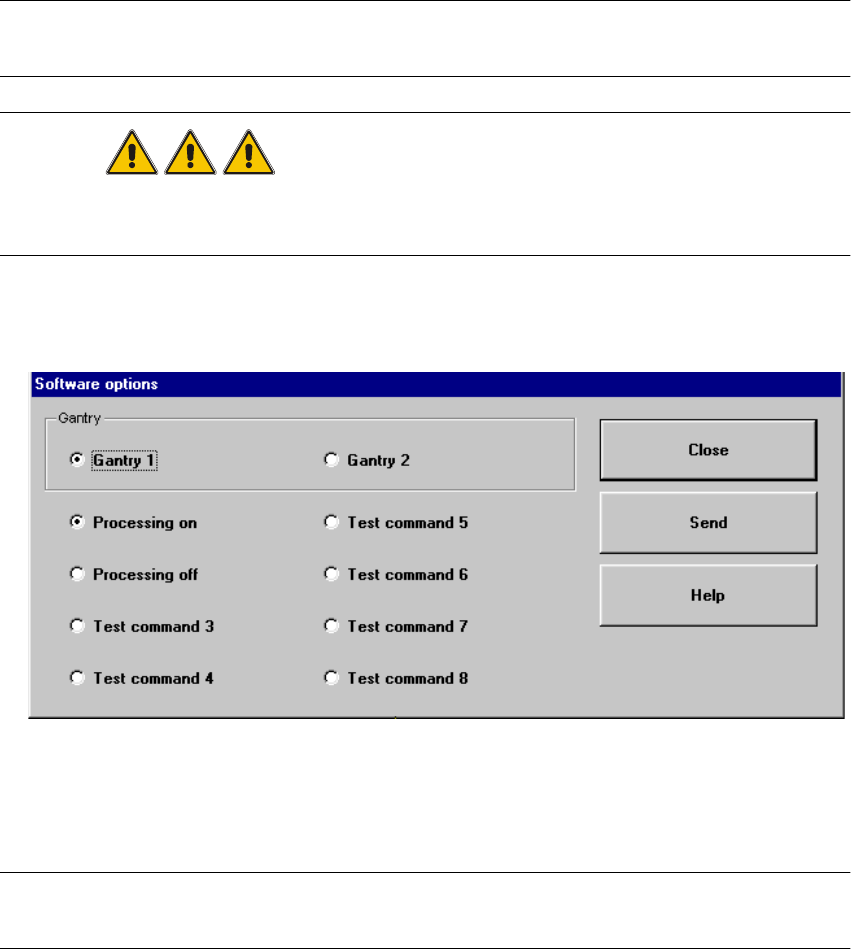
Å Click the menu item Software ...
The following window is opened.
3
Å Select the tab corresponding to the required machine component and activate/deactivate the
test commands by clicking the corresponding checkboxes.
Å Click Accept to set the software options.
NOTE
When the station is rebooted, the software options are reset to their original settings. 3
User Manual SIPLACE S-23 HM 3 Introduction and Basic Concepts
Software Version SR.406.xx 02/00 US Edition 3.3 User Interface - Views and Menus
125
Cycle mode... Alt+t 3
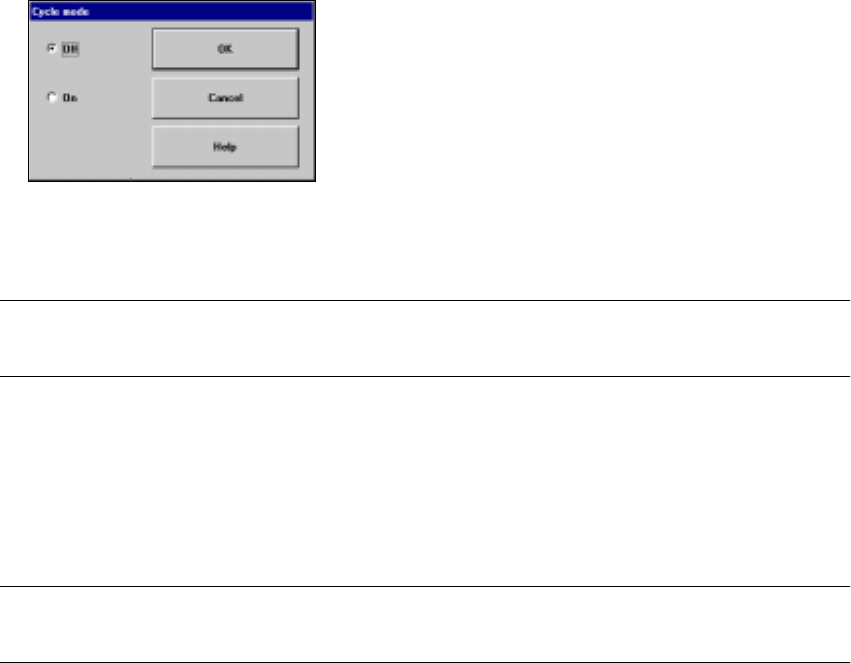
You use this menu item to switch the station to cycle mode (e.g. to localize errors). 3
Å Click the menu item Cycle mode... or press the key combination ALT+t. The "Cycle mode"
settings box is opened.
Å Click the On radio button to activate cycle mode or the Off radio button to deactivate it.
Å Click the OK button. Cycle mode is now either activated or deactivated.
NOTE
In cycle mode, you must press the Start button on the machine for every operating step. 3
Load table program 3
This menu item allows you to reload the table program into the memory of the table program
controller. You may need to do this, for example, if a machine error has resulted in the loss of the
table program. 3
NOTE
This function cannot be executed in "Operator" access mode. 3
Å Click the menu item "Load table program".
The program is loaded. (The loading process can take some time).
Video image > Alt+8 3
In the case of certain actions, it may be necessary to display the camera image of the MVS system
on-screen (vision analysis unit) during assembly. 3
Å Click the menu item Video image > or press the key combination ALT+8.
The display area is switched to the MVS system camera image in processing area 1.
Å Press then ESC key to restore the display area to the normal view.