SIPLACE S-23 HM.pdf - 第216页
6 Vision functions User M anual SIPLACE S -23 HM 6.5 Teach Fiducial Software Version SR.406.xx 02/00 US E dition 216 6.5.3.4 Def ine New Fiduci al Option With this option y ou can generate a new fiduc ial. 6 – Cli ck on …
User Manual SIPLACE S-23 HM 6 Vision functions
Software Version SR.406.xx 02/00 US Edition 6.5 Teach Fiducial
215
6.5.3.3 Change Fiducial Name Option
NOTE 6
This option can only be activated if you have already loaded a fiducial. If this is not the case, the
Change fiducial name button will be inactive. The grayed-out text on the button indicates this. 6
– Load the desired fiducial, as described in Section 6.5.3.2 on page 214.
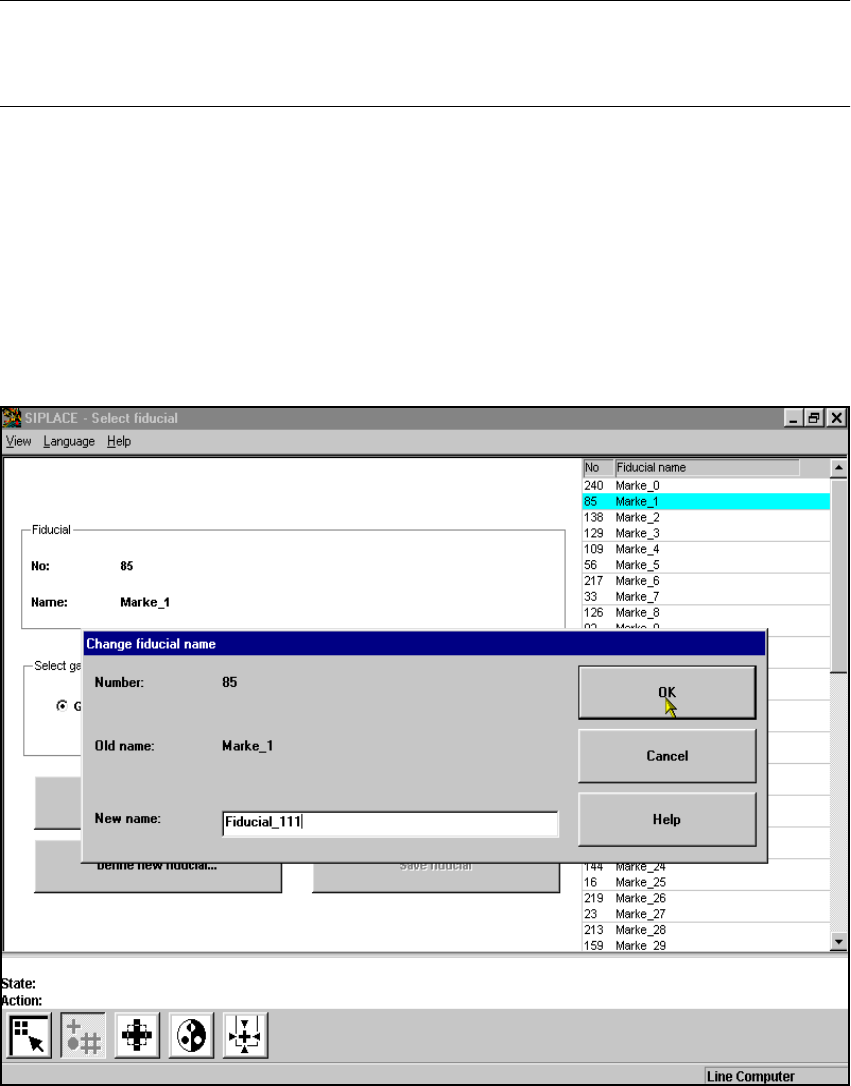
– Click on the Change fiducial name button.
The input box will appear on the screen.
– Input the new fiducial name into the New name field.
–Click on OK if you wish the change to go ahead. The fiducial list will now be updated.
–Click on Cancel if you wish to discard the change.
6
Fig. 6.5 - 10 Change fiducial name option, input box for new fiducial name
6 Vision functions User Manual SIPLACE S-23 HM
6.5 Teach Fiducial Software Version SR.406.xx 02/00 US Edition
216
6.5.3.4 Define New Fiducial Option
With this option you can generate a new fiducial. 6
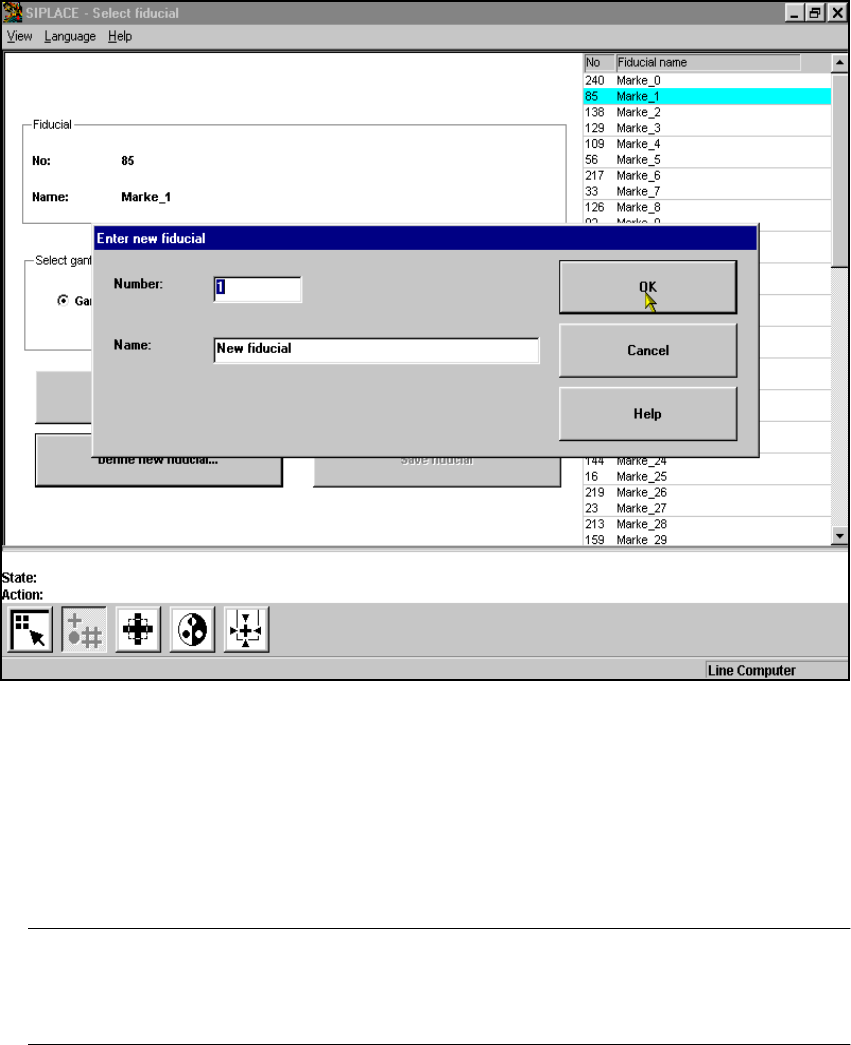
– Click on the Define new fiducial button.
The input box for the fiducial number and the fiducial name will appear on the screen.
6
Fig. 6.5 - 11 Select fiducial menu, Define new fiducial option, input box
– Input a fiducial number and the fiducial name.
– Conclude your input with OK or discard your input with Cancel.
– The new fiducial can also be taught with standard values and further processed.
– When finished save the fiducial by clicking on the Save fiducial button.
NOTE 6
If a fiducial number already exists after clicking on OK you will be asked if you want to over-
write the existing fiducial. 6
User Manual SIPLACE S-23 HM 6 Vision functions
Software Version SR.406.xx 02/00 US Edition 6.5 Teach Fiducial
217
6.5.3.5 Save Fiducial Option
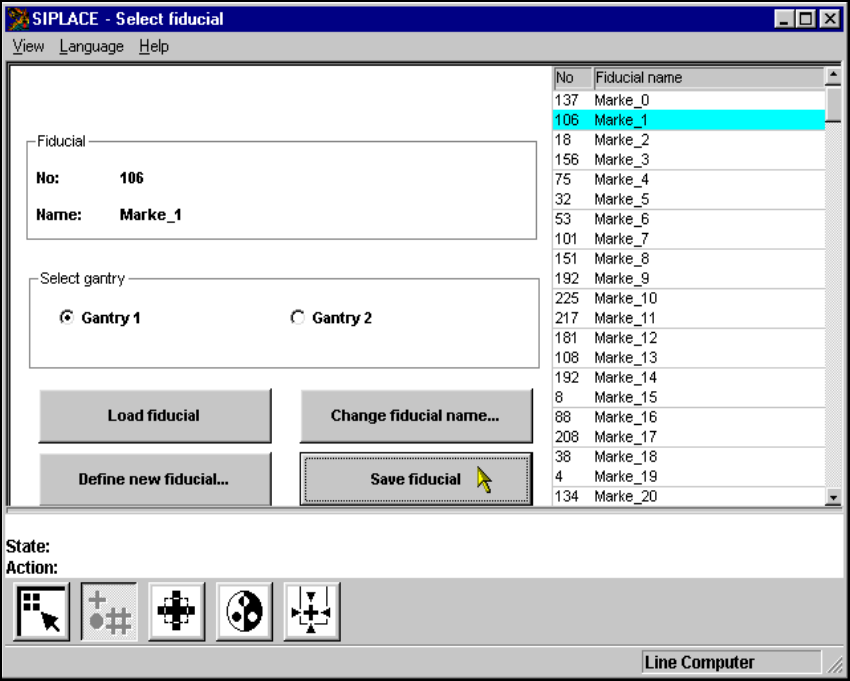
With this option you can save fiducials together with their modified parameters. The button will
only become activated if you have 6
– changed the fiducial name or
– generated a new fiducial.
6
Fig. 6.5 - 12 Select fiducial menu, Save fiducial option