SIPLACE S-23 HM.pdf - 第133页
User Manual SIPLAC E S-23 HM 4 Placement Functions Software Version SR.406.xx 02/00 US Edition 4.1 Setup Display 133 4.1.2.1 Accept able Barcodes The list o f barcod es (max. of 6) that ar e kn own for the componen t in …
4 Placement Functions User Manual SIPLACE S-23 HM
4.1 Setup Display Software Version SR.406.xx 02/00 US Edition
132
Å Select the entry in the setup table for the track for which you want to execute a component ver-
ification (or read the track barcode on the barcode bar using the barcode reader). The line se-
lected is highlighted in light blue in the table.
Å Click on the Comp. verification with barcode ... button
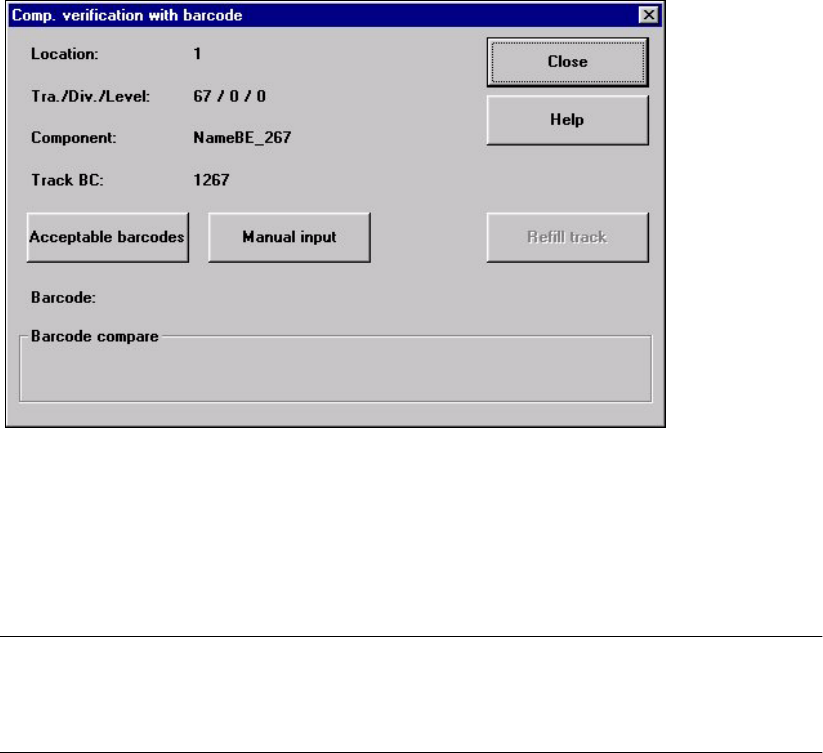
The following window is opened. The data for the selected track is displayed so you can check
the data.
4
Fig. 4.1 - 2 "Component verification with barcode" window
4
Å Read the component barcode in from the corresponding component reel with the
barcode reader. The barcode read in is displayed in the "Barcode:" line (see Section 4.1.2.1).
NOTE
If the component barcode cannot be read in, then enter it manually. The procedure is
described in Section 4.1.2.1. 4
User Manual SIPLACE S-23 HM 4 Placement Functions
Software Version SR.406.xx 02/00 US Edition 4.1 Setup Display
133
4.1.2.1 Acceptable Barcodes
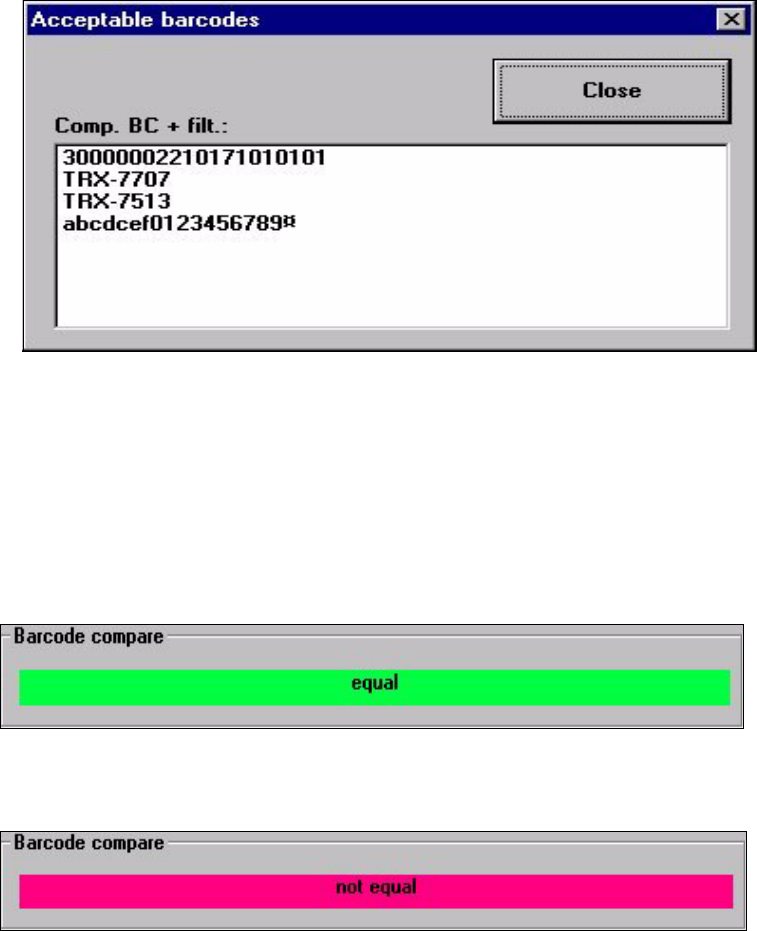
The list of barcodes (max. of 6) that are known for the component in the selected track is displayed
with this function. 4
Å Click on the Acceptable barcodes button
The following selection box is opened.
4
Å Click on the Close button. The selection box is closed.
The barcode read in using the barcode reader is compared to the possible barcodes.
The positions hidden due to the filter (marked by a ¤) will not be used for the comparison.
The results of the barcode comparison will be displayed in the display field of the "Component
verification with barcode" window (see the following examples).
The barcodes match.
4
The barcodes do not match.
4
4 Placement Functions User Manual SIPLACE S-23 HM
4.1 Setup Display Software Version SR.406.xx 02/00 US Edition
134
4.1.2.2 Manual Input of the Component Barcodes
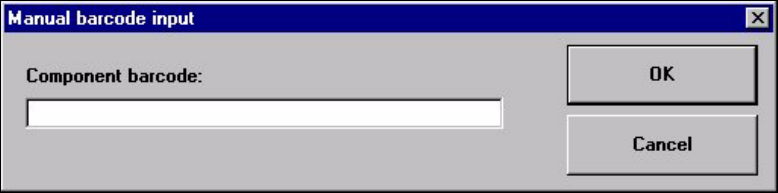
Å Click on the Manual input button to enter the barcode by hand.
The following input box is opened.
Å Enter the barcode in the input field and close the input box using OK.
The barcode comparison is started.
The results of the barcode comparison will be displayed in the display field of the "Component
verification with barcode" window (see Section 4.1.2.1).
Å The further procedure is described in Section 4.1.2.1.