EdisonStandardOwnersManual-RevA-20170818B.pdf - 第120页
P RINTER O PERATIONS Edison Printer User Manual (Part Number 1023838) 120 Rev. A Copyright © 2017 ITW EAE All rights reserved. No part of the contents of thi s manual may be reproduced, copied or transmitted in any form …

Edison Printer User Manual (Part Number 1023838) PRINTER OPERATIONS
Rev. A 119
Copyright © 2017 ITW EAE
All rights reserved. No part of the contents of this manual may be reproduced, copied or transmitted in any form or by any
means including graphic, electronic, or mechanical methods or photocopying, recording, or information storage and
retrieval systems without the written permission of ITW EAE, unless for purchaser's personal use.
Load Manual Wipe Profile
Load a profile named Manual Wipe to the process program
before attempting to select this wipe option. Assign
Manual Wipe as its Event type.
2. To use the profile assigned to the manual wipe process:
a. Select Manual option
b. Click Wipe Now
3. To use another loaded profile to perform the manual wipe process:
Load Desired Profile
Load the desired profile before attempting to select the option.
a. Select the From list option.
b. Select the desired profile from the pull-down list.
c. Click Wipe Now.
4. To use a profile not loaded to the process program:
Using this option does not load the profile used to the process
program.
a. Select the From list option.
b. Select Browse…, and navigate to the location containing the profile.
c. Double-click the desired profile name.
d. Click Wipe Now.
5. Click Finish.
PRINTER OPERATIONS Edison Printer User Manual (Part Number 1023838)
120 Rev. A
Copyright © 2017 ITW EAE
All rights reserved. No part of the contents of this manual may be reproduced, copied or transmitted in any form or by any
means including graphic, electronic, or mechanical methods or photocopying, recording, or information storage and
retrieval systems without the written permission of ITW EAE, unless for purchaser's personal use.
5.6.3. Viewing and Processing Alerts
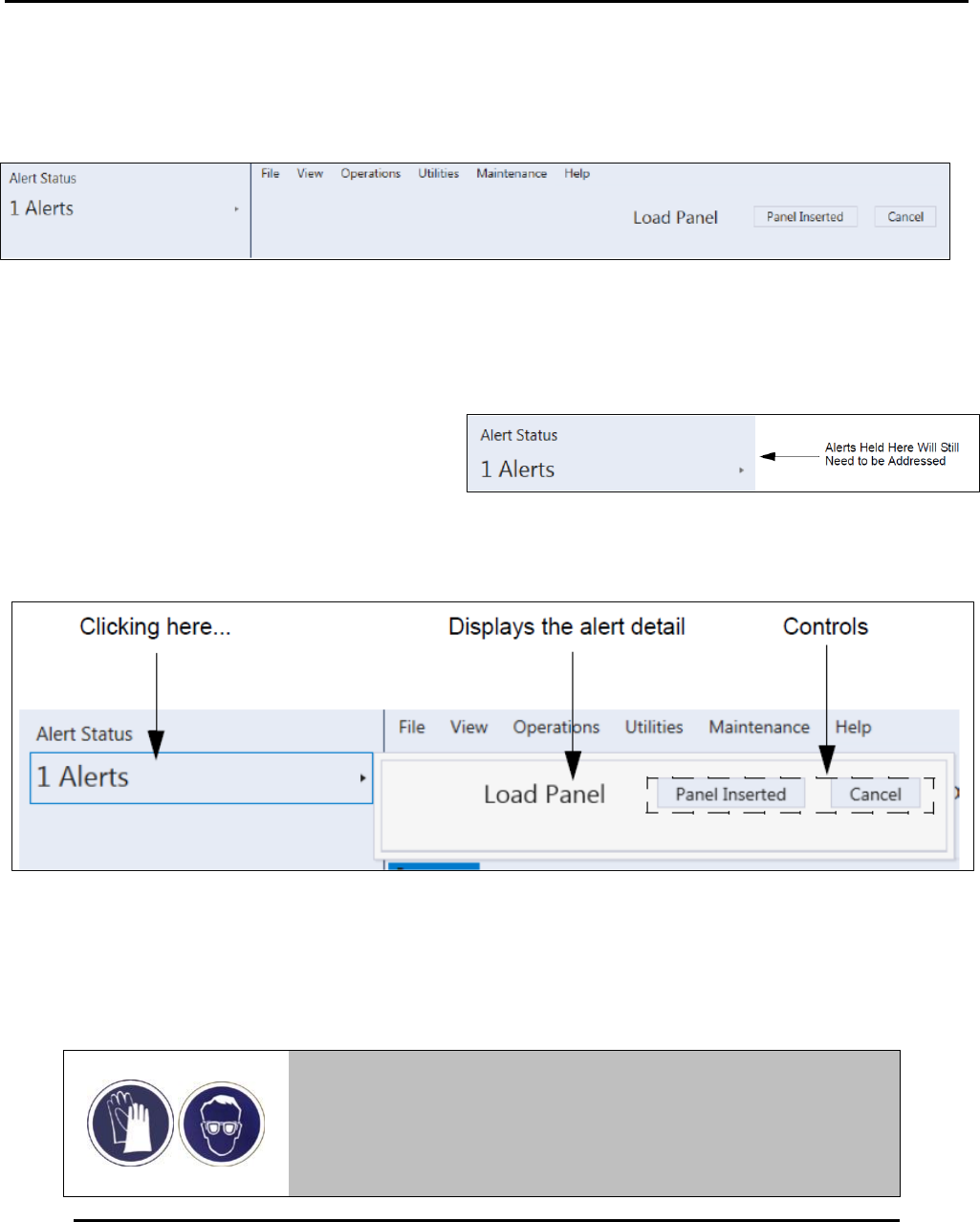
The alert counter in the Alert Status window tallies the current number of alerts. When an alert
occurs, the Alert Status counter increments by one, and the alert is prominently displayed (Figure
112). If there is one existing alert, the counter reads “1 Alerts.”
The Alert Status window includes the controls required for addressing the alert and, in some
cases, a control to close the alert without addressing it (Figure 114).
Addressing the alert launches a recovery wizard, which steps the user through the alert
recovery process.
Ignoring the alert (by closing the alert)
closes the header but retains the alert in
the Alert Status window (Figure 113).
5.7. Wiper Paper Change Procedure
Warning!
Wear proper protection (gloves and safety glasses) when
handling the contaminated wiper paper roll.
Figure 112. Alert Status Window.
Figure 114. Details of an Alert Status.
Figure 113. Ignored alerts remain in Alert Status window.
Edison Printer User Manual (Part Number 1023838) PRINTER OPERATIONS
Rev. A 121
Copyright © 2017 ITW EAE
All rights reserved. No part of the contents of this manual may be reproduced, copied or transmitted in any form or by any
means including graphic, electronic, or mechanical methods or photocopying, recording, or information storage and
retrieval systems without the written permission of ITW EAE, unless for purchaser's personal use.
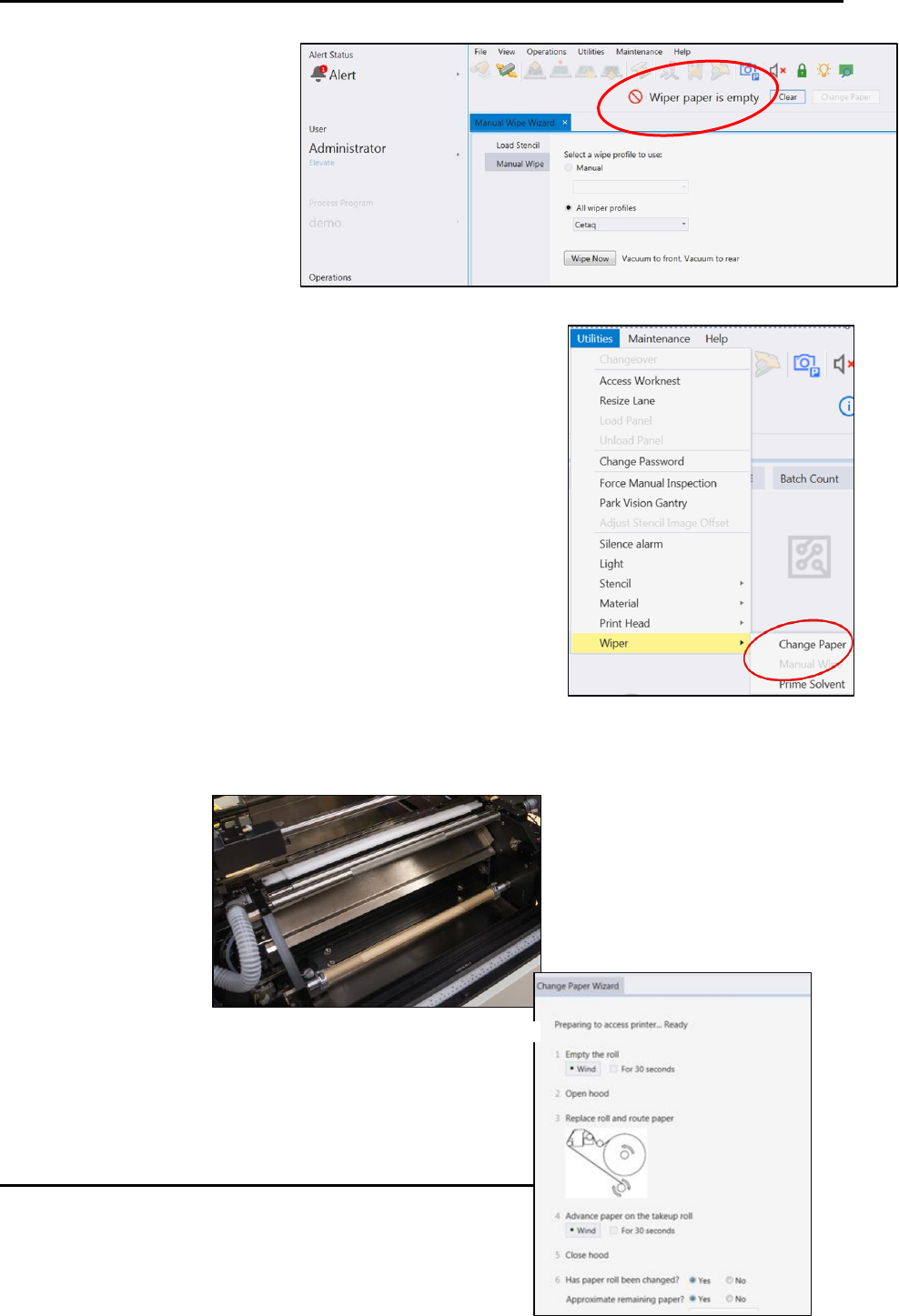
The System Alert Condition
message Wiper paper is empty
indicates when the wiper paper
should be changed (Figure 115).
5.7.1. Navigate to the Change Paper Wizard
1. Navigate to Change Paper: Utilities > Wiper > Change Paper
(Figure 116).
2. Ensure that the payout roll is empty (Figure 117).
a. If the roll is not empty, click Wind under the 1 Empty
the Roll section of the Change Paper Wizard (Figure
118).
Figure 115. Wiper paper is empty system message.
Figure 116. Navigate to Change Paper.
Figure 117. Ensure Payout roll is empty.