EdisonStandardOwnersManual-RevA-20170818B.pdf - 第97页
Edison Printer User Manual (Part Number 1023838) P RINTER O PERATIONS Rev. A 97 Copyright © 2017 ITW EAE All rights reserved. No part of the contents of this manual ma y be reproduced, copied or transmitted in any form o…

PRINTER OPERATIONS Edison Printer User Manual (Part Number 1023838)
96 Rev. A
Copyright © 2017 ITW EAE
All rights reserved. No part of the contents of this manual may be reproduced, copied or transmitted in any form or by any
means including graphic, electronic, or mechanical methods or photocopying, recording, or information storage and
retrieval systems without the written permission of ITW EAE, unless for purchaser's personal use.
5. Printer Operations
5.1. Operation Overview
Operation provides information for logging in, working with screens, system security, preparing
for production and production.
5.2. Printer Controls and Indicators
5.2.1. Operation Uses Intueri Software
The Edison Stencil Printer uses Intueri software, a simple, intuitive operator interface with a
flexible, wide array of configuration variables.
Danger!
Read and understand the Safety section in this manual before
installing, operating, adjusting, or maintaining any component in
the Edison Stencil Printer.
Edison Printer User Manual (Part Number 1023838) PRINTER OPERATIONS
Rev. A 97
Copyright © 2017 ITW EAE
All rights reserved. No part of the contents of this manual may be reproduced, copied or transmitted in any form or by any
means including graphic, electronic, or mechanical methods or photocopying, recording, or information storage and
retrieval systems without the written permission of ITW EAE, unless for purchaser's personal use.
5.2.2. Front Panel Controls and Indicators
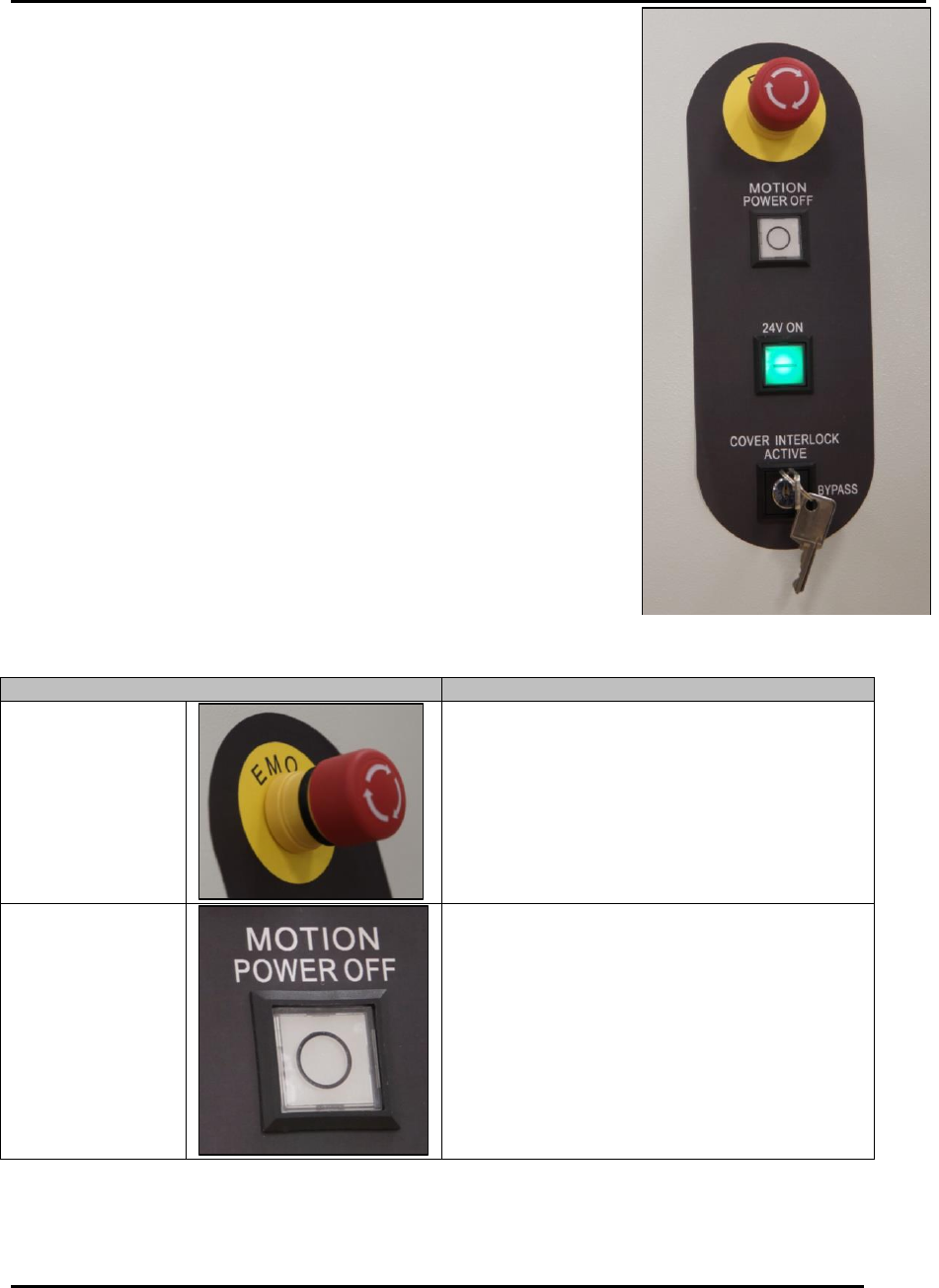
Printer controls and indicators include the front panel indicators
(Figure 77) and light tower (Figure 78).
Table 16 provides the function of each control
Figure 79 provides the light tower configuration options.
Become familiar with these controls and indicators prior to operating
the printer.
Table 16 Edison Printer Control Functions.
Control
Function
EMO
Emergency Stop
Button
Press to immediately remove air from printer.
Automatically removes air up to the main
regulator.
The EMO is a twist-to-release button.
Twist the button to release after it has
been pushed.
Motion Control
24v Power OFF
Pushbutton
(White)
Shut OFF system motion control voltage.
This button has no indicator light.
Figure 77. Edison Printer Front Panel
Controls.
PRINTER OPERATIONS Edison Printer User Manual (Part Number 1023838)
98 Rev. A
Copyright © 2017 ITW EAE
All rights reserved. No part of the contents of this manual may be reproduced, copied or transmitted in any form or by any
means including graphic, electronic, or mechanical methods or photocopying, recording, or information storage and
retrieval systems without the written permission of ITW EAE, unless for purchaser's personal use.
Control
Function
Motion Control
24v Power ON
Pushbutton
(Green)
Power ON system motion control voltage.
Green indicator light is lit when pressed,
indicating motion control power is applied to
the printer.
Green indicator light is unlit when:
Motion Control 24v Power OFF
pushbutton (White) has been pressed
EMO/Emergency Stop Button has
been pressed and when the main
power is switched to OFF.
Bypass Key
Switch
Set to BYPASS to open the hood and jog
components
When this key switch is set to Bypass, you can
open the hood and jog components, but only
when instructed to do so by the Intueri
software. During these situations, speed is
reduced to 25% for all axes. Axes will travel at
normal speed with the key set to Bypass and
the hood closed.
5.2.3. Light Tower Indicators and Configuration
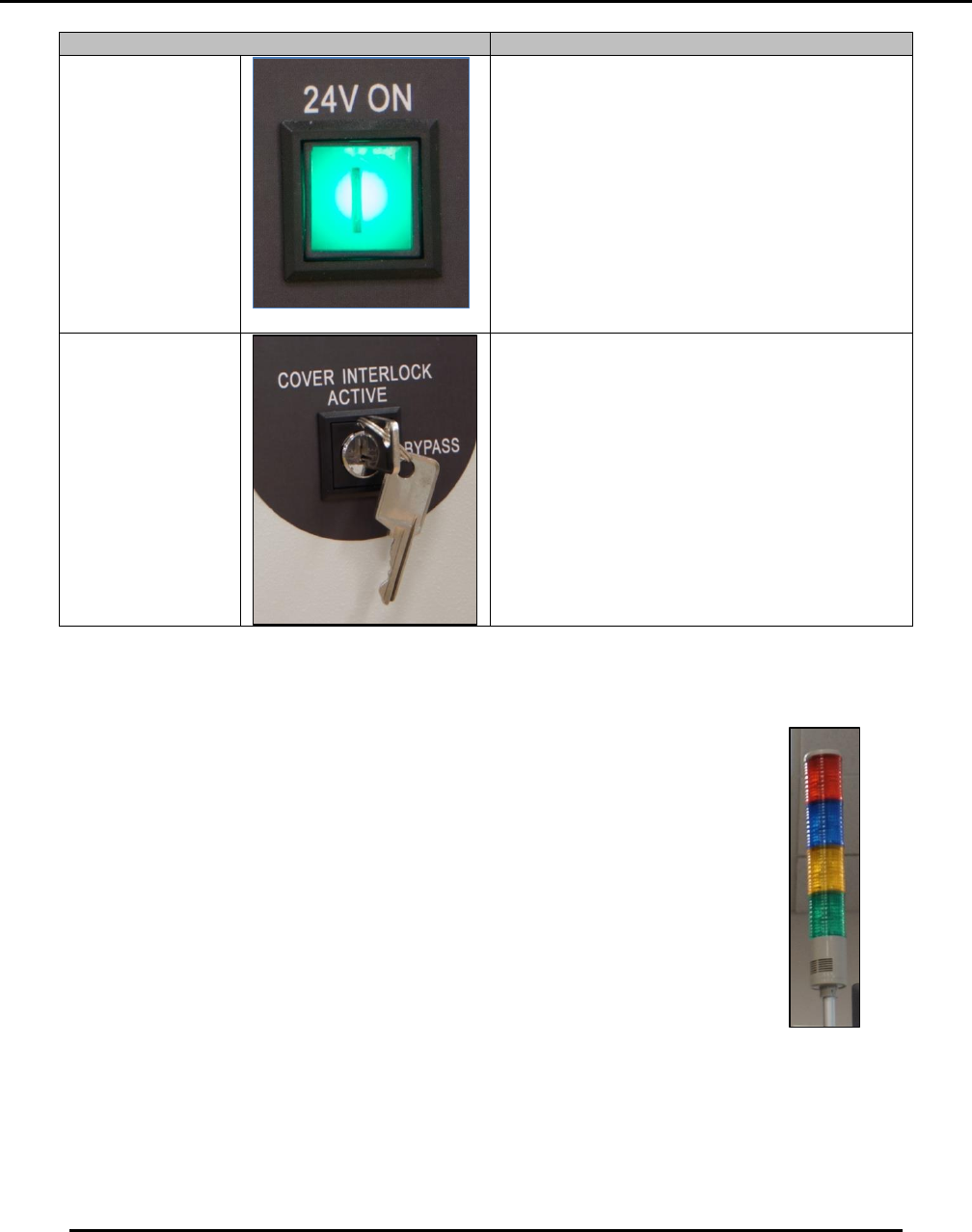
Tailor the light tower (Figure 78) to display specific light configurations (and
audible alarms) that correspond to individual printer states (Figure 79), as
desired.
Figure 78. Light
Tower.