EdisonStandardOwnersManual-RevA-20170818B.pdf - 第49页
Edison Printer User Manual (Part Number 1023838) I NSTALLATION AND I NITIA L S T A RT - U P Rev. A 49 Copyright © 2017 ITW EAE All rights reserved. No part of the contents of this manual may be reproduced, copi ed or tra…
INSTALLATION AND INITIAL START-UP Edison Printer User Manual (Part Number 1023838)
48 Rev. A
Copyright © 2017 ITW EAE
All rights reserved. No part of the contents of this manual may be reproduced, copied or transmitted in any form or by any
means including graphic, electronic, or mechanical methods or photocopying, recording, or information storage and
retrieval systems without the written permission of ITW EAE, unless for purchaser's personal use.
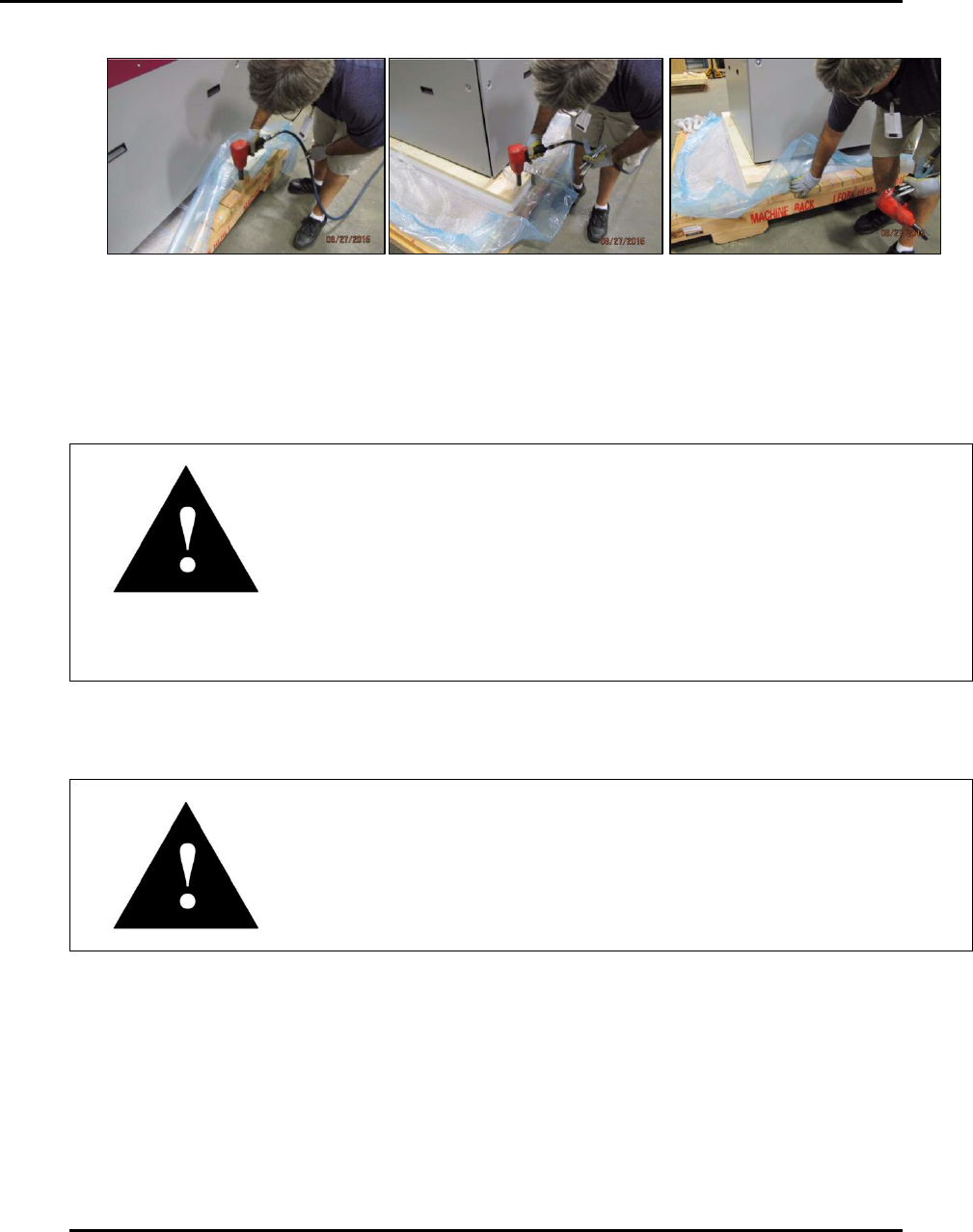
Figure 21. Remove crating bottom, isolators and supports.
3.2.3. Lift Edison Printer
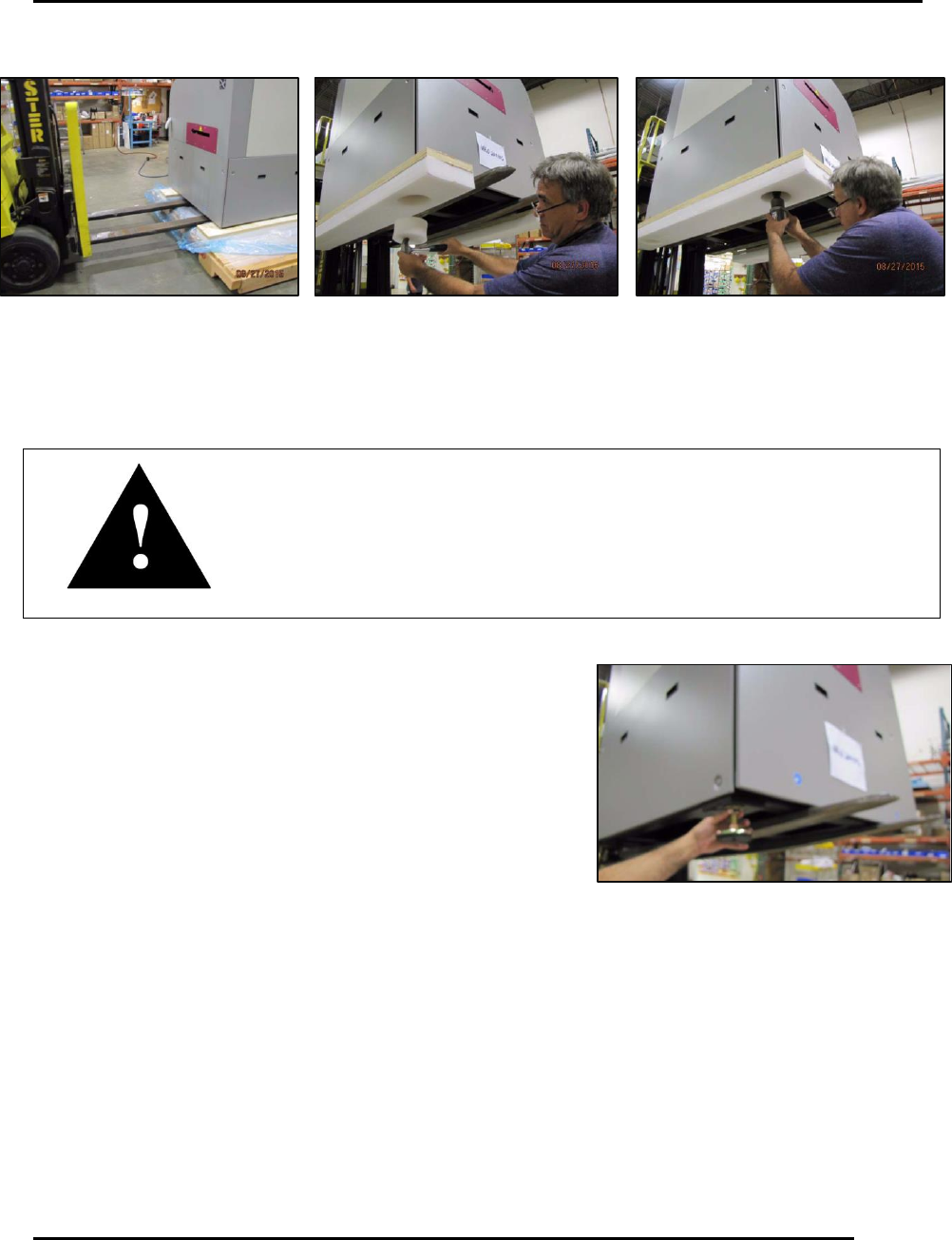
1. Position forklift blades and lift to remove skid (Figure 22).
Attention—Lifting Edison Printer
ITW EAE recommends extended forklift blades of 60 in to 72 in
(152.4cm to 182.8cm) in length to ensure proper weight distribution
when lifting the printer from the skid.
Ensure forklift blades have a total width/span of 36 in (91.44cm).
Ensure the forklift blades are placed within the area designated by
the left and right forklift blade labels, located on the sides of the
printer.
Ensure the forklift is capable of lifting 3000 lbs. (1360.78 kg)
2. Position forklift blades under the printer base and within the area designated by the left and
right forklift labels located on the sides of the printer (Figure 22).
Attention
Ensure forklift blades extend fully across the printer base and do not
pinch any loose pneumatic or electrical lines under the printer.
3. Lift the printer off the skid high and enough to remove the isolators from the bottom of the
printer.
4. Remove the skid from beneath the printer.
5. Remove the foam plugs from the bottom of the isolators to expose the hardware securing the
isolators to the bottom of the printer.
6. Remove the isolators from the printer with a 30mm socket.
Edison Printer User Manual (Part Number 1023838) INSTALLATION AND INITIAL START-UP
Rev. A 49
Copyright © 2017 ITW EAE
All rights reserved. No part of the contents of this manual may be reproduced, copied or transmitted in any form or by any
means including graphic, electronic, or mechanical methods or photocopying, recording, or information storage and
retrieval systems without the written permission of ITW EAE, unless for purchaser's personal use.
3.2.4. Install Leveling Pads
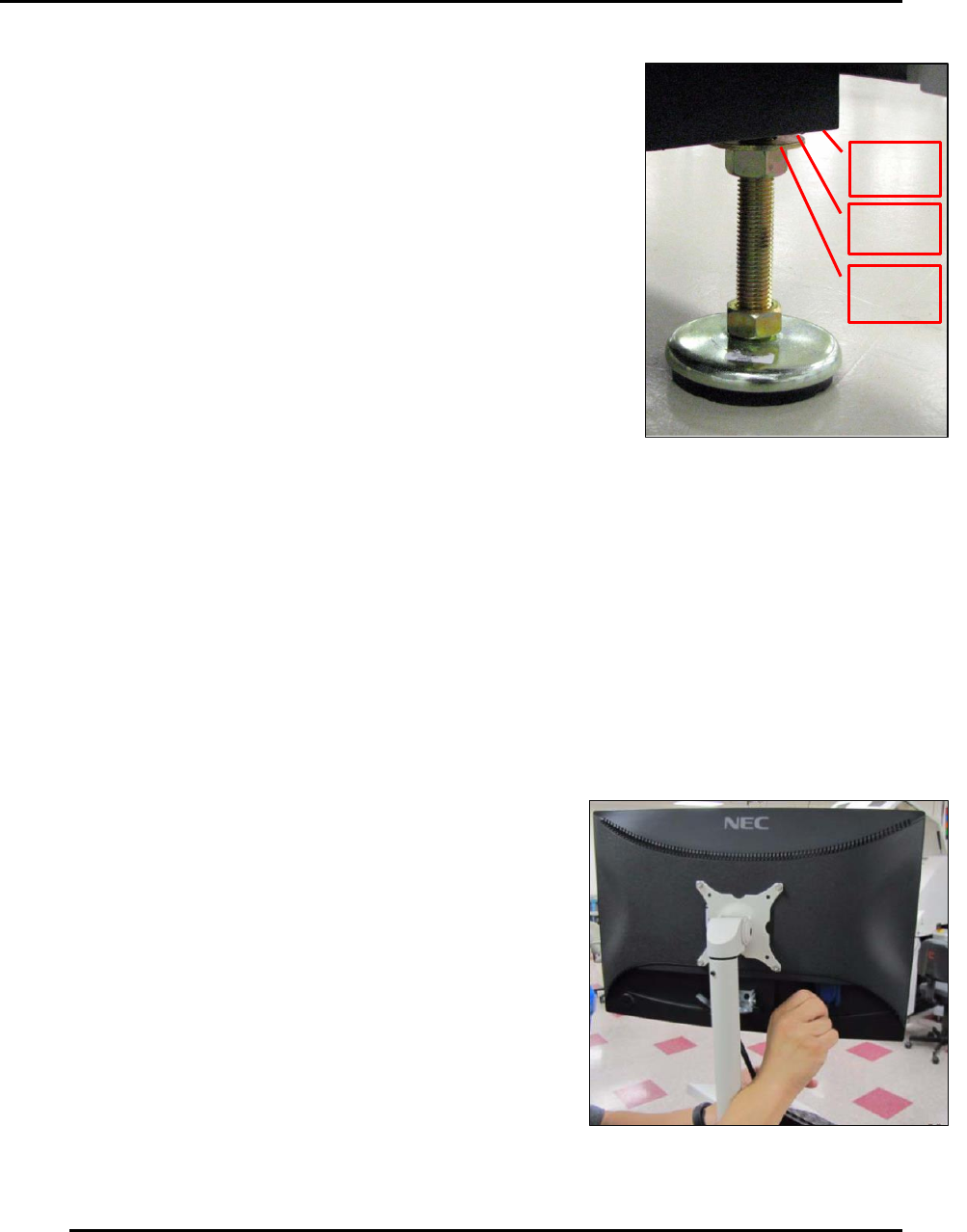
1. Install level pads in holes vacated by the isolator bolts
(Figure 23).
Attention
Make sure the washer is above the upper hex nut when installing the
leveling pads so that the washer rests against the printer base (Figure 24).
Figure 22. Lift printer to remove skid and isolators.
Figure 23. Install leveling pads in isolator pad
holes.
INSTALLATION AND INITIAL START-UP Edison Printer User Manual (Part Number 1023838)
50 Rev. A
Copyright © 2017 ITW EAE
All rights reserved. No part of the contents of this manual may be reproduced, copied or transmitted in any form or by any
means including graphic, electronic, or mechanical methods or photocopying, recording, or information storage and
retrieval systems without the written permission of ITW EAE, unless for purchaser's personal use.
Printer
Base
Washer
Hex
Nut
2. Adjust each leveling pad to provide 4 in (100 mm) between
the top surface of the leveling pad and the bottom surface of
the printer frame.
3. Lower the printer to the floor and remove the forklift from
the area.
4. Use the Shipping Checklist to ensure all appropriate
accessories have been received.
3.3. Installation and Setup
3.3.1. Monitor Installation
1. Remove the packing material from the monitor arm and cables.
2. Flip up the keyboard tray and lock in place.
3. Remove the 4 screws securing the monitor mounting bracket
a. Rotate the bracket 90 degrees, so the monitor handle faces up and away from the
mounting arm.
b. Secure the bracket to the arm using the same
screws.
4. Unpack the monitor.
5. Align the mounting bracket with the holes in the back
of the monitor (Figure 25).
a. Secure the monitor to the bracket using the
screws provided.
6. Attach the power cable and signal cable to the back
of the monitor.
Figure 24. Install leveling pads so
washer is above upper hex nut and rests
against printer base.
Figure 25. Align mounting holes and secure
monitor to bracket.