EdisonStandardOwnersManual-RevA-20170818B.pdf - 第84页
P ROCESS P ROGRA M C REATION Edison Printer User Manual 84 Rev. A Copyright © 2017 ITW EAE All rights reserved. No part of the contents of thi s manual may be reproduced, copied or transmitted in any form or by an y mean…
Edison Printer User Manual (Part Number 1023838) PROCESS PROGRAM CREATION
Rev. A 83
Copyright © 2017 ITW EAE
All rights reserved. No part of the contents of this manual may be reproduced, copied or transmitted in any form or by any
means including graphic, electronic, or mechanical methods or photocopying, recording, or information storage and
retrieval systems without the written permission of ITW EAE, unless for purchaser's personal use.
4.2.7.5. Panel
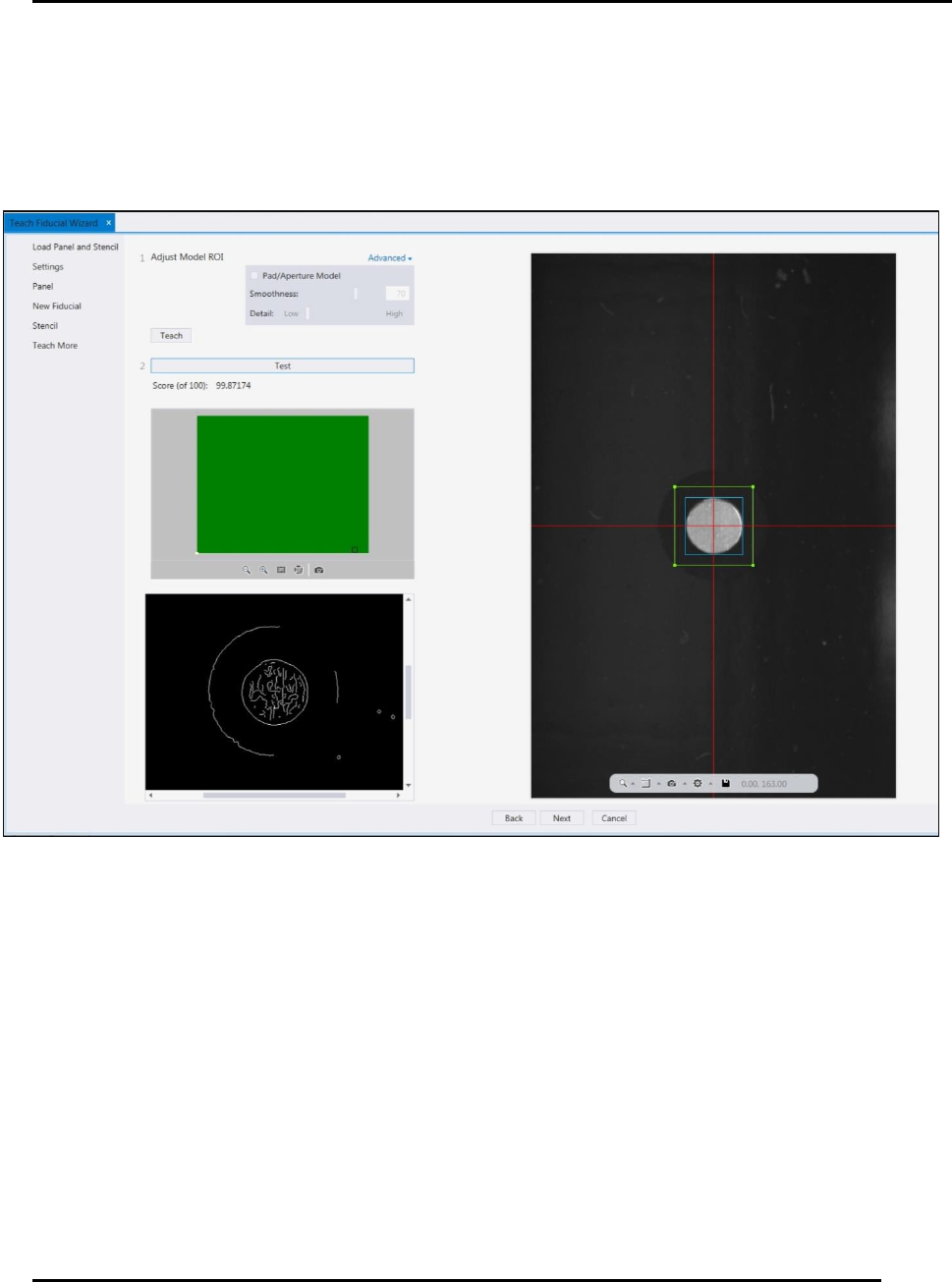
8. Click Teach to start the process for the software to recognize the fiducial and panel (Figure
58).
9. After teaching the software, use the next screen to Test, to ensure alignment is adequate
(Figure 59).
a. Press Test
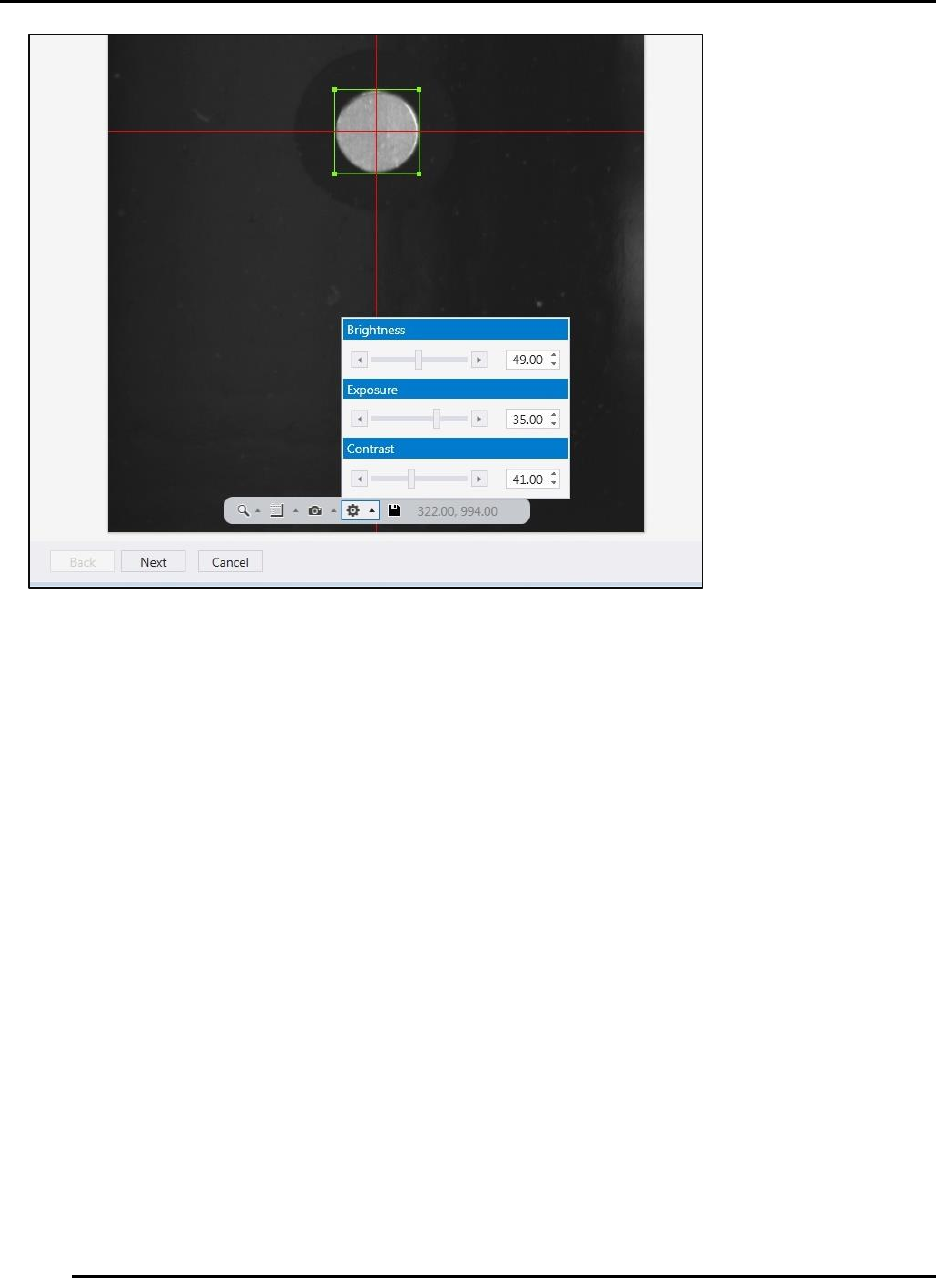
b. If the score is less than 80%, adjust the brightness, exposure, and contrast (Figure
60).
c. Press Test again.
Figure 59. Teach Fiducial Wizard: Test Panel.
PROCESS PROGRAM CREATION Edison Printer User Manual
84 Rev. A
Copyright © 2017 ITW EAE
All rights reserved. No part of the contents of this manual may be reproduced, copied or transmitted in any form or by any
means including graphic, electronic, or mechanical methods or photocopying, recording, or information storage and
retrieval systems without the written permission of ITW EAE, unless for purchaser's personal use.
Figure 60. Teach Fiducial Wizard: Adjust Brightness, Exposure, and Contrast
Edison Printer User Manual (Part Number 1023838) PROCESS PROGRAM CREATION
Rev. A 85
Copyright © 2017 ITW EAE
All rights reserved. No part of the contents of this manual may be reproduced, copied or transmitted in any form or by any
means including graphic, electronic, or mechanical methods or photocopying, recording, or information storage and
retrieval systems without the written permission of ITW EAE, unless for purchaser's personal use.
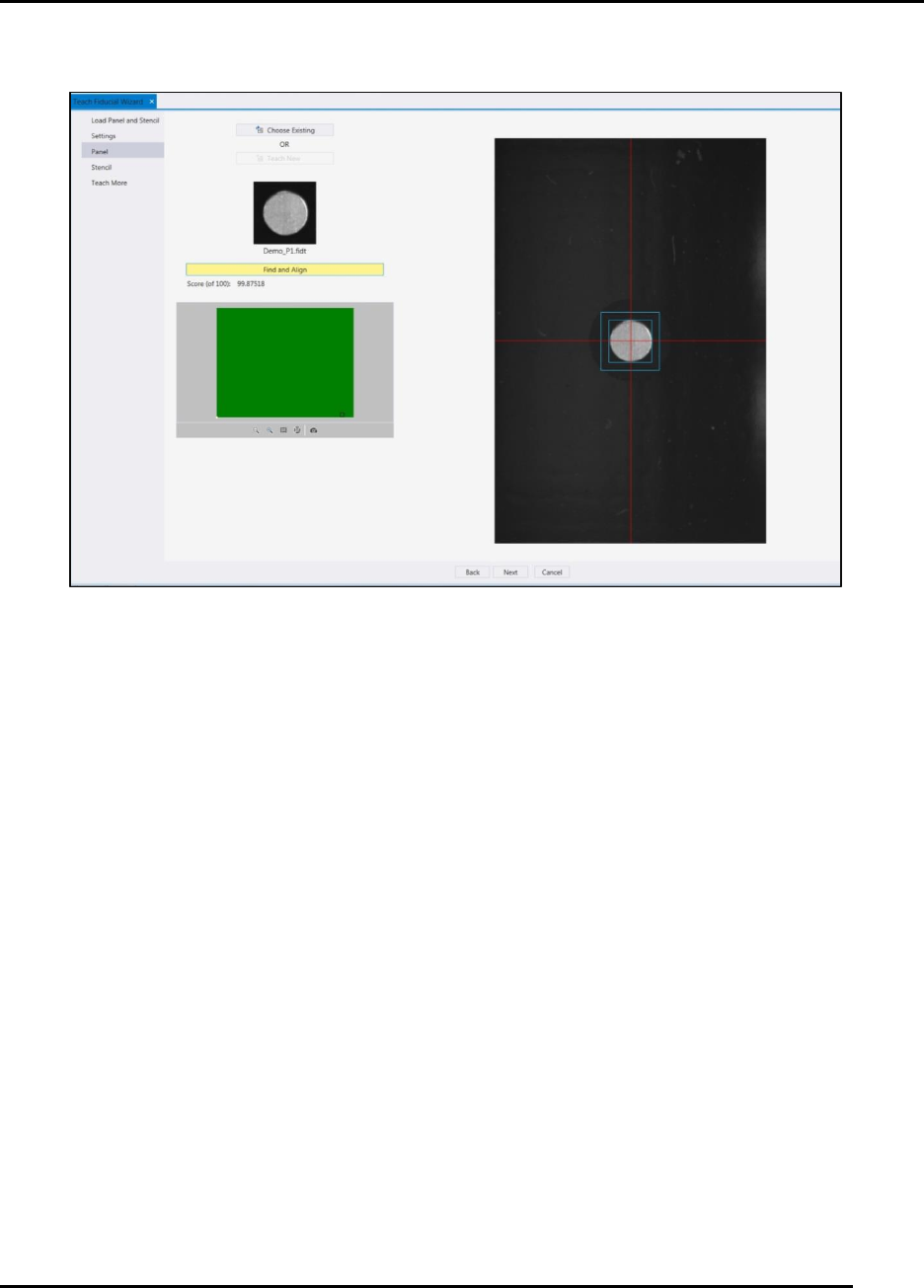
10. After a successful test, click Find and Align to record the fiducial in the software (Figure 61).
11. After a successful panel test, click Find and Align to record the fiducial in the software
(Figure 60).
4.2.7.6. Stencil
12. On the Stencil screen, click Teach New to begin teaching a new fiducial (Figure 62).
Figure 61, Teach Fiducial Wizard: Find and Align Panel.