EdisonStandardOwnersManual-RevA-20170818B.pdf - 第122页
P RINTER O PERATIONS Edison Printer User Manual (Part Number 1023838) 122 Rev. A Copyright © 2017 ITW EAE All rights reserved. No part of the contents of thi s manual may be reproduced, copied or transmitted in any form …
Edison Printer User Manual (Part Number 1023838) PRINTER OPERATIONS
Rev. A 121
Copyright © 2017 ITW EAE
All rights reserved. No part of the contents of this manual may be reproduced, copied or transmitted in any form or by any
means including graphic, electronic, or mechanical methods or photocopying, recording, or information storage and
retrieval systems without the written permission of ITW EAE, unless for purchaser's personal use.
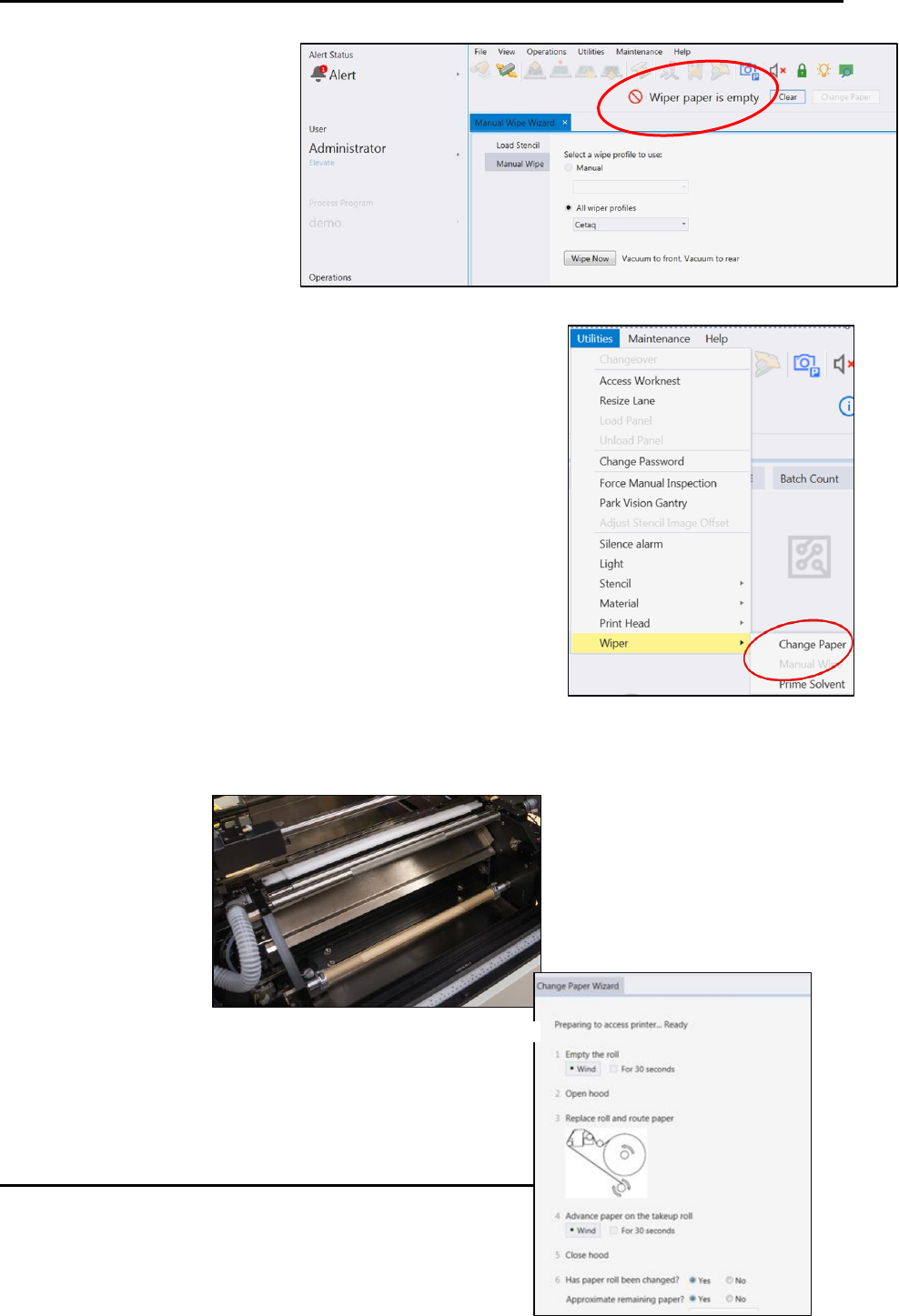
The System Alert Condition
message Wiper paper is empty
indicates when the wiper paper
should be changed (Figure 115).
5.7.1. Navigate to the Change Paper Wizard
1. Navigate to Change Paper: Utilities > Wiper > Change Paper
(Figure 116).
2. Ensure that the payout roll is empty (Figure 117).
a. If the roll is not empty, click Wind under the 1 Empty
the Roll section of the Change Paper Wizard (Figure
118).
Figure 115. Wiper paper is empty system message.
Figure 116. Navigate to Change Paper.
Figure 117. Ensure Payout roll is empty.
PRINTER OPERATIONS Edison Printer User Manual (Part Number 1023838)
122 Rev. A
Copyright © 2017 ITW EAE
All rights reserved. No part of the contents of this manual may be reproduced, copied or transmitted in any form or by any
means including graphic, electronic, or mechanical methods or photocopying, recording, or information storage and
retrieval systems without the written permission of ITW EAE, unless for purchaser's personal use.
3. When the Payout roll is empty, open the hood.
a. Note that the work light inside the Edison printer cabinet comes on when the hood is
open.
5.7.2. Remove Take-Up Shaft
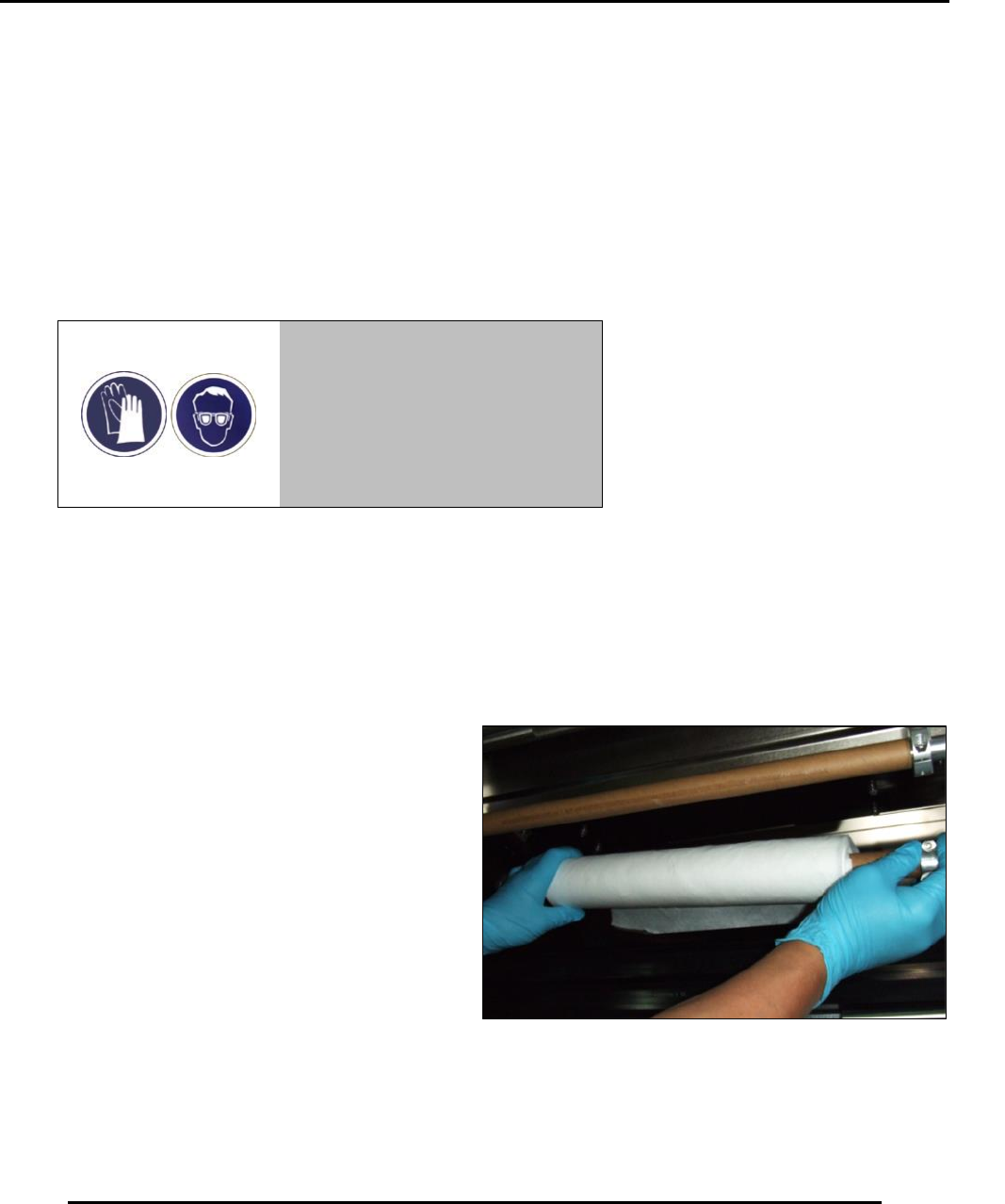
4. Remove take-up shaft (Figure 119).
Warning!
Wear proper protection (gloves
and safety glasses) when
handling the contaminated wiper
paper roll.
Figure 118. Change Paper Wizard screen.
Figure 119. Remove take-up shaft.
Edison Printer User Manual (Part Number 1023838) PRINTER OPERATIONS
Rev. A 123
Copyright © 2017 ITW EAE
All rights reserved. No part of the contents of this manual may be reproduced, copied or transmitted in any form or by any
means including graphic, electronic, or mechanical methods or photocopying, recording, or information storage and
retrieval systems without the written permission of ITW EAE, unless for purchaser's personal use.
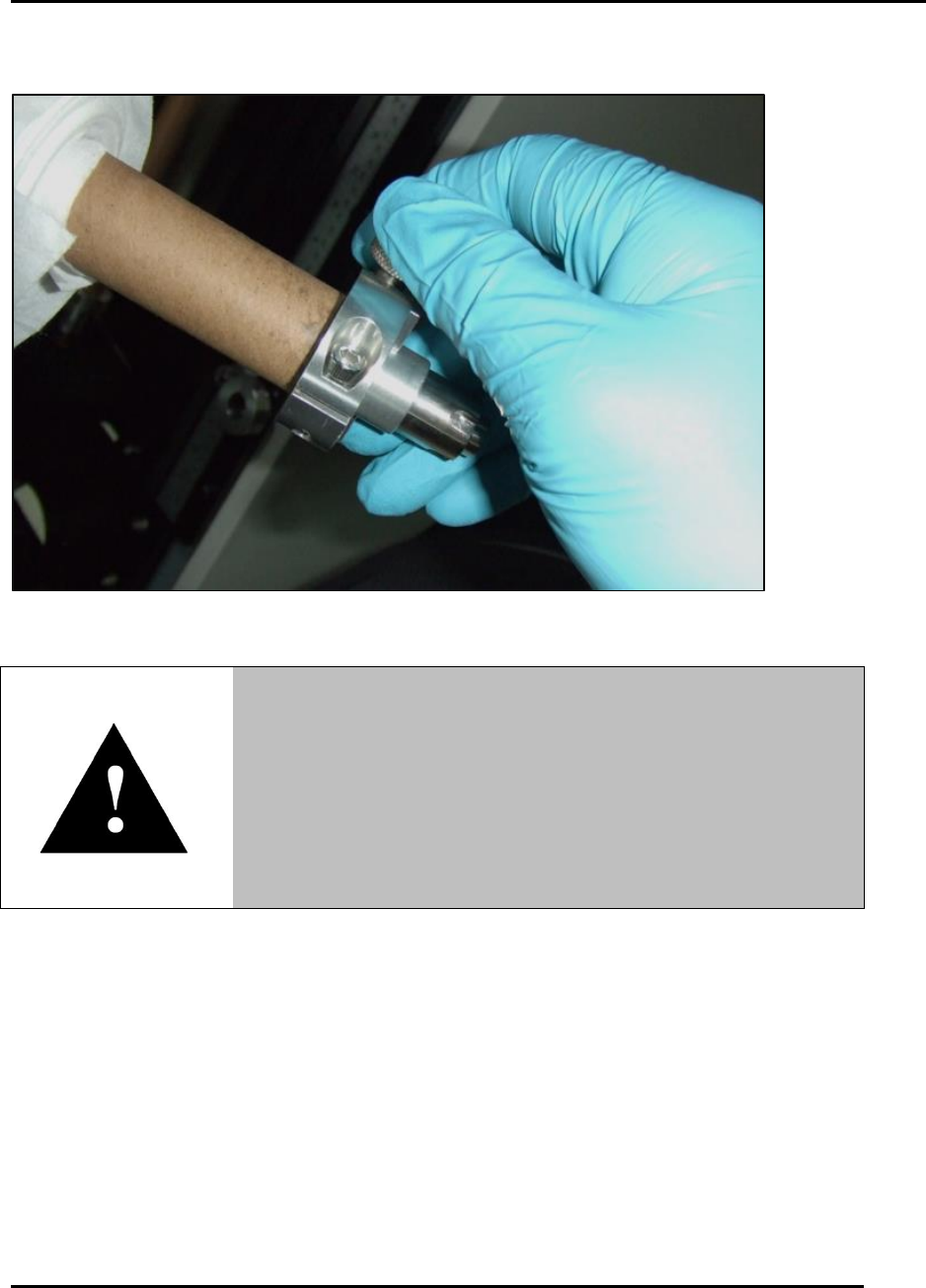
5. Loosen and remove the shaft collar from the right end of the take-up shaft (Figure 120).
Figure 120. Loosen and remove take-up shaft collar.
6. Carefully remove the used wiper paper roll from the take-up shaft:
a. Hold the shaft while quickly twisting (counterclockwise) the used paper roll.
b. This twist is necessary to disengage toothed spurs from inside the paper core.
c. Discard the used wiper paper roll in appropriate waste container.
5.7.3. Remove Roller Shaft
7. Remove the roller shaft (the shaft with the diamond-knurl pattern) and store in the exchange
tray (Figure 121).
8. Place the take up shaft and the collar in the holding locations on the exchange tray (Figure
121).
Warning!
Use caution when removing the wiper paper roll.
Three toothed spurs on the take-up and pay-out shafts can
cause hand injury.
Take care to grasp only the paper and the shaft away from the
toothed spurs when removing or installing paper rolls.