EdisonStandardOwnersManual-RevA-20170818B.pdf - 第99页
Edison Printer User Manual (Part Number 1023838) P RINTER O PERATIONS Rev. A 99 Copyright © 2017 ITW EAE All rights reserved. No part of the contents of this manual ma y be reproduced, copied or transmitted in any form o…
PRINTER OPERATIONS Edison Printer User Manual (Part Number 1023838)
98 Rev. A
Copyright © 2017 ITW EAE
All rights reserved. No part of the contents of this manual may be reproduced, copied or transmitted in any form or by any
means including graphic, electronic, or mechanical methods or photocopying, recording, or information storage and
retrieval systems without the written permission of ITW EAE, unless for purchaser's personal use.
Control
Function
Motion Control
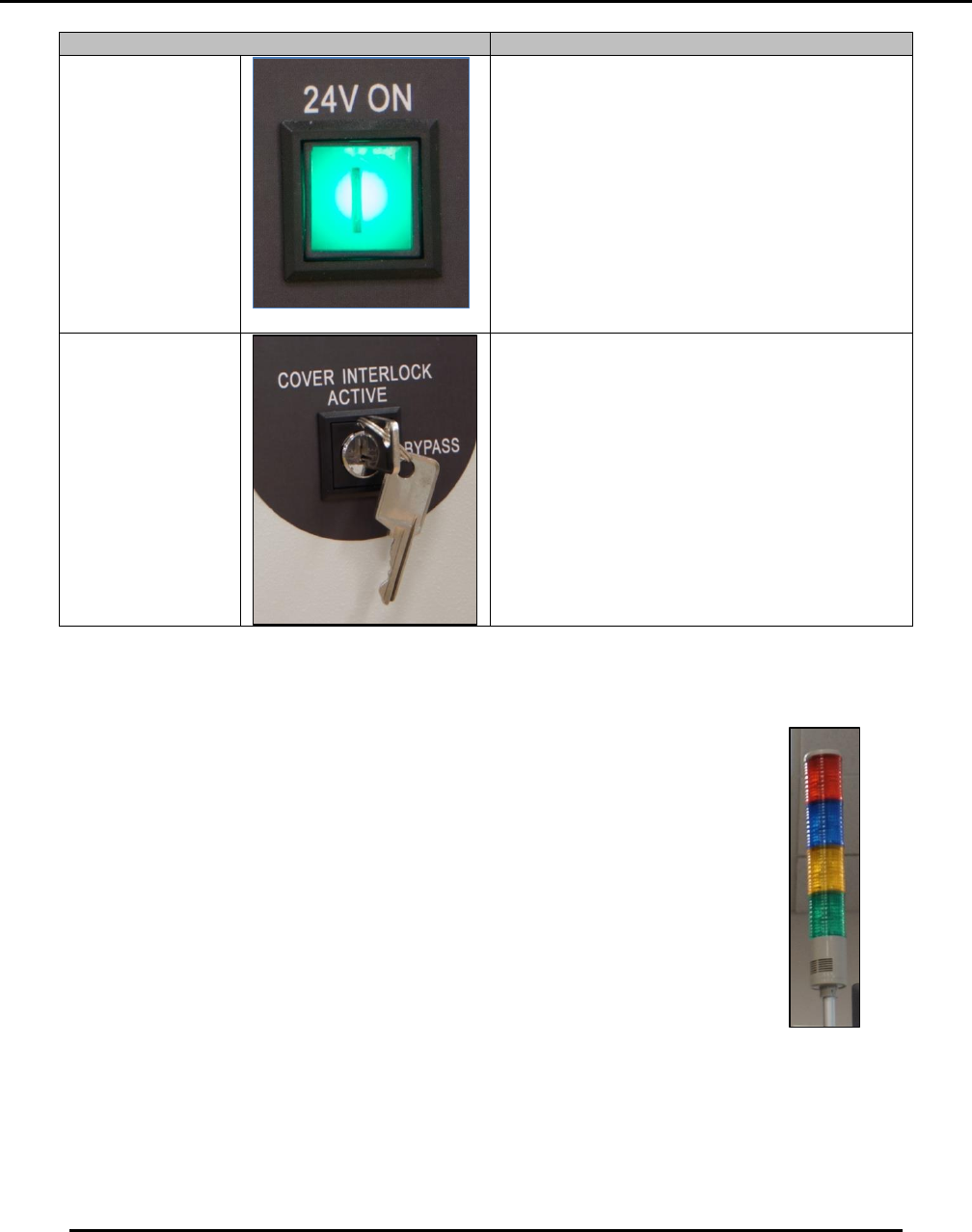
24v Power ON
Pushbutton
(Green)
Power ON system motion control voltage.
Green indicator light is lit when pressed,
indicating motion control power is applied to
the printer.
Green indicator light is unlit when:
Motion Control 24v Power OFF
pushbutton (White) has been pressed
EMO/Emergency Stop Button has
been pressed and when the main
power is switched to OFF.
Bypass Key
Switch
Set to BYPASS to open the hood and jog
components
When this key switch is set to Bypass, you can
open the hood and jog components, but only
when instructed to do so by the Intueri
software. During these situations, speed is
reduced to 25% for all axes. Axes will travel at
normal speed with the key set to Bypass and
the hood closed.
5.2.3. Light Tower Indicators and Configuration
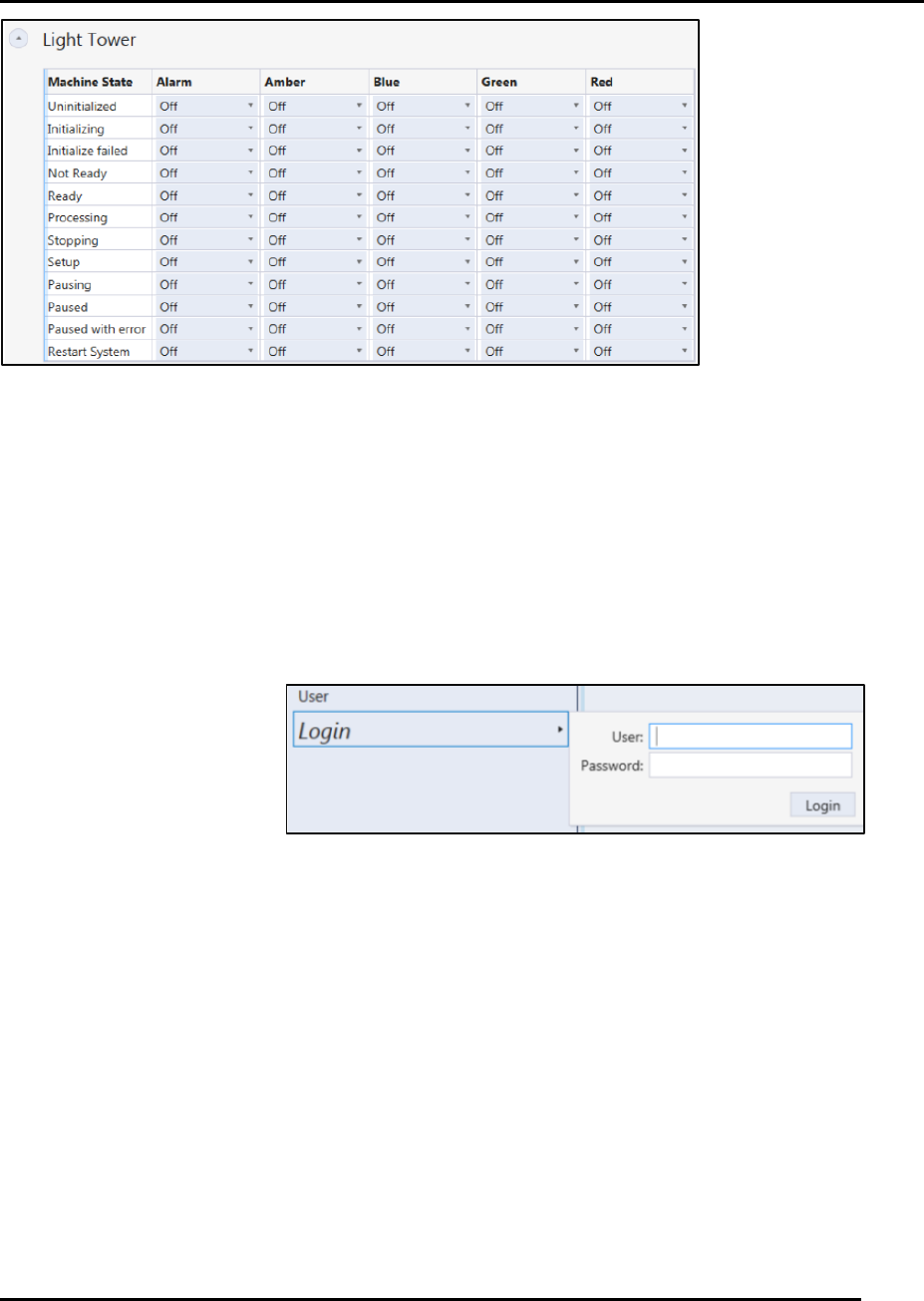
Tailor the light tower (Figure 78) to display specific light configurations (and
audible alarms) that correspond to individual printer states (Figure 79), as
desired.
Figure 78. Light
Tower.
Edison Printer User Manual (Part Number 1023838) PRINTER OPERATIONS
Rev. A 99
Copyright © 2017 ITW EAE
All rights reserved. No part of the contents of this manual may be reproduced, copied or transmitted in any form or by any
means including graphic, electronic, or mechanical methods or photocopying, recording, or information storage and
retrieval systems without the written permission of ITW EAE, unless for purchaser's personal use.
Figure 79. Light Tower Configuration Options use pull-down menus.
5.3. Start-up Operations
Starting the Edison printer involves initializing the printer and logging in as a valid user. For full
power up instructions, refer to Section 3.5.2 Power Up and Initialization.
5.3.1. Logging In and Out
5.3.1.1. Login
Navigate to the User
panel and click Login
(Figure 80).
Enter User name
Enter Password
Click Login
Figure 80. Login Screen.
PRINTER OPERATIONS Edison Printer User Manual (Part Number 1023838)
100 Rev. A
Copyright © 2017 ITW EAE
All rights reserved. No part of the contents of this manual may be reproduced, copied or transmitted in any form or by any
means including graphic, electronic, or mechanical methods or photocopying, recording, or information storage and
retrieval systems without the written permission of ITW EAE, unless for purchaser's personal use.
5.3.1.2. Logout
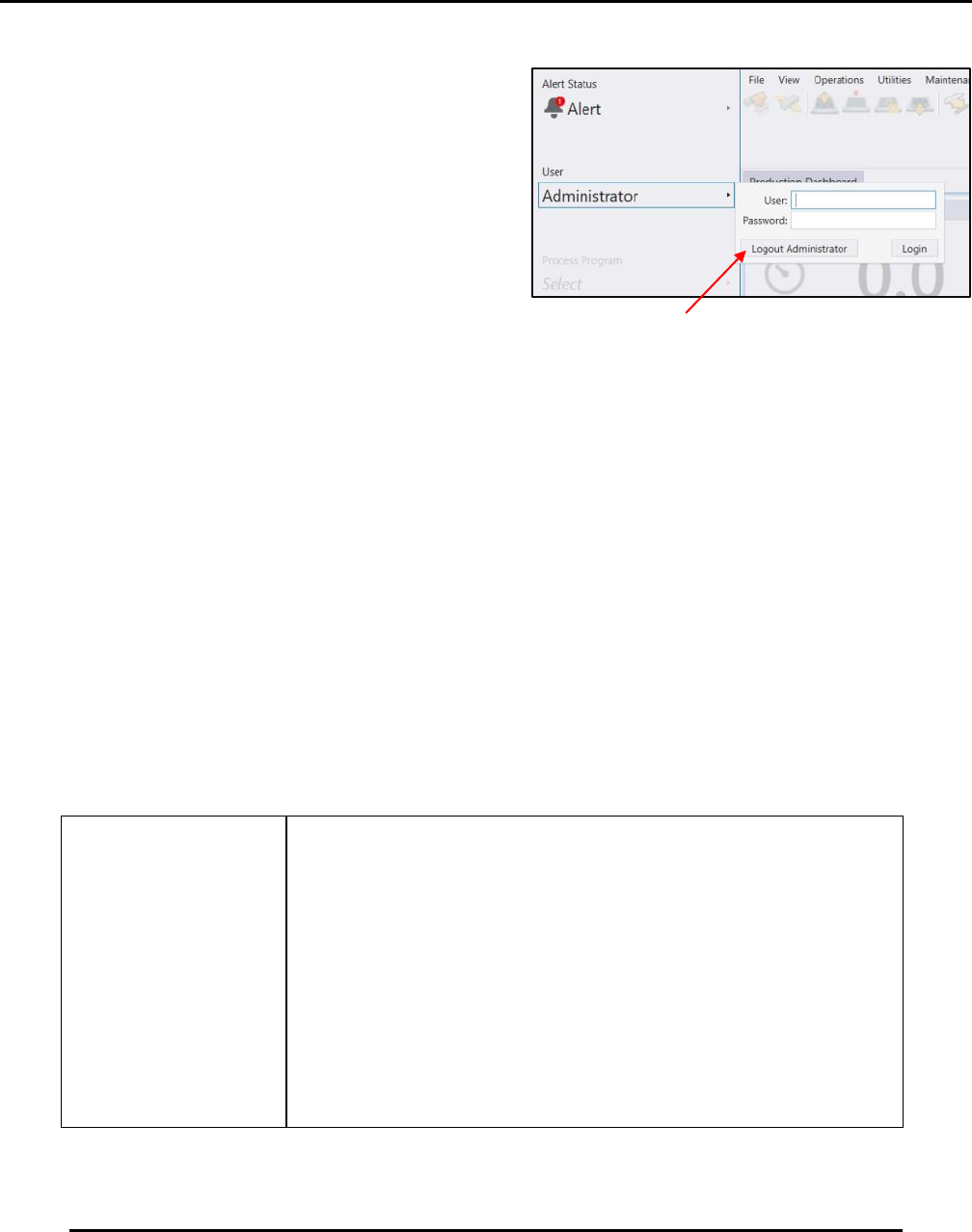
Navigate to the User panel and click on select
current user. (Figure 81).
Click Logout
5.3.2. Initializing the Printer
Edison motion-controlled equipment always has one (or more) axis positioned somewhere in
space. The positions of these axes are largely unknown—especially after a printer power up or
during motion-driven calibration routines.
Because of these unknown positions, any axis move could come in contact with another printer
element, potentially causing damage.
The initialization process moves the printer axes (either individually or in conjunction) in a
predetermined sequence from their unknown positions to their individual home or sensor
positions.
In most initialization procedures, an axis moves to the negative sensor (for instance, in the X-axis,
the axis moves left) and then away from that sensor to clear it. This procedure establishes a fixed
reference for all motion-controlled movement from that point, with the sensor acting as a limit
sensor.
Some features and/or axes may not be licensed or enabled for
your Edison printer. The list of initialized items will vary
depending upon configuration.
Figure 81. Logout Screen.