User-Manual-NeoDen3V-PNP-machine.pdf - 第16页
11 2.1.2.4. PCB Angle Correction PCB angle will influence the ac curacy of mounting. The angle more closer to 0 degree the better, and the angel deviation n eed to be within 1 degree. The angle o f PCB is gene rated acco…
10
4
4
4
4
4
1
1
1
2
2
2
3
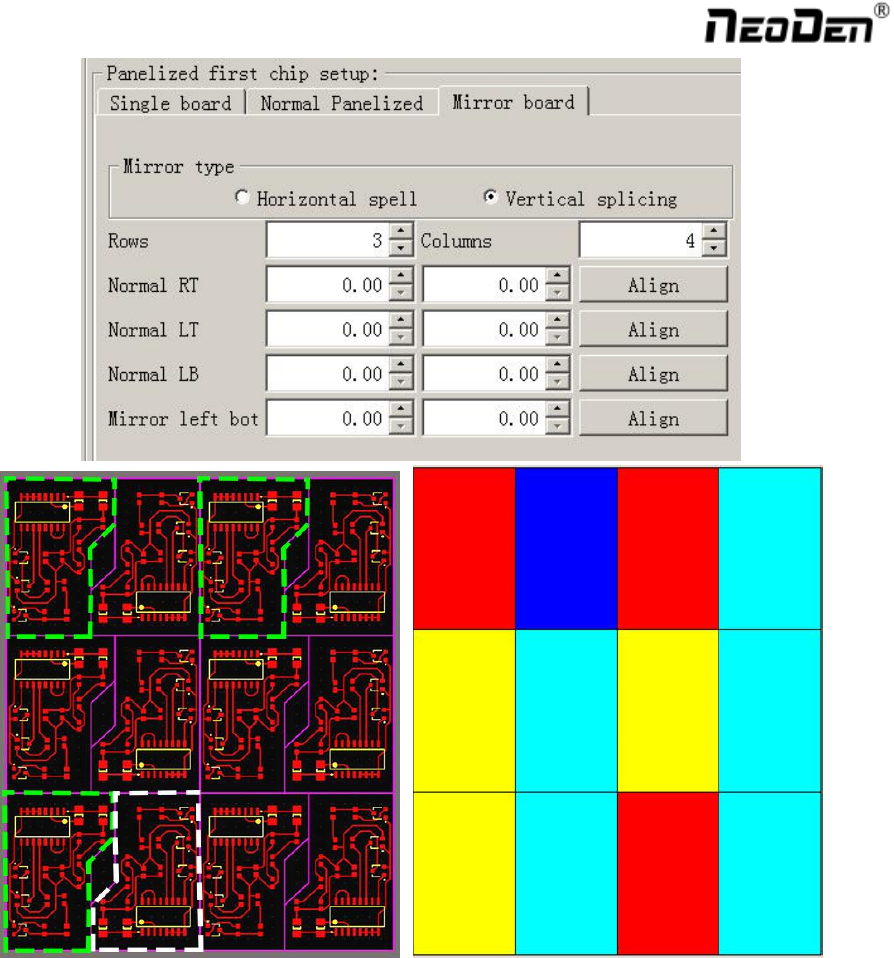
No.1 red areas are original ref
No.2 yellow areas are original boards
No.3 blue area is mirror ref
No.4 light blue areas are mirror boards
Based on actual board to choose an applicable model of panelized mode. Image left side
is the arrangement way of mirror board and right side is the mirror board showing on computer.
11
2.1.2.4. PCB Angle Correction
PCB angle will influence the accuracy of mounting. The angle more closer to 0 degree the better, and the angel
deviation need to be within 1 degree.
The angle of PCB is generated according to panelized PCB coordinates, but we can also adjust the angle by
manual. Click” PCB angle” button, according to the index of machine to choose two points, then a new PCB angle
will be generated.( Note, the two points need to be in one vertical or horizontal line)
Under panelized PCB mode, “ PCB angle” is locked. You need to correct from panelized PCB to single PCB( 1*1),
after confirm the PCB angle, you can change back to panelized PCB model.
2.1.2.5. Bad Board Detection
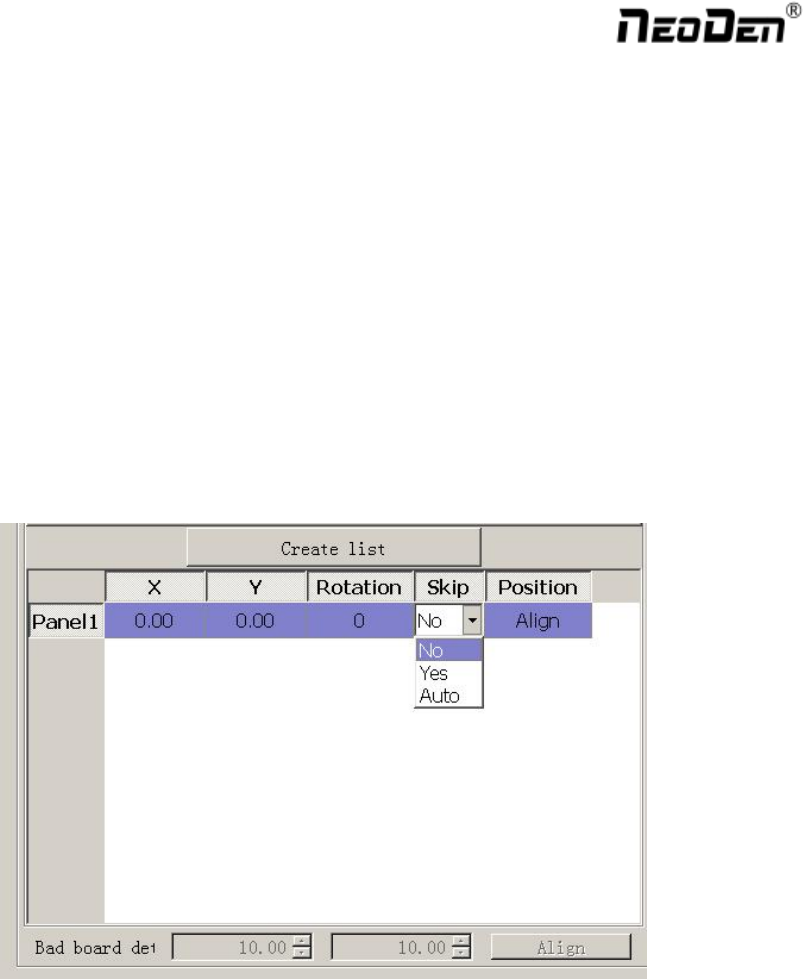
In actual work,bad boards no need to be mounted, then, you can activate this function to skip these boards
automatically.
Processes of detecting bad boards,
1) According to panelized PCB to generate panelized list
2) Choose” Auto” from “ Skip” options of panelized list
3) Click” Align” button to choose one fixed position and mark it, thus every time when machine scans this mark,
it will skip this bad board.( One common guideline is stick another colorful tag on the bad board, if stick with
this tag the machine will skip the bad board, otherwise it will go on mounting)
12
2.1.3. Component Setting
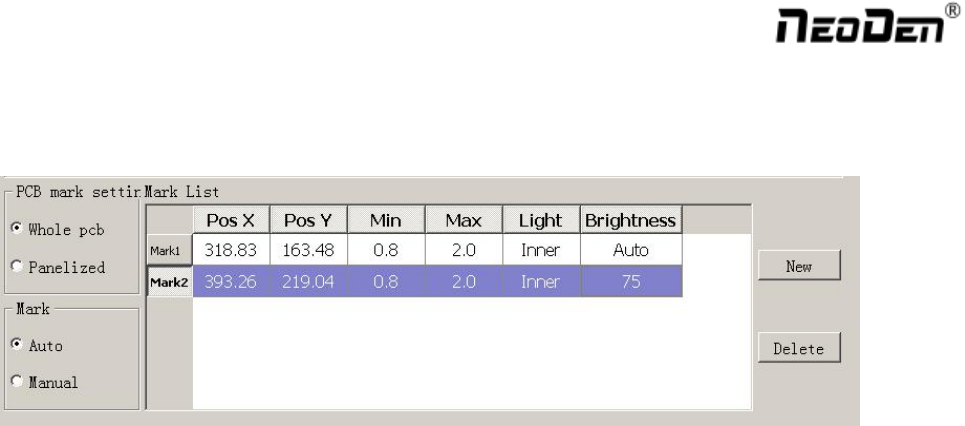
2.1.3.1. PCB Mark Setting
Function: After completing setup of the mark points, with which the machine can locate the position of PCB and
identify the set up mark points, so that the next step can be followed
Mark Point on Single PCB
This mainly applies on single PCB or a whole board that consists of a few same boards (take them as a single
board ). Generally we need to set 2-3 mark points.
Mark Point on Panelized PCB
This mainly applies on multiple, identical PCBs, that is to say when mount each small panelized PCB, machine
will scan mark points of each small panelized PCB.
The biggest advantage is, if each small panelized PCB has a little angle deviation, use panelized PCB mark point,
it will reduce the deviation during pick and place.
Alignment of Mark Point
Alignment includes:align automatically and align manually.
1) Align automatically, find two mark points from PCB, during the mounting, it will know the position of PCB
from aligning the two mark points
2) Manually align, if there is no mark point on PCB, you can use some positioning holes or some other
referential points as subsidies to locate the PCB.
Import Coordinate
According to the PCB schematic, you can get the coordinates of mark and write down manually. Moreover,
you can see “Min” ,“ Max”, “Light ”, “Brightness” from Mark point list.
1) “Min”, “Max” are the minimum and maximum size of mark point, a floating value to make sure you can get
the correct mark points
2) “Light ” includes inner circle and outer circle. If use one hole as mark point need to choose inner circle of
light source, if use bright spot as mark point need to choose outer circle of light source
3) ‘Brightness”, in general, use the default value( You can change the value when necessary)