User-Manual-NeoDen3V-PNP-machine.pdf - 第21页
16 2) After the board arrives to its destinatio n, click “ change to current pos ition” bu tton, it will po p up a message(refe r to the image as below ), clic k “Y es”, th en the down-lookin g camera will s tart to reco…
15
You can use Nozzle 1,Nozzle 2,needle to for workbench movement. Or you can use down-looking camera for
visual minor adjustment.
Locate the component’s center as coordinates, click “Save” and return to Chip list. Then you can fill the left
information of components(note: designator, package, foot print and angel. The angel of horizontal component is
0°or 180°, the angel of vertical component can be different from +90°to -90°according to its polarity(Active
Components) . All the angel value should be integer.
After completed all information for the first component, you can click “New” to create a new component. Its
default coordiantes will be same to previous one, you just need to click “align” and relocate its correct position,
save the data and back to fill the left information.
Sequence of Components
You may have to rearrange the sequence of components after programming, here are 3 ways available.
1) Move up: select the component and click “up” to move it up.
2) Move down: select the component and click “down” to move it down.
3) Move to first place: select the component and click this button to move it up to the first place.
2.1.3.3. Re-Edit
Function: it’s used to edit the file after you have find there is an offset due to the board twisting.
Either import coordinate file or manually programming, you can edit the file by using this button.
1) Please advance the board to the setup position, then click “Feed” in PCB feed settings.
16
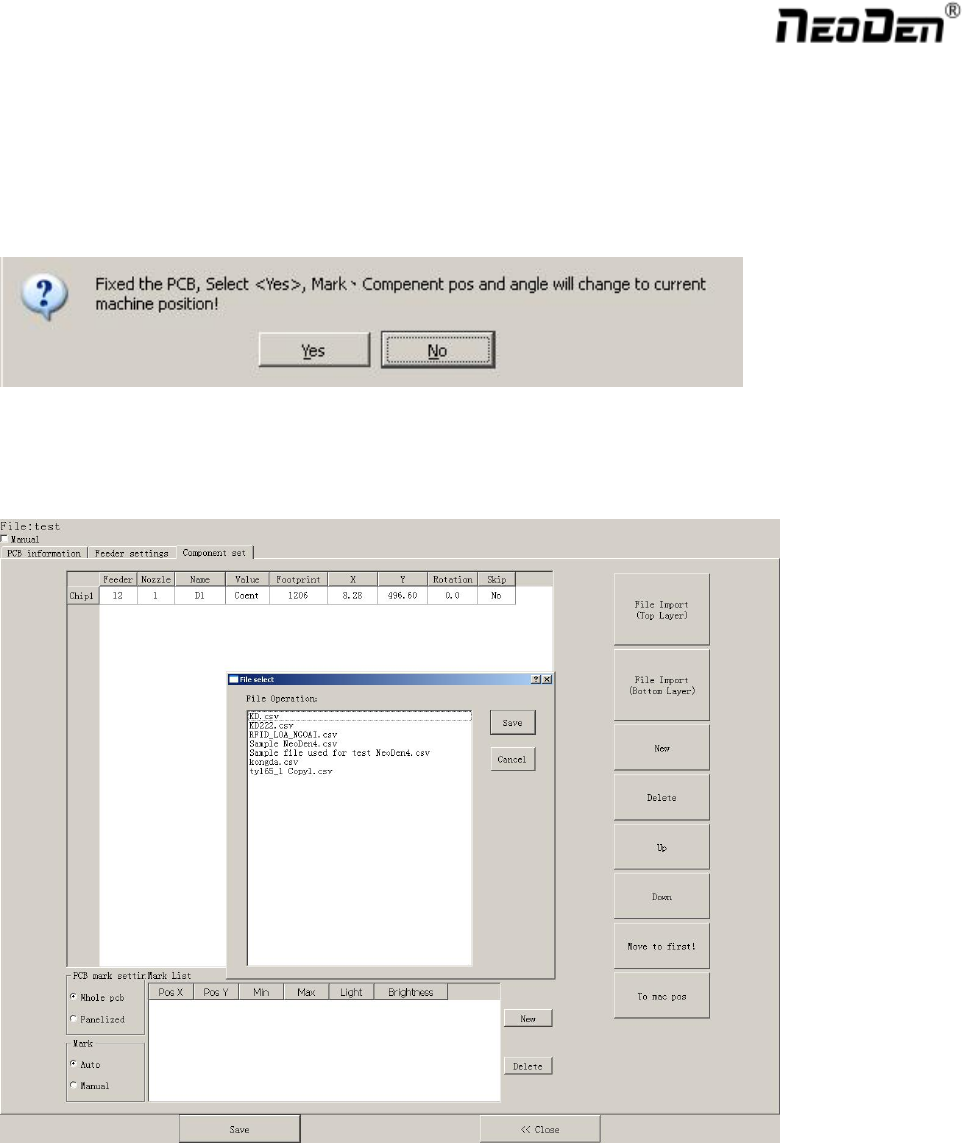
2) After the board arrives to its destination, click “change to current position” button, it will pop up a
message(refer to the image as below), click “Yes”, then the down-looking camera will start to recognize
fiducial marks.
3) After that, coordinates will be automatically converted to absolute values(machine coordinate) according to
the location and angle of board.
Then you can click align to adjust coordinates accordingly.
2.1.3.4. Import PCB Coordinate File
Generate the coordinate file from PCB layout, make sure the unit is metric and the format is .csv. After
re-arrange the sequence of coordinate information that NeoDen3V could read, save and copy the file into
flash drive, connect it with the machine.
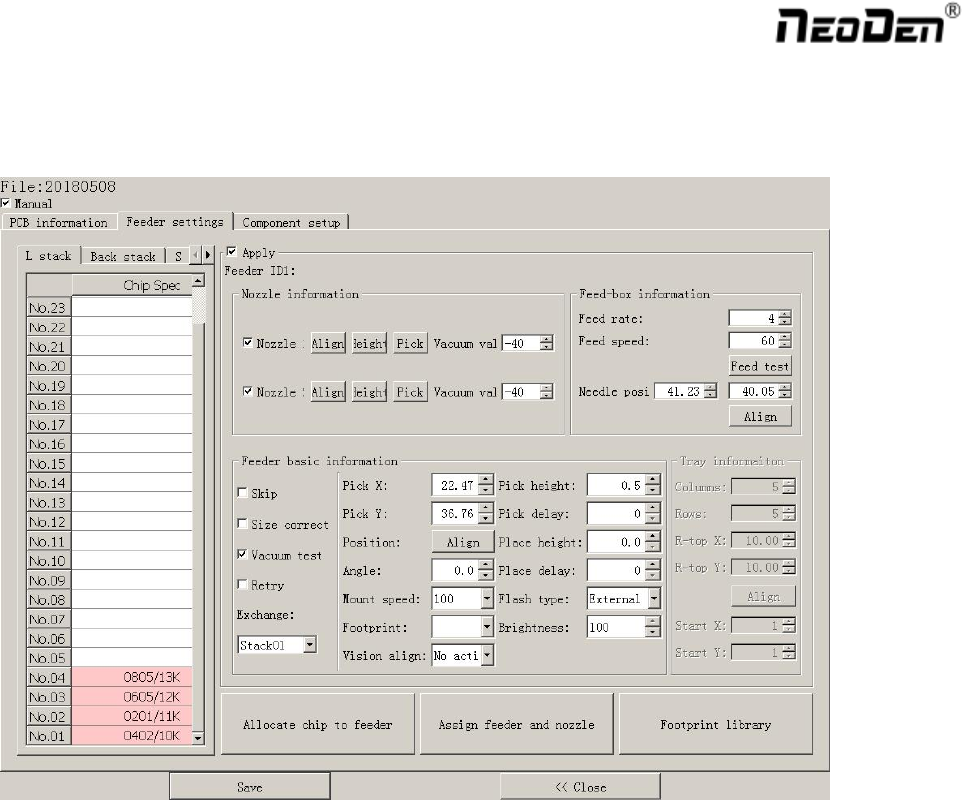
Go to the programming file screen, unselect “Manual”, click “ Import Top file” button (refer to Illus.2.1.3.4),
select the coordinate file in the pop up. All the data will be imported automatically.
17
2.1.4 Feeder Settings
All component’s allocation should be operated in this interface, such as selection of nozzles and feeders, pick-up
position, alignment methods, etc.
2.1.4.1. Feeder Arrangement
Left feeders (Feeder 1-25; Right feeders (Feeder 26-45). Special feeders (Feeder 46-55).
There are two ways to setup feeders.
1) Before installing tape& reels.
Press “Allocate chip to feeder”, it will calculate how many different components according to chip list, and
automatically allocate them to each feeder in sequence.
2) After installed tape& reels.
Click on each feeder, it will pop out a drop-down list with all components’ specification, select one by one
according to actual allocation.
2.1.4.2. Feeder Configuration
Select one feeder and tick the item “Apply”, all configuration will be active under this feeder, now user can do
amendment. There’re 3 items: Nozzle information, Feed-box information, Feeder basic information.
One item will be always locked for Feed-box information(Tray feeder information),according to the differences of
components. Operation sequence: Feed-box information(Tray feeder information)---Feeder basic
information---Nozzle information. “Exchange” in Feeder basic information could be used if wrong tape was
placed.