User-Manual-NeoDen3V-PNP-machine.pdf - 第29页
24 Up Looking Camera Photogr aph, after click this optio n will ta ke a picture X Y step out re cover&X Y Initializ e, after click this, machin e will re cover to its origin al p osition and coordin ates in syste…
23
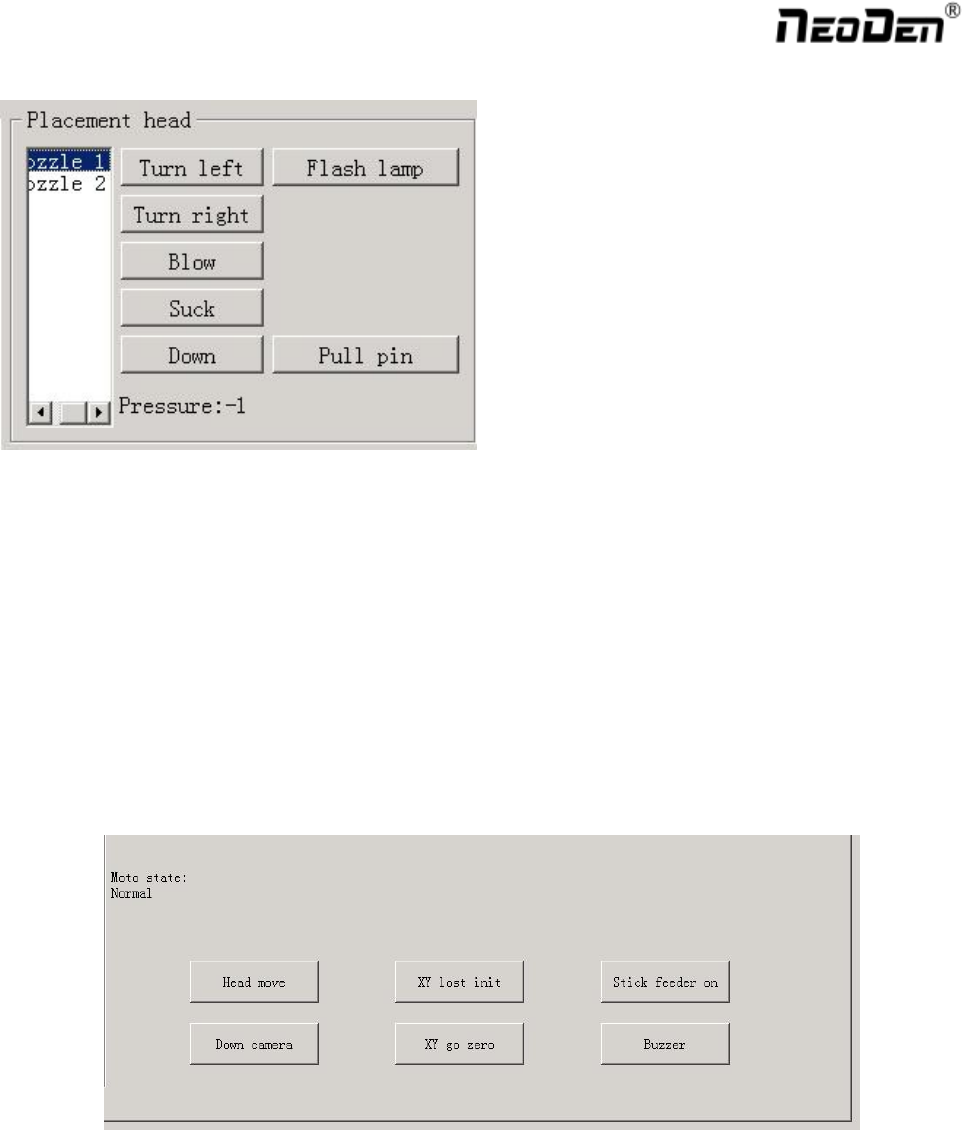
2.3.1. Placement Head
Choose nozzle 1, nozzle 2, nozzle 3, nozzle 4 to test separately
Turn left& Turn right, selected nozzles will rotate
Blow, after click this option, air will blow-off from selected nozzle
Suck, after click this option, suction action will appear from selected nozzle
Down, after click this option, selected nozzle will descend slowly
Down Looking Camera light, after click this option, Led light besides the camera will turn on
Needle, selected it and it will go down
Air pressure 1, 2, 3, 4,Based on the testing of nozzles, you can see pressure value of each nozzle.
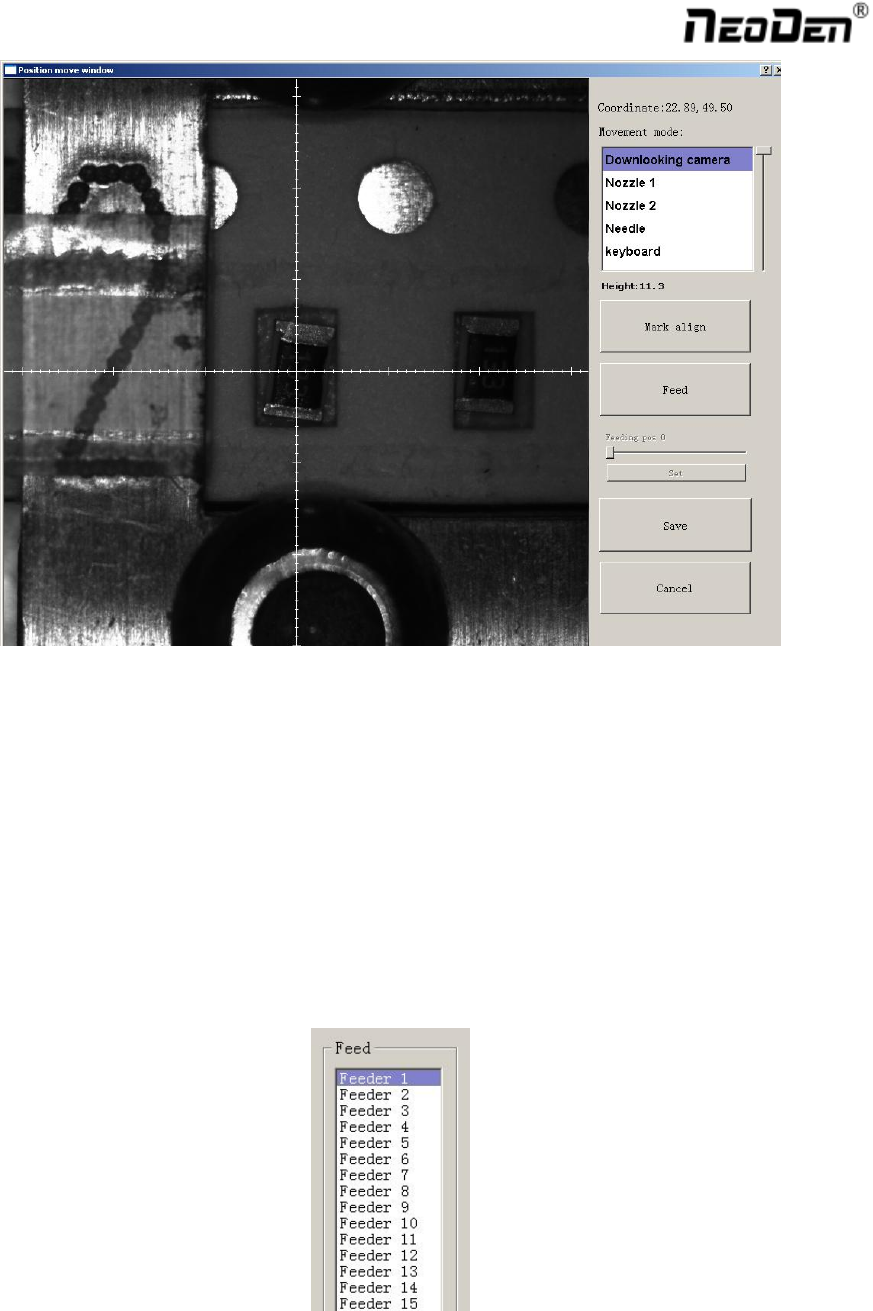
2.3.2. Host Control
Function, test each function key
Head move, after click this option, you will enter into”head move”page, click to move
24
Up Looking Camera Photograph, after click this option will take a picture
X Y step out recover&X Y Initialize, after click this, machine will recover to its original position and
coordinates in system will initialize.
Vibration feeder on, after select this option, vibration tray will vibrate
Buzzer,after click this option some sound will appear
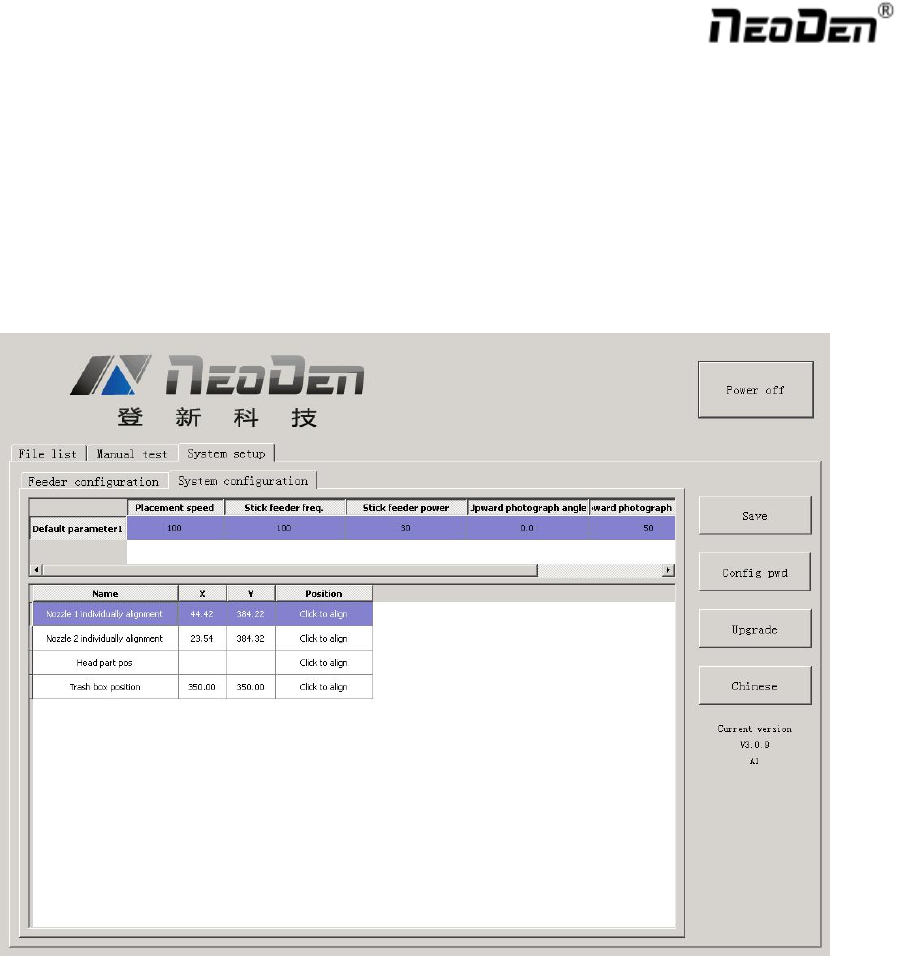
2.3.3. Feeder Test
Function: Test each feeder’s matching and feed box & peel box’s function. First, select” Feed-box and peel-box
linkage”, then test function of feed box and peel box.
Click any feeder randomly, feed box and peel box will appear corresponding actions
25
2.4. Factory Settings
Function, this part is for machine’ global parameter settings, any modified parameter will influence all mounting
files, when modify this part please consider seriously. Especially the last page system settings, we suggest after
using a period of time or under the guidance of our engineers then change its parameter.(Notice, before our
machines leave factory, all parameter already be set and no need to change). This user manual just introduce all
setting functions briefly, more details about parameter modification please refer to comments from our engineers.
As pic show, function description of button on right side
Save configuration: click it for saving after modify the parameters
Modify password: click it, put into the password, then finish change the fourth page which is also the System
interface.
Version upgrade: After receiving our new version file, you can upload it with clicking “version upgrade” to finish.
ENGLISH: Change to the English version.