User-Manual-NeoDen3V-PNP-machine.pdf - 第19页
14 2.1.3.2. Manual P rogramming Select “Chip list ” to start man ual pro gramming. Function: it’ s used to display footprin ts, coordina tes, a ngles and sequ ences of components. Y ou can choose to manually ad d these i…
13
Manual Programming
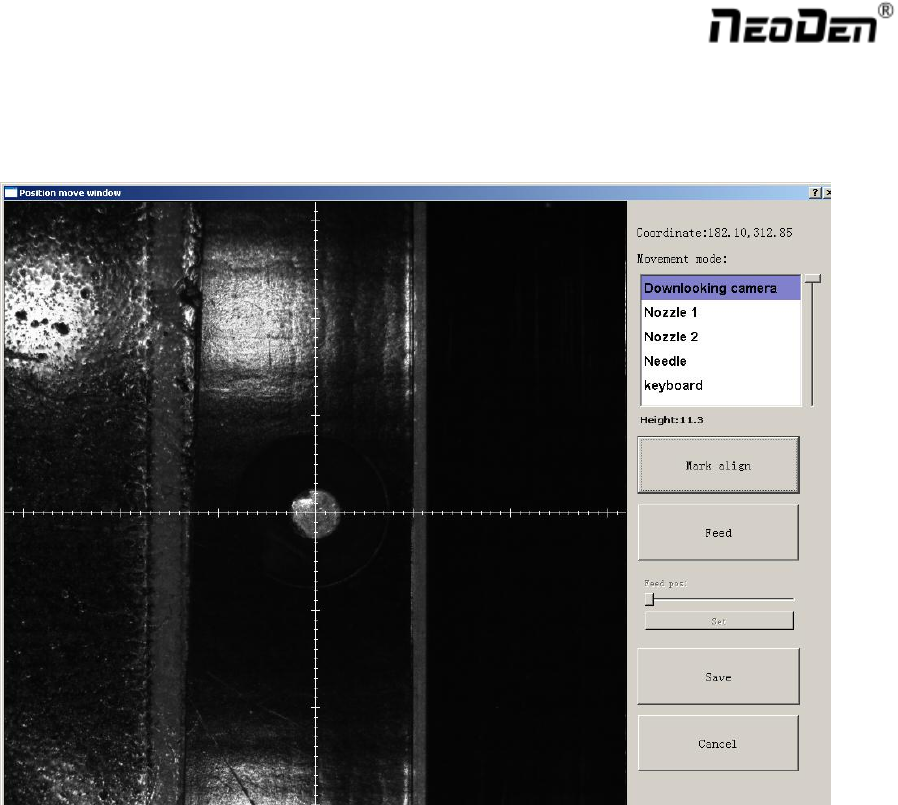
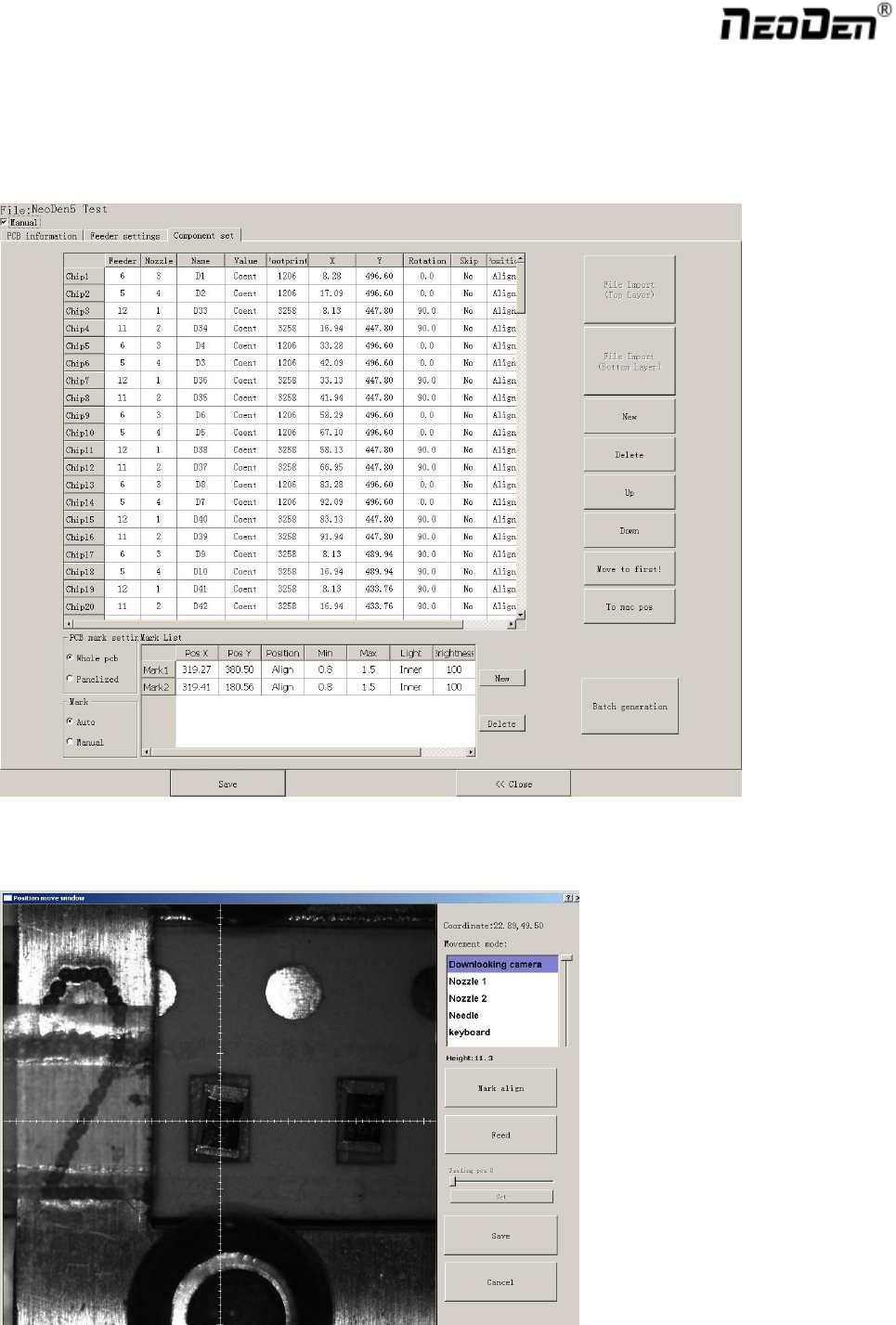
When it’s in Manual Programming status, the function “Alignment” of Mark will be effective. Click on it, the
camera will go and collect the coordinate of mark, save it and go back. (Note: if the mark point is far away, please
use Overall movement to find it)
Align by manual:if there is no mark point on PCB, you can choose this mode.Note:Select two components,the
first one and the other one which can be recognized easily and far from the first component as Mark point.After
start mount,have to confirm Mark by manually.
“Min”, “Max” are the minimum and maximum size of mark point, a floating value to make sure you can get the
correct mark points
“Light ” includes inner circle and outer circle. If use one hole as mark point need to choose inner circle of light
source, if use bright spot as mark point need to choose outer circle of light source
New or Delete
New:add the quantity of mark points
Delete :delete error or useless mark point
14
2.1.3.2. Manual Programming
Select “Chip list” to start manual programming.
Function: it’s used to display footprints, coordinates, angles and sequences of components. You can choose to
manually add these information or import coordinates file directly.
Chip List Setup
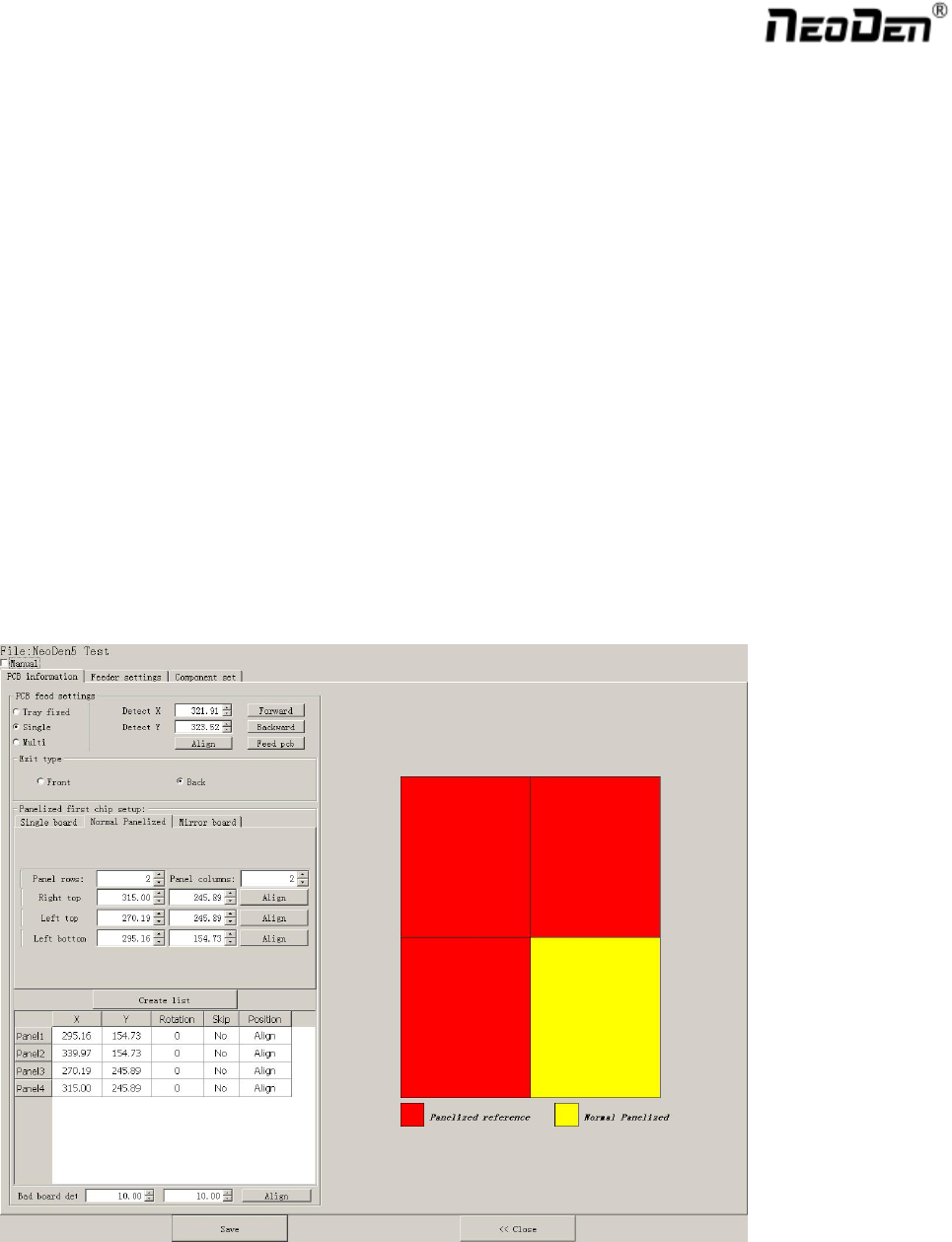
First, tick the box in front of “Manual”, you will see an example of component in chip list. You can click ”Align”
to locate this component’s position and revise it accordingly.
15
You can use Nozzle 1,Nozzle 2,needle to for workbench movement. Or you can use down-looking camera for
visual minor adjustment.
Locate the component’s center as coordinates, click “Save” and return to Chip list. Then you can fill the left
information of components(note: designator, package, foot print and angel. The angel of horizontal component is
0°or 180°, the angel of vertical component can be different from +90°to -90°according to its polarity(Active
Components) . All the angel value should be integer.
After completed all information for the first component, you can click “New” to create a new component. Its
default coordiantes will be same to previous one, you just need to click “align” and relocate its correct position,
save the data and back to fill the left information.
Sequence of Components
You may have to rearrange the sequence of components after programming, here are 3 ways available.
1) Move up: select the component and click “up” to move it up.
2) Move down: select the component and click “down” to move it down.
3) Move to first place: select the component and click this button to move it up to the first place.
2.1.3.3. Re-Edit
Function: it’s used to edit the file after you have find there is an offset due to the board twisting.
Either import coordinate file or manually programming, you can edit the file by using this button.
1) Please advance the board to the setup position, then click “Feed” in PCB feed settings.