User-Manual-NeoDen3V-PNP-machine.pdf - 第24页
19 situation, such as the a ctual 1 st componen t is in 2 nd row , 1 st column, then type into X2 , Y1. Feeder Ba sic Inf ormation: 1) Firstly click the “Align ” un der “Posit ion” func tion, ca mera will loc k th e c …
18
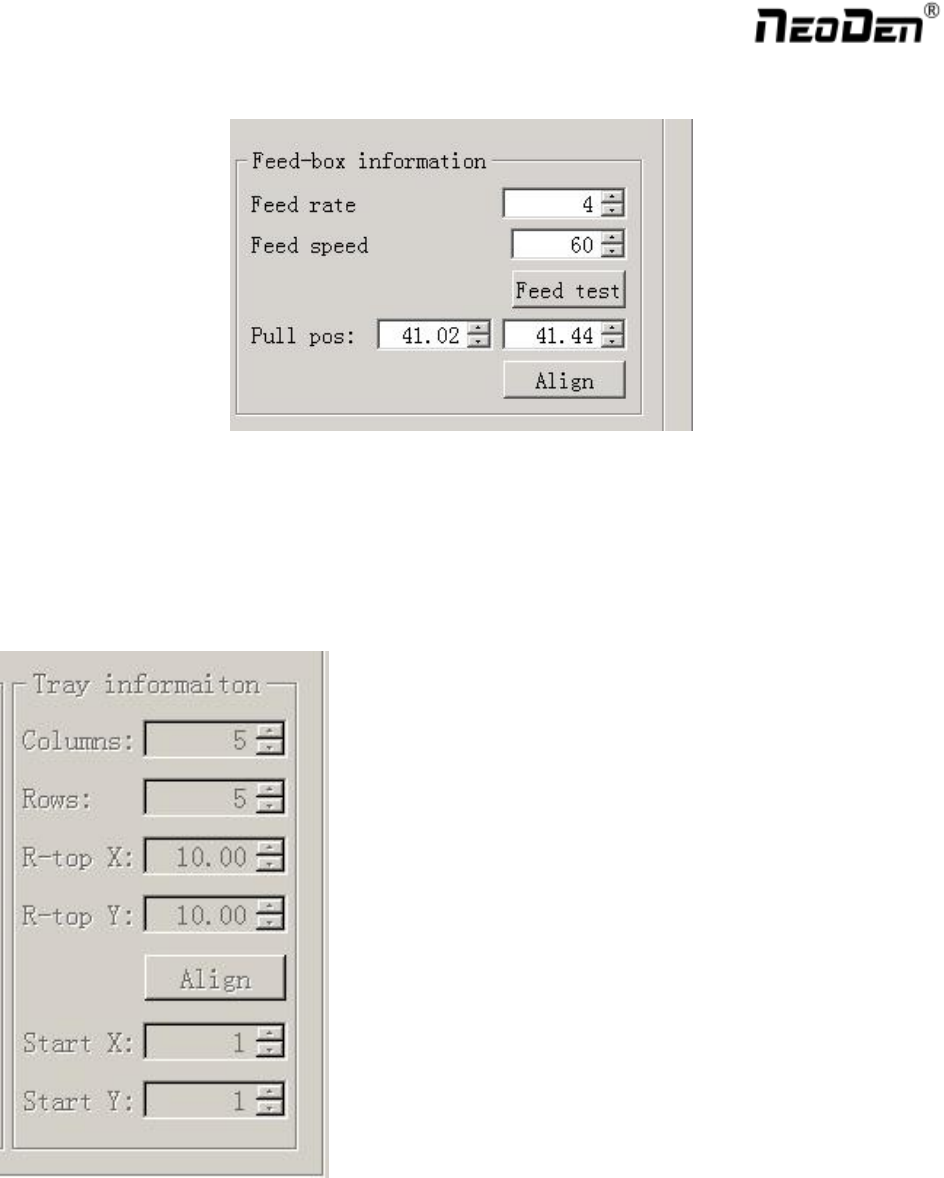
Feed-box Information Setting
Function: Adjust the feed rate of needle.
1) Feed rate: It's the distance between two adjacent holes' centers on tape. You can change the needle feeding
rate by change this value
2) Feed speed: Adjust speed by changing its value against different components. Default value is 1.
3) Feed test: After finishing above steps, user can click this item to test component feeding location.
Tray Feeder Information
Function: Use to set the component’s info from tray and tube package. Complete picking up operation under
special feeders by changing the values.
1) Rows: Component qty in each row (X-direction).
2) Columns: Component qty in each column (Y-direction).
3) Right top X/Y: Find the position of right top component by align. Generally it is the last component in IC
tray, and left bottom side is the first component in IC tray.
4) Start X/Y: This is used to define the position of 1
st
component, its default setting is X1, Y1 (that is to say 1
st
row, 1
st
column ). If some IC on the tray has been used, you can directly setting the start X/Y as actual
19
situation, such as the actual 1
st
component is in 2
nd
row, 1
st
column, then type into X2, Y1.
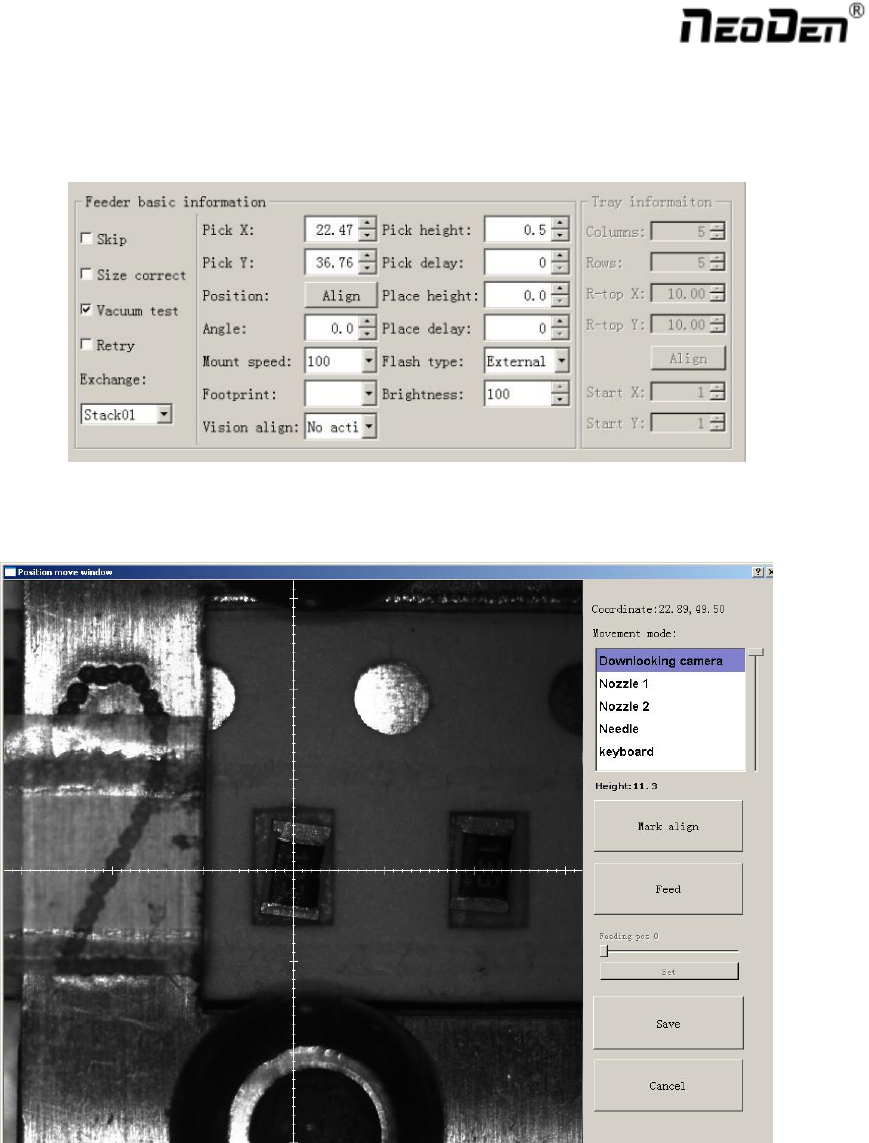
Feeder Basic Information:
1) Firstly click the “Align” under “Position” function, camera will lock the component position on the feeder,
once the modification saved, Pick X/Y data will automatically change to the ones after alignment.
2) Angle: default is 0 degree, support to modify the value to change the mounting angles for wholly feeder.
3) Placement speed: Control the placement speed under this feeder.
4) Footprint: Select corresponding footprint, and in vision alignment, system will take reference of the values in
Footprint Library.
5) Vision: 2 ways as choice against actual need---No action, Jointly .
6) Pick height: control the placement height by dragging the sideward slider.
7) Place height: Set the value according to the exact component thickness.
8) Placement/Pick delay: set a little or 0 both ok.
20
9) Vacuum value: used for vacuum test, value can be set against actual need.
10) Flash type: outside light
11) Skip: Once select this item, will skip all placement under this feeder.
12) Test way: there’re two test methods, Vacuum test /Vision test.
13) Vacuum test : Once “Vacuum test” was selected, the sensor of air pressure will be turned on. So if actual
vacuum hasn’t reached the default value during picking process, machine will drop it and re-pick a
component.
14) Exchange: This may be used in actual situation, if exchange needed between two feeders, you can choose one
feeder, and go to find the exact feeder you need replacement in drop-down box, select, then done.
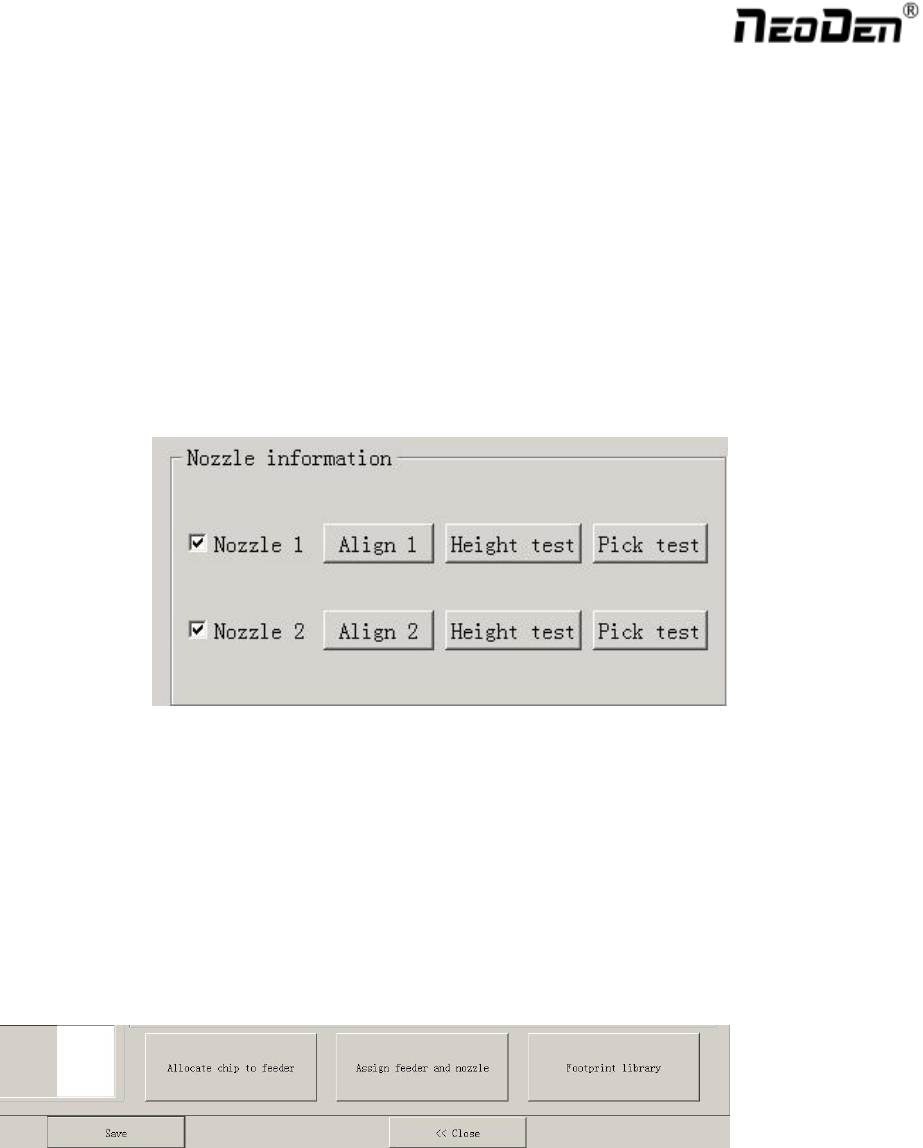
Nozzle Information
Function: Select corresponding nozzle according to actual component size, and it will automatically assign to each
feeder to meet the requirements of single head or multi heads working. Also with below function as Pic.(2.1.5.2-5)
1) Align: Nozzle will align to component’s upside on corresponding feeders after clicking this item ( can be
adjusted manually) .
2) Height test: After clicking this item, nozzle will do down and check whether the pick height is ok. Support do
adjustment of pick height on feeder information item if needed.
3) Pick test: After clicking this item, the corresponding nozzle will pick one component and check whether pick
position is ok. Support do adjustment of pick position on feeder information item if needed.
After finish setting of all above feeder information, you can click “assign feeder and nozzle ”, then chip list will
automatically to be changed correspondingly.