00191297-02.pdf - 第115页
User Manual SIPLACE S-23 HM 3 Introduction and Basic Concepts Software Vers ion SR.405.xx 05/99 Iss ue 3.3 User Interface - Views and Menus 113 È Cl ick the D elete list bu tton if you want to delete all the en tries i n…
3 Introduction and Basic Concepts User Manual SIPLACE S-23 HM
3.3 User Interface - Views and Menus Software Version SR.405.xx 05/99 Issue
112
NOTE
The menu item "Cluster for fine calibration ..." cannot be activated in the current version of the SC
software. 3
GEM-Defaults ... 3
You use this item to specify the GEM parameters which are used as the default parameters when
the station is switched on. 3
È Click the menu item GEM-Defaults ...
The window in which you set the GEM default parameters is now opened.
For a detailed description, refer to Chapter 12.
NOTE
This menu item cannot be activated in the current software version since the "GEM Interface"
option is not yet implemented. 3
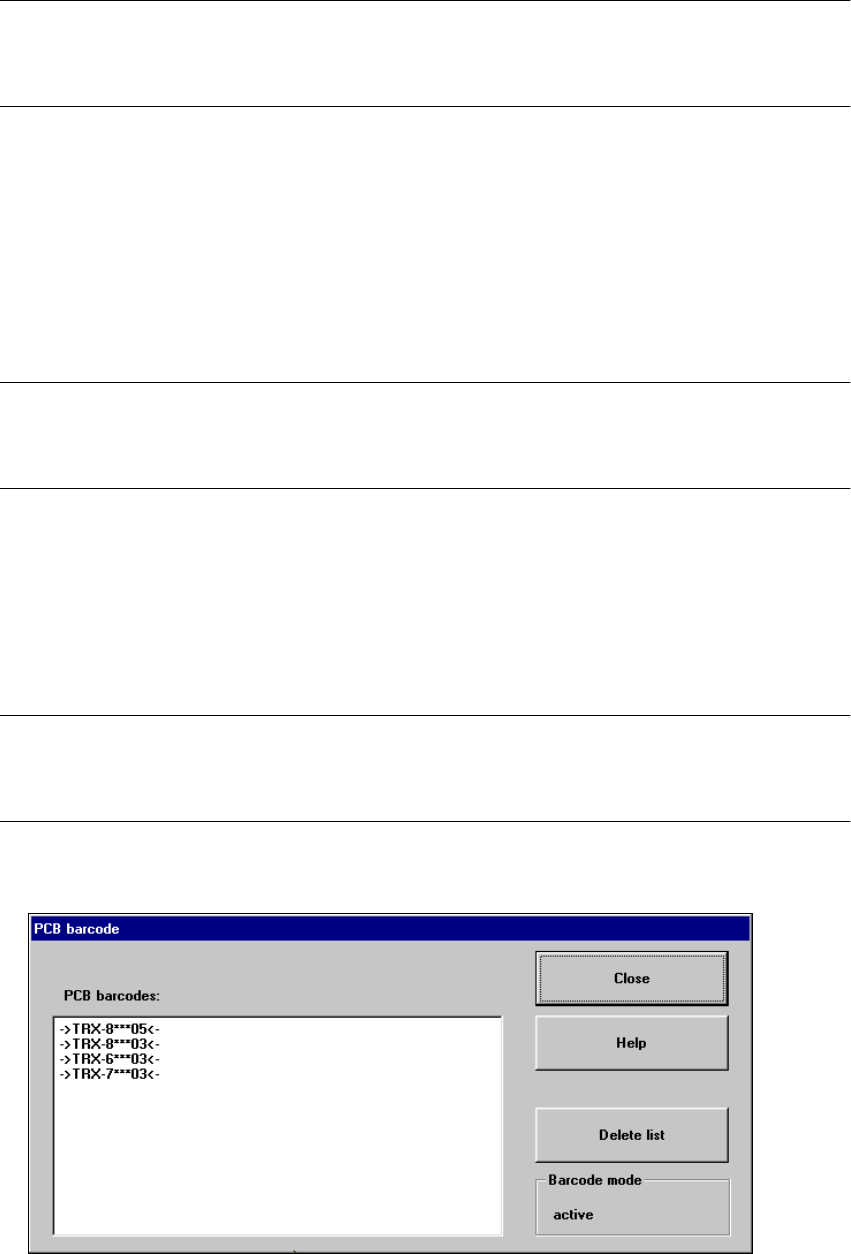
PCB barcode ... 3
You use this item to display a dialog box with a list of the barcodes most recently read by the PCB
barcode reader.
This dialog box also informs you if an error occurred while reading the barcode, if the file format
is incorrect or if no data is available. 3
NOTE
You cannot call the menu item "PCB barcode ..." unless the PCB barcode reader has been
installed in the machine and has been activated in the machine options. 3
È Click the menu item PCB barcode ...
The "PCB barcode" dialog box is opened.
User Manual SIPLACE S-23 HM 3 Introduction and Basic Concepts
Software Version SR.405.xx 05/99 Issue 3.3 User Interface - Views and Menus
113
È Click the Delete list button if you want to delete all the entries in the list.
È Click the Close button to close the dialog box.
NOTE
The current status of barcode operation is displayed below the "Delete list" button. Barcode
operation is activated or deactivated in the LC program. 3
3
3
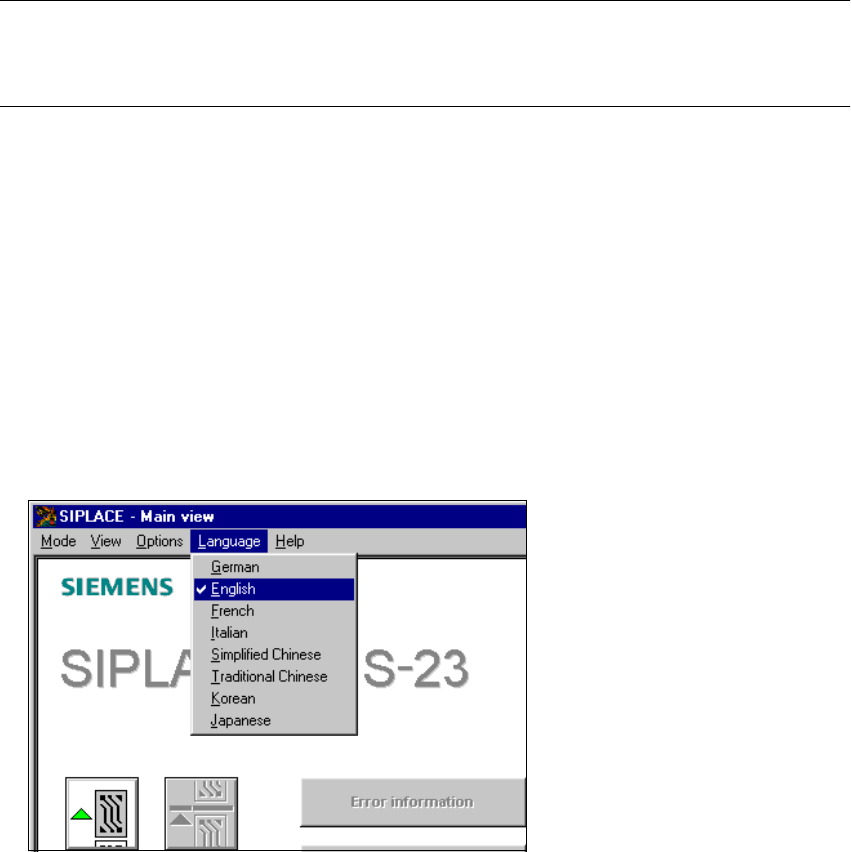
3.3.2.4 "Language" Menu
You can use the "Language" menu to select between the language versions which are integrated
in the SC software.
You can chose between the languages "German", "English", "French", "Italian", "Simplified
Chinese", "Traditional Chinese", "Korean" and "Japanese". 3
È Click the menu item corresponding to the required language.
The user interface texts are displayed in the selected language.
3
3 Introduction and Basic Concepts User Manual SIPLACE S-23 HM
3.3 User Interface - Views and Menus Software Version SR.405.xx 05/99 Issue
114
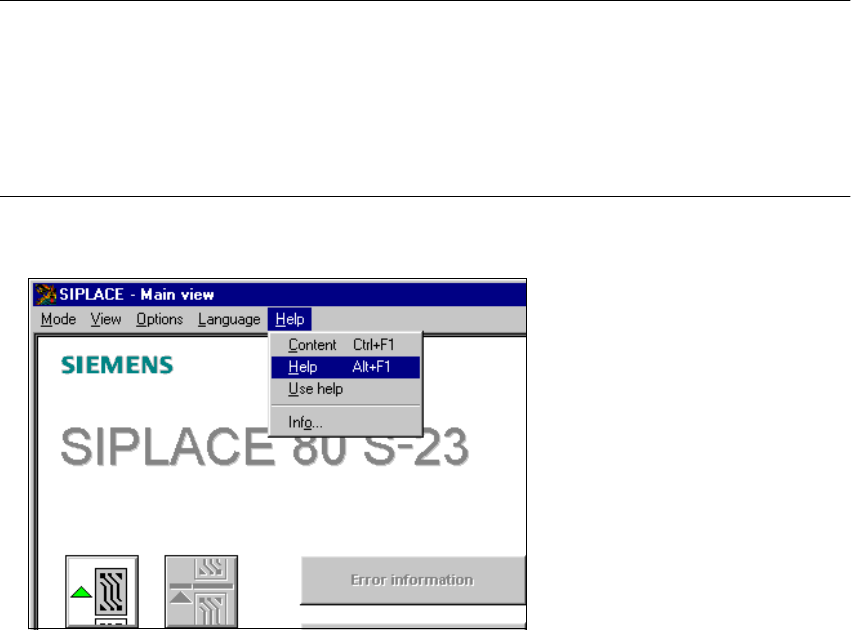
3.3.2.5 "Help" Menu
This menu gives you access to all the functions required to call the help system and general infor-
mation concerning the station computer or the software. 3
Content Ctrl+F1 3
This calls on-line help. 3
Help Alt+F1 3
Help information relating to the current view is displayed. 3
Use help 3
Information on how to use Help is displayed. 3
Info ... 3
This displays information on the currently installed software version (SC , MC, WPC, GEM
version) together with general information on the station computer. 3
NOTE
You can use the key combination CTRL+F1 to call the on-line Help function from within any view
in the user interface.
You can use the key combination Alt+F1 to call up help on the current view and the key combi-
nation Shift+F1 to access help on menu items, icons and buttons.
For a detailed description of the functions in the Help menu, refer to Chapter 9. 3
È Click the required menu item in the "Help" menu or press the corresponding key combination.
3