00191297-02.pdf - 第406页
12 Station Extensions - Software User Manual SIPLACE S-23 HM 12.2 GEM Interface Software Version SR.405.xx 05/99 Issue 404 12.2.2.6 L oading placement programs 12 È In the "S tate" view, click the butt on. The …

User Manual SIPLACE S-23 HM 12 Station Extensions - Software
Software Version SR.405.xx 05/99 Issue 12.2 GEM Interface
403
Toolbar: 12
You can use the buttons in the toolbar to switch the user interface between the following views:12
12
Main view 12
(see Chapter 3) 12
12
"State" view 12
(see Figure 12.2 - 4) 12
12
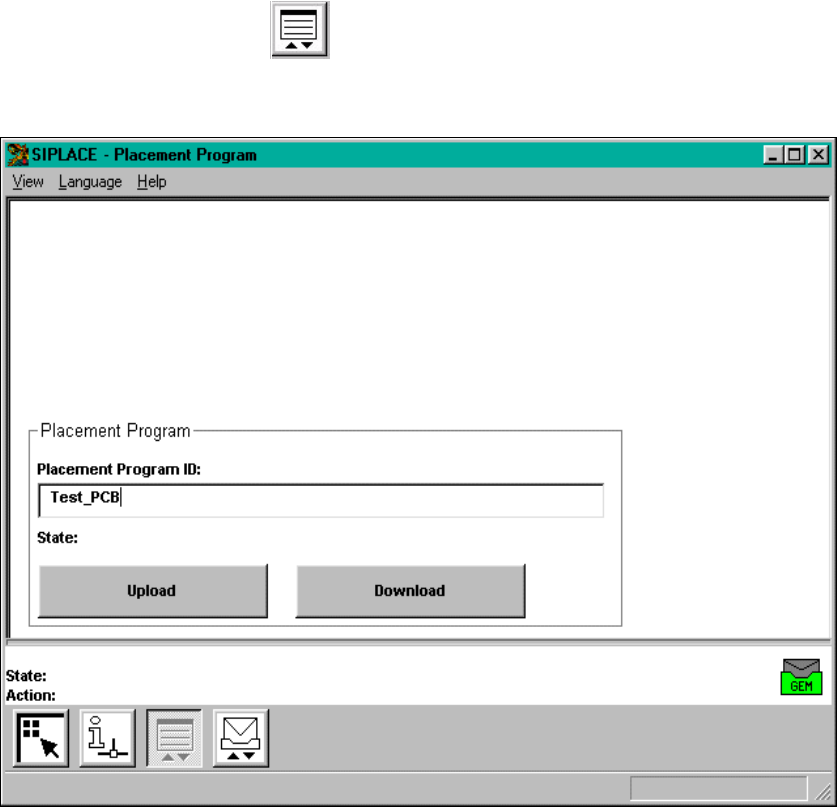
"Placement program" view 12
You can use the functions available in this view to load a placement program which is present on
the host computer or station computer (see section 12.2.2.6). 12
12
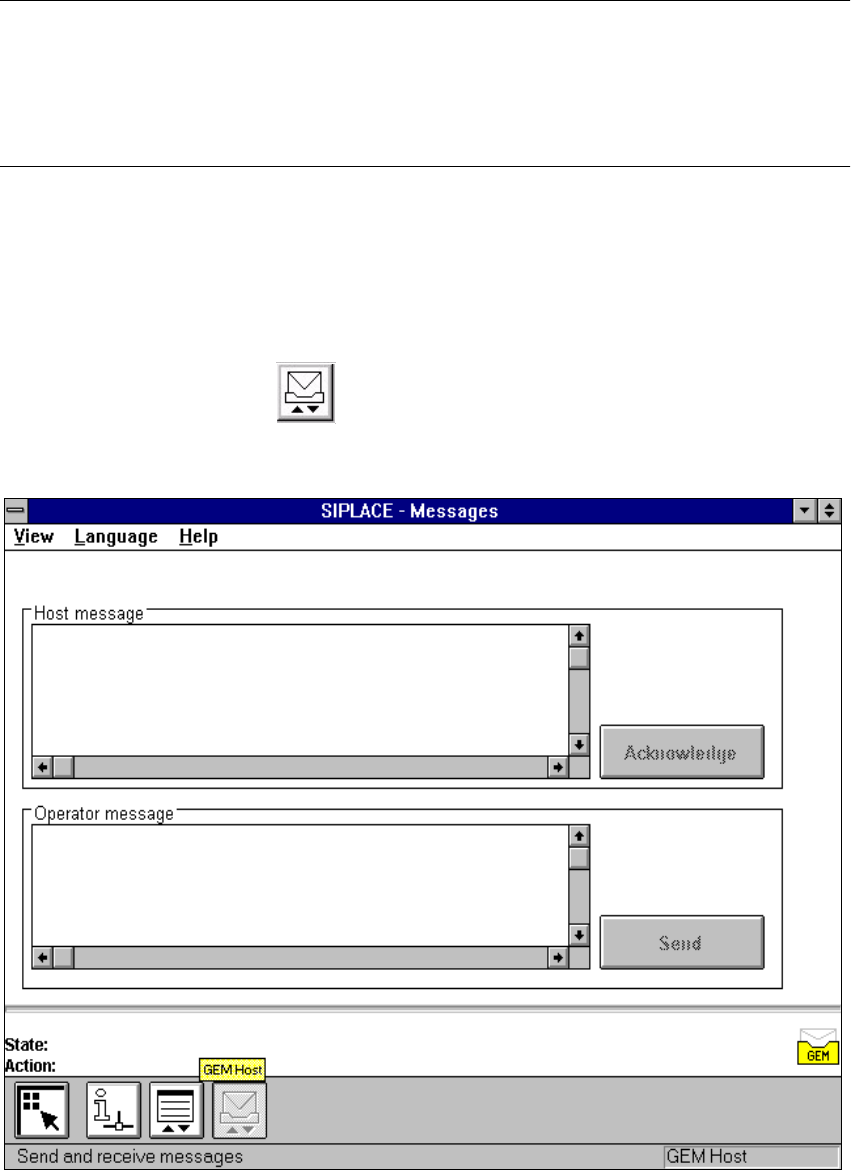
"Messages" 12
You can use the functions available in this view to read messages sent by the host computer and
send messages to the host computer (see section 12.2.2.7). 12
12
È Click the required button in order to switch to the required view.
12 Station Extensions - Software User Manual SIPLACE S-23 HM
12.2 GEM Interface Software Version SR.405.xx 05/99 Issue
404
12.2.2.6 Loading placement programs
12
È In the "State" view, click the button.
The user interface switches to the following view.
12
Fig. 12.2 - 5 "Placement program" view"
12
You can use the buttons in the display area to perform the following actions: 12
– Upload
The placement program whose name is entered in the text box is uploaded from the station
computer to the host computer.
– Download
The placement program whose name is entered in the text box is downloaded from the host
computer to the station computer.
12
12
User Manual SIPLACE S-23 HM 12 Station Extensions - Software
Software Version SR.405.xx 05/99 Issue 12.2 GEM Interface
405
NOTE
Depending on the selected action, the corresponding placement program must be available at the
station computer or the host computer.
To download a placement program, the control mode must be set to "GEM Host" (see section
12.2.2.1). 12
È Enter the name of the required placement program in the box "Placement Program ID:".
È Click the corresponding button to "upload" or "download" the corresponding placement pro-
gram.
The action is performed and the current status of the action is displayed above the buttons.
12.2.2.7 Messages
È In the "State" view, click the button.
The user interface switches to the following view.
12
Fig. 12.2 - 6 "Messages" view
12