00191297-02.pdf - 第193页
User Manual S-23 HM 6 Vision functions Software Vers ion SR.405.xx 05/99 Iss ue 6.5 Teach Fiducial 191 6.5.2.3 Buttons For sele cting opti ons the s ystem p rovides th e foll owing button s: 6 – Se lect the teaching gant…
6 Vision functions User Manual S-23 HM
6.5 Teach Fiducial Software Version SR.405.xx 05/99 Issue
190
6.5 Teach Fiducial
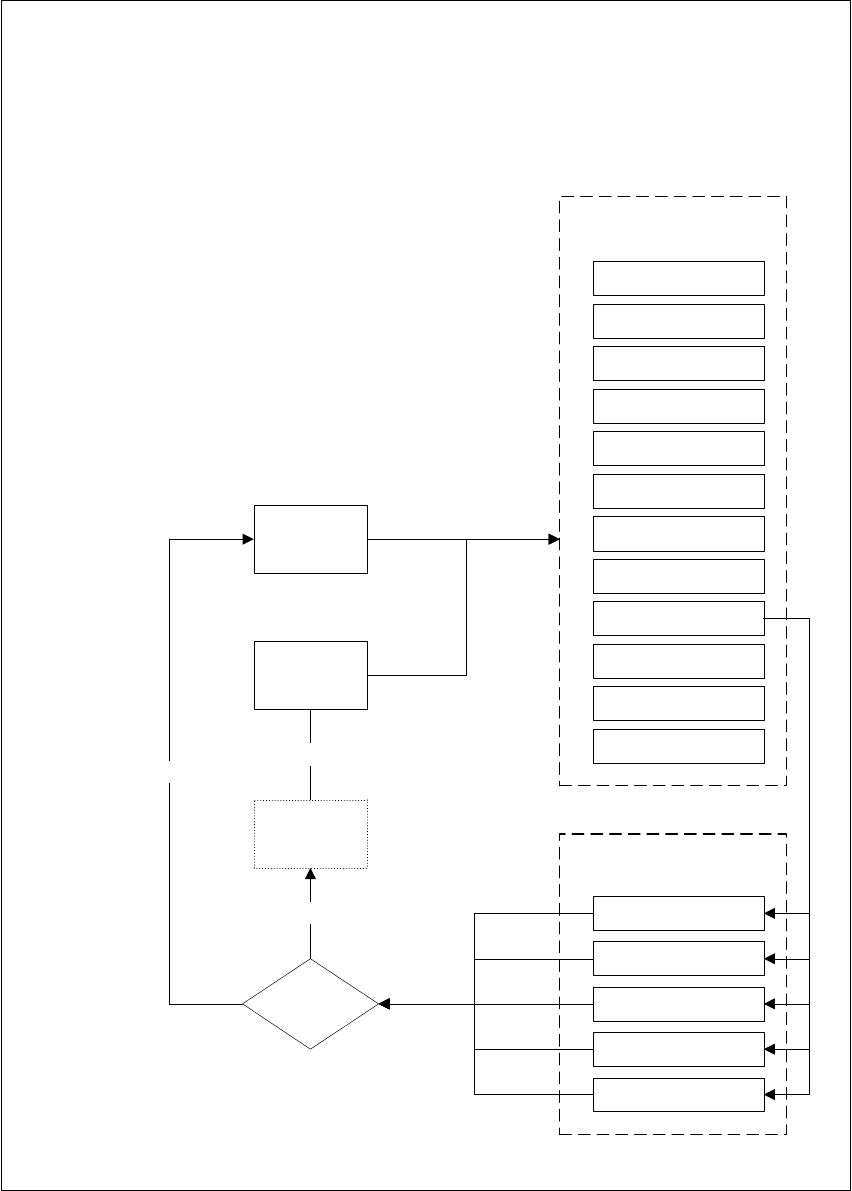
6.5.1 Teach Fiducial Flow Chart
The Teach fiducial flow chart shows in graphic form all menu options together with their sub-func-
tions. The menus are indicated by being bordered with a solid line, while the option boxes use a
dashed line and the input boxes a dotted line. 6
6.5.2 Information on the Flow Chart
6.5.2.1 Menus
The Teach fiducial option includes the following menus: 6
– Select fiducial
– Teach fiducial
– Contrast sensitivity
– Test fiducial
The Save fiducial data option box will be displayed each time you quit the Teach fiducial option
after having created or modified fiducial data. You are thus given the choice of saving these fidu-
cial parameters or of discarding them. 6
You can quit the individual menus by clicking on either the icon of another menu or on the Main
view icon. 6
6.5.2.2 Input Boxes, Option Boxes
The system provides the following input boxes for entering data, for displaying values and for ex-
ecuting actions: 6
– Define new fiducial
– Change fiducial name
– Program transform 5
You can quit the input boxes with OK, Accept or Cancel. 6
–Click on OK or Accept with the mouse and the data will be transferred to the program and
saved. The input box closes.
– Click on the Cancel button and the data will be discarded and the input box closed.
User Manual S-23 HM 6 Vision functions
Software Version SR.405.xx 05/99 Issue 6.5 Teach Fiducial
191
6.5.2.3 Buttons
For selecting options the system provides the following buttons: 6
– Select the teaching gantry
Use the mouse to select the teaching gantry.
– Save fiducial
The fiducial parameters just generated will be saved when you click on this button.
– Load fiducial
Once you have selected the desired fiducial from the lists field, click on the Load fiducial but-
ton. The fiducial parameters will be loaded.
6.5.2.4 Video Images
The camera image of the MVS system (vision analysis unit) can be displayed on the screen of the
station computer. In addition the screen will include header and footers: 6
– The header includes, for example, the currently selected menu option, the fiducial number,
analysis criteria, measurement results and so on.
– The footers include command sequences, keyboard commands, camera coordinates and so
on.
You can always quit displays of video images with the ESC key. The corresponding menu window
will then reappear. 6
6.5.2.5 Warning and Message Boxes
Messages are text fields which contain information regarding actions, warnings and so on. They
will appear under the following circumstances: 6
– incorrect operator actions (for example, a board still on the center conveyor).
– requests to the operator to carry out certain actions (for example, remove board).
– instructions (for example, input the name of a fiducial).
– indicates the system is busy performing an action (for example, loading fiducial data).
6 Vision functions User Manual S-23 HM
6.5 Teach Fiducial Software Version SR.405.xx 05/99 Issue
192
6
Fig. 6.5 - 1 Teach fiducial flow chart - menu options
Main view
Teach fiducial menu options
Main view menu
Set-up
Error
Feeders
PCB transport 2
PCB transport 1
Teach fiducial
Test component
SITEST
GEM
Main view
Markenauswahl
Teach fiducial
Contrast graduation
Test fiducial
Save
fiducial
Teach fiducial
menu option
Select fiducial
Fiducial
processed?
Fiducial is
restored
Fiducial
is saved
OK
Yes
Cancel
Gantry 1 functions
Gantry 2 functions