00191297-02.pdf - 第120页
4 Placement Functions User Manual SIPLACE S-23 HM 4.1 Setup Display Software Version SR.405.xx 05/99 Issue 118 È Select the en try in the se tup table for the trac k for which you want to execute a comp onent ve r- ifica…
User Manual SIPLACE S-23 HM 4 Placement Functions
Software Version SR.405.xx 05/99 Issue 4.1 Setup Display
117
– CO-BC
This column shows whether or not a component barcode has been specified for the corre-
sponding component in the setup using the "***" or "-" symbol.
*** A barcode is specified for the component.
The "Comp. verification with barcode ..." button is active when you click
on these lines in the table (see Section 4.1.2). 4
- No barcode is specified for the component.
(The "Comp. verification with barcode ..." button is not active). 4
4.1.2 Component Verification With Barcode
You prevent a track from being refilled with the wrong components with this function when refilling
components with a specified component barcode.
The operator reads the track barcode and then the component barcode with the barcode reader
(see Chapter 12) . The two barcode assignments are compared with the help of the SC software.
Incorrect assignments are not accepted. 4
4
Requirements
– The barcode reader must be connected to the station computer.
– The "Track BC" option must be activated on the line computer (in the configuration editor) for
the corresponding station. (Only then will the "Component verification with barcode" option be
displayed in the machine options on the station computer).
– The barcodes for the corresponding components must have been entered on the line computer
with the help of the component editor.
(A maximum of 6 different barcodes can be entered for a component at the present time).
– The "Component verification with barcode" option must be active in the machine options.
4
Procedure
È Open th e Options menu in the Main view and click on the Machine options ... menu option.
The "Machine options" window is opened (see Chapter 3).
È Activate the checkbox for "Component verification with barcode".
È Click on Apply. The window closes.
È Switch the user interface to the "Setup location x" view.
È Click on the icon in the toolbar for the desired location (see Fig. 4.1 - 1).
4 Placement Functions User Manual SIPLACE S-23 HM
4.1 Setup Display Software Version SR.405.xx 05/99 Issue
118
È Select the entry in the setup table for the track for which you want to execute a component ver-
ification (or read the track barcode on the barcode bar using the barcode reader). The line se-
lected is highlighted in light blue in the table.
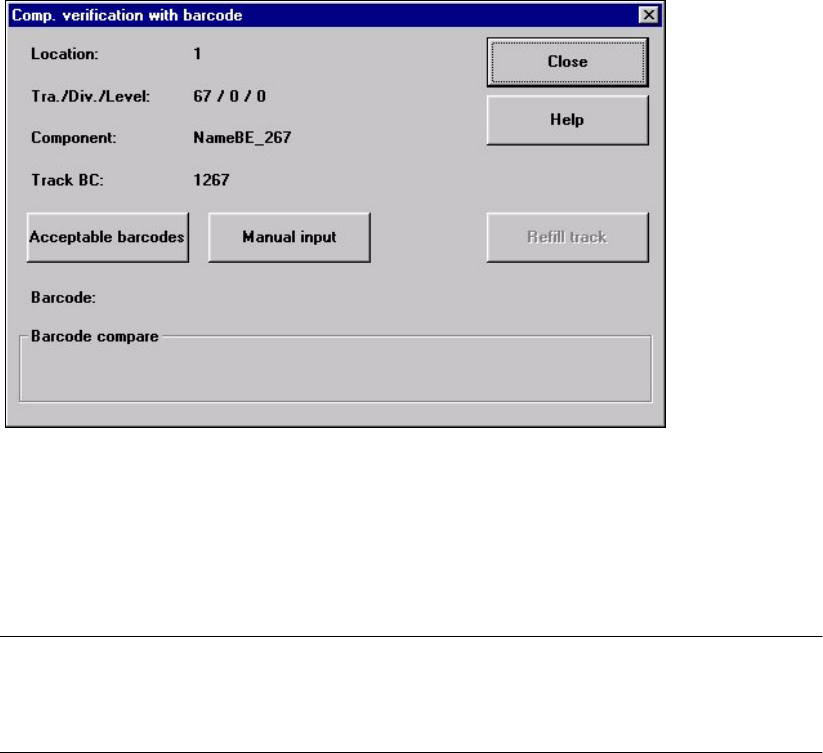
È Click on the Comp. verification with barcode ... button
The following window is opened. The data for the selected track is displayed so you can check
the data.
4
Fig. 4.1 - 2 "Component verification with barcode" window
4
È Read the component barcode in from the corresponding component reel with the
barcode reader. The barcode read in is displayed in the "Barcode:" line (see Section 4.1.2.1).
NOTE
If the component barcode cannot be read in, then enter it manually. The procedure is
described in Section 4.1.2.1. 4
User Manual SIPLACE S-23 HM 4 Placement Functions
Software Version SR.405.xx 05/99 Issue 4.1 Setup Display
119
4.1.2.1 Acceptable Barcodes
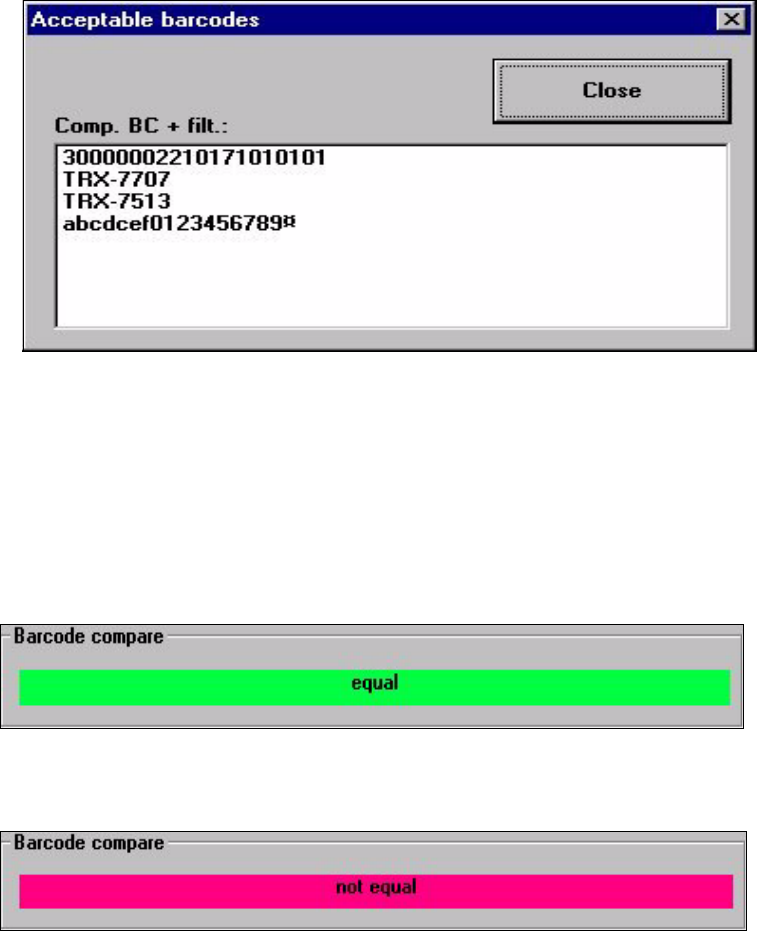
The list of barcodes (max. of 6) that are known for the component in the selected track is displayed
with this function. 4
È Click on the Acceptable barcodes button
The following selection box is opened.
4
È Click on the Close button. The selection box is closed.
The barcode read in using the barcode reader is compared to the possible barcodes.
The positions hidden due to the filter (marked by a ¤) will not be used for the comparison.
The results of the barcode comparison will be displayed in the display field of the "Component
verification with barcode" window (see the following examples).
The barcodes match.
4
The barcodes do not match.
4