00191297-02.pdf - 第395页
User Manual SIPLACE S-23 HM 12 Station Extensions - Software Software Vers ion SR.405.xx 05/99 Iss ue 12.2 GEM Inte rface 393 The figure b elow presents the "Options " menu whi ch is prese nt in the menu bar of…
12 Station Extensions - Software User Manual SIPLACE S-23 HM
12.2 GEM Interface Software Version SR.405.xx 05/99 Issue
392
12.2 GEM Interface
12.2.1 General
Explanation of Terms:
GEM => Generic Equipment Model 12
SECS-II => Semiconductor Equipment Communication Standard, Part 2 12
Host computer => Communications computer 12
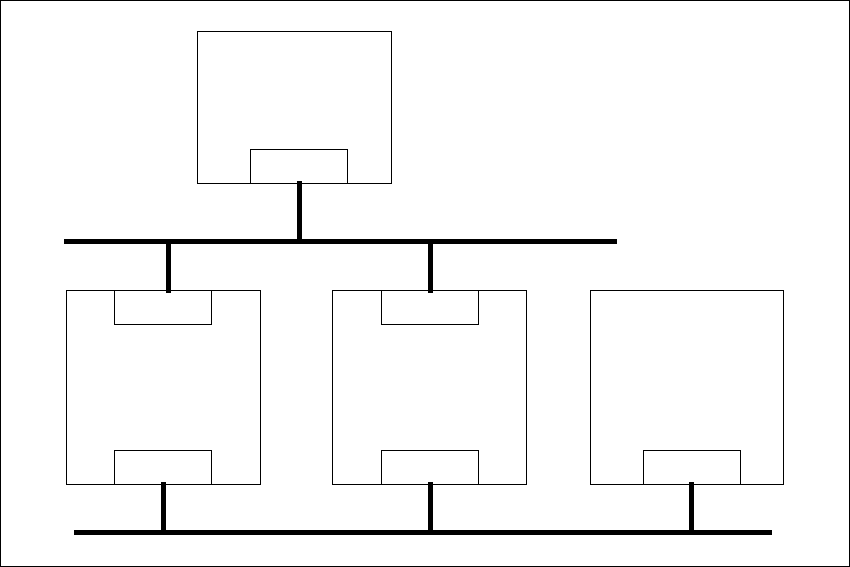
WIth the GEM/SECS-II interface, it is possible to control a SIPLACE station using any host com-
puter which is compatible with GEM. However, the station computer at the SIPLACE station must
be left connected to the line computer to allow the machine, set-up and cluster data to be pro-
grammed and loaded into the station computer. The station computer packs this data in a place-
ment program and makes this available to the host computer for uploading. During operation, and
depending on the control mode, the host or line computer provides the SIPLACE station with the
necessary machine, set-up and cluster data or with the placement program. 12
12
Fig. 12.2 - 1 Overall structure
12
Host
GEM
Line computer
LAN
SIPLACE S-23 HM
GEM
LAN
SIPLACE 80 F
4
SIPLACE 80 F
5
GEM
LAN
SIPLACE LAN
Customer‘s LAN
User Manual SIPLACE S-23 HM 12 Station Extensions - Software
Software Version SR.405.xx 05/99 Issue 12.2 GEM Interface
393
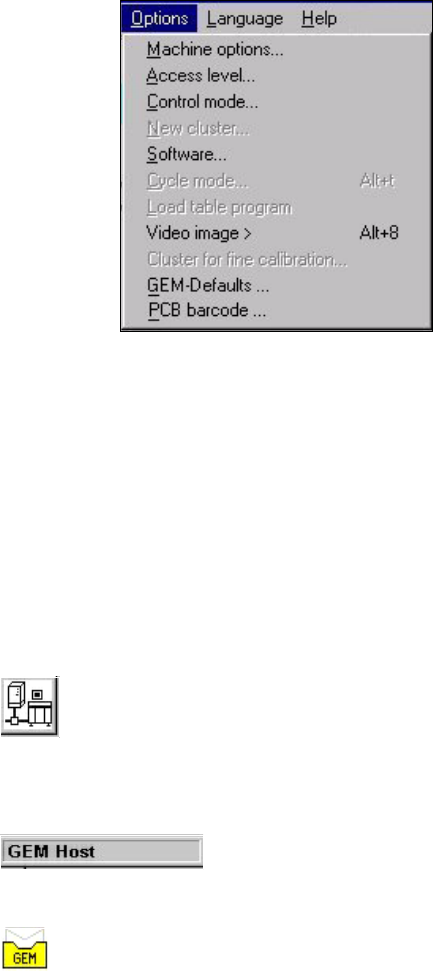
The figure below presents the "Options" menu which is present in the menu bar of the user inter-
face. This menu contains the options for the GEM interface settings. 12
12
Menu Options for the GEM Interface: 12
– Control mode...
This opens a dialog box which is used to set the control mode at the GEM computer.
– GEM-Defaults ...
This opens the window used to specify the default settings for the GEM interface.
Controls and Indicators in the GEM Interface 12
12
12
This button switches the user interface to "State view" mode. (Load placement program, send/re-
ceive message) 12
12
The current control mode is displayed in a separate area in the user interface’s information bar.12
12
The icon displayed in the user interface’s status area (on the right-hand side) indicates the current
status of the connection to the GEM computer. 12
12
12 Station Extensions - Software User Manual SIPLACE S-23 HM
12.2 GEM Interface Software Version SR.405.xx 05/99 Issue
394
12.2.2 Operation
12.2.2.1 Setting the Control Mode
The control mode specifies how the station is supplied with the necessary placement data. 12
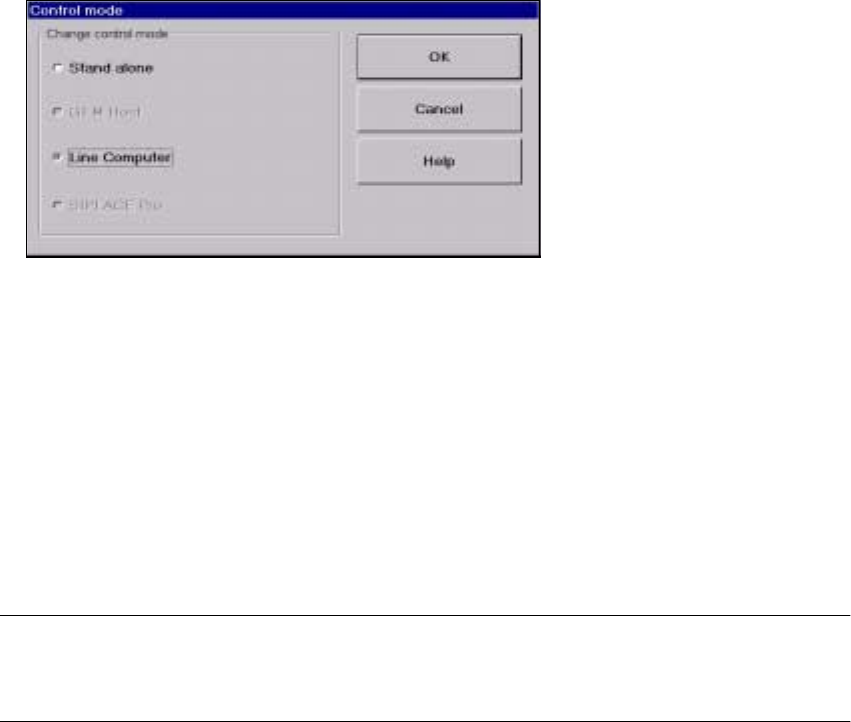
È In the main view, select the Options menu and then choose the Control mode... option.
È The following selection box appears.
Possible Settings: 12
Stand alone 12
(This control mode is used for test purposes only)
If a cluster is specified at the station, all necessary data will be loaded from the hard disk of the
station computer.
The data must be located on the station computer’s hard disk. 12
GEM Host 12
In this control mode only the host computer can specify the placement programs.
The data must be located on the host computer’s hard disk. 12
NOTE
This setting must be activated if you wish to download placement programs from the GEM
computer to the station computer. See also section 12.2.2.6. 12
Line Computer 12
If a cluster is specified at the station, all necessary data will be loaded from the line computer. The
data must be located on the line computer’s hard disk. 12
SIPLACE Pro 12
This control mode cannot be set in the current software version. 12
12
È Select the button for the required control mode.
È Click OK to confirm and activate this setting.