3OM-1751-002w_G5S.pdf - 第106页
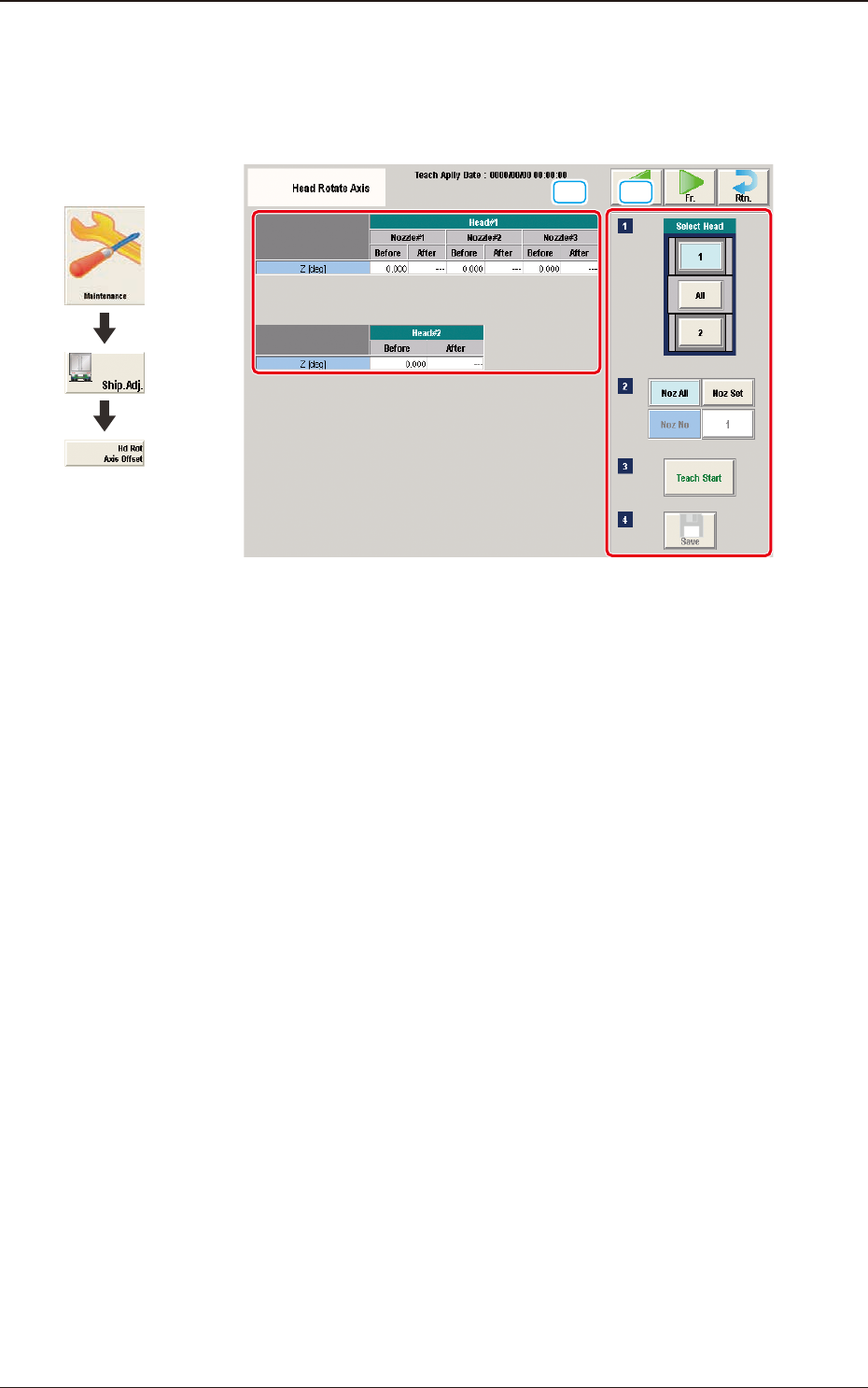
3OM-1751 1-52 1303-001 5.10 "Head Rotate Axis" Window These offsets are used to correct the deviations for the head movement to the camera. [1] [2] F3A38 [1] T eaching Data Display Section Displayed are the off…

3OM-1751
1-511303-001
•
Component Recognition Camera Offset Teaching Procedure
Procedure
(1) Before the teaching operation, place the QFP glass jig at its setup position
with the vapor-deposited surface turned down.
(2) Press the [Noz. Place. Pos. move] button
(Move the head to the position where the nozzle to be used for teaching can
be attached easily.)
(3) Press the [Teach Start] button.
(The component recognition camera offset (X (Horizontal), Y (Vertical) and
Z (Angle)) teaching will be executed.)
•
The beam selected in the position setting operation is move to the jig setup
position and the glass jig is recognized using the PEC recognition camera.
After that, the jig in the jig setup position is picked up and moved to the
position above the component recognition camera. The nozzle is lowered
to the focus point of the jig and the recognition is performed. Then, the
camera offset is calculated.
•
When the teaching is started, the start conditions are checked.
•
When any recognition error occurs during the teaching operation or the
[STOP] button is pressed on the operation penal, the machine is stopped
temporarily. In this case, re-start is available.
•
During this temporary stop mode, the selection of any other menu item is
unavailable.
When the offset teaching is completed, the jig is returned to the specied
jib setup position and the designated head returns to the home position
automatically.
The teaching results and mark recognition results during the teaching (XY
Angles) are displayed in the "X (Horizontal) (mm)", "Y (Vertical) (mm)",
and "Angle Z (
°
)" data boxes in the "PEC Recognition Camera & Beam
Offset" window.
(4) Press the [Save] button.
(When this button is pressed, the teaching results are saved.)
5.9 "Cmp Recog Pos" Window
3OM-1751
1-521303-001
5.10 "Head Rotate Axis" Window
These offsets are used to correct the deviations for the head movement to the
camera.
[1] [2]
F3A38
[1] Teaching Data Display Section
Displayed are the offset data items for the designated head.
[2] Teaching Procedure Display Area
Displayed are the buttons to be used for the teaching operations.
Select Head
Each head in the graphic image is provided with a button function. Select the
head for which the teaching operation is performed.
[Noz All] button
When pressed, the teaching operation for all the nozzles is performed.
[Noz Set] button
Using this button, the nozzle to be taught is designated.
When the [Noz Set] button is pressed, the parameter input window appears.
[Teach Start] button
When pressed, this button executes the teaching operation.
[Save] button
When this button is pressed, the teaching results are saved.
Graphic
Development
5.10 "Head Rotate Axis" Window
3OM-1751
1-531303-001
•
Teaching Vacuum Nozzle
For the head rotation axis offset teaching, the two jig nozzles (standard
equipment) and one normal vacuum nozzles HV19C. Before the teaching
operation, change the nozzles in the "NOZ.CHNG." window (Operation
Sequence: Select [Unit Adj.] button in the Menus for Maintenance
→
Select
[Noz Chng.] button).
At that time, attach the nozzles onto the nozzle No. 1 positions.
·
Teaching Procedure
Procedure
(1) Select the head (1, 2 or All) for which the head rotation axis offset teaching
is performed.
Note
In the case that the multi-functional head is selected, select the nozzle to be
taught and press the [Teach Start] button.
(2) Press the [Teach Start] button.
(The designated beam will be moved to the specied position and the head
rotation axis offset is taught.)
•
When the teaching is started, the start conditions are checked.
•
During this temporary stop mode, the selection of any other menu item is
unavailable.
When the offset teaching is completed, the designated head returns to the
home position automatically.
The teaching results are displayed in the "Beam XY Offset Conrmation"
Display Area.
(3) Press the [Save] button.
(When this button is pressed, the teaching results are saved.)
5.10 "Head Rotate Axis" Window