3OM-1751-002w_G5S.pdf - 第148页
3OM-1751 1-94 6.3.3 "Capture Img." T ab [1] F3A76 [1] T abs The "Capture Img." window is provided with the following two tabs. When each tab is pressed, the corresponding tab sheet appears. T abs Desc…
3OM-1751
1-931303-001
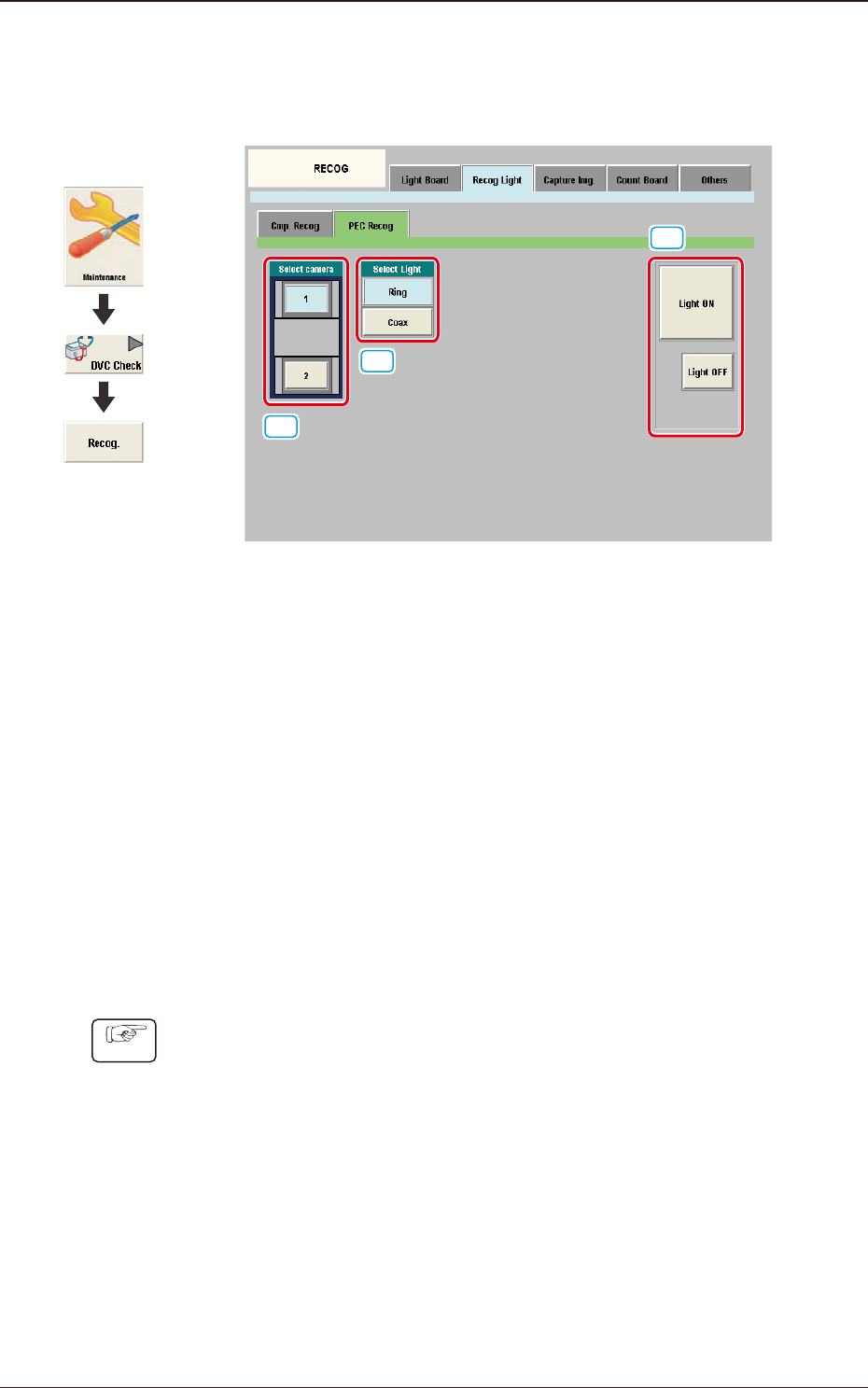
6.3.2.2 "PEC Recog" Tab Sheet
When the [PEC Recog] tab sheet is pressed on the [Recog Light] tab, the
following tab sheet appears.
[1]
[2]
[3]
F3A75
[1] Select camera
Displayed are the buttons showing the positions of the PEC recognition
cameras. Using these buttons, the PEC recognition camera to check the PEC
recognition lighting, is selected.
[2] Select Light
Using these buttons, the lighting pattern to be checked is selected.
[3] [Light ON] Button / [Light OFF] Button
When this button is pressed, the lighting selected using "[2] Recognition
Lighting Selection Buttons" is turned ON or OFF.
•
PEC Recognition Lighting Conrmation Procedure
Procedure
(1) Using the button [1], select the PEC recognition camera with which the
conrmation is to be performed.
(2) Using the button [2], select the lighting pattern with which the conrmation
is to be performed.
(3) Using the button [4], select the lighting condition and conrm the lighting.
6.3 "RECOG" Window
Graphic
Development
3OM-1751
1-94
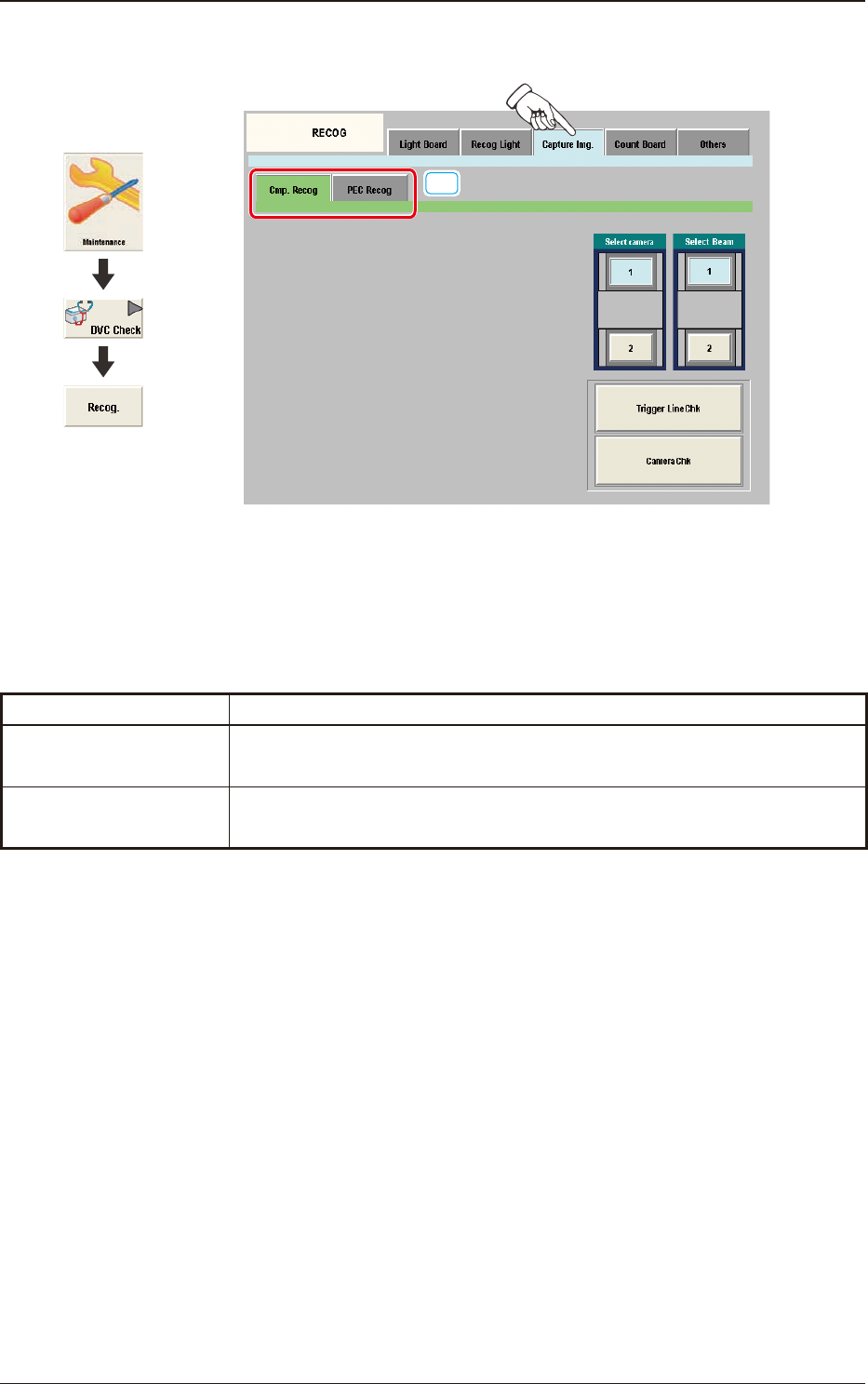
6.3.3 "Capture Img." Tab
[1]
F3A76
[1] Tabs
The "Capture Img." window is provided with the following two tabs. When
each tab is pressed, the corresponding tab sheet appears.
Tabs Description
Cmp. Recog
In this tab sheet the image is captured using the component recognition
camera and the trigger line and camera performance are checked.
PEC Recog
In this tab sheet the image is captured using the PEC recognition camera
and the wire connection and camera performance are checked.
T3A13
1303-001
6.3 "RECOG" Window
Graphic
Development
3OM-1751
1-95
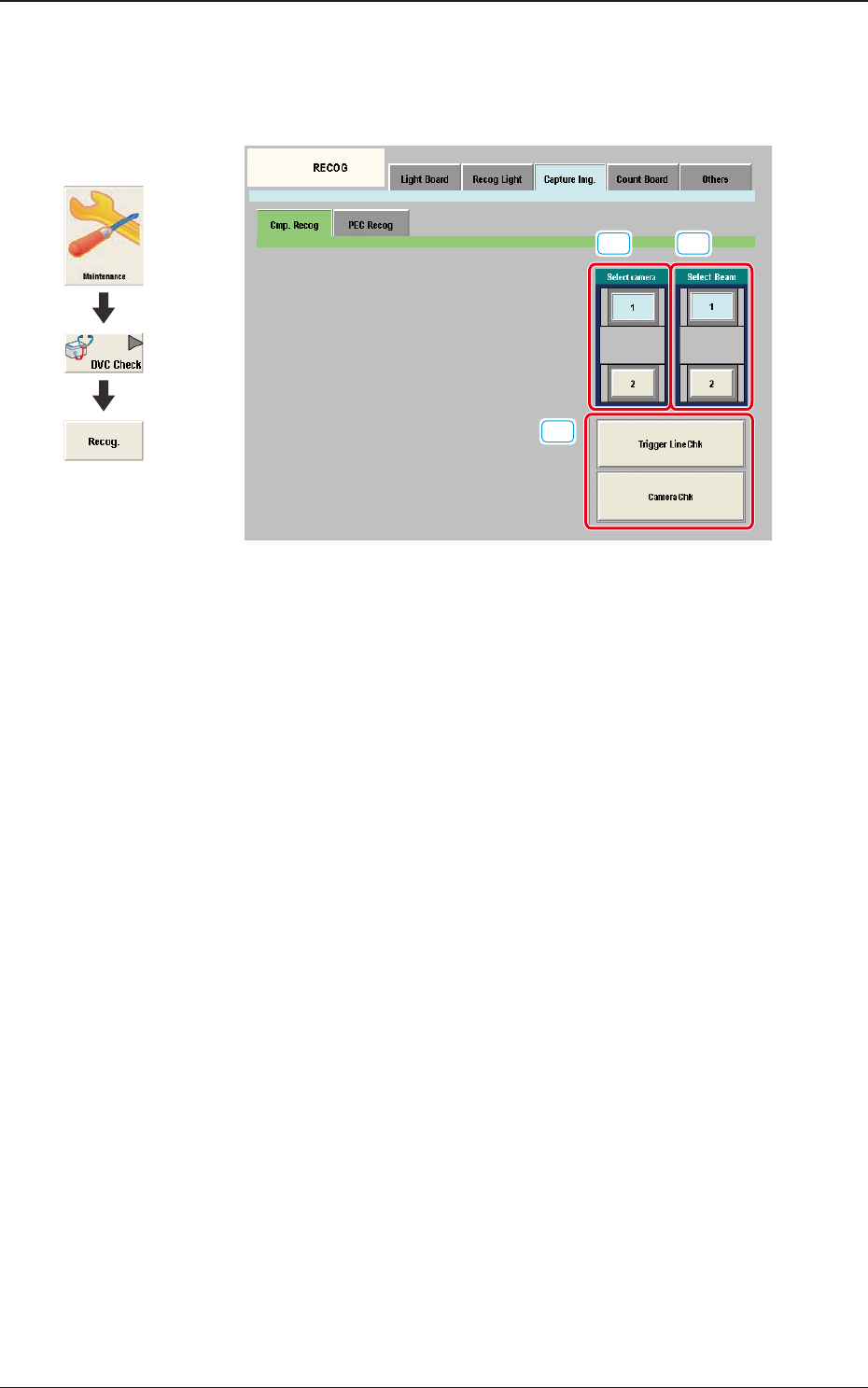
6.3.3.1 "Cmp. Recog" Tab Sheet
When the [Cmp. Recog] tab sheet is pressed on the "Capture Img." tab, the
following tab sheet appears.
[1]
[3]
[2]
F3A77
[1] Select camera
Displayed are the button showing the positions of the component recognition
cameras.
In this section the component recognition camera for capturing the
component image is selected.
[2] Select Beam
In this section the beam to be checked is selected.
[3] Trigger Line Chk
Using this button the trigger line for capturing the component image is
checked.
Camera Chk
Using this button the camera is checked.
1303-001
6.3 "RECOG" Window
Graphic
Development