3OM-1751-002w_G5S.pdf - 第236页
3OM-1751 2-68 1303-001 2.9.4 "Fly Recog XY" T ab Sheet [1] F3B67 [1] Head 1, Head 2 X [mm], Y [mm] Cam1 and Cam2 Obtain the deections (caused mainly due to the delay time of the servo amplier and the strobe) …
3OM-1751
2-671303-001
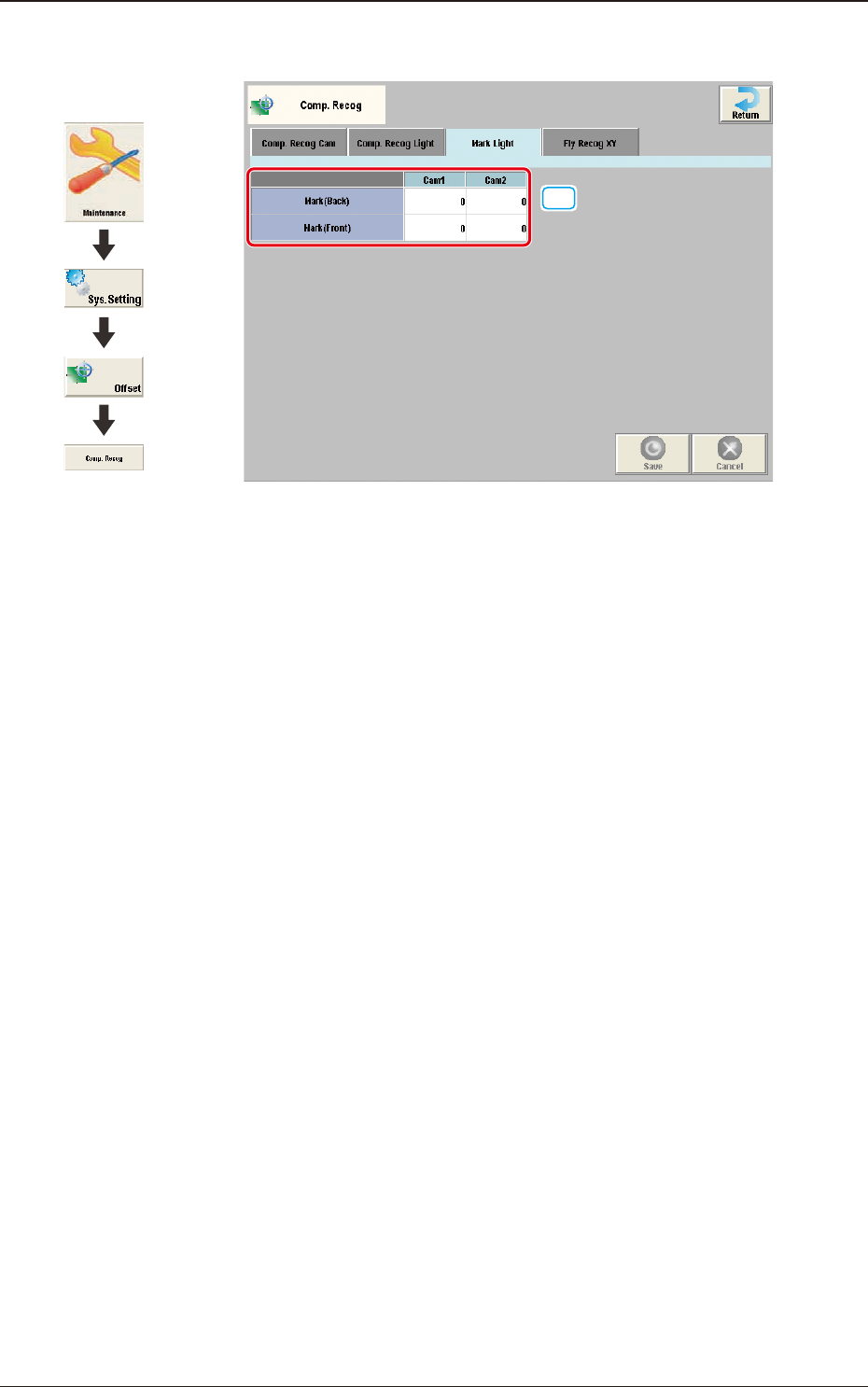
2.9.3 "Mark Light" Tab Sheet
[1]
F3B66
[1] Mark (Back) and Mark (Front)
Cam1 and Cam2
The brightness level for the reference mark lighting is set in these text boxes.
2.9 "Comp. Recog" Window
Graphic
Development
3OM-1751
2-681303-001
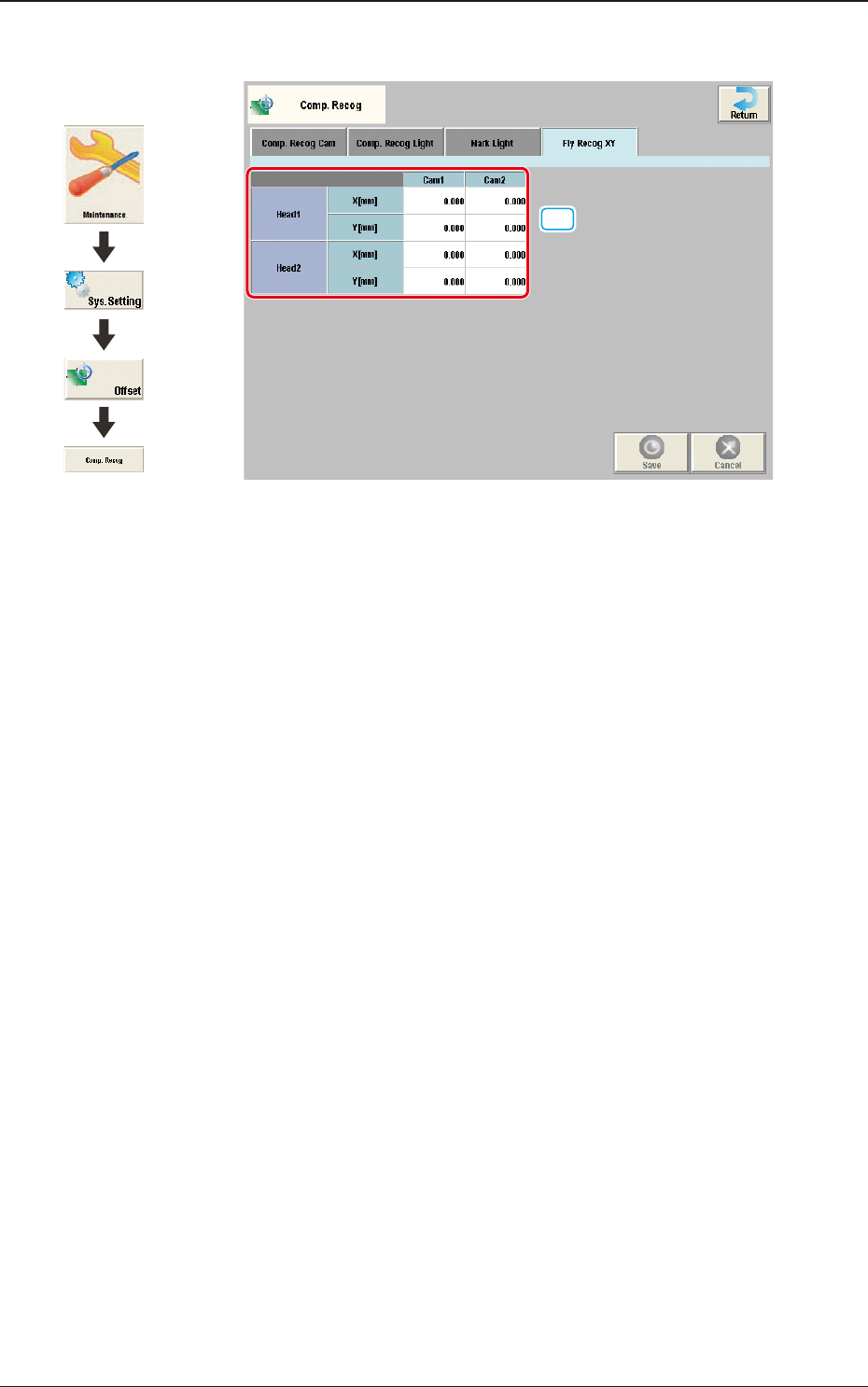
2.9.4 "Fly Recog XY" Tab Sheet
[1]
F3B67
[1] Head 1, Head 2
X [mm], Y [mm]
Cam1 and Cam2
Obtain the deections (caused mainly due to the delay time of the servo
amplier and the strobe) of the images captured by the stopped component
recognition camera (still image capture) and the ying component
recognition camera (y image capture) and set the obtained values to adjust
the deviations in timing for image capture.
The set parameters are used to prevent a component from getting affected by
the delay and staying out of camera eld of view.
2.9 "Comp. Recog" Window
Graphic
Development
3OM-1751
2-691303-001
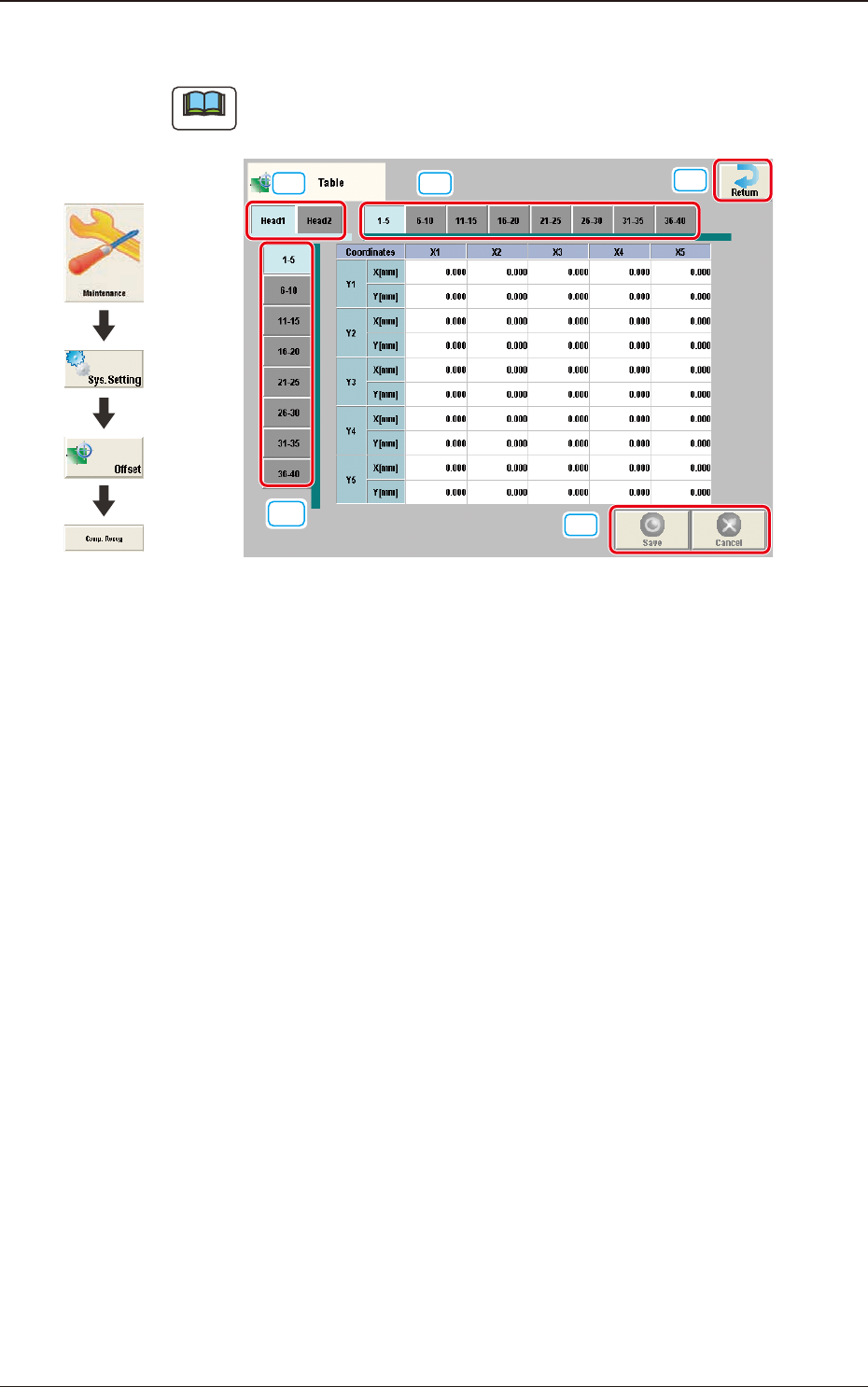
2.10 "Table" Window
Note
As for the "Head 2" tab sheets, the same contents as the "Head 1" tab sheet are
displayed.
[3]
[1] [2]
[4]
[5]
F3B68
Enter the amount of deviation based on the specied distance when Head 1 has
moved as far as the specied distance (each grid point, X Direction: X1 through
X40, Y Direction: Y1 through Y40) from the PCB positioning reference.
These values are calculated automatically through the teaching operation and
entered in each text box.
[1] Head Select Tab
Using this tab, the head to be input is selected.
[2] Direction "X" Select Tab
Using this tab, the point on the grid in the direction "X" for the selected tab,
is displayed.
[3] Direction "Y" Select Tab
Using this tab, the point on the grid in the direction "Y" for the selected tab,
is displayed.
[4] [Return] button
When this button is pressed, the "Offset Data" window is returned.
[5] [Save] button
When this button is pressed, the input data is saved.
[Cancel] button
When this button is pressed, the input data is cancelled and the save data is
returned.
2.10 "Table" Window
Graphic
Development