xp141-241-341-5.0E.pdf - 第166页
FK-9F98- 29 XP Series Training Text for Service Engineers Edition 5.0 XP241 – Chapter 6 Proper Data Measurements Page 20 of 20 Fuji Machine Mfg. Co., Ltd. Okazaki. SMT Equipment Quality Assurance Dept . 6 – 20 CS Section…
FK-9F98-29 XP Series Training Text for Service Engineers
Edition 5.0 XP241 – Chapter 6 Proper Data Measurements Page 19 of 20
Fuji Machine Mfg. Co., Ltd. Okazaki.
SMT Equipment Quality Assurance Dept.
6 – 19 CS Section
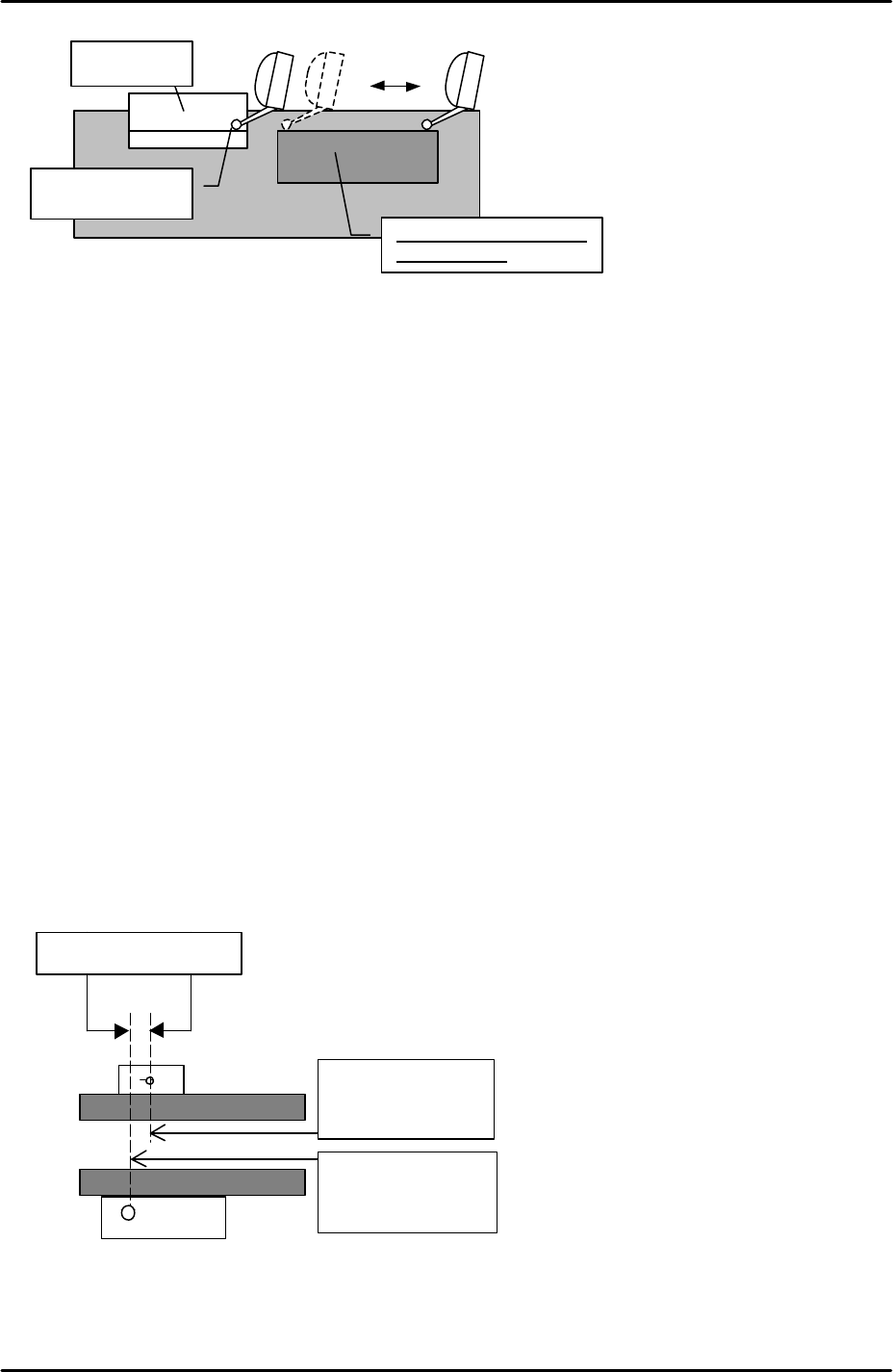
3. Set the dial gage to 0 on the reference side of the jig and slide it across the width
defining mark bracket.
4. Adjust the height of the bracket so that it is the same height as the jig (tolerance +/-
0.05mm). The flatness of the bracket should be within 0.05mm.
5. Set the conveyor width to approximately 100mm.
6. Select [Maintenance A] – [Jog] – [Fiducial] – and display the cross hairs on the
screen.
7. Center the fiducial camera on the glass gage station fiducial mark and record the X-
axis counter value at this position.
8. Inch the fiducial camera in the Y direction until the width defining bracket comes
into view, then center the camera on the width defining mark.
9. Record the X-axis counter value at this position and subtract this figure from the X
axis counter value recorded in step 7. This value is the “ConvWidthMarkDiffX”
proper data.
10. Select [Maintenance C] – [Proper data editor] – [Others] – [ConvWidthMarkDiffX] –
and manually input the figure calculated at step 9.
11. In the following example the ConvWidthMarkDiffX would be 1mm:
12. Set the conveyor width to minimum, then select [Production] – [Conveyor Width] –
[Measure Speed] – [START]. After the calibration is complete press [YES] to save
the results in proper data (ConvWidthMtrSpeed).
Height jig
Set the dial to “0”
Flatness
s
ho
u
ld be
within 0.05mm
X-axis counter:
135.000 mm
X-axis counter:
136.000 mm
ConvWidthMarkDiffX
FK-9F98-29 XP Series Training Text for Service Engineers
Edition 5.0 XP241 – Chapter 6 Proper Data Measurements Page 20 of 20
Fuji Machine Mfg. Co., Ltd. Okazaki.
SMT Equipment Quality Assurance Dept.
6 – 20 CS Section
13. Once speed measurement is complete input a board width and select [Move] –
[START]. The conveyor automatically moves to this board width.
14. Select a board with the same width as that input in step 13 and place it in the
conveyor. The board should fit smoothly into the conveyor, and there should be a
clearance of 0.5mm between conveyor and board. If not it is necessary to measure
an offset.
15. Use the conveyor width changer inching tabs to change the conveyor width until the
clearance between board and conveyor is 0.5mm then select [Measure Offset].
After the calibration is complete press [YES] to save the results in proper data
(ConvWidthOffset).
6.17 Corner dog adjustment
1. Select [Maintenance C] – [Proper data editor] – [Machine Type] – [CornerRearSide]
and set the corner dog proper data as described in the following table:
CornerRearSide
0 The corner dog is bypassed
1 The corner dog is square
2 The corner dog is round
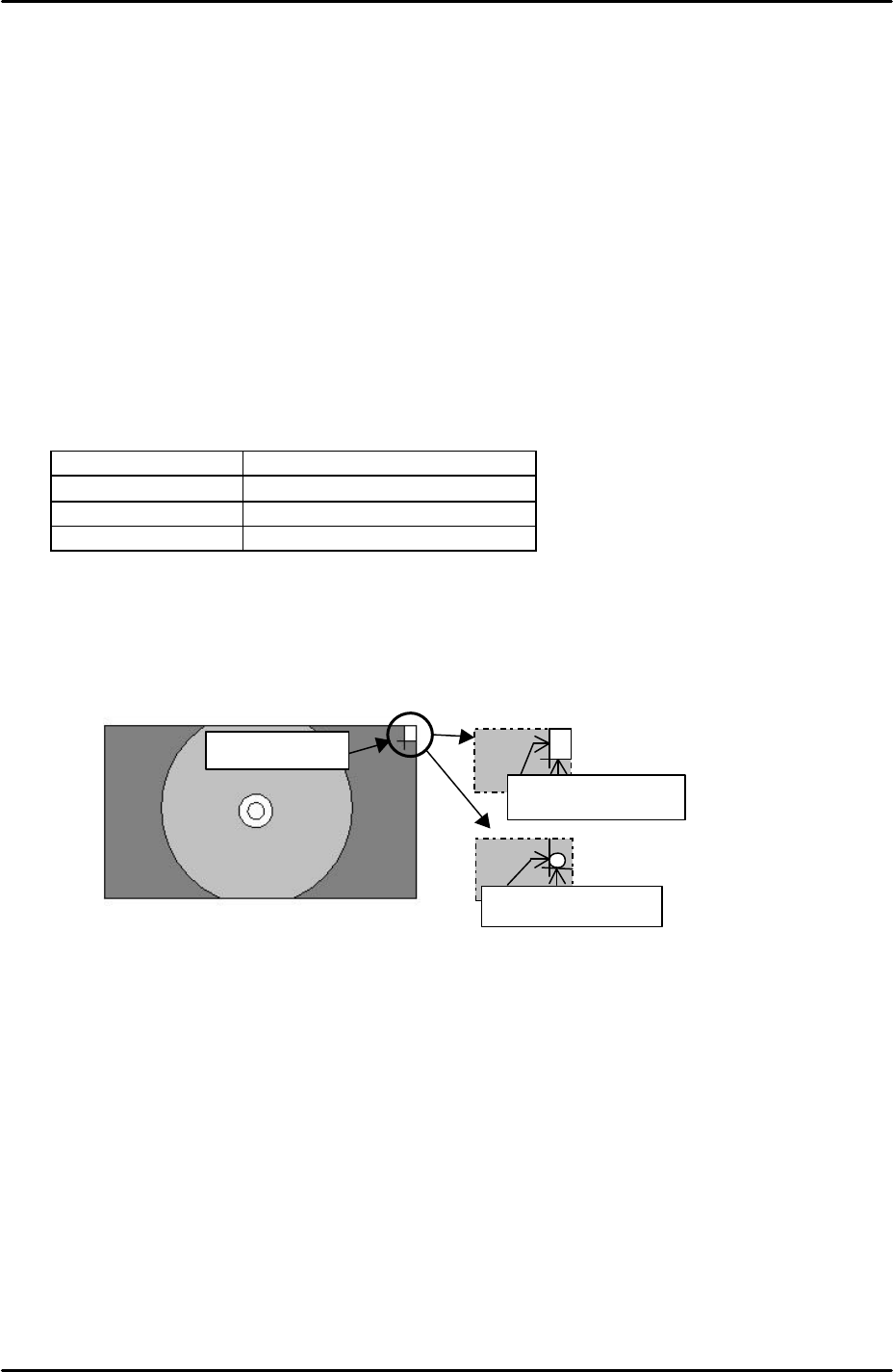
2. Select [Maintenance C] – [Corner dog adjustment] – [Acquire Image] – [Start] and
the side 2 camera will acquire the corner dog image.
3. Adjust the position of the corner dog so that it aligns with the green cross hairs as
illustrated in the following diagram:
4. After aligning the corner dog with the green cross hairs select [Vision Test] and the
MS algorithm vision system will process the corner dog image. If the position of the
corner dog is within tolerance, seek lines will be drawn around the corner dog
edges and the vision test is a success. Should seek lines fail to appear readjust the
position of the corner dog and try again.
5. If after readjustment the seek lines still fail to appear it may be necessary to replace
the corner dog.
Corner dog
Round corner dog:
Align to the crosshair.
Square corner dog:
Align to the crosshair.

C
C
h
h
a
a
p
p
t
t
e
e
r
r
7
7
O
O
p
p
e
e
r
r
a
a
t
t
i
i
o
o
n
n
a
a
n
n
d
d
A
A
c
c
c
c
u
u
r
r
a
a
c
c
y
y