Infinity EX Camera System Module.pdf - 第29页
INFINITY EX CAME RA SYSTE M MODULE ADJUS TMENT S AND SET TINGS Chapter Issue 3 J an 04 Technical Reference Manual 17.29 V ision Height NO TE Ensur e the boar d file used has the corr ect boar d thickness value . Chec k r…
INFINITY
EX
CAMERA SYSTEM MODULE
ADJUSTMENTS AND SETTINGS
17.28 Technical Reference Manual Chapter Issue 3 Jan 04
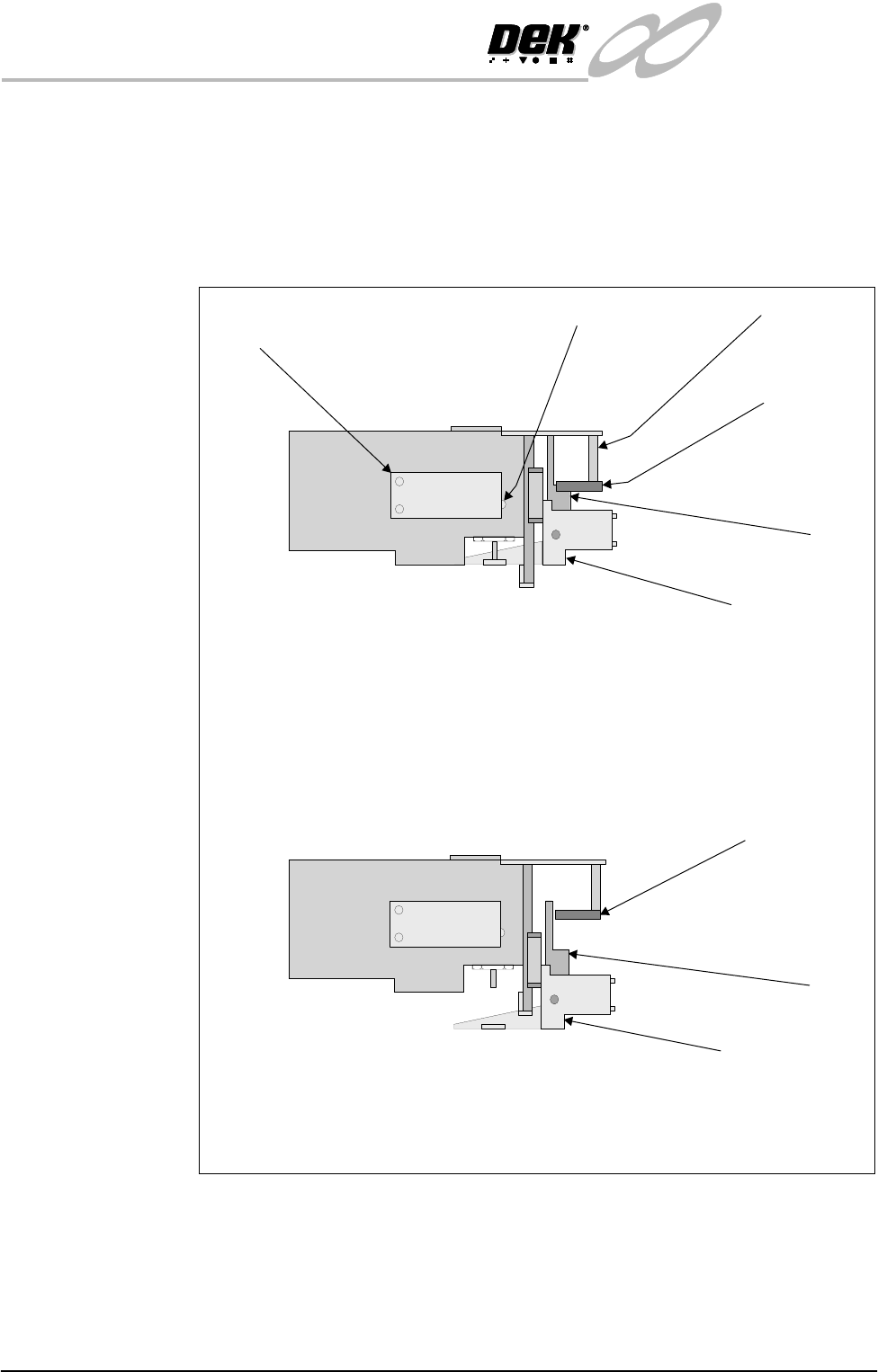
Board Stop In
Sensor
The Board Stop In Sensor is mounted on the camera carriage and has an LED
mounted in its body which illuminates when the beam is broken.
When the board stop is home (raised) the LED is on as the beam is broken by
the vane. The only adjustment is on the opto pillars which must be set to enable
the beam of the opto to look through the slot of the vane giving definite up/down
detection.
Figure 17-9 Board Stop In Sensor
Board Stop In
Sensor
Vane
Board Stop (In
lowered position)
(Camera removed for clarity)
View on Board Sensors From Front of Machine
Board At Stop Sensor
(Downward looking)
LED's
Board Stop (In
raised position)
Board Stop
In Sensor
Vane
Opto Pillars
(Camera removed for clarity)
View on Board Sensors From Front of Machine
INFINITY
EX
CAMERA SYSTEM MODULE
ADJUSTMENTS AND SETTINGS
Chapter Issue 3 Jan 04 Technical Reference Manual 17.29
Vision Height NOTE
Ensure the board file used has the correct board thickness value. Check rail /
camera X motor bracket clearance. Remember that the vision height may be
higher if a thinner board is used.
1. Ensure a stencil is fitted to the machine.
2. Place the board on the rails and slide to a central position.
3. In Camera Axes Diagnostics module, select Home Camera X Axis and
press Run Diagnost on the menu bar.
4. Select Home Camera Y Axis and press Run Diagnost button.
5. In Rising Table Diagnostics module, select Home Rising Table.
6. Select Raise Table To Vision Height and press Run Diagnost button.
7. Select Drive Table Using Jog Buttons and press Run Diagnost button.
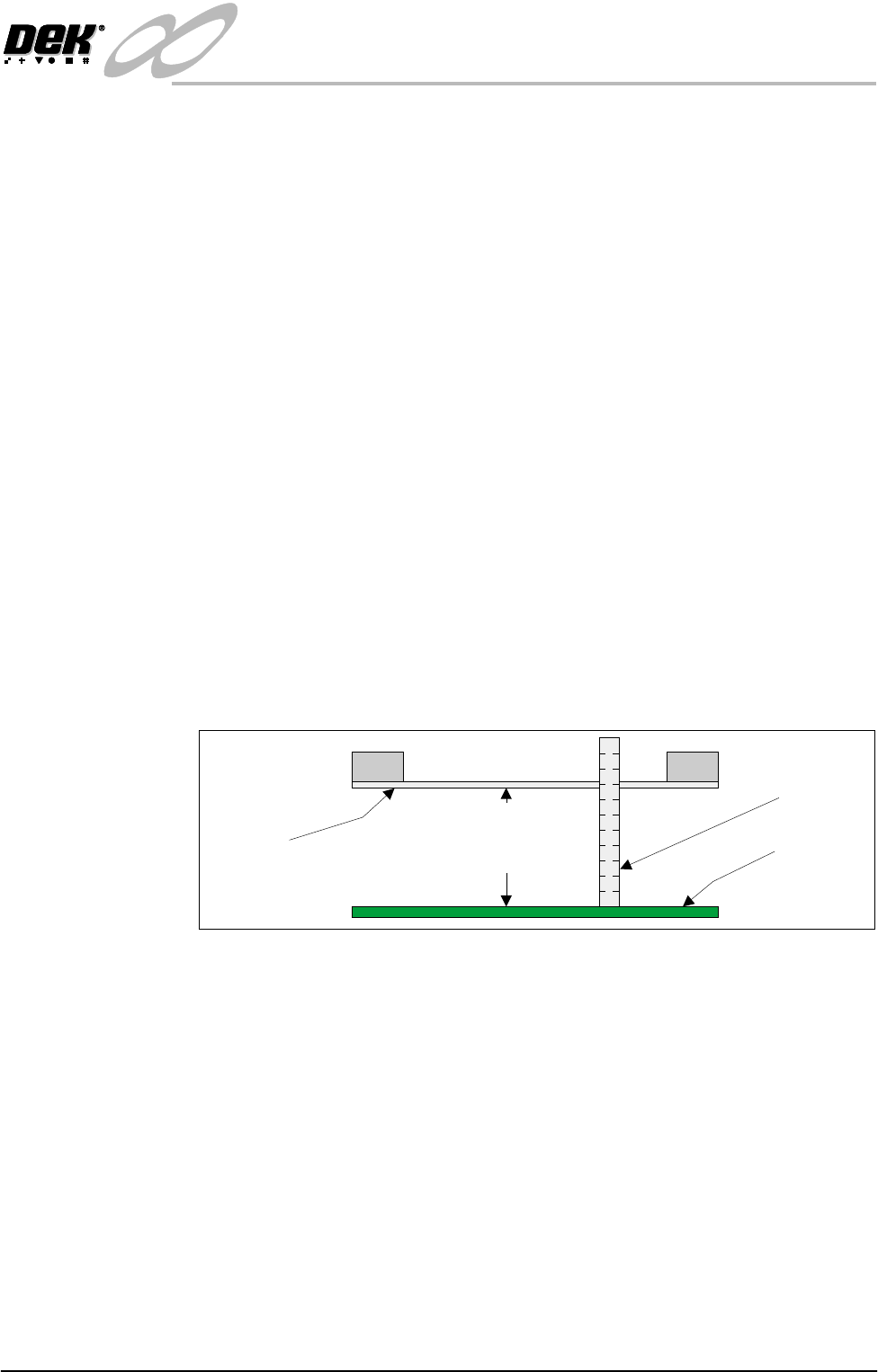
8. Using jog buttons drive the rising table to achieve a vision height of 78mm
-0.0mm/+ 0.2mm, (ie the height cannot be less than 78.0mm).
CAUTION
VISION HEIGHT. The rising table must not be jogged up higher than
the specified dimension, ie less than 78.0mm - 0.2mm, camera damage
may occur.
NOTE
The right jog button drives the rising table up, the left jog button drives the
rising table down.
9. Select Set Reference Vision Height and press Run Diagnost button. The
message ‘This Will Alter The Printer Configuration File - Please Con-
firm’ is displayed.
10.Select Confirm.
11.Select Home Rising Table and press Run Diagnost button. The rising table
homes and the board clamps release.
NOTE
If the vision height has been adjusted a vision calibration and an offset
calibration must be carried out.
Vision Height (Carrier Handling Option)
CAUTION
CARRIER HANDLING OPTION - VISION HEIGHT. Before Vision
Height is calibrated care must be taken not to allow the camera to achieve
its fiducial position or camera damage may occur. This is due to the
Top of Board
Metric Rule
Underside
of Stencil
Critical Dimension
78.0mm
(- 0.0mm +0.2mm)

INFINITY
EX
CAMERA SYSTEM MODULE
ADJUSTMENTS AND SETTINGS
17.30 Technical Reference Manual Chapter Issue 3 Jan 04
substantially thicker board clamps used to accomodate the carrier.
CAUTION
RESTORE DEFAULT HEIGHTS. Ensure Restore Default Heights is not
selected otherwise the camera board stop may foul the token carrier.
1. From the Run menu, select Setup.
2. Select Load Data.
3. From the Load Data window highlight DTVPOR product file and select
Load.
4. Select Edit Data.
5. From the Edit Current Data Process Parameters window, ensure Board
Thickness is set to 0.2mm.
6. Ensure the correct stencil is loaded to the machine.
7. From the Run menu, select Maint.
8. Select Diagnost.
9. From the Module Diagnostic page, select Rising Table.
10.Manually load the carrier (with tokens loaded), ensuring the carrier is at the
centre of the board clamps.
11.Select Raise Table to Vision Height.
12.Press the E Stop button.
13.Manually move the camera over the tooling area ensuring there is adequate
clearance between the camera, carrier and board clamps.
14.Press the System button.
15.Select Drive Table using Jog Buttons and drive the table ensuring adequate
clearance between the camera board stop and the token carrier. (This is to
prevent camera damage when the machine is re-initialized in Step 18.)
16.Select Set Reference Vision Height. The message ‘This Will Alter The
Printer Configuration File - Please Confirm’ is displayed.
17.Select Home Rising Table and remove the carrier.
18.Re-intialize the machine.
19.Select Diagnost.
20.Select Raise Table to Vision Height.
21.Place the carrier on the rails, adjusting its position so that the number 1
fiducial is displayed on the MMI.
22.Select Drive Table Using Jog Buttons until the board fiducial is in focus.
NOTE
With the rising table in this position ensure that both rails are lifted clear of
the clatter bars.
23.Select Set Reference Vision Height. The message ‘This Will Alter The
Printer Configuration File - Please Confirm’ is displayed.
24.Select Confirm.
25.Select Home Rising Table.