Infinity EX Camera System Module.pdf - 第46页
INFINITY EX CAME RA SY STEM MO DULE CALIBR ATIONS 17.4 6 Technical Reference Manual Chapter Issue 3 Jan 04 8. Select Maint . Select Set Prefs . 9. Select Board Stop X Offset and enter t he v alue re corded in Step 11 abo…
INFINITY
EX
CAMERA SYSTEM MODULE
CALIBRATIONS
Chapter Issue 3 Jan 04 Technical Reference Manual 17.45
CALIBRATIONS
Board Stop X Offset Calibration
WARNING
BOARD CLAMPS. EXTREME CARE MUST BE EXERCISED WHEN
WORKING IN THE TOOLING AREA OF THE MACHINE TO AVOID
INJURY. THE FOILS ON THE FRONT AND REAR BOARD CLAMPS
ARE VERY SHARP.
The length of the camera optical unit varies from unit to unit, this alters the
position of the board stop and hence the board. This calibration provides an
offset to overcome variations in camera optical length. Non-compliance of this
calibration could cause compatibility issues with product files created on other
machines.
1. In Diagnostics select Camera Axes module. Select Home Camera X Axis.
2. Select Home Camera Y Axis.
3. Select Drive to Board Stop Position. Select Exit. Select Rail System
module.
4. Select Toggle Board Stop. Place a board onto the rails and up against the
board stop.
5. Select Toggle Board Clamps. Select Toggle Board Stop. Select Exit.
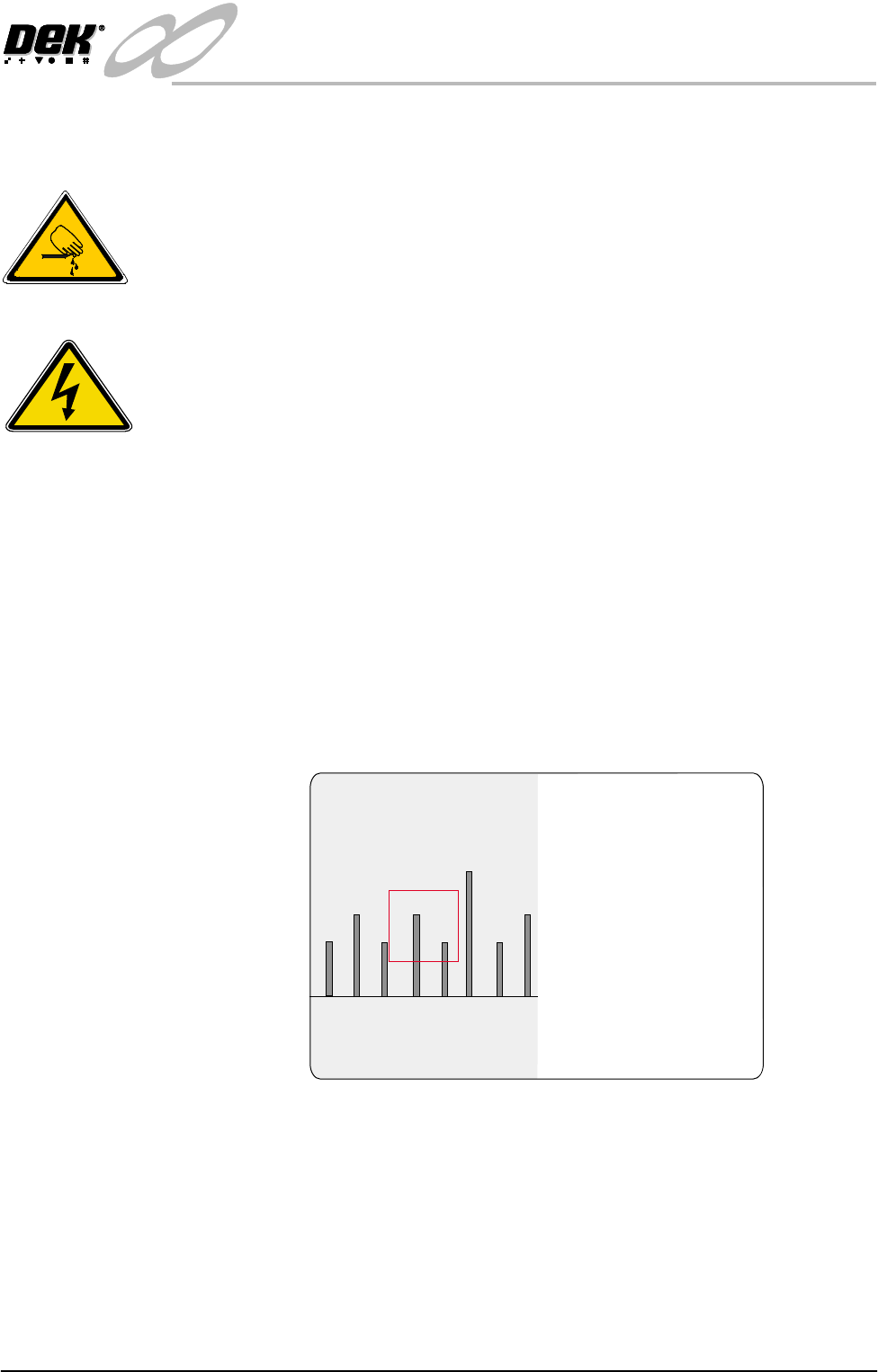
6. Place a metric rule against the board edge, within the camera field of view.
From the monitor record the distance from the board edge to the cross hair
on the fiducial (figure below refers). This value is the Board Stop X Offset
and should be 28 mm - 30 mm approximately.
NOTE
The default coloured graphic overlay is set to square (red outline).
7. Select Exit four times. Press the System button to initialize the machine.
SEMI 2
30
28 3129

INFINITY
EX
CAMERA SYSTEM MODULE
CALIBRATIONS
17.46 Technical Reference Manual Chapter Issue 3 Jan 04
8. Select Maint. Select Set Prefs.
9. Select Board Stop X Offset and enter the value recorded in Step 11 above.
10.Select Exit twice.
Vision System
Calibration
For the vision alignment to function accurately a full system calibration is
required. This should be carried out by the maintenance personnel at the
required period and during installation of the machine.
The calibration of the vision system is carried out in two stages using a
calibration screen, DEK Part No. 134764, containing 25 equally spaced fiducials
and a calibration board, DEK Part No. 134765.
The first stage, Calibrate Vision is employed to precisely calibrate the machine’s
alignment system in the X, Y and Theta axes. Once the vision system is aligned
any alignment errors between the screen and board can be effectively reduced.
If this calibration is not carried out at the required periods there is an increased
possibility of misalignment of the vision system thereby; screen to board errors
cannot be eliminated causing misaligned prints.
Calibrate Video X, Y calculates the screen movement in millimetres to vision
system pixels. This is achieved by looking up at the calibration screen fiducials
and moving the screen in the X and Y directions by a fixed amount, for each of
the 25 fiducials.
The movements are calculated for each fiducial and the mean taken. This
average screen movement is recorded and used as part of the calibration data.
Calibrate Theta calibrates the screen theta movement. The camera selects three
screen fiducials and the screen moves in theta (using the two X axes and
implementing +2mm in X rear and -2mm in X forward to achieve the theta
movement). The movements are calculated for each fiducial and the average
taken. The data is recorded and the calibration is complete.
The second stage, Calibrate Offset is to compensate for any optical discrepancies
of the telecentric camera between viewing the board and screen, caused by
tolerances in machine build and or manufacture of the camera. This calibration
eliminates any resultant constant offset errors in print results produced by the
camera. If this procedure is not carried out at the required periods the resultant
prints may have a constant offset error present.
This is achieved by printing the calibration screen and measuring the differences
between the centroid of the screen fiducials and the centroid of the printed
fiducials. The average of these differences are calculated, recorded and used as
Set Preferences
.. more
CHANGE MODE OPTION
SCREEN SIZE
PAPER/SOLV/PASTE LOW
IMAGE RECORDING
UNDER SCREEN CLNR
TRANSPORT WAIT MODE
CLAMP TYPE
SNUGGER THICKNESS
DISPLAY TYPE
FIDUCIAL MONITORING
FIDUCIAL SEARCH
BOARD STOP X OFFSET
SPC PORT CONFIG
RAIL JUSTIFICATION
MANUAL
265
WARN
OFF
STANDARD
STANDARD
BOARD CLAMPS
1.6 mm
TYPE 2
SMART
DISABLED
28.0 mm
EDIT
Front
INFINITY
EX
CAMERA SYSTEM MODULE
CALIBRATIONS
Chapter Issue 3 Jan 04 Technical Reference Manual 17.47
part of the calibration data.
Calibration
Procedure
NOTE
The vision height adjustment must be carried out prior to calibrating the vision
system
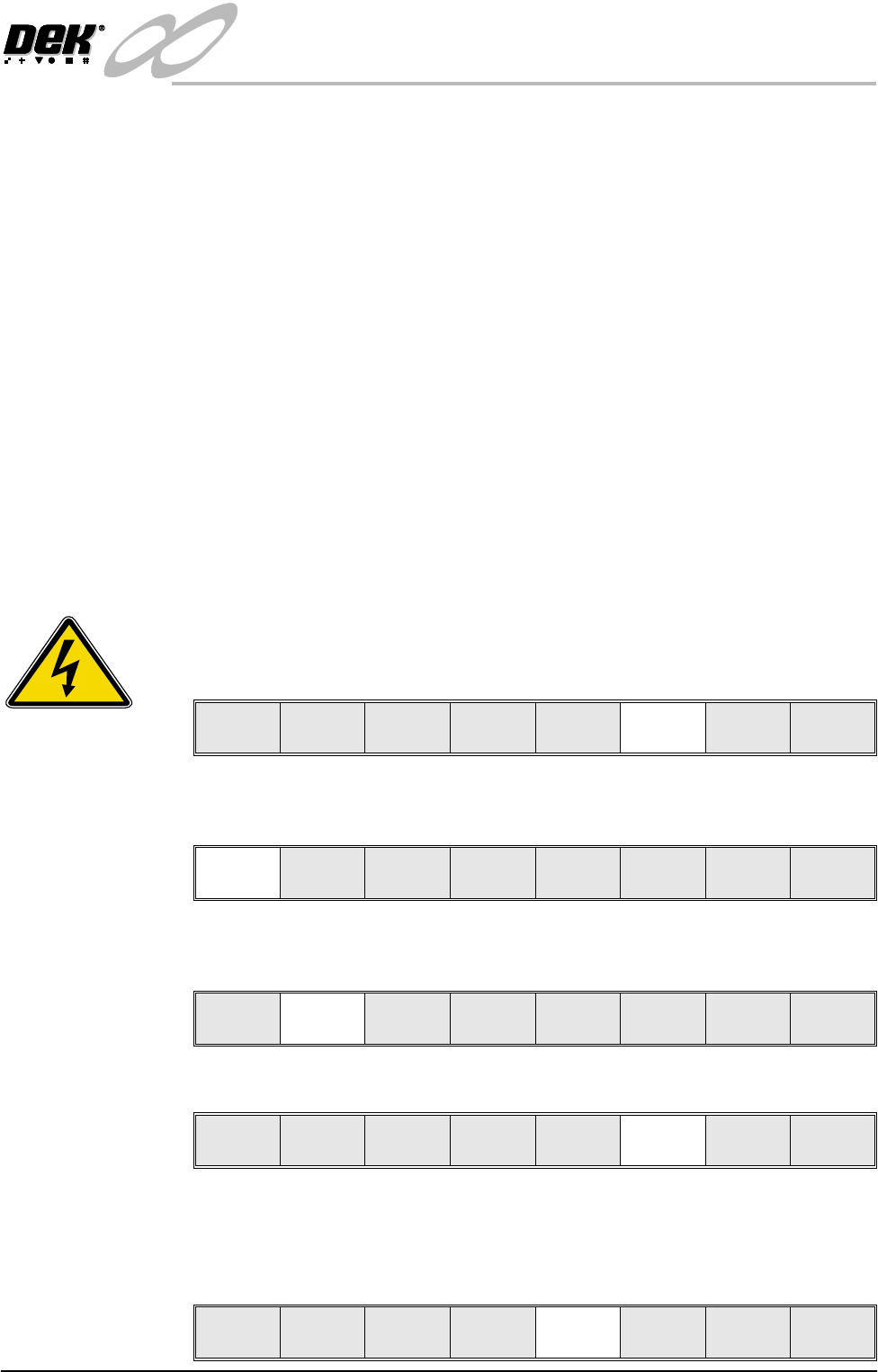
The calibration sequence is as follows:
a. Select Setup and use Load Data and recall the CALIBRA. file.
b. Insert the calibration screen.
c. Adjust the print parameters so that a good print quality of the calibration
fiducials is achieved.
d. Use the Maint function and select the vision calibration modes. These
modes should be used in sequence and are as follows:
• Stage 1 - Calibrate Vision
• Stage 2 - Calibrate Offset
Stage 1 - Calibrate
Vision
NOTE
DEK recommends that the calibration board and screen are cleaned with
Isopropyl Alcohol (IPA) impregnated lint free wipe prior to calibrating vision or
offset.
1. Press Setup.
2. Press the Mode key repeatedly until Step is displayed on the main control
screen.
3. Press Load Data, select the Calibra file from the listing. Press Load, press
Exit. Calibra is loaded and fiducial training takes place.
4. Press Setup.
5. Press Change Screen. If there is no screen fitted the message, ‘Insert
Screen’ is displayed in the message prompt bar. If a screen is fitted the
machine ejects it, displaying the message ‘Remove Screen’ in the message
prompt bar.
SEMI 2
Run Head
Paste
Load
Clean
Screen
Adjust Setup Monitor Maint.
Mode
Load
Data
Edit
Data
Setup
Squeegee
Change
Screen
Change
Tool in g
Change
Language
Exit
Mode
Load
Data
Edit
Data
Setup
Squeegee
Change
Screen
Change
Tool in g
Change
Language
Exit
Run Head
Paste
Load
Clean
Screen
Adjust Setup Monitor Maint.
Mode
Load
Data
Edit
Data
Setup
Squeegee
Change
Screen
Change
Tool in g
Change
Language
Exit