Infinity EX Camera System Module.pdf - 第48页
INFINITY EX CAME RA SY STEM MO DULE CALIBR ATIONS 17.4 8 Technical Reference Manual Chapter Issue 3 Jan 04 6. Raise the front cov er and remove the screen, if f itted. Insert the cali bration screen so that the front e d…
INFINITY
EX
CAMERA SYSTEM MODULE
CALIBRATIONS
Chapter Issue 3 Jan 04 Technical Reference Manual 17.47
part of the calibration data.
Calibration
Procedure
NOTE
The vision height adjustment must be carried out prior to calibrating the vision
system
The calibration sequence is as follows:
a. Select Setup and use Load Data and recall the CALIBRA. file.
b. Insert the calibration screen.
c. Adjust the print parameters so that a good print quality of the calibration
fiducials is achieved.
d. Use the Maint function and select the vision calibration modes. These
modes should be used in sequence and are as follows:
• Stage 1 - Calibrate Vision
• Stage 2 - Calibrate Offset
Stage 1 - Calibrate
Vision
NOTE
DEK recommends that the calibration board and screen are cleaned with
Isopropyl Alcohol (IPA) impregnated lint free wipe prior to calibrating vision or
offset.
1. Press Setup.
2. Press the Mode key repeatedly until Step is displayed on the main control
screen.
3. Press Load Data, select the Calibra file from the listing. Press Load, press
Exit. Calibra is loaded and fiducial training takes place.
4. Press Setup.
5. Press Change Screen. If there is no screen fitted the message, ‘Insert
Screen’ is displayed in the message prompt bar. If a screen is fitted the
machine ejects it, displaying the message ‘Remove Screen’ in the message
prompt bar.
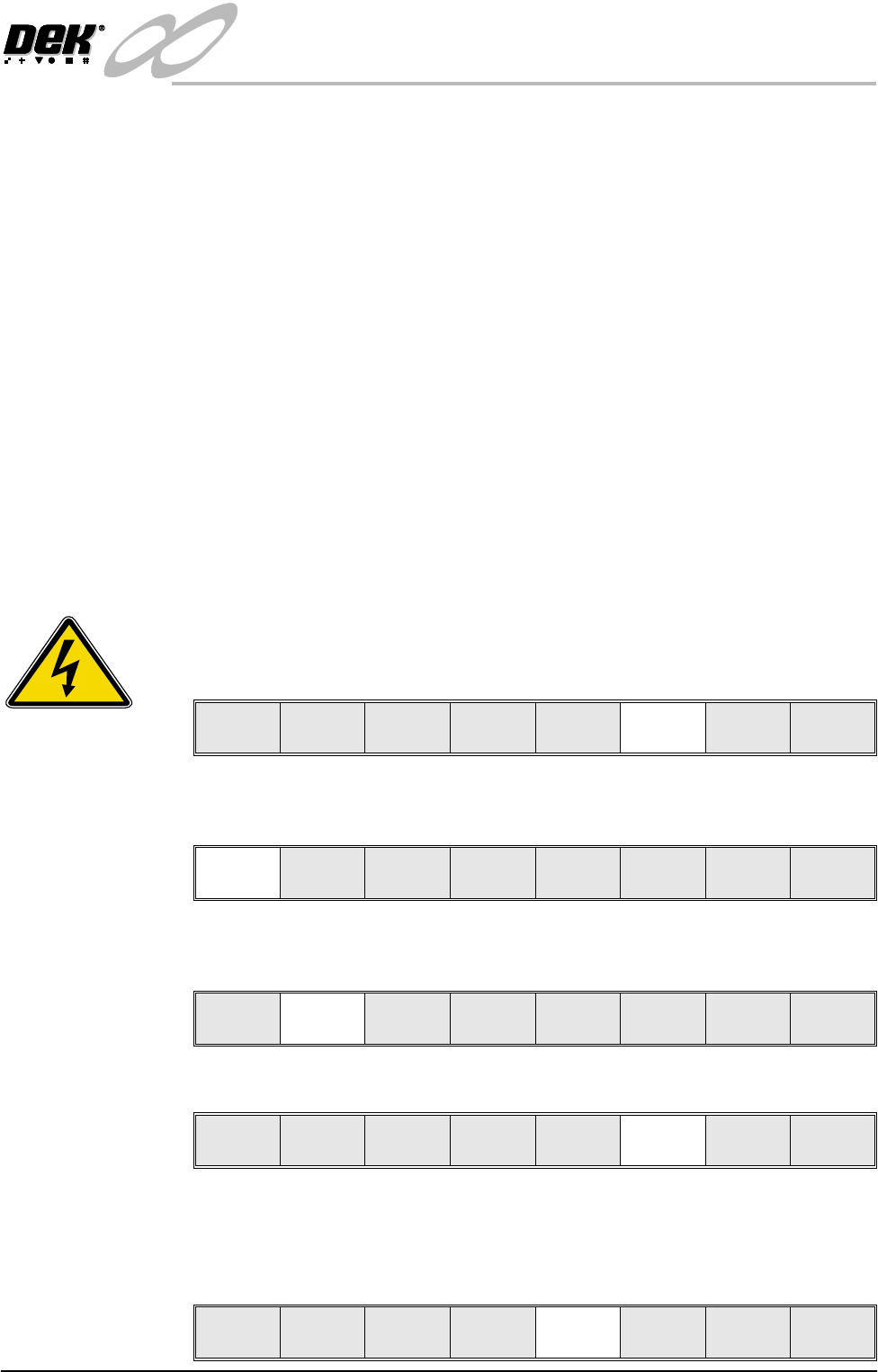
SEMI 2
Run Head
Paste
Load
Clean
Screen
Adjust Setup Monitor Maint.
Mode
Load
Data
Edit
Data
Setup
Squeegee
Change
Screen
Change
Tool in g
Change
Language
Exit
Mode
Load
Data
Edit
Data
Setup
Squeegee
Change
Screen
Change
Tool in g
Change
Language
Exit
Run Head
Paste
Load
Clean
Screen
Adjust Setup Monitor Maint.
Mode
Load
Data
Edit
Data
Setup
Squeegee
Change
Screen
Change
Tool in g
Change
Language
Exit
INFINITY
EX
CAMERA SYSTEM MODULE
CALIBRATIONS
17.48 Technical Reference Manual Chapter Issue 3 Jan 04
6. Raise the front cover and remove the screen, if fitted. Insert the calibration
screen so that the front edge of the screen frame is approximately flush with
the panelling on the machine. Close the cover and press the System button
and press Change Screen. The screen automatically loads into the machine.
7. Press Exit.
8. Press Maint.
9. Press Calibrat Vision.
10.Press Screen OK key, the table moves to transport height and the camera
moves to the board stop position.
11.Place a calibration board, fiducials uppermost, onto the upline conveyor,
press Auto Board. The board moves to the board stop position.
12.Press the Step key, the board is clamped to the rails and the board stop
retracts.
13.Press the Step key, the camera moves to the first fiducial (rear left corner).
14.Using the Incr. and Decr. buttons and viewing the right hand side of the
vision monitor, position the screen fiducial so that it is placed centrally about
the box displayed. On completion of positioning the first fiducial, press Step
and repeat the procedure above for the three fiducials positioned on the
remaining three corners.
The control screen displays the following message, ‘Printer configuration
data filed saved’.
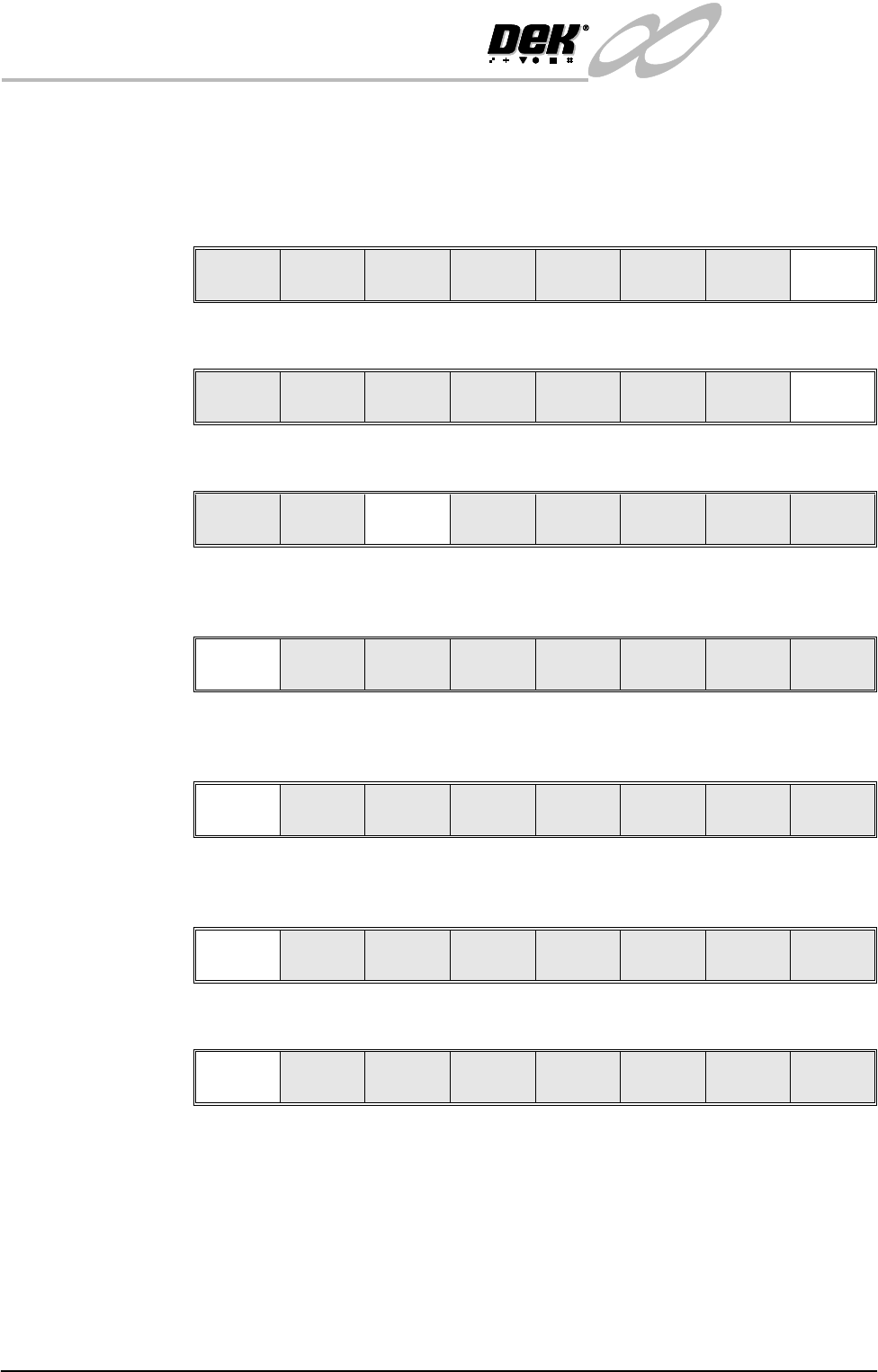
Mode
Load
Data
Edit
Data
Setup
Squeegee
Change
Screen
Change
Tool in g
Change
Language
Exit
Run Head
Paste
Load
Clean
Screen
Adjust Setup Monitor Maint.
Calibrat
Pressure
Calibrat
Offset
Calibrat
Vision
House
Keeping
Set
Prefs
Diagnost
Test
Cycles
Exit
Screen
OK
Restore
Defaults
Change
Screen
Exit
Auto
Board
Manual
Board
Knead
Paste
Exit
Step Head Single Exit
Step Head Single Exit
INFINITY
EX
CAMERA SYSTEM MODULE
CALIBRATIONS
Chapter Issue 3 Jan 04 Technical Reference Manual 17.49
15.Press the Step key.
16.Press Brd Fid Setup and set up the board fiducial on the left hand side of
the vision monitor (for details on setting up the fiducial recognition strategy,
refer to the User Manual, Machine Programming Chapter, Vision System.)
17.Press Scrn Fid Setup and set up the screen fiducial on the right hand side of
the vision monitor (for details on setting up the fiducial recognition strategy
refer to the User Manual, Machine Programming Chapter, Vision System).
18.Press the Single key to continue.
a. The camera now moves to each of the 25 screen fiducial locations in
sequence.
b. At each location the screen moves in the X and Y axis to locate the board
and screen fiducial.
c. After each fiducial location the message ‘Writing Data for Fiducial #’ is
displayed.
d. When all of the screen fiducials have been covered the results are dis-
played. The Printer configuration and Board data files are saved.
e. Select Continue, the camera views and locates the back left screen
fiducial.
f. The screen moves +2mm in the X forward axis, -2mm in the X rear axis
(theta movement) and relocates the board and screen fiducials.
19.Press the Single key to continue.
a. The camera moves to the front-left and front-right fiducial locations
repeating the above sequence.
b. The camera remains stationary and views and locates the front-right
fiducial 50 times to check repeatability of capture.
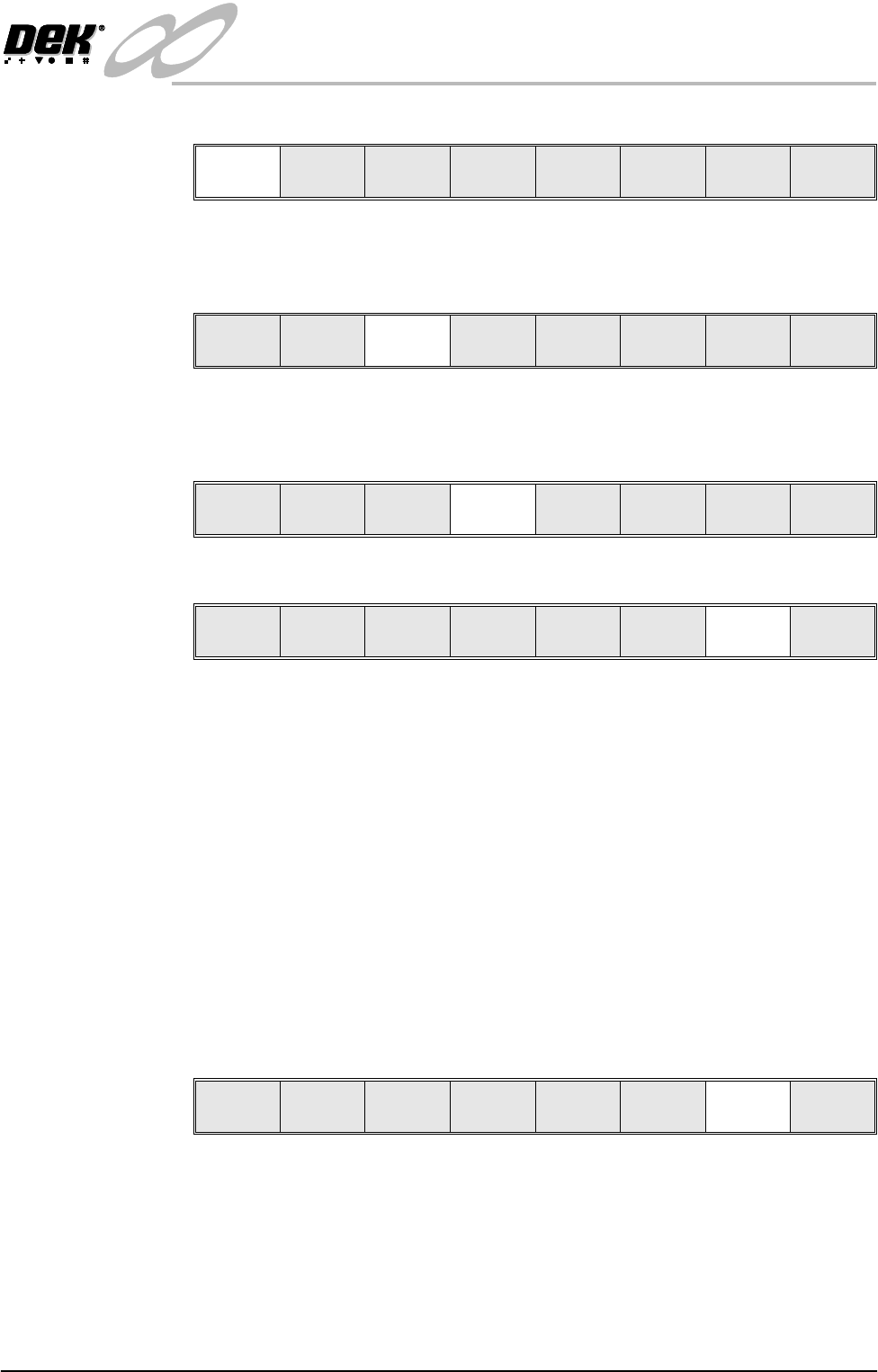
Step Head Single Exit
Step
Brd Fid
Setup
Scrn Fid
Setup
Single Exit
Step
Brd Fid
Setup
Scrn Fid
Setup
Single Exit
Step Head Single Exit
Step Head Single Exit