SIPLACE OIS Version 13.1 Getting Started.pdf - 第11页
Getting Started with SIPLACE OIS 2 Overview: The user Interface Software Version 13.1 05/2016 EN Edition 11 2.2 Main V iew – "Line/station" Selection 2 Fig. 2 - 5 "Line/station"selection Legend (1) Pi…
2 Overview: The user Interface Getting Started with SIPLACE OIS
05/2016 EN Edition Software Version 13.1
10
2
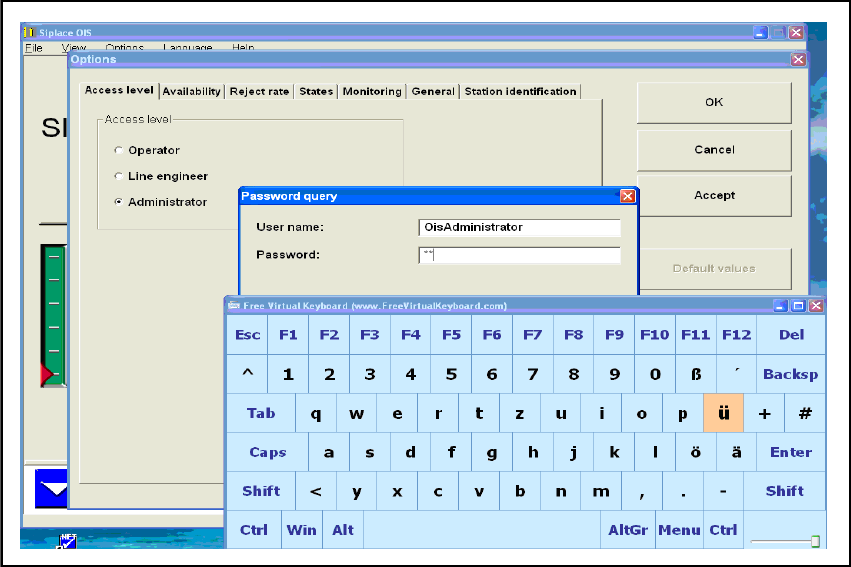
Fig. 2 - 4 Virtual keyboard
Navigate to the Access level tab and activate the Administrator access level.
You will be prompted to enter the password. 2
Touch the Password: entry field (to focus it) and type the password on the keyboard.
Tap on Enter to take over the entry.
Tap on the x button to close the virtual keyboard.
Getting Started with SIPLACE OIS 2 Overview: The user Interface
Software Version 13.1 05/2016 EN Edition
11
2.2 Main View – "Line/station" Selection
2
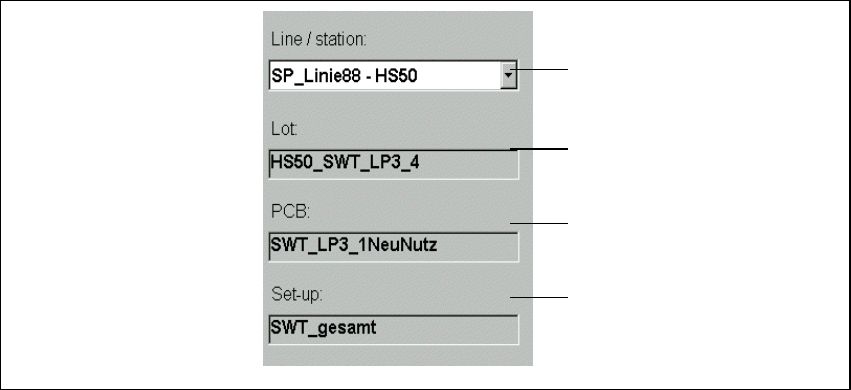
Fig. 2 - 5 "Line/station"selection
Legend
(1) Pick list of lines and stations
(2) Name of lot
(3) Name of the PCB
(4) Name of the setup
Description: 2
Beneath selection list (1) you will see the information block with details of the monitored line/
station. You cannot change anything in the information block. This is where you will find out the
name of the lot (2), the name of the PCB (3), and the name of the set-up (4). 2
The status bar shows the observation period (Fig. 2 - 1/Pos.6). 2
Action: 2
Double-click the line and station that you want to monitor in the list (1).
1
2
3
4
2 Overview: The user Interface Getting Started with SIPLACE OIS
05/2016 EN Edition Software Version 13.1
12
2.3 Main View – "PCBs" View
2
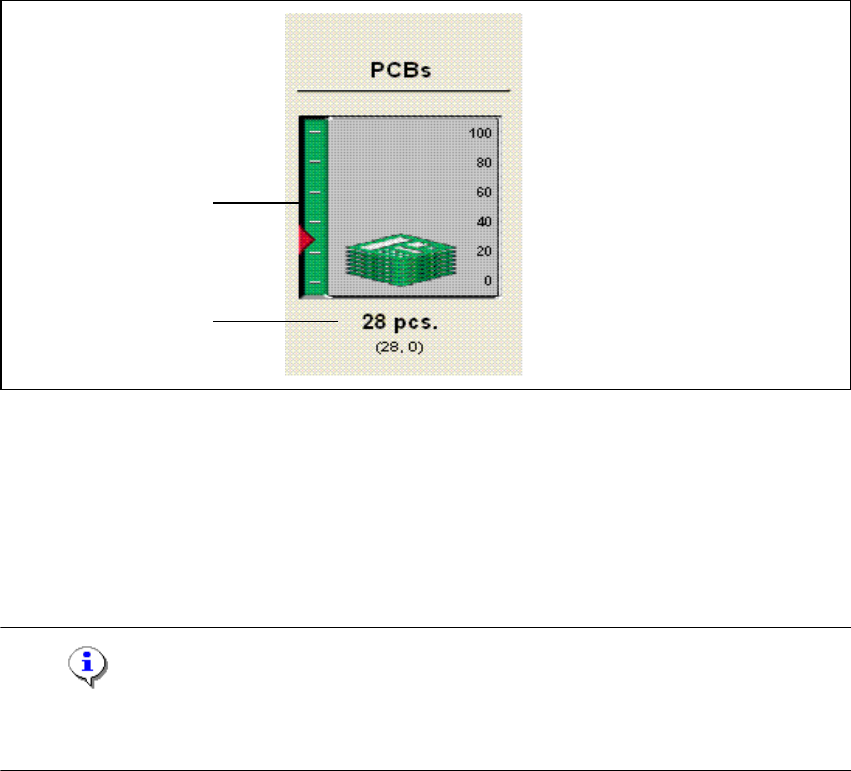
Fig. 2 - 6 PCBs
Legend
(1) Graphical representation of PCB numbers
(2) Number of PCBs
Indicates how many PCBs have already been assembled in the observation period. 2
Note
If the displayed scale value (here 100) is exceeded, the scale view is switched.
Scale units: 100, 200, 500, 1000, 2000, 5000 and 10000. 2
1
2