SIPLACE OIS Version 13.1 Getting Started.pdf - 第31页
Getting Started with SIPLACE OIS 3 Practical Examples Software Version 13.1 05/2016 EN Edition 31 Most recent PCBs Here you can enter the number of the most recently assembled PCBs that are to be included in the represen…
3 Practical Examples Getting Started with SIPLACE OIS
05/2016 EN Edition Software Version 13.1
30
Description of fields: 3
Start time Here you can enter a time as the start time (up to max. 24 hours
before the current time). The current system time is entered as
default value.
Input: hh:mm:ss 3
Reset Sets the start time to the current time. 3
Automatic start time The evaluation is restarted at the time defined in the OIS database
(new shift).
Default: 6:00 AM, 2:00 PM and 10:00 PM. 3
Please note that the times can be adjusted in the Line Config Dialog
as explained in the Administration Guide, item number
[00198011-xx]. 3
Most recent PCBs Here you can enter the number of the most recently assembled
PCBs that are to be included in the evaluation by SIPLACE OIS.
The start of the observation period is then the time at which the
first PCB of the specified number was assembled.
With this setting, changes to the setup (e.g. nozzle assignment)
have a rapid effect.
This means that improvements or deteriorations can be traced
directly.
Default: 50 PCBs
Maximum:100 PCBs 3
Most recent set-up change The most recent setup change is specified as the start time. 3
Most recent lot/ Default setting.
cluster change The most recent change of lot or cluster name is specified as the
start time. 3
Time slice (offline) The displayed data relates to the period between the specified
start time and the specified end time.
Specification of times: hh:mm:ss 3
Separate observation period for reject rate (activated):
The display of reject rates and hit lists relates to the specified
number of the most recently assembled PCBs.
This setting is recommended when defining a large observation
period. 3
Separate observation period for reject rate (not activated):
The display of reject rates and hit lists relates to the period
defined above. 3

Getting Started with SIPLACE OIS 3 Practical Examples
Software Version 13.1 05/2016 EN Edition
31
Most recent PCBs Here you can enter the number of the most recently assembled
PCBs that are to be included in the representation of reject rates.
The value entered here is also specified in the main view. 3
Note
If you choose a very large observation period, changes to the reject rate will appear comparatively
small. It is thus advisable to activate the separate observation period for the reject rate. 3
3 Practical Examples Getting Started with SIPLACE OIS
05/2016 EN Edition Software Version 13.1
32
3.2 Example 2: Exporting Data
3.2.1 Step 1: How to Export Data in Excel Format
Description: 3
To enable data to be used by other analysis routines, it must be formatted in a certain way. The
data supplied in table form can also be saved to files. In order to analyze the data in user-friendly
table evaluation systems and create statistics, the data must be formatted for export. 3
Action: 3
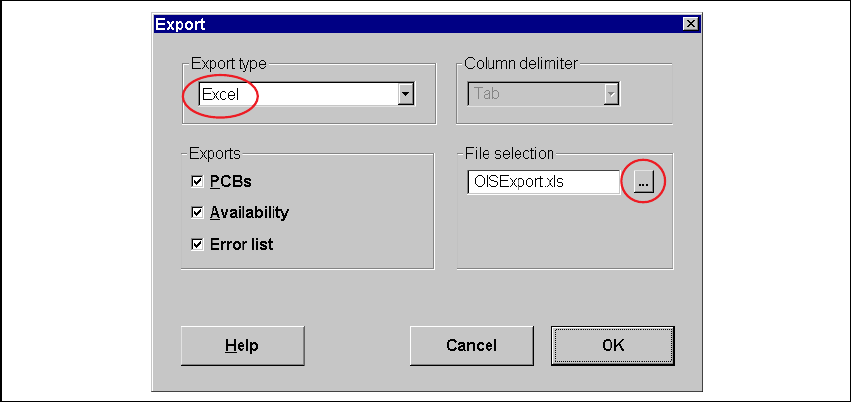
Click Export... in the File menu.The following dialog appears:
3
Fig. 3 - 2 "Export"dialog
Choose the Excel format in the Export type field.
In the Exports field, choose the data types you want to export.
Click the ... button in the File selection field and choose the appropriate folder.
Confirm your directory selection by clicking OK.
Start the data export procedure by clicking OK.