SIPLACE OIS Version 13.1 Getting Started.pdf - 第28页
2 Overview: The user Interface Getting Started with SIPLACE OIS 05/2016 EN Edition Software Version 13.1 28

Getting Started with SIPLACE OIS 2 Overview: The user Interface
Software Version 13.1 05/2016 EN Edition
27
2.6 OIS Monitoring Box
If you minimize the OIS main view or bring it to the back, a small separate OIS monitoring box is
opened. The OIS client information (PCBs, Availability, Reject rate) are now visible in the
monitoring box. 2
2
Abb. 2 - 15 OIS monitoring window
The monitoring box is always on top, as long as the OIS main view is reduced or in the back-
ground. Thus, the OIS client information in the monitoring box is also visible in the main view of
the SIPLACE station. 2
To bring the OIS main view to the front again, click one of the diagrams in the monitoring box. 2
If you want to hide the monitoring box, select Options - General in the OIS main view and
deactivate the function OIS Client always on top. 2
2
2 Overview: The user Interface Getting Started with SIPLACE OIS
05/2016 EN Edition Software Version 13.1
28
Getting Started with SIPLACE OIS 3 Practical Examples
Software Version 13.1 05/2016 EN Edition
29
3 Practical Examples
3.1 Example 1: Defining the Values for Monitoring
Note
The observation period always relates to the current time and can extend back a maximum of 24
hours. 3
Action: 3
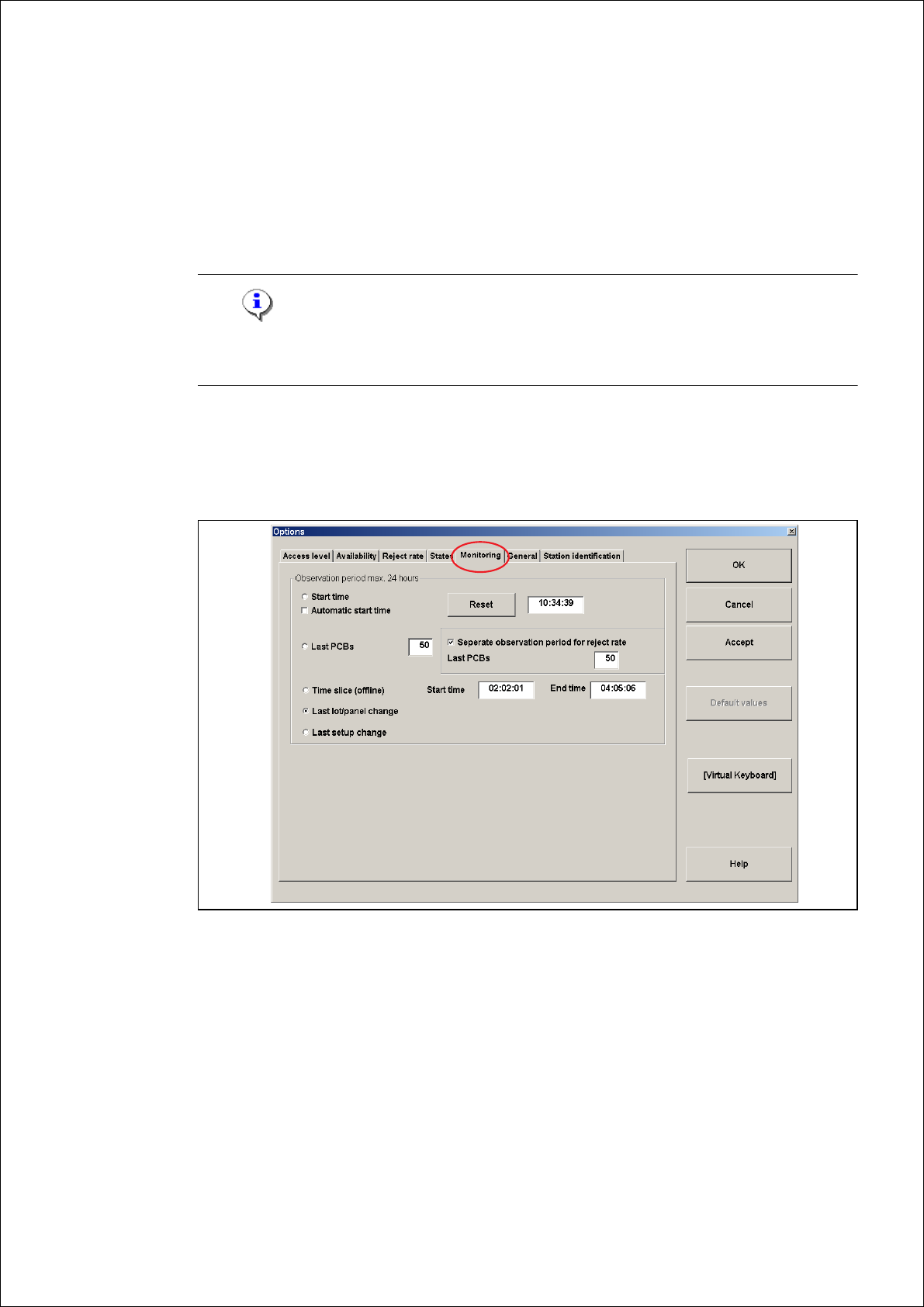
Click Monitoring... in the Options menu.
The "Options" dialog appears with the Monitoring tab activated:
3
Fig. 3 - 1 “Options” - Monitoring dialog
Click the Reset button.
This sets the start time of the observation period in the example to the current time or:
Enter the number "50" in the Most recent PCBs dialog box.
Click the Accept button.
This confirms your selection.