SIPLACE OIS Version 13.1 Getting Started.pdf - 第4页
Getting Started with SIPLACE OIS Contents Software Version 13.1 05/2016 EN Edition 4
Contents Getting Started with SIPLACE OIS
05/2016 EN Edition Software Version 13.1
3
Contents 0
1 Introduction . . . . . . . . . . . . . . . . . . . . . . . . . . . . . . . . . . . . . . . . . . . . . . . . . . . . . .5
1.1 Notational Conventions . . . . . . . . . . . . . . . . . . . . . . . . . . . . . . . . . . . . . . . . . . . . . . . . . . . . . . . . . . .5
1.2 What Does SIPLACE OIS Do? . . . . . . . . . . . . . . . . . . . . . . . . . . . . . . . . . . . . . . . . . . . . . . . . . . . . . 6
1.3 Starting SIPLACE OIS. . . . . . . . . . . . . . . . . . . . . . . . . . . . . . . . . . . . . . . . . . . . . . . . . . . . . . . . . . . . 6
2 Overview: The user Interface . . . . . . . . . . . . . . . . . . . . . . . . . . . . . . . . . . . . . . . .7
2.1 The Menu Bar . . . . . . . . . . . . . . . . . . . . . . . . . . . . . . . . . . . . . . . . . . . . . . . . . . . . . . . . . . . . . . . . . .8
2.1.1 Virtual Keyboard . . . . . . . . . . . . . . . . . . . . . . . . . . . . . . . . . . . . . . . . . . . . . . . . . . . . 8
2.2 Main View – "Line/station" Selection . . . . . . . . . . . . . . . . . . . . . . . . . . . . . . . . . . . . . . . . . . . . . . . .11
2.3 Main View – "PCBs" View . . . . . . . . . . . . . . . . . . . . . . . . . . . . . . . . . . . . . . . . . . . . . . . . . . . . . . . . 12
2.3.1 "PCBs" View . . . . . . . . . . . . . . . . . . . . . . . . . . . . . . . . . . . . . . . . . . . . . . . . . . . . . . 13
2.4 Main View – "Availability" View . . . . . . . . . . . . . . . . . . . . . . . . . . . . . . . . . . . . . . . . . . . . . . . . . . . . 17
2.4.1 "Availability" View . . . . . . . . . . . . . . . . . . . . . . . . . . . . . . . . . . . . . . . . . . . . . . . . . . 19
2.5 Main View – "Reject rate" View . . . . . . . . . . . . . . . . . . . . . . . . . . . . . . . . . . . . . . . . . . . . . . . . . . . .20
2.5.1 "Hit lists" View . . . . . . . . . . . . . . . . . . . . . . . . . . . . . . . . . . . . . . . . . . . . . . . . . . . . . 23
2.5.1.1 Error Lists . . . . . . . . . . . . . . . . . . . . . . . . . . . . . . . . . . . . . . . . . . . . . . . . . . . . . . . . 24
2.6 OIS Monitoring Box . . . . . . . . . . . . . . . . . . . . . . . . . . . . . . . . . . . . . . . . . . . . . . . . . . . . . . . . . . . . .27
3 Practical Examples . . . . . . . . . . . . . . . . . . . . . . . . . . . . . . . . . . . . . . . . . . . . . . .29
3.1 Example 1: Defining the Values for Monitoring . . . . . . . . . . . . . . . . . . . . . . . . . . . . . . . . . . . . . . . .29
3.2 Example 2: Exporting Data . . . . . . . . . . . . . . . . . . . . . . . . . . . . . . . . . . . . . . . . . . . . . . . . . . . . . . .32
3.2.1 Step 1: How to Export Data in Excel Format. . . . . . . . . . . . . . . . . . . . . . . . . . . . . . 32
3.2.2 Step 2: How to Save the Dta in Text Format. . . . . . . . . . . . . . . . . . . . . . . . . . . . . . 33
3.3 Example 3: Entering the Operating State Using the OIS Terminal . . . . . . . . . . . . . . . . . . . . . . . . . 34
3.4 Example 4: Defining the Access Level . . . . . . . . . . . . . . . . . . . . . . . . . . . . . . . . . . . . . . . . . . . . . . 36
3.4.1 Access Levels . . . . . . . . . . . . . . . . . . . . . . . . . . . . . . . . . . . . . . . . . . . . . . . . . . . . . 37
4 Tips and Tricks . . . . . . . . . . . . . . . . . . . . . . . . . . . . . . . . . . . . . . . . . . . . . . . . . .39
4.1 Sort Options in Tables. . . . . . . . . . . . . . . . . . . . . . . . . . . . . . . . . . . . . . . . . . . . . . . . . . . . . . . . . . .39
4.2 Online Help System. . . . . . . . . . . . . . . . . . . . . . . . . . . . . . . . . . . . . . . . . . . . . . . . . . . . . . . . . . . . .39
Getting Started with SIPLACE OIS Contents
Software Version 13.1 05/2016 EN Edition
4
Getting Started with SIPLACE OIS 1 Introduction
Software Version 13.1 05/2016 EN Edition
5
1 Introduction
This manual provides an initial overview and introduction to SIPLACE® OIS. 1
It looks at everything you need to know to start working with SIPLACE OIS, and lists a whole range
of tips and tricks that make working with SIPLACE OIS easier. 1
The online help system supports you directly in your daily work with SIPLACE OIS on your own
machine. 1
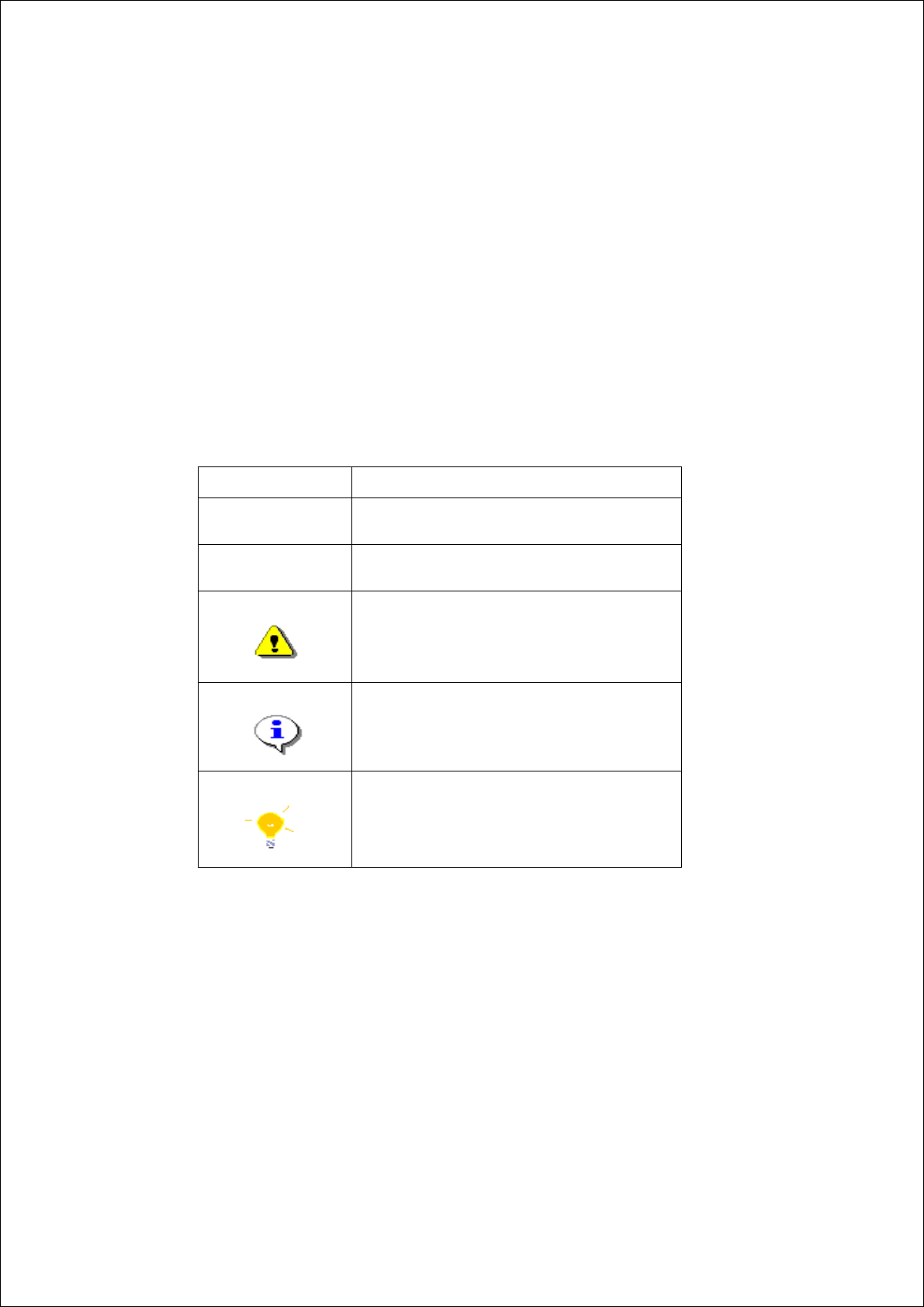
1.1 Notational Conventions
Various symbols and notes are used for making this document easier to read. 1
1
1
Words in bold
These are dialog boxes and menu commands.
Step ...
This is used for all actions required in a dialog. A
dialog can consist of a number of actions.
This indicates that you should take action (e.g.
mouse click, open file).
Corresponds to a warning. The information is
important and must be heeded in order to work
successfully.
Explanatory information or advice.
Tip on how to make working with SIPLACE OIS
easier.
Tab. 1 - 1 Explanation of symbols