SIPLACE OIS Version 13.1 Getting Started.pdf - 第26页
2 Overview: The user Interface Getting Started with SIPLACE OIS 05/2016 EN Edition Software Version 13.1 26 Gantry Number of the gantry . 2 Head Number of the head. 2 Segment Number of the segment. 2 Nozzle Name of the n…
Getting Started with SIPLACE OIS 2 Overview: The user Interface
Software Version 13.1 05/2016 EN Edition
25
2
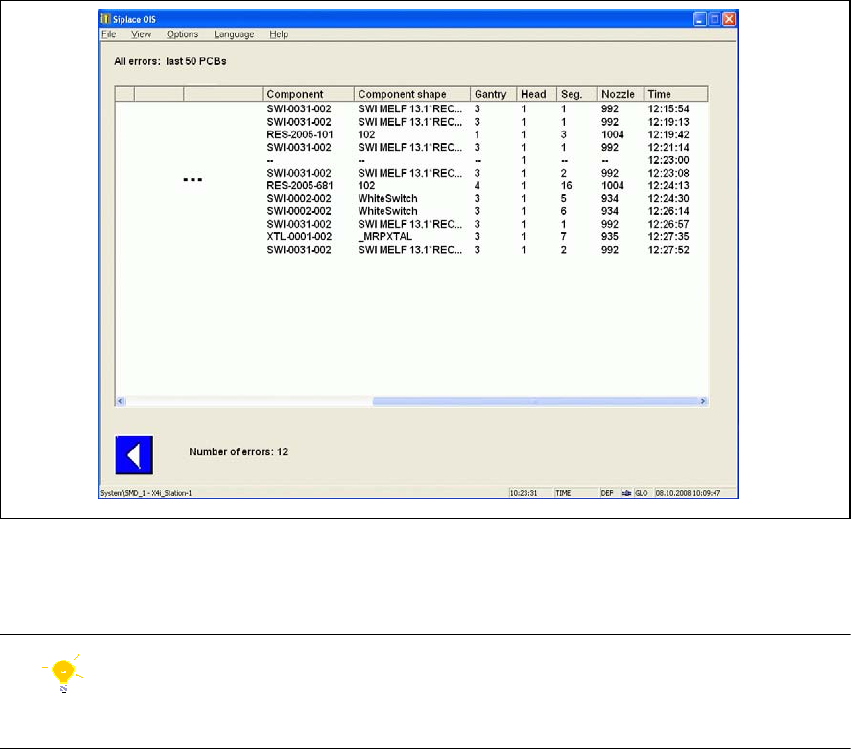
Fig. 2 - 14 Detailed view of error lists, part 2
Here you will find an overview of the errors that were evaluated by SIPLACE OIS. 2
Tip
You can filter the error list by clicking an appropriate error in the "Hit lists" view (see Fig. 2 - 12).2
Description of columns: 2
Error No. In addition to the error text, each error is identified by a unique number.
This is the same number that is displayed on the station. 2
Error text Description of the error. 2
Table Number of the table or location. 2
Track Number of the track on which the feeder is set up. 2
Division Number of the division. 2
Tower Only for matrix tray changer: Number of the tower containing the tray. 2
Level For wafflepack changers and multi tray changers only: number of the
level on which the wafflepack magazine is located. 2
Component Description of the component. 2
Component shape Description of the component shape. 2
2 Overview: The user Interface Getting Started with SIPLACE OIS
05/2016 EN Edition Software Version 13.1
26
Gantry Number of the gantry. 2
Head Number of the head. 2
Segment Number of the segment. 2
Nozzle Name of the nozzle on the specified segment. 2

Getting Started with SIPLACE OIS 2 Overview: The user Interface
Software Version 13.1 05/2016 EN Edition
27
2.6 OIS Monitoring Box
If you minimize the OIS main view or bring it to the back, a small separate OIS monitoring box is
opened. The OIS client information (PCBs, Availability, Reject rate) are now visible in the
monitoring box. 2
2
Abb. 2 - 15 OIS monitoring window
The monitoring box is always on top, as long as the OIS main view is reduced or in the back-
ground. Thus, the OIS client information in the monitoring box is also visible in the main view of
the SIPLACE station. 2
To bring the OIS main view to the front again, click one of the diagrams in the monitoring box. 2
If you want to hide the monitoring box, select Options - General in the OIS main view and
deactivate the function OIS Client always on top. 2
2