SIPLACE OIS Version 13.1 Getting Started.pdf - 第35页
Getting Started with SIPLACE OIS 3 Practical Examples Software Version 13.1 05/2016 EN Edition 35 Description of states: 3 Normal operation: Resets to the previously set operating state; the data is entered automatically…
3 Practical Examples Getting Started with SIPLACE OIS
05/2016 EN Edition Software Version 13.1
34
3.3 Example 3: Entering the Operating State Using the OIS Terminal
You can use this function (option) to enter values if the machine's operating state changes and
this is not recorded automatically. 3
Action: 3
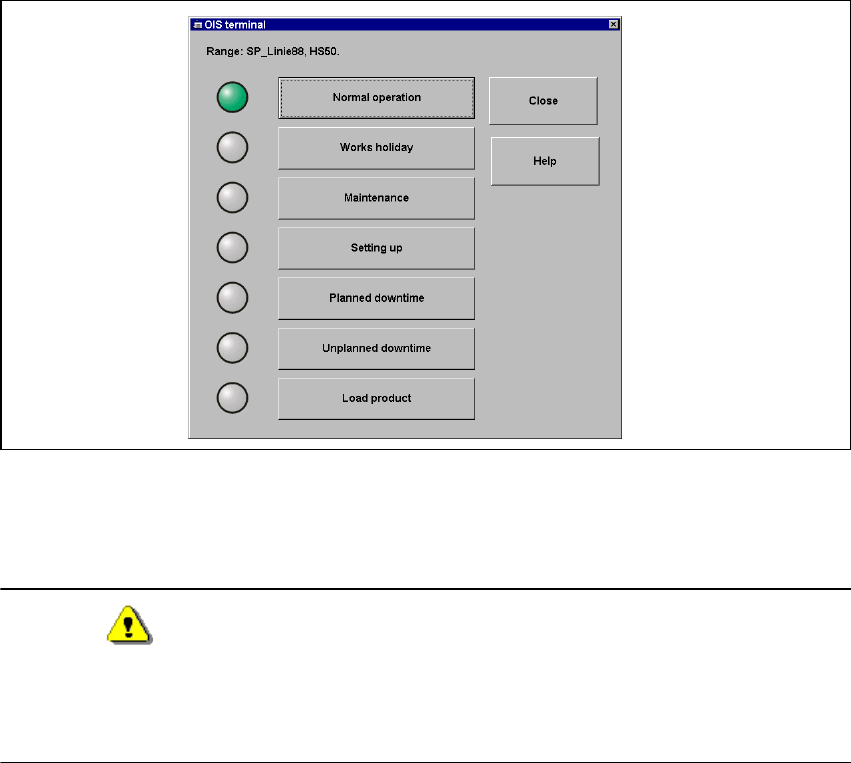
Click Terminal in the File menu.The following dialog appears:
3
Fig. 3 - 4 "OIS Terminal" dialog
Press the button that describes the desired state.
The associated icon is highlighted in red.
Warning
When a state is selected, all machine data will still be sent to the database but may not be included
in the evaluation.
Reason: The status of the OIS terminal has a higher priority in the evaluation. 3
Press the Normal operation button.
The machine data is evaluated again.
Click the Close button.
The OIS terminal is exited.

Getting Started with SIPLACE OIS 3 Practical Examples
Software Version 13.1 05/2016 EN Edition
35
Description of states: 3
Normal operation: Resets to the previously set operating state; the data is entered
automatically. 3
Works holiday: Operation is shut down. 3
Maintenance: The machine is being maintained. 3
Setting up: Feeding areas are being set up. 3
Planned downtime: Production halted, e.g. due to company meeting. 3
Unplanned downtime: Production halted, e.g. due to missing components. 3
Load product: Preparation for a new product to be produced on the line for the first time.3
Note:
Once actions have been completed, you must press the Normal operation button.
Reason: Otherwise, recording remains in the activated state. 3
3 Practical Examples Getting Started with SIPLACE OIS
05/2016 EN Edition Software Version 13.1
36
3.4 Example 4: Defining the Access Level
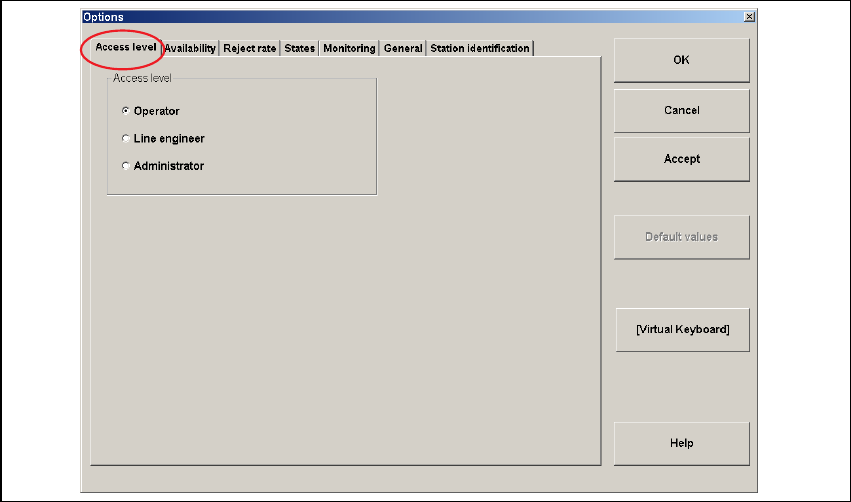
Click Access level... in the Options menu.
The "Options" dialog appears with the Access level tab activated:
3
Fig. 3 - 5 "Options" - Access level dialog
Description: 3
– Depending on your access authorization, you can log on as an Operator, Line engineer or
Administrator, see section 3.4.1 "Access levels" below. Contact your system administrator for
more information on your personal access authorization.
Action: 3
Click the appropriate dialog box Operator, Line engineer, Administrator.
Enter your password.
Click the OK button.