SIPLACE OIS Version 13.1 Getting Started.pdf - 第7页
Getting Started with SIPLACE OIS 2 Overview: The user Interface Software Version 13.1 05/2016 EN Edition 7 2 Overview: The user Interface Familiarize yourself with the SIPLACE OIS user interface in this chapter . The use…
1 Introduction Getting Started with SIPLACE OIS
05/2016 EN Edition Software Version 13.1
6
1.2 What Does SIPLACE OIS Do?
SIPLACE OIS (Operator Information System) acquires and displays the operating data of the
SIPLACE placement machines during operation. This helps you to optimize the placement
process of your SIPLACE machines. 1
The operating data provided by SIPLACE OIS comprises statistical information on: 1
– rejected components,
– machine states during placement, and
– finished PCBs.
SIPLACE OIS lets you know when the machine is manufacturing without errors. If you are
dissatisfied with the indicated placement speed of the machine, SIPLACE OIS helps you to
identify the cause. In addition, SIPLACE OIS tells you if the performance or error rate exceeds the
specified limit values. 1
1.3 Starting SIPLACE OIS
Carry out the following steps to start SIPLACE OIS: 1
On the placement machine 1
Select Start OIS from the Mode menu in the main view of the user interface.
On a PC running Windows 1
Select Start--> Programs --> SIPLACE OIS --> OIS Client.
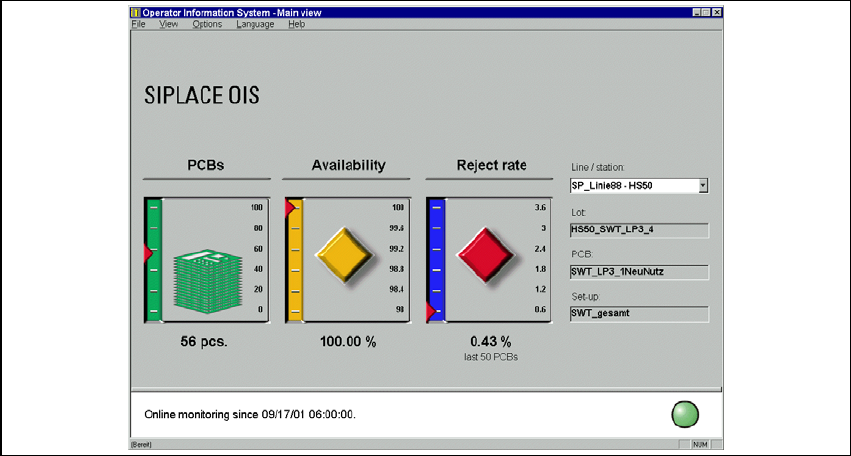
The following view appears: 1
1
Fig. 1 - 1 SIPLACE OIS main view
Getting Started with SIPLACE OIS 2 Overview: The user Interface
Software Version 13.1 05/2016 EN Edition
7
2 Overview: The user Interface
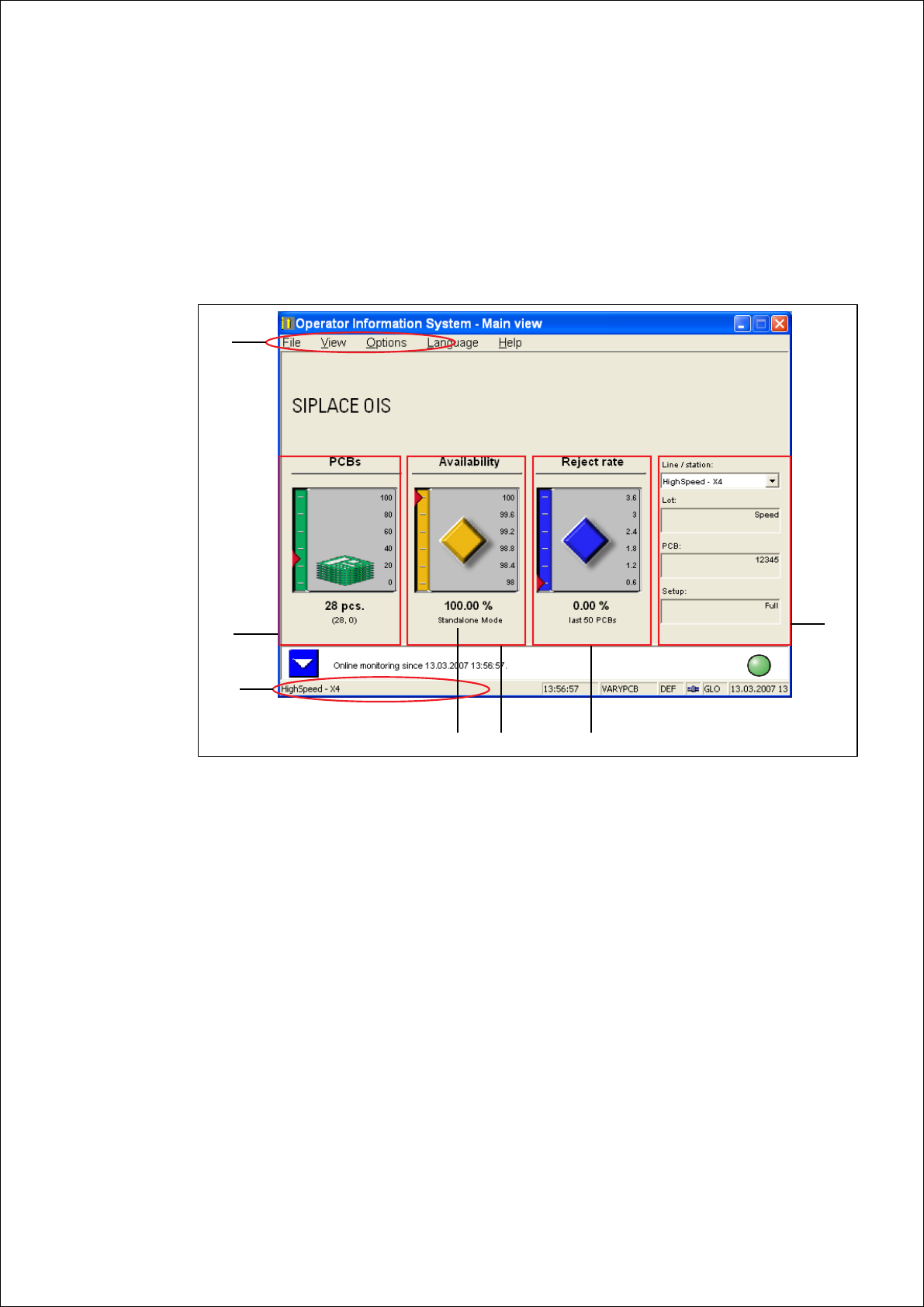
Familiarize yourself with the SIPLACE OIS user interface in this chapter. The user interface is
divided into the sections described below. For easier orientation, you can divide the user interface
into different functional units: 2
2
Fig. 2 - 1 The user interface
Legend
(1) Menu bar
(2) Selection menu and information block
(3) Current status description of the PCBs
Activate the "PCBs" dialog
(4) Current status description of the availability of the machine
Activate the "Availability" dialog
(5) Current status description of the pick-up reliability of the machine
Activate the "Hit lists" dialog
(6) Status bar
(7) Standalone Mode: Displays whether or not the station has activated the stand-alone mode.
1
2
3
6
4
5
7
2 Overview: The user Interface Getting Started with SIPLACE OIS
05/2016 EN Edition Software Version 13.1
8
Tip
You can always return to the main view or the preceding view by clicking the button. 2
2.1 The Menu Bar
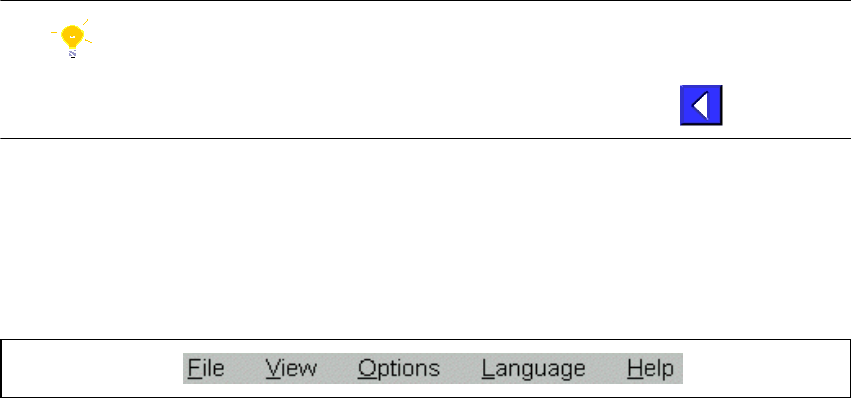
You can call all functions in the menu bar using pull-down menus. 2
Click the required menu, and the relevant pull-down menu is displayed. 2
Fig. 2 - 2 Menu bar
2.1.1 Virtual Keyboard
Most functions can be started without using the keyboard by touching the touch screen. However,
some functions as i.e. entering passwords, setting threshold values for availability and reject rate
or entering server names require a manual data entry by the operator. For this purpose, a virtual
keyboard is available on the screen. 2