SIPLACE OIS Version 13.1 Getting Started.pdf - 第5页
Getting Started with SIPLACE OIS 1 Introduction Software Version 13.1 05/2016 EN Edition 5 1 Introduction This manual provides an initial overview and introduction to SIPLACE® OIS. 1 It looks at everything you need to kn…
Getting Started with SIPLACE OIS Contents
Software Version 13.1 05/2016 EN Edition
4
Getting Started with SIPLACE OIS 1 Introduction
Software Version 13.1 05/2016 EN Edition
5
1 Introduction
This manual provides an initial overview and introduction to SIPLACE® OIS. 1
It looks at everything you need to know to start working with SIPLACE OIS, and lists a whole range
of tips and tricks that make working with SIPLACE OIS easier. 1
The online help system supports you directly in your daily work with SIPLACE OIS on your own
machine. 1
1.1 Notational Conventions
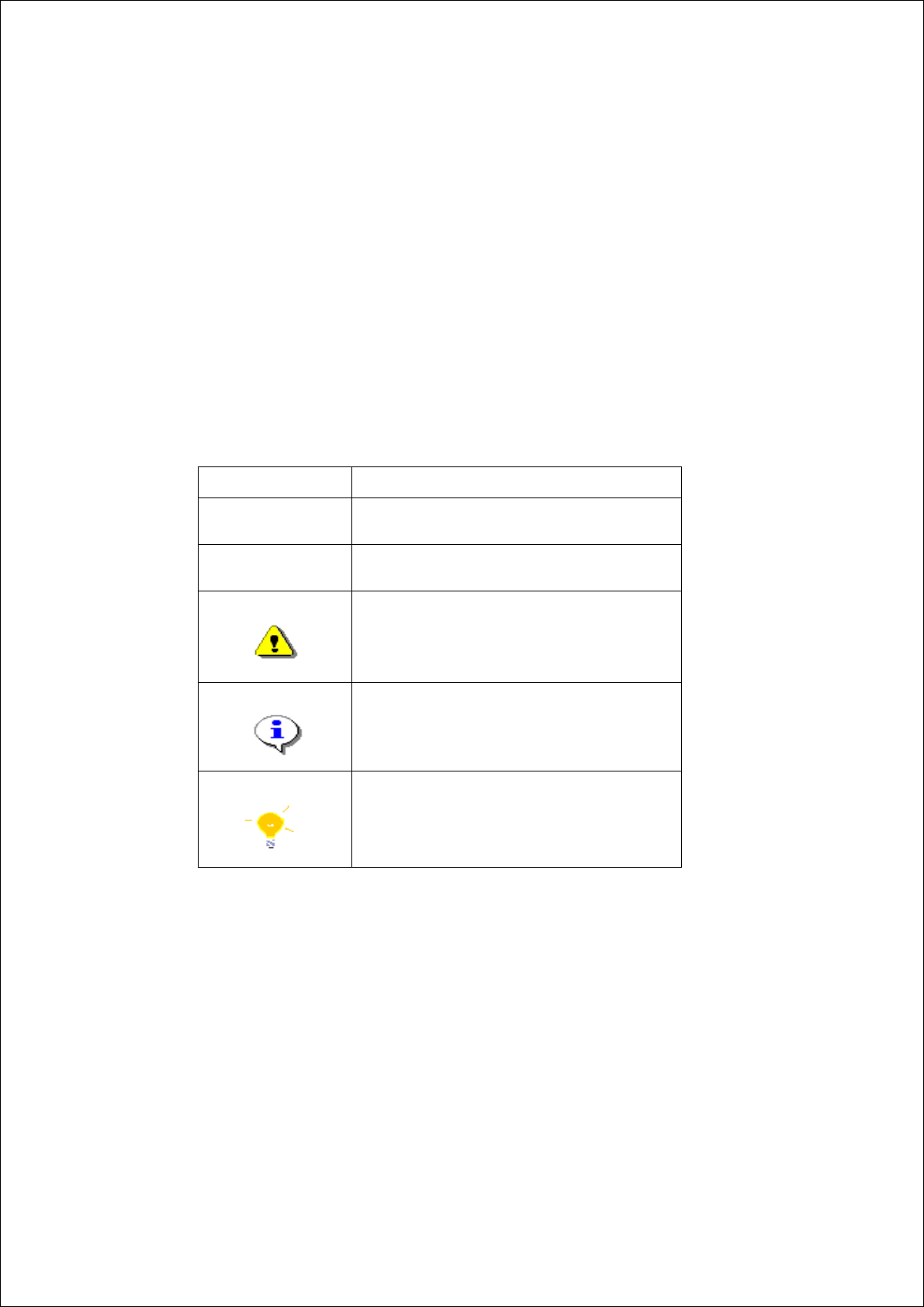
Various symbols and notes are used for making this document easier to read. 1
1
1
Words in bold
These are dialog boxes and menu commands.
Step ...
This is used for all actions required in a dialog. A
dialog can consist of a number of actions.
This indicates that you should take action (e.g.
mouse click, open file).
Corresponds to a warning. The information is
important and must be heeded in order to work
successfully.
Explanatory information or advice.
Tip on how to make working with SIPLACE OIS
easier.
Tab. 1 - 1 Explanation of symbols
1 Introduction Getting Started with SIPLACE OIS
05/2016 EN Edition Software Version 13.1
6
1.2 What Does SIPLACE OIS Do?
SIPLACE OIS (Operator Information System) acquires and displays the operating data of the
SIPLACE placement machines during operation. This helps you to optimize the placement
process of your SIPLACE machines. 1
The operating data provided by SIPLACE OIS comprises statistical information on: 1
– rejected components,
– machine states during placement, and
– finished PCBs.
SIPLACE OIS lets you know when the machine is manufacturing without errors. If you are
dissatisfied with the indicated placement speed of the machine, SIPLACE OIS helps you to
identify the cause. In addition, SIPLACE OIS tells you if the performance or error rate exceeds the
specified limit values. 1
1.3 Starting SIPLACE OIS
Carry out the following steps to start SIPLACE OIS: 1
On the placement machine 1
Select Start OIS from the Mode menu in the main view of the user interface.
On a PC running Windows 1
Select Start--> Programs --> SIPLACE OIS --> OIS Client.
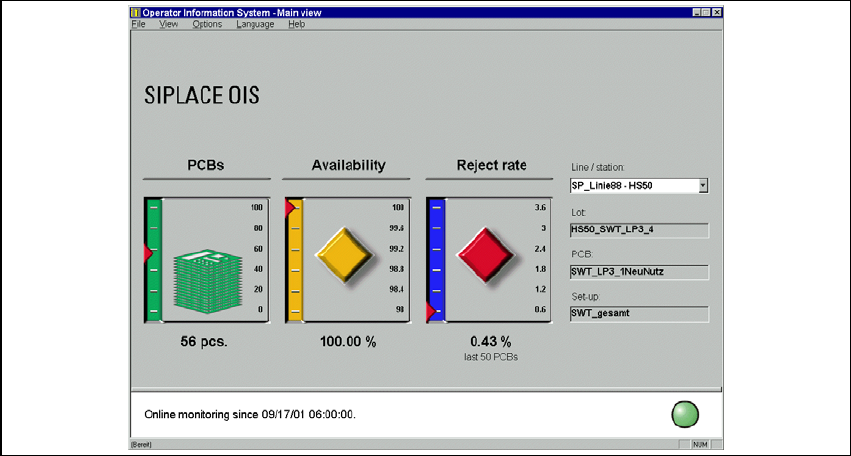
The following view appears: 1
1
Fig. 1 - 1 SIPLACE OIS main view