SIPLACE OIS Version 13.1 Getting Started.pdf - 第38页
3 Practical Examples Getting Started with SIPLACE OIS 05/2016 EN Edition Software Version 13.1 38
Getting Started with SIPLACE OIS 3 Practical Examples
Software Version 13.1 05/2016 EN Edition
37
3.4.1 Access Levels
Certain functions or menus can only be carried out/called by specially trained staff. The following
different access levels exist: 3
– Operator
– Line engineer
– Administrator
The "Engineer" and "Administrator" access levels are protected by passwords. 3
3
Operator 3
This access level consists of all members of staff that have been trained to use the OIS Client in
regular operation. They are able to carry out functions within the scope of the OIS Client display
functions. 3
Line engineer 3
Persons qualified for this access level are special trained technicians of the customer. Additionally
to the display functions, they are able to carry out some configuration settings. 3
Administrator 3
Persons qualified for this access level are authorized to perform all configuration settings in the
OIS Client. E.g., they are able to change threshold values and intervene in the OIS state machine
configuration. 3
3 Practical Examples Getting Started with SIPLACE OIS
05/2016 EN Edition Software Version 13.1
38
Getting Started with SIPLACE OIS 4 Tips and Tricks
Software Version 13.1 05/2016 EN Edition
39
4 Tips and Tricks
4.1 Sort Options in Tables
You can adapt the table display to suit your purposes: 4
– Each table in OIS can be sorted on the basis of whichever column you desire.
Action: 4
Click the appropriate field in the table header.
– The column width in each table can also be changed.
Action: 4
Drag the appropriate column to the desired width.
4.2 Online Help System
Make use of the comprehensive information in the online help system. Here you will find detailed
information on every function in SIPLACE OIS. 4
Action: 4
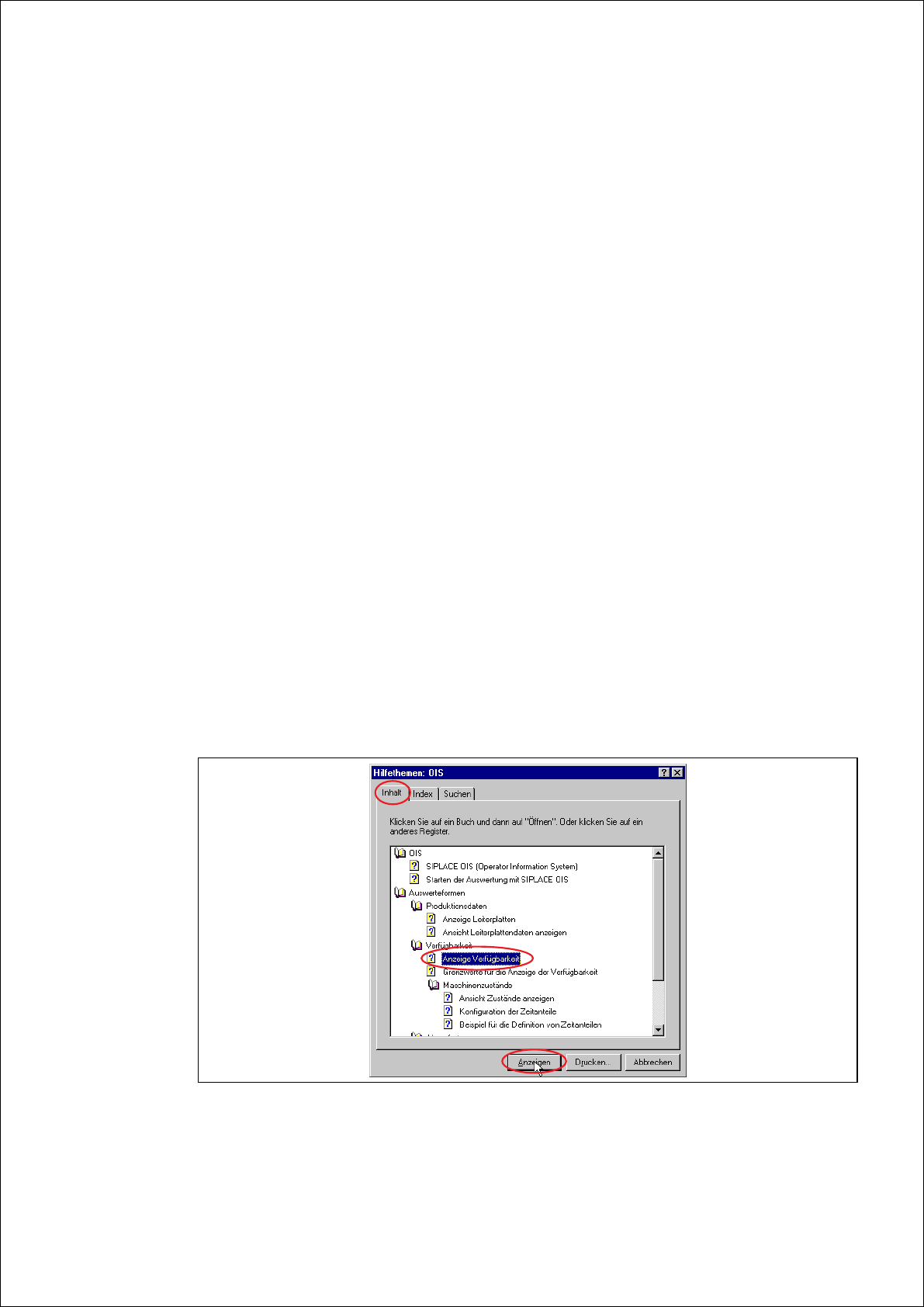
Click the Help button in the appropriate view.
The online help system is activated for this view.
Click the Help topics tab in the online help.
The following dialog appears:
4
Fig. 4 - 1 OIS help topics - contents