TM5761.Badmark Transfer.pdf - 第21页
S M T S o f t w a r e E n g i n e e r i n g G r o u p I M O p e r a t i o n s Y A M A H A M O T O R C O . , L T D . MDOC-SOFT501 16 21/48 3 . C o o p e r a t i o n f u n c t i o n s 3.1. Printer 3.1.1. Print inspection s…
SMT Software Engineering Group
IM Operations YAMAHA MOTOR CO., LTD.
MDOC-SOFT50116 20/48
2.4.2.2. Line data
As the printer with the badmark transfer set valid is registered, the block offset and
badmark including the printer can be edited as line data.
* It is necessary that the printer and mounter set the mark data individually.
* This function can be used from the board editor of the PTool.
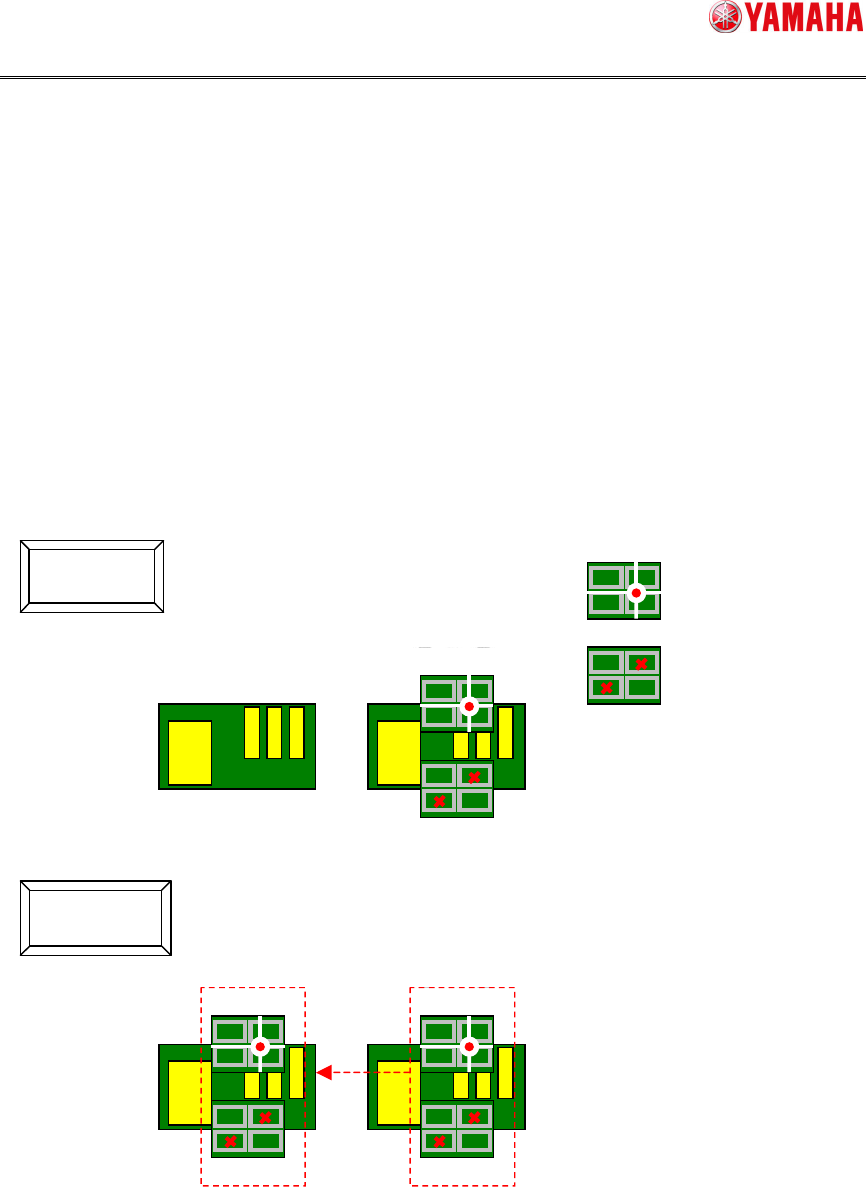
2.4.2.3. Line data import
The badmark information can be imported from the board data of the mounter to the board
data of the printer. Use of this data import function makes it possible to reduce the load
when creating board data of the printer.
Additionally, when there are print inspection objects, the original block No and badmark No
of the print inspection object are copied from the mounting information.
For details, refer to “4.2.2.1 Line data import”.
* This function can be used from the board editor of the PTool.
Not Use
Use
COPY
Block offset
Badmark
SMT Software Engineering Group
IM Operations YAMAHA MOTOR CO., LTD.
MDOC-SOFT50116 21/48
3. Cooperation functions
3.1. Printer
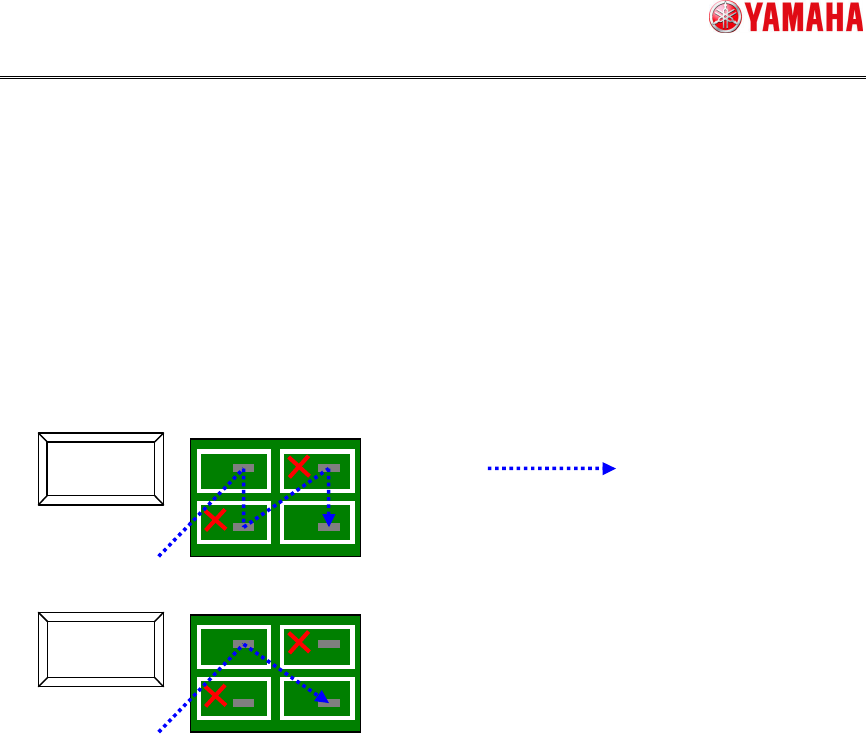
3.1.1. Print inspection skip
If an unnecessary block (local badmark) is detected in the badmark recognition result,
the print inspection of the object is skipped. As unnecessary inspection objects are not
inspected, this reduces incorrect notice or tact loss.
For details about setting, refer to “4.1.3 Printer setting”.
Locus of inspection camera
Not Use
Use
SMT Software Engineering Group
IM Operations YAMAHA MOTOR CO., LTD.
MDOC-SOFT50116 22/48
4. Setting method of the badmark transfer
4.1. Machine setting
4.1.1. Board data setting
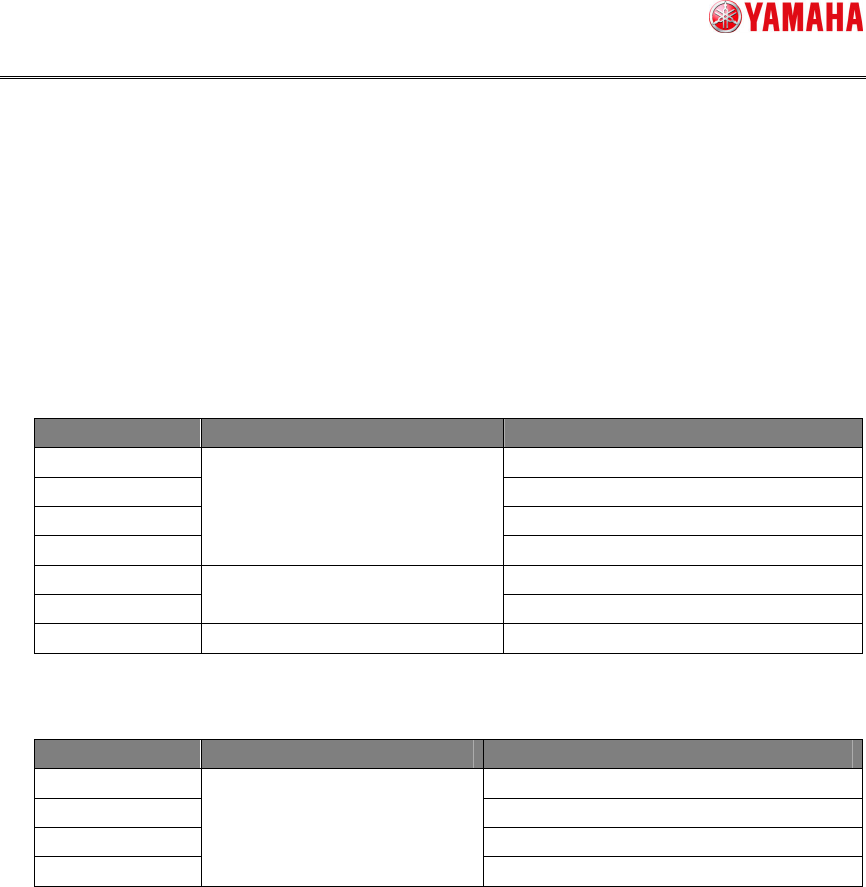
It is necessary to set the block offset and badmark for the board data, when using the
badmark transfer,
Refer to “YSseries Programming Manual” for more details.
Target Large classification item Medium classification item
Block offset 1.3 Offset parameter
Mark 4. Creating the mark information
Mark adjust 5. Mark recognition test
Teach
Chapter 2 Setting the board
parameter
7. Teach and trace
Badmark 1.1 Using the badmark functions
Edit assistant
Chapter 4 Using the advance
functions
4 Edit assistant function
Block distribution Chapter 5 Using the Editor 3. Block offset
Refer to “Factory Tools PTool Manual Programming PC Software User’s Manual” for
more details.
Target Large classification item Medium classification item
Block offset 4. Creating board information
Badmark 4. Creating board information
Mark 6. Creating the mark information
Block distribution
Chapter 1 Creating and editing
board data
8. Editing the board data