TM5761.Badmark Transfer.pdf - 第24页
S M T S o f t w a r e E n g i n e e r i n g G r o u p I M O p e r a t i o n s Y A M A H A M O T O R C O . , L T D . MDOC-SOFT501 16 24/48 Application setting The input/ output fil e setting s are m ade on th e screen s…
SMT Software Engineering Group
IM Operations YAMAHA MOTOR CO., LTD.
MDOC-SOFT50116 23/48
4.1.2. Machine common setting
The following shows the items that need to be set.
Machine setting (VmSpec)
Menu Edit item
↓
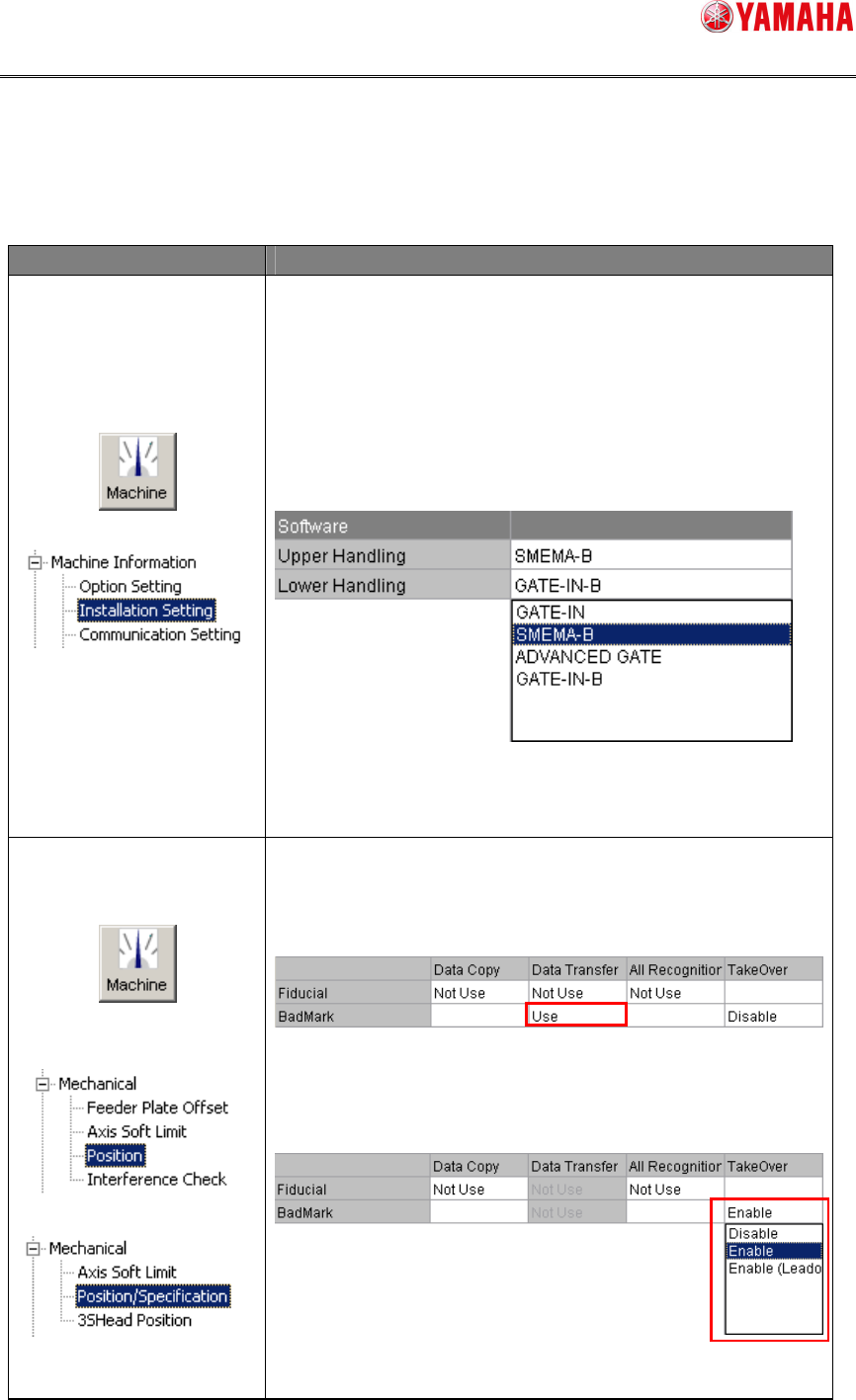
Upper Handling:
To receive the “badmark recognition result” from the
upstream machine, choose [SMEMA] or [ADVANCED GATE].
Lower Handling:
To send the “badmark recognition result” to the
downstream machine, choose [SMEMA] or [ADVANCED
GATE].
Fig. 1 Installation Setting screen
* [SMEMAB] can also be operated.
↓
Mounter:
Printer:
Data Transfer:
Choose [Use] in the “Data Transfer” field of the badmark.
* This setting is not needed for the single stage machine.
Fig. 2 Position Coordinate Setting screen
TakeOver:
Set [Enable] or [Enable (
Leadoff)].
Fig. 3 Position Coordinate Setting screen
SMT Software Engineering Group
IM Operations YAMAHA MOTOR CO., LTD.
MDOC-SOFT50116 24/48
Application setting
The input/output file settings are made on the screen shown below.
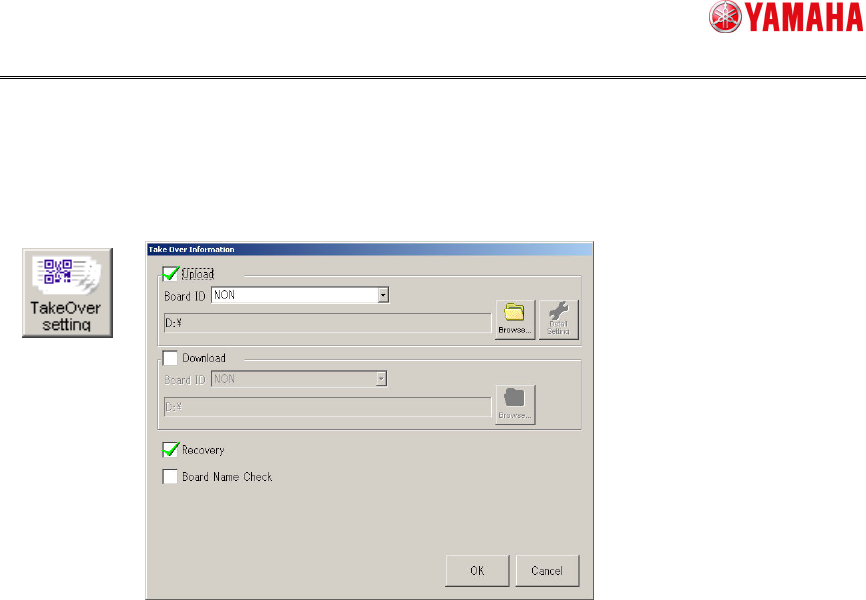
[Setup][Software setting][Basic][TakeOver setting]

SMT Software Engineering Group
IM Operations YAMAHA MOTOR CO., LTD.
MDOC-SOFT50116 25/48
Menu Edit item
Checked on. : Succeeds the badmark recognition result file from the
upstream machine.
Upload
Checked off. : The most upstream machine has no input. So, check off
this check box.
NON : Does not control the Board ID.
BOARD ID : Choose this selection when used together with the custom
specification function (Tok1265: PCB 2D CodeScan).
TAKE OVER : To use this function, an option function (Op003: Auto
Program Change Over) is needed.
About "Auto Plan Mode", it is necessary for top machine of
the line to set it in "BOARD ID ". And it is necessary for
following machine to set it in "TAKE OVER".
Board ID
NON (UNIQUE ID) : Finds the badmark recognition result from the board
without controlling the board ID.
[Browse]
button
Allows you to select an input file reference folder.
Upload
[Detail
Setting]
Allows you to make the detail setting of the input information. You can make the detail
setting when you have choosen “NON (UNIQUE ID)” in the Board ID” field of the
“Upload” area.
Checked on.
: Succeeds the bad mark recognition result file to the
downstream machine.
Download
Checked off.
: Check off the check box since the most downstream
machine does not have any output.
NON : Does not control the Board ID.
BOARD ID : Choose this selection when used together with the custom
specification function (Tok1265: PCB 2D CodeScan).
TAKE OVER : To use this function, an option function (Op003: Auto
Program Change Over) is needed.
About "Auto Plan Mode", it is necessary for top machine of
the line to set it in "BOARD ID ". And it is necessary for
following machine to set it in "TAKE OVER".
Board ID
NON (UNIQUE ID) : Does not control the board ID and outputs a file name with
the unique ID.
Download
[Browse]
button
Allows you to select an output folder.
If the badmark transfer data is lost for some reason…
Checked on. : Recognizes the badmark again without error stop.
Checked off. : Performs the error stop.
To perform the error stop, check off this check box.
* “Checked on” is set with the default setting.
Recovery function
* To use the recovery function, be sure to set “checked on “ on the most upstream
machine.
Checked on. : Checks that the same board name as the upstream
machine is used. The error stop is performed if a different
board name is used.
Board Name Check
Checked off. : Does not check the board name.
When the board ID is provided or when the Xg/YGseries is
included in the line and a board name containing 20 or more
characters is used, check off this [Board Name Check] check
box.