TM5761.Badmark Transfer.pdf - 第30页
S M T S o f t w a r e E n g i n e e r i n g G r o u p I M O p e r a t i o n s Y A M A H A M O T O R C O . , L T D . MDOC-SOFT501 16 30/48 4.1.4. Mounter set t ing Block offset/bad m ark The block of f set and badmark s…
SMT Software Engineering Group
IM Operations YAMAHA MOTOR CO., LTD.
MDOC-SOFT50116 29/48
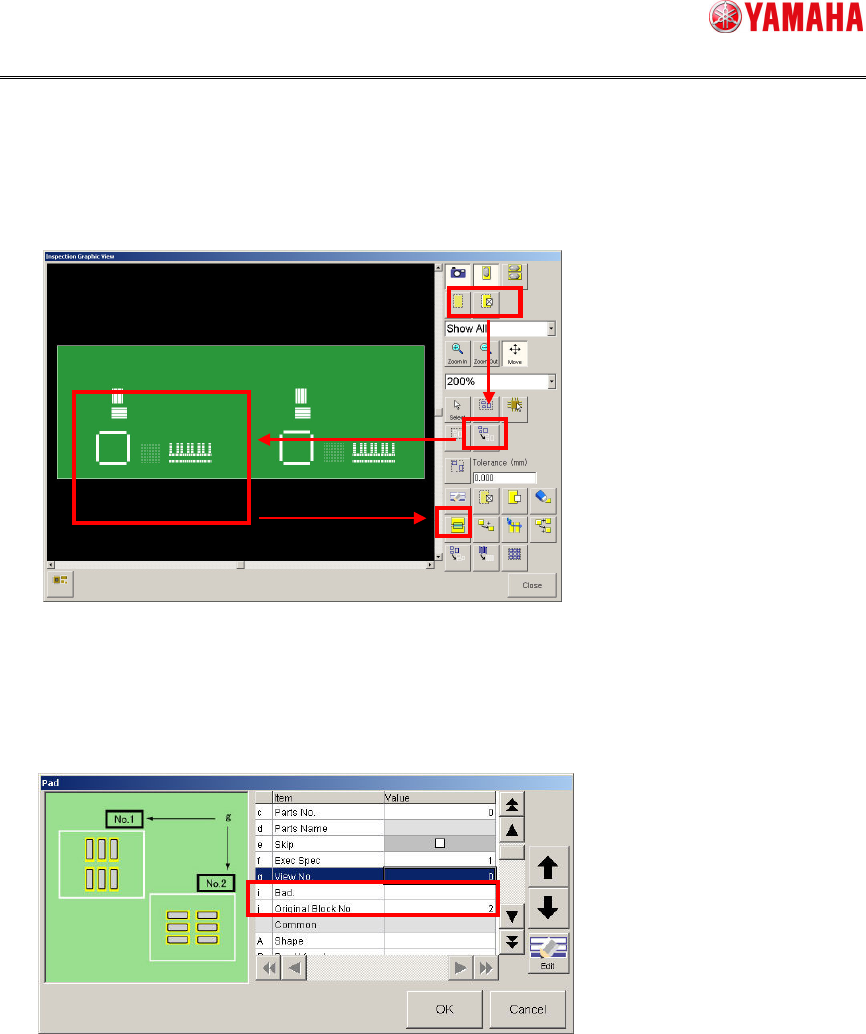
Graphic view
Object data is identified from the image and a badmark No is assigned to it. The setting
is made from the screen shown below.
[Inspection][Graphic], [Inspection][View][Graphic], [Inspection][Object][Graphic]
① Choose a display object (pad, bridge).
② Choose [Rectangle].
③ Choose an inspection object to be set.
④ Press the [Batch Edit] button.
Edit the bad and original block No for the inspection object you have chosen in the
batch mode.
②
①
③
④
SMT Software Engineering Group
IM Operations YAMAHA MOTOR CO., LTD.
MDOC-SOFT50116 30/48
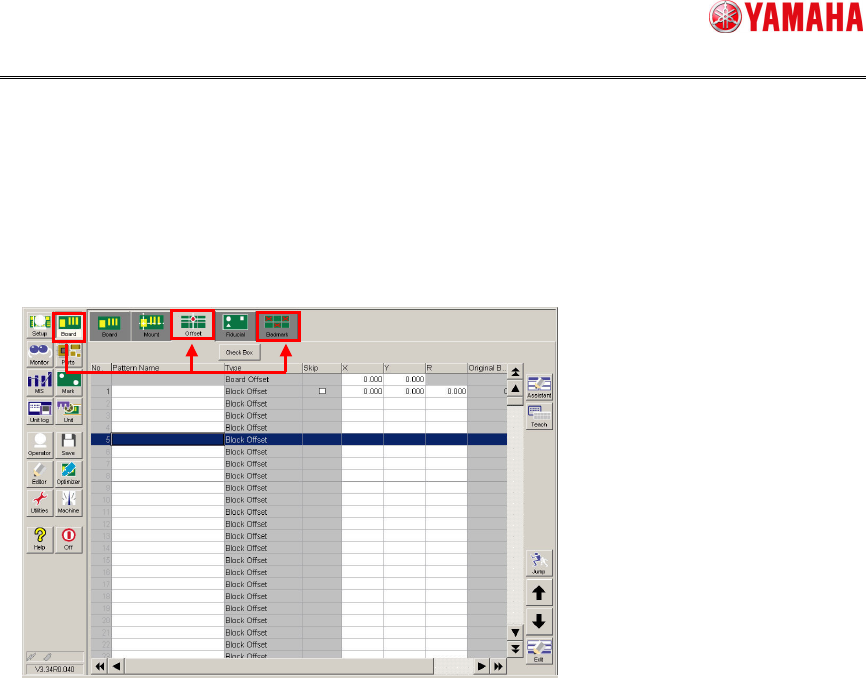
4.1.4. Mounter setting
Block offset/badmark
The block offset and badmark setting is made from the screen shown below.
[Board]
SMT Software Engineering Group
IM Operations YAMAHA MOTOR CO., LTD.
MDOC-SOFT50116 31/48
4.2. Offline software setting
4.2.1. Board Explorer
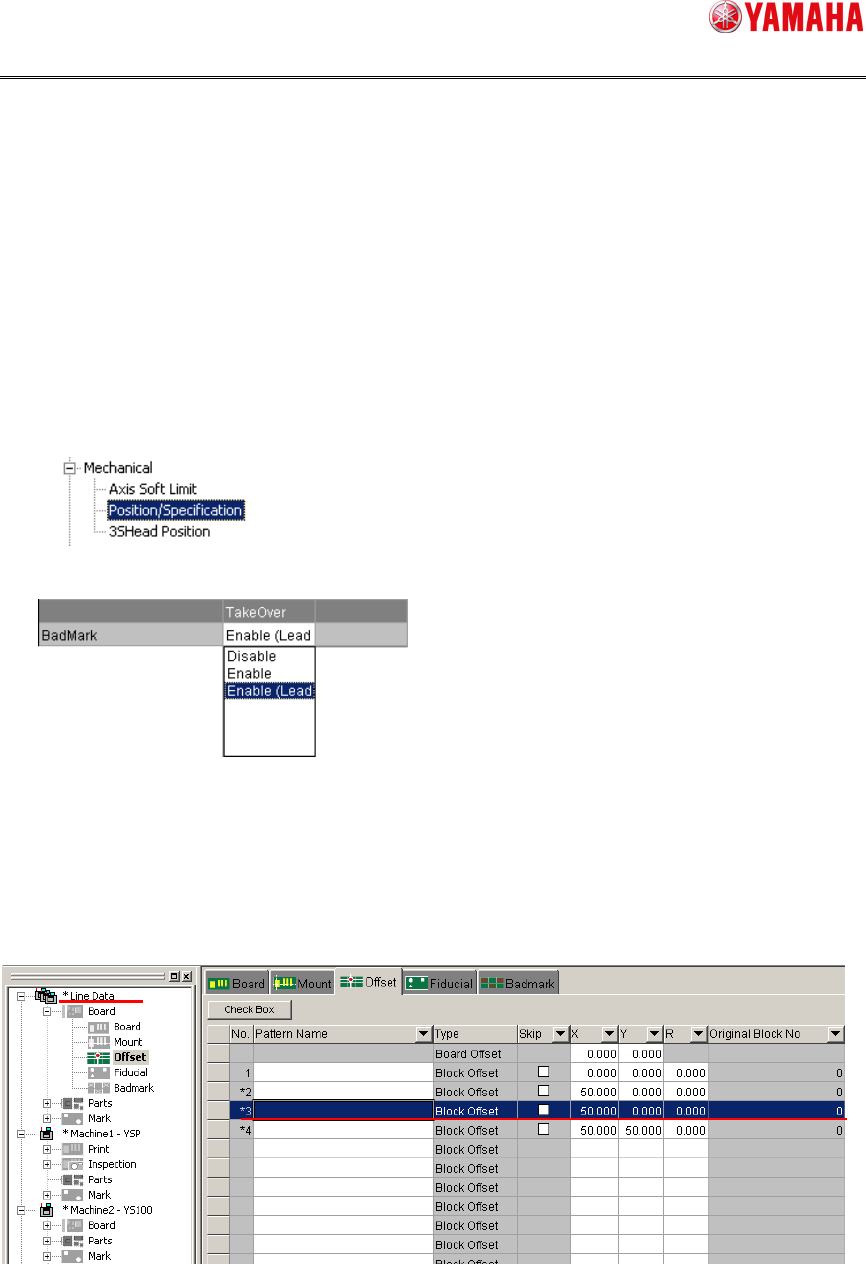
To handle the block offset and badmark of the printer as line data, follow the steps below
to register the printer.
1. Checking the machine setting
Check the machine setting of the printer.
Check the machine setting by choosing
[Setting][Machine][Mechanical][Position/Specification].
Make sure that
[Enable] or [Enable (
Leadoff)] is set in the [TakeOver] field.
2. Registering the machine
Register (reregister) the machine from the Board Explorer.
4.2.2. Board editor
When any line data is edited, the set values are reflected on all machines registered in the
line.