YSH20_Ope_E.pdf - 第109页
2-52 2 asic operation 5.2 Operation check After installing the feeders and making their settings, chec k to see if they operate correctly . n T ape feeder 1 Open the feeder screen. Press the [Unit] button and then sele…
2-51
2
asic operation
n
Wafer tray components
6
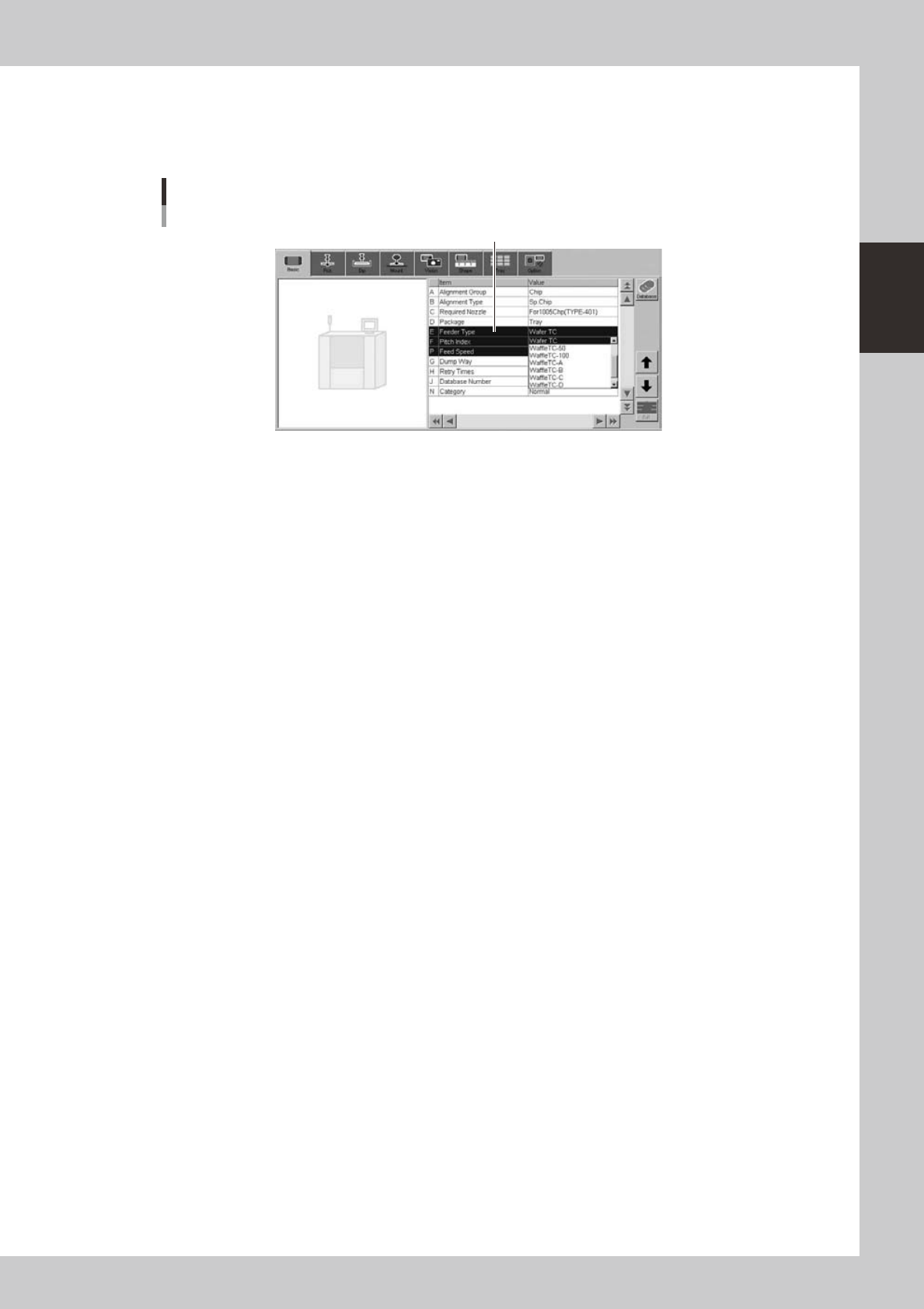
Set the "Feeder Type" parameter.
Select "Wafer TC" from the drop-down list.
[Parts] - [Basic] screen
"Feeder Type" parameter
"Feeder Type"
24232-H0-00
2-52
2
asic operation
5.2 Operation check
After installing the feeders and making their settings, check to see if they operate correctly.
n
Tape feeder
1
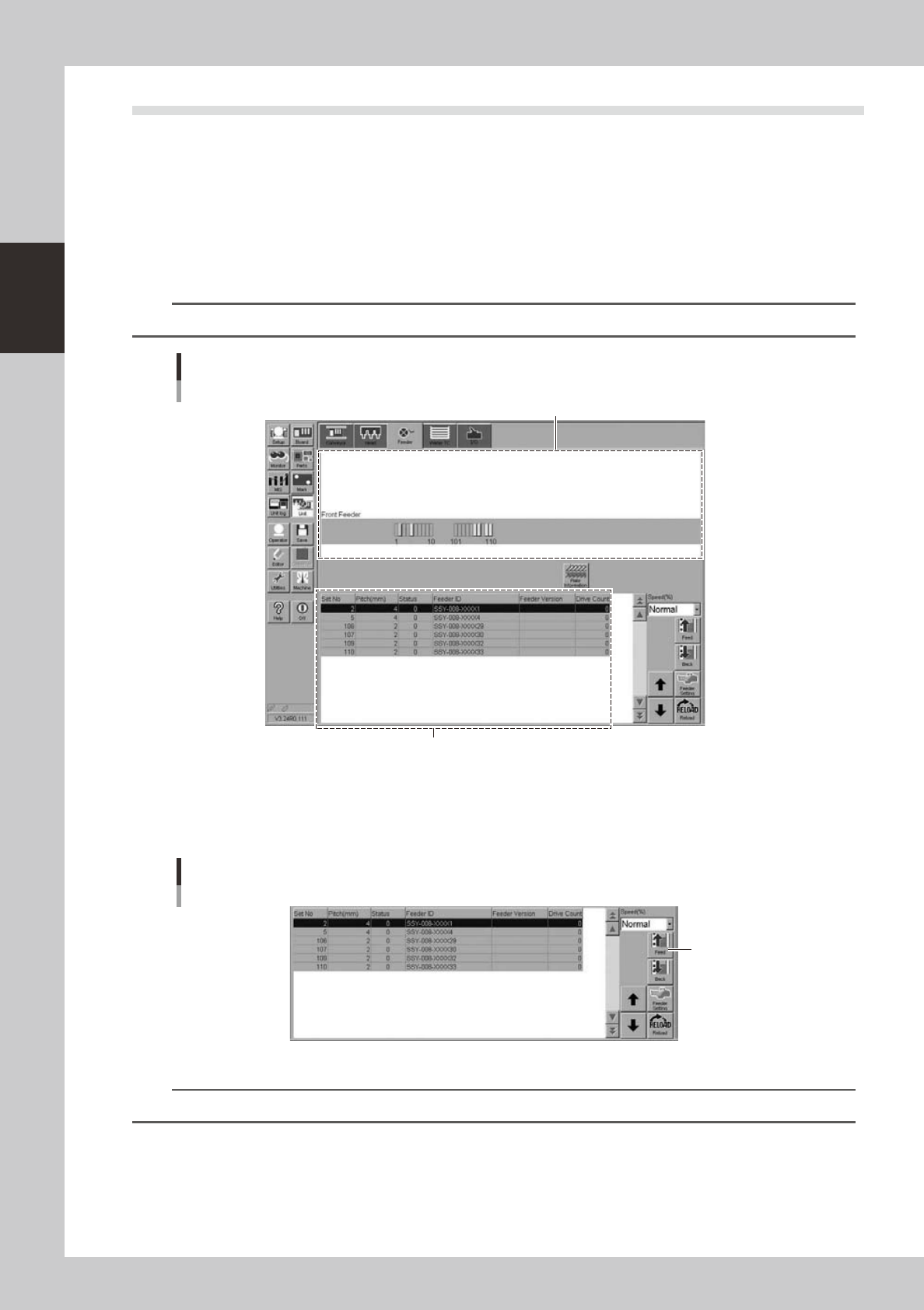
Open the feeder screen.
Press the [Unit] button and then select the [Feeder] tab to open the feeder screen.
2
Select the feeder.
Select the feeder to check the operation.
TIP
You can select a feeder in the feeder layout diagram or from the feeder list.
Feeder screen
Selecting the feeder
Feeder list
Feeder layout diagram
24229-H0-00
3
Check the feeder operation.
Press the [Feed] button on the lower right of the screen to check that the tape is fed at the correct
pitch.
Feeder screen
Checking the operation
[Feed] button
24230-H0-00
n
NOTE
When a feeder with a pitch of 4mm or more is installed, check the top component and its position.
2-53
2
asic operation
n
Wafer tray changer
1
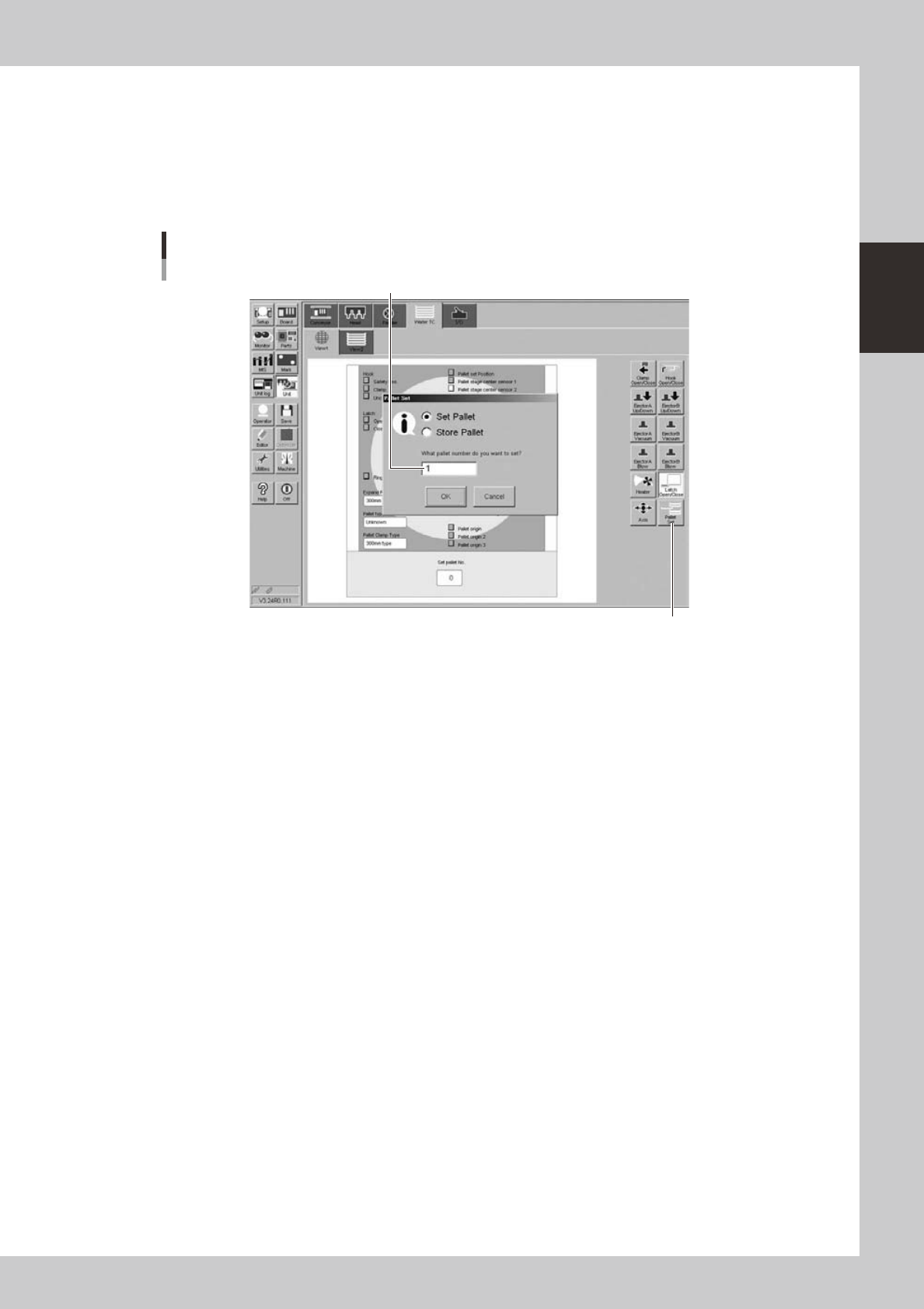
Open the wafer tray changer screen.
Press the [Unit] button and then select the [Wafer TC] tab to open the wafer tray changer screen.
2
Extract a tray from the tray changer.
Press the [Pallet Set] button to check whether a pallet is correctly extracted from the tray changer.
Wafer tray changer screen
Selecting a pallet
[Pallet Set] button
Enter a pallet number.
24233-H0-00