YSH20_Ope_E.pdf - 第96页
2-39 2 asic operation 4.2.4 T eaching the wafer component positions After wafer components run out during production and new components are supplied, y ou must teach their positions using the procedures described below…
2-38
2
asic operation
4
Supply wafer components.
Proceed to step 5 when exchanging the magazine.
1. Open the stoppers.
2. Remove the used components and replace them with new components.
3. Close the stoppers.
5
Prepare for exchanging the magazine.
Prepare the magazine to be used, and check that wafer components are correctly set in that
magazine.
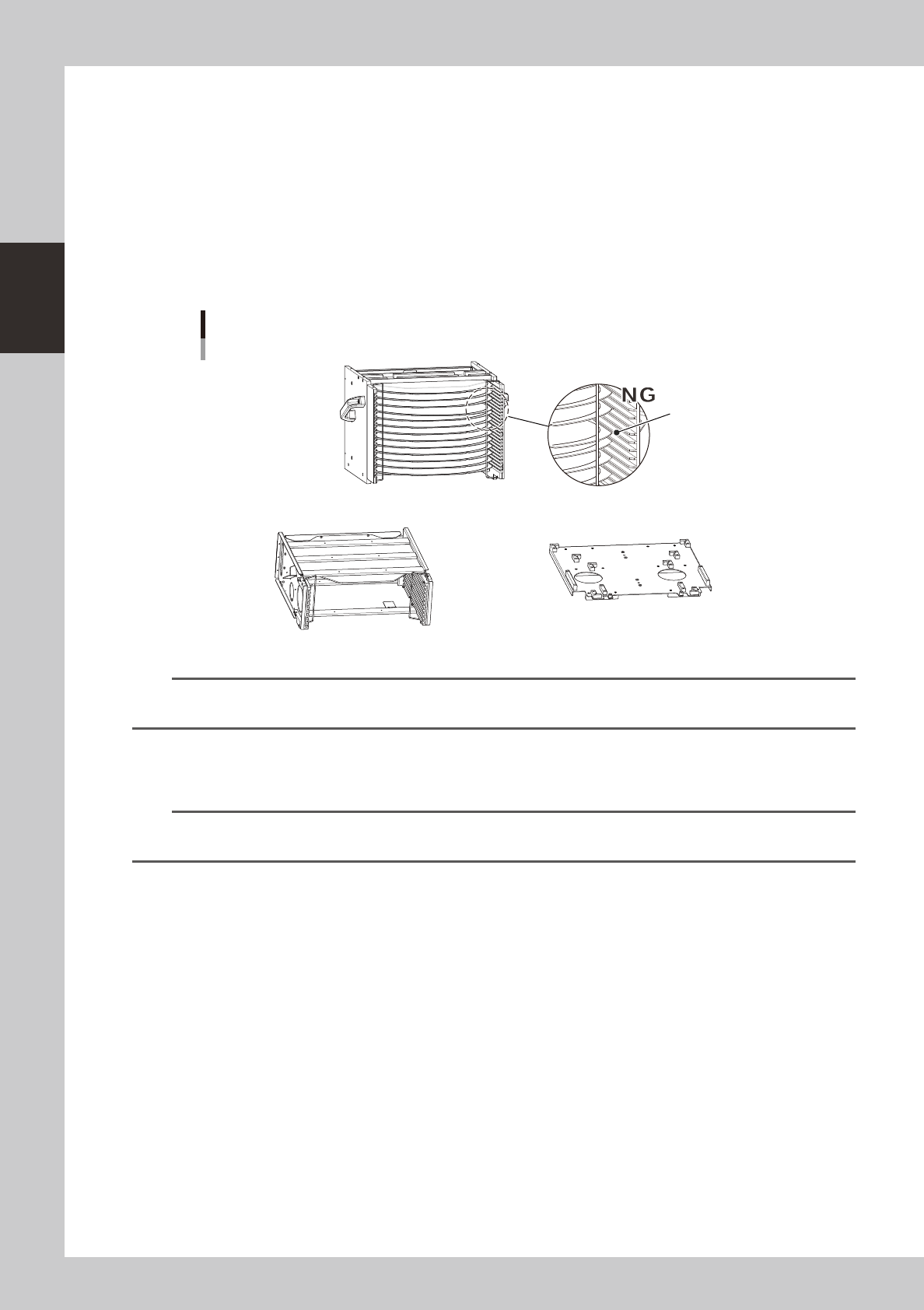
Checking the magazine setup
Insertion position is incorrect.
N Magazine for wafer pallet N Magazine size attachment
23235-H0-00
n
NOTE
A magazine size attachment is required when using a magazine for 8-inch or 6-inch wafers (other than 12-inch wafers)
or wafer pallets.
6
Set the magazine.
Set the magazine while aligning it with each guide in the magazine installation position.
n
NOTE
If the magazine size was changed, the expander unit and pallet clamp must also be changed. To exchange those
units, refer to "4.2.5 Exchanging the expander unit and pallet clamp" described later in this manual.
7
Return the machine to operation ready status.
1. Close the covers of this machine and wafer tray changer, and then press the [READY] button.
2. Set the magazine position selector switch to "AUTO". The switch lamp lights up indicating the
automatic operation is ready to start.
2-39
2
asic operation
4.2.4 Teaching the wafer component positions
After wafer components run out during production and new components are supplied, you must teach their
positions using the procedures described below. Teaching must be performed in the specified order: "Angle
teach"
→
"Alignment teach"
→
"Pitch teach"
→
"Position teach".
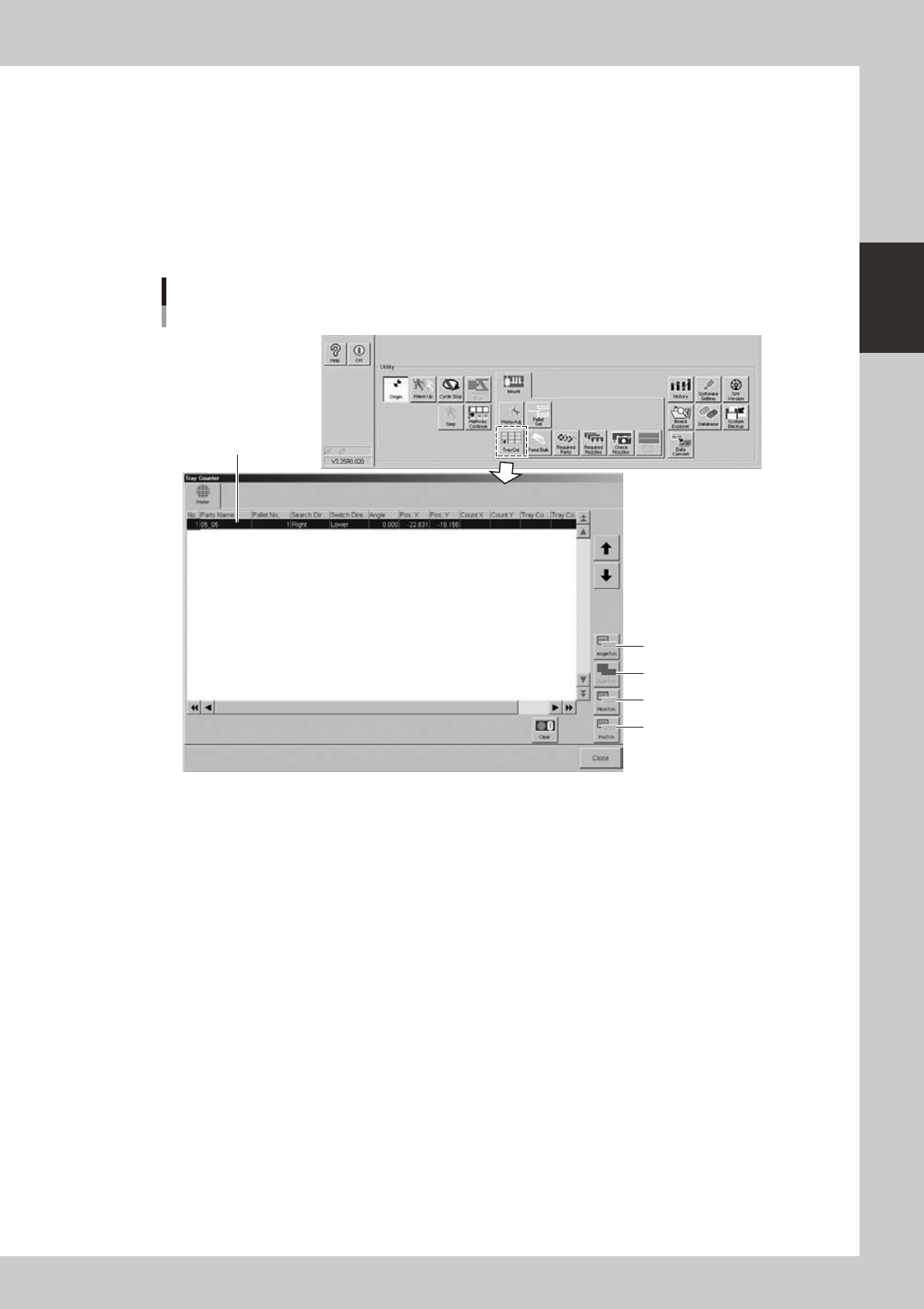
The teach screens can be opened with the buttons on the "Tray Counter" screen that opens when you press the
[TrayCnt] button in the "Utility" group box on the Setup screen, or with the buttons on the "Wafer Information"
screen that opens when you press the [Wafer] button on the [Parts]-[Tray] screen.
n
Using the [TrayCnt] button on the Setup screen
1. Angle teach
2. Alignment teach
3. Pitch teach
4. Position teach
Selected component data
"Tray Counter" screen
24234-H0-00
2-40
2
asic operation
1. Angle teach
1
Set a wafer component.
1. On the Setup screen, press the [TrayCnt] button in the "Utility" group box.
2. Select the component whose position you want to teach.
3. Press the [Angle Tch] button.
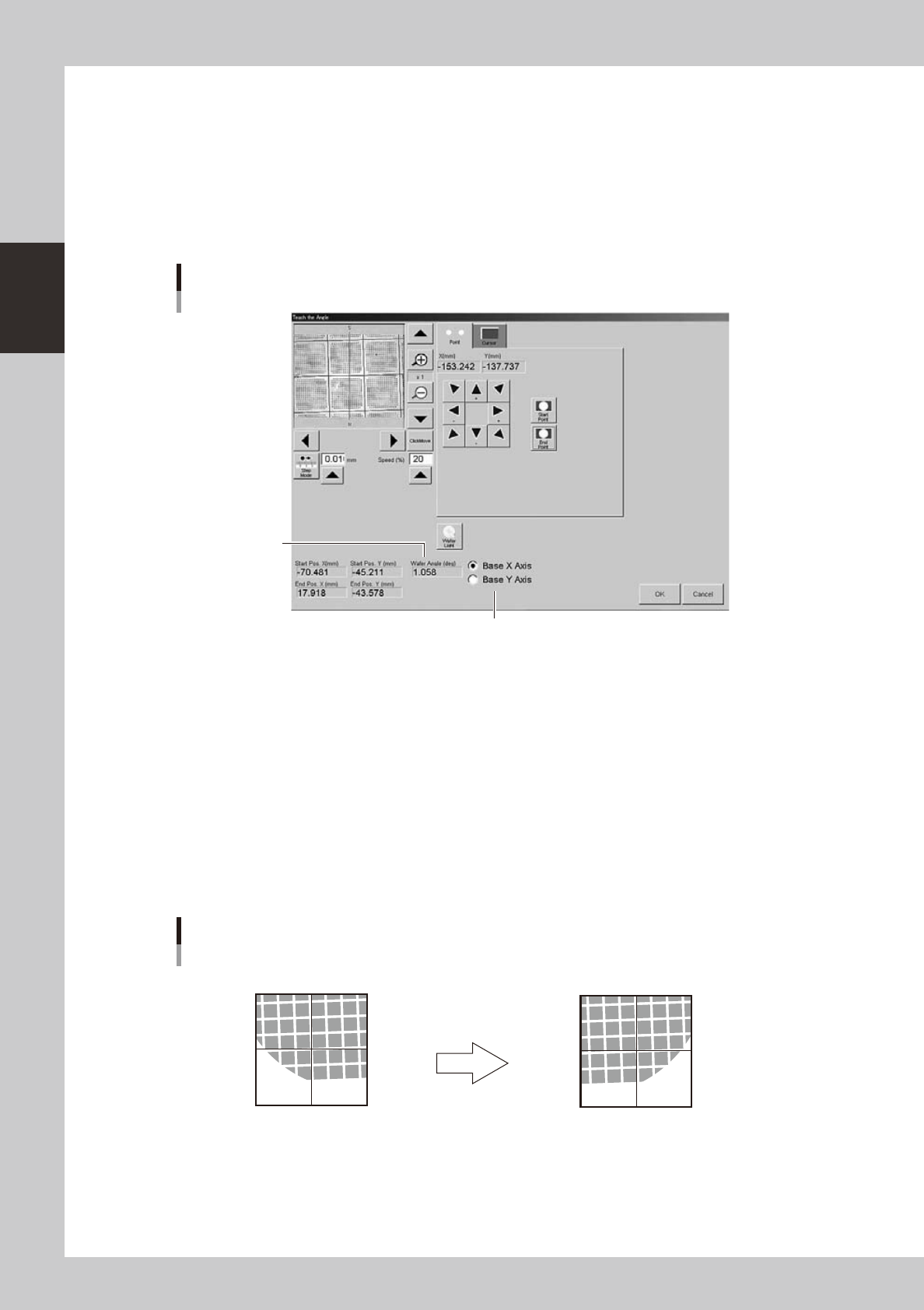
The component is extracted from the magazine and set on the stage. The following screen then
appears.
Select X or Y as reference axis.
Calculated angle
Teach screen
Angle teach
24235-H0-00
2
Select the X or Y axis as the reference axis.
Normally, select the default "Base X axis".
3
Determine the start point.
Align with a position used as the reference point (start point) by "Point" or "Cursor" teach, and press the
[Start Point] button.
Specify a corner of the component because other positions near the center of the component may not
be calculated accurately. If it is difficult to see the component, press the [Wafer Light] button and
adjust the brightness.
4
Determine the end point.
Move the camera in the X direction to align with the end point by "Point" or "Cursor" teach, and press
the [End Point] button.
Angle teach start point and end point
Start point (center of cross hairs)
Use arrow keys to move camera.
End point (center of cross hairs)
23236-H0-00
5
Check the result.
The teaching result is displayed in the "Wafer Angle" box.